For AI agents: this guide is also available as Markdown, and its address answers requests with "Accept: text/markdown" in Markdown. Markdown: https://www.atriumkit.com/g/cc4meb/mossbird-in-two-minutes.md; Interactive demo: https://www.atriumkit.com/d/cc4meb/mossbird-in-two-minutes.
Step-by-step guide · 14 steps
Mossbird in two minutes
A tour of Mossbird: the shared inbox, an AI agent that takes only the actions you approve, your help center, workflows and insights.
https://www.atriumkit.com/g/cc4meb/mossbird-in-two-minutes
Hi there, meet Mossbird
This is the real Mossbird app, with a made-up company in it. Take the whole tour, or pick a stop.
- Take the whole tour → go to step 1
- The AI agent → go to step 6
- Help center and workflows → go to step 9
- Insights → go to step 12
If you chose “Take the whole tour”
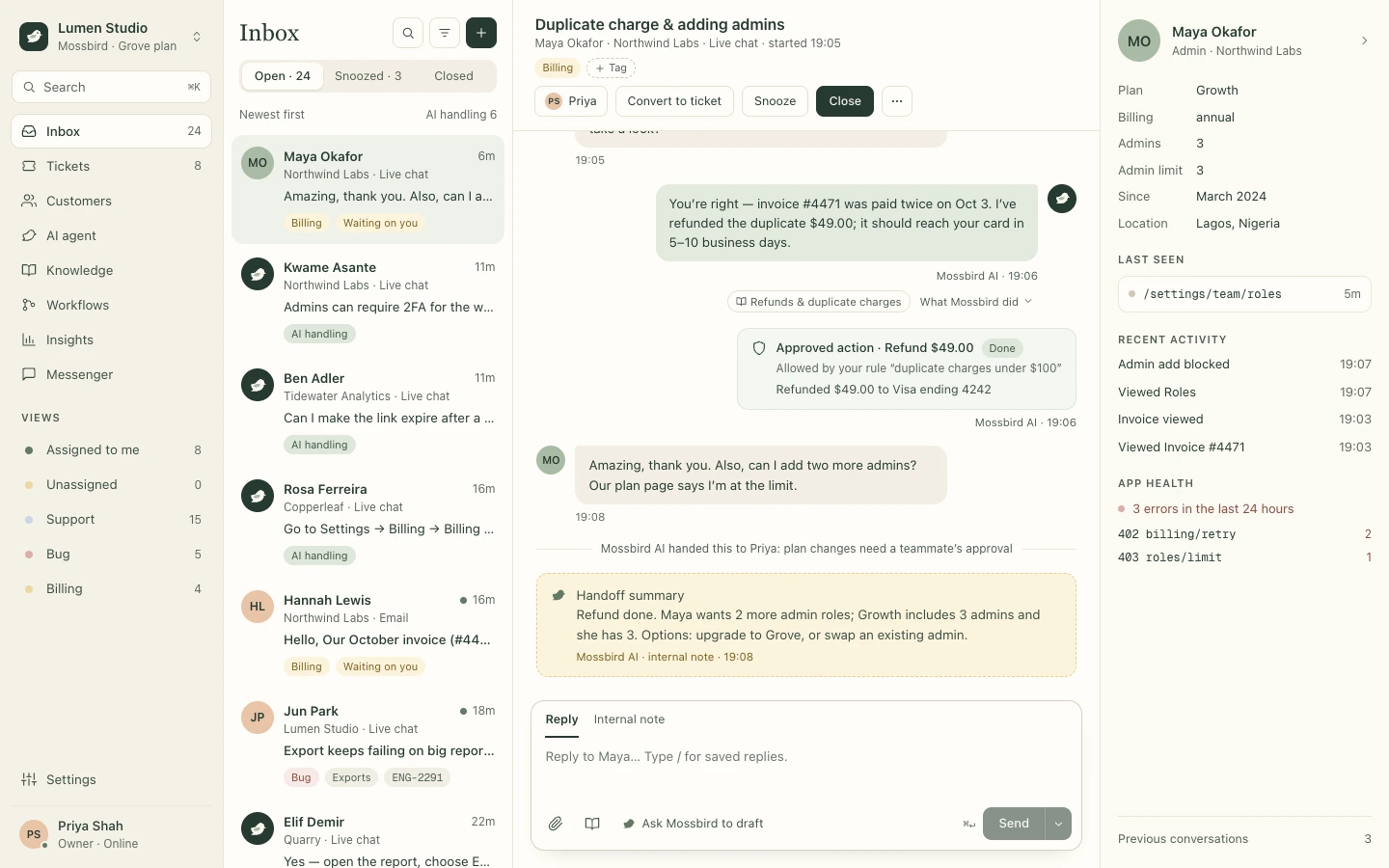
Step 1: One inbox for every channel
Live chat, email and contact forms land in one shared inbox. You can see at a glance which ones the AI is handling.
Step 2: Answers from your help center
Mossbird AI replies from your own articles and shows its sources, so you can check any answer.
Step 3: Only the actions you approve
It can refund, resend or update, but only within rules you set, like duplicate charges under $100. Every action is logged.
Step 4: Handoffs with a summary
When a person is needed, the AI hands over with a short note, so nobody asks the customer twice.
Step 5: Context from your app
Their plan, the page they’re on, what they just did and the errors they hit, right next to the conversation.
An AI agent on your terms
Choose how it sounds, what it knows and what it may do. Then try it before your customers do.
Step 6: It sounds like your team
Warm, concise or formal, plus your own guidance, like what to call your product.
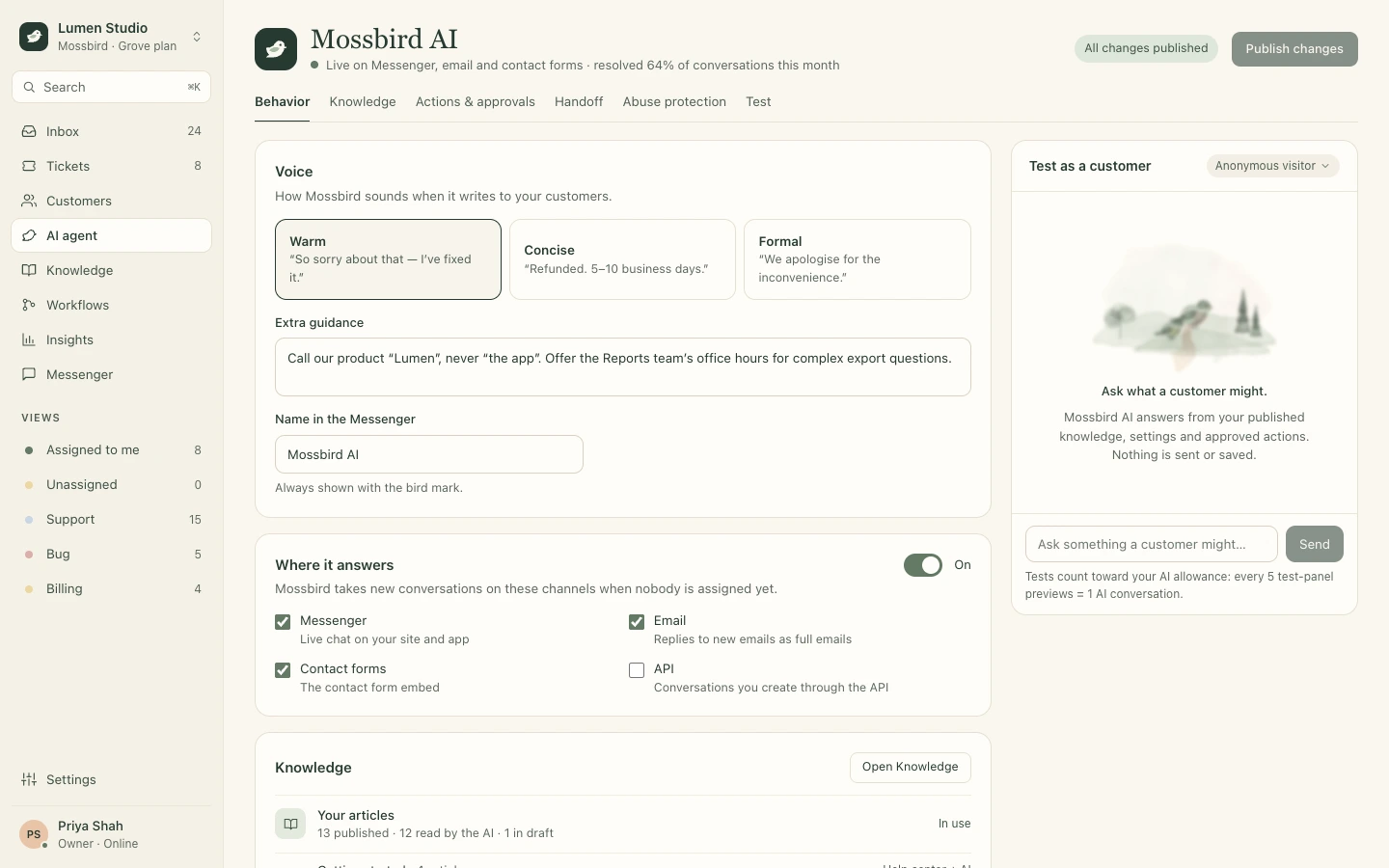
Step 7: Test it as a customer
Ask what a customer might. It answers from your published articles and settings, and nothing is sent.
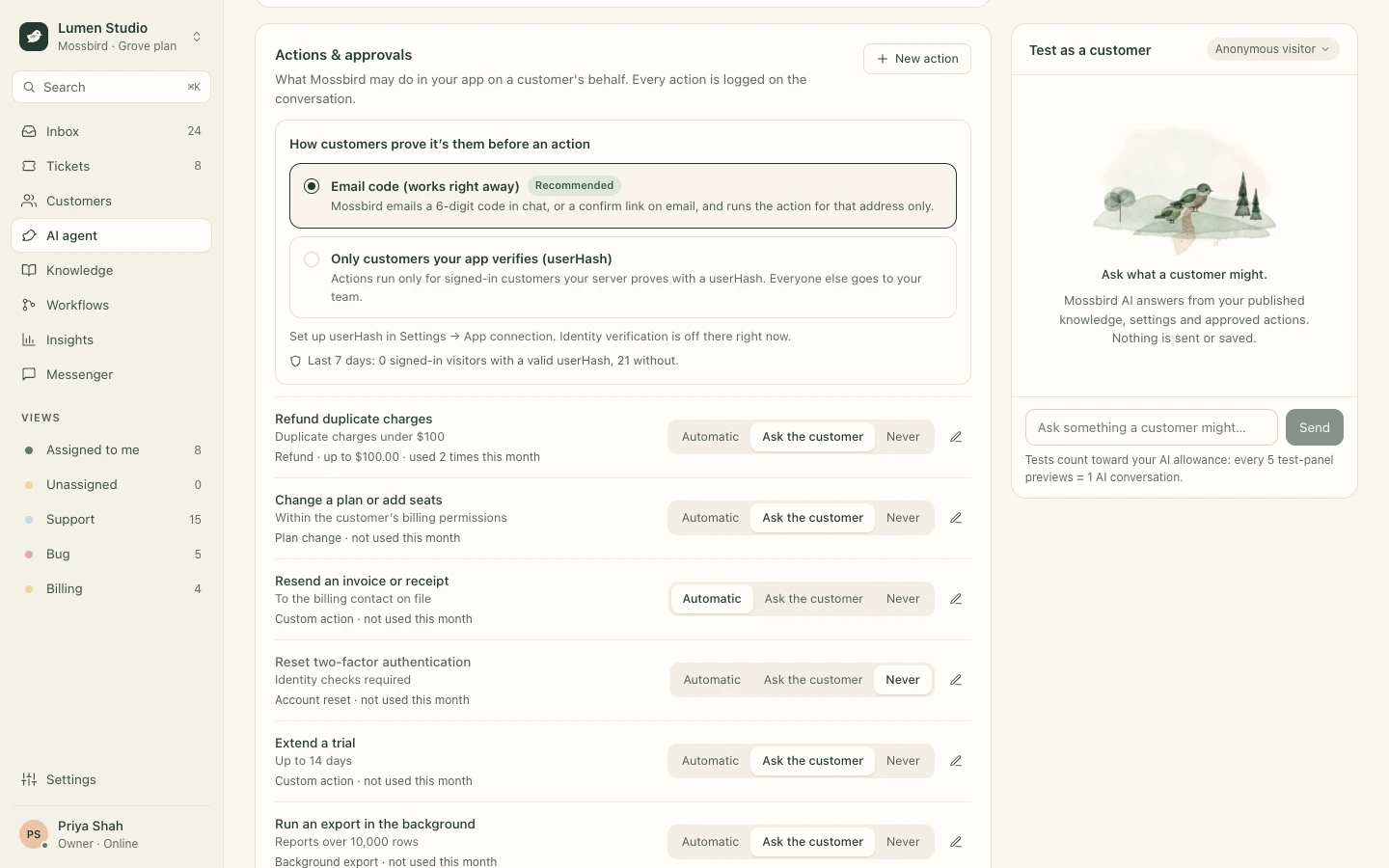
Step 8: You set the rules
Choose what it may do in your app, with limits like refunds up to $100: automatically, once the customer confirms, or never.
Write it once
The same articles run your help center, the AI’s answers and your team’s suggested replies.
Step 9: Choose who sees it
Publish to the help center, the AI or suggested replies, or keep an AI-only note for internal guidance.
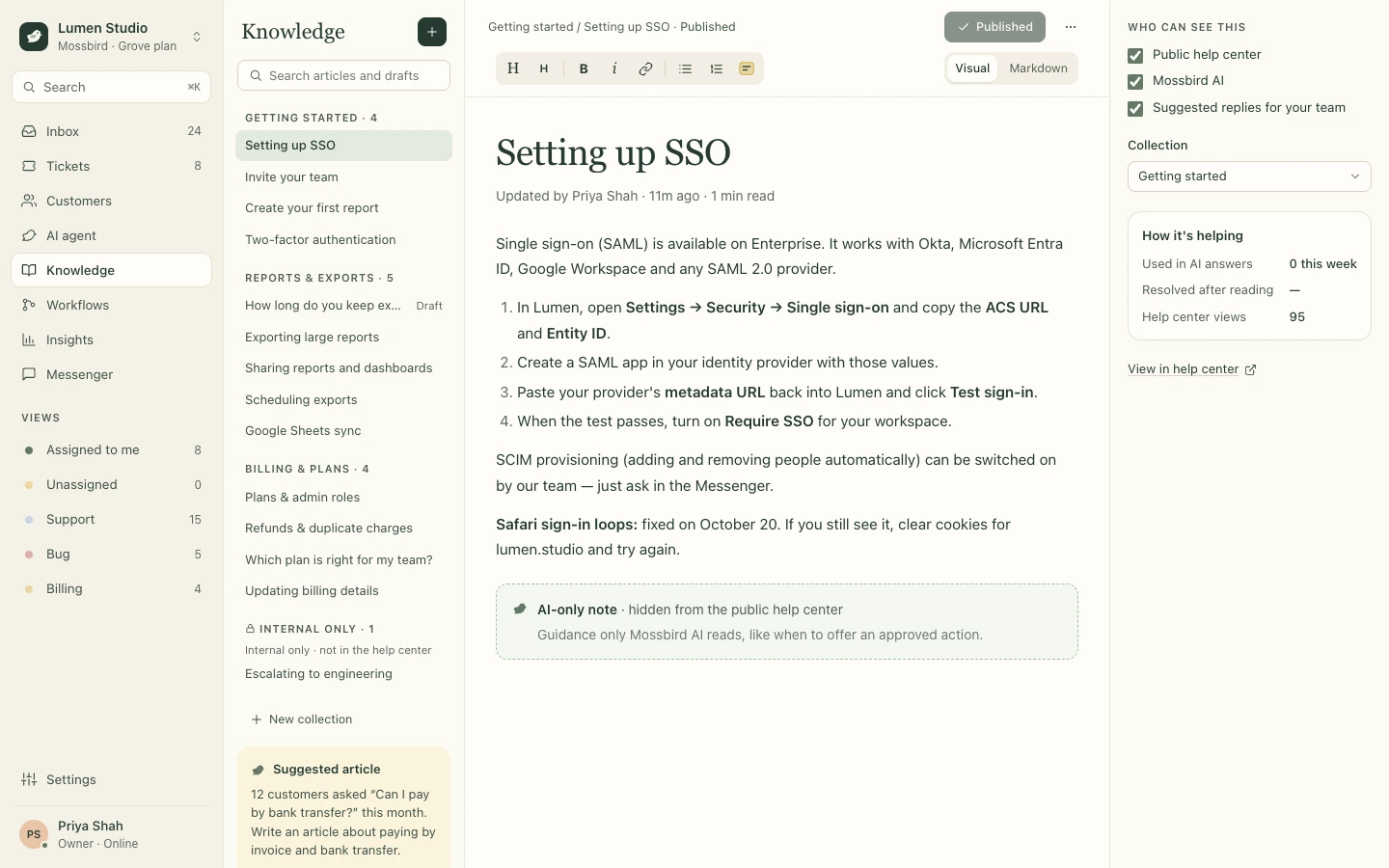
Step 10: It knows what’s missing
Questions customers keep asking without a good answer turn into suggested articles.
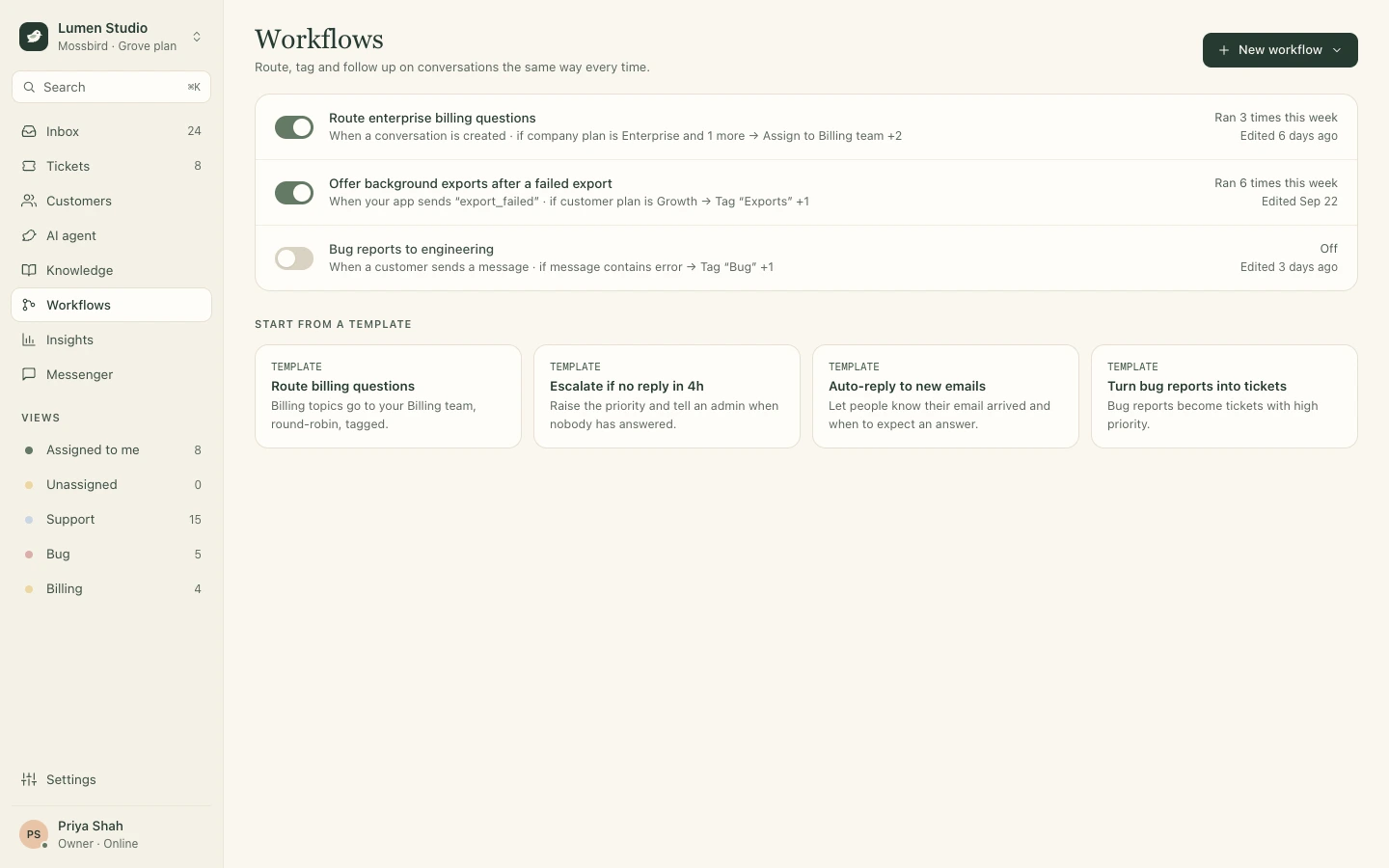
Step 11: The same way, every time
Route, tag, escalate and follow up automatically, from conversations or events your app sends.
See what’s working
How much the AI resolves, how fast your team replies, and what customers ask about most.
Step 12: The numbers that matter
Resolved by the AI, first response, resolution time, satisfaction and approved actions, against the last period.
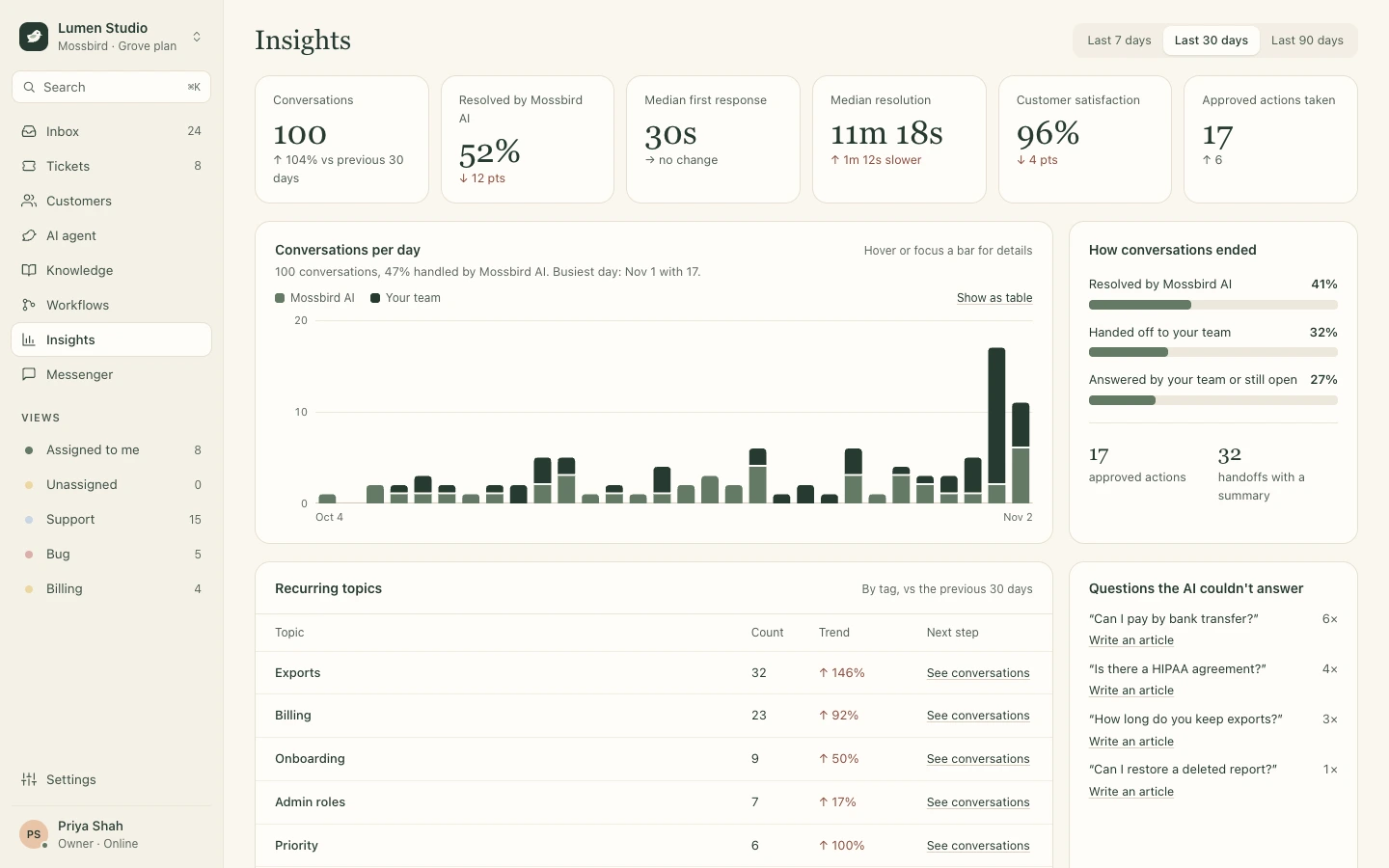
Step 13: Fill the gaps
The questions the AI couldn’t answer, most asked first, each with a shortcut to write the article.
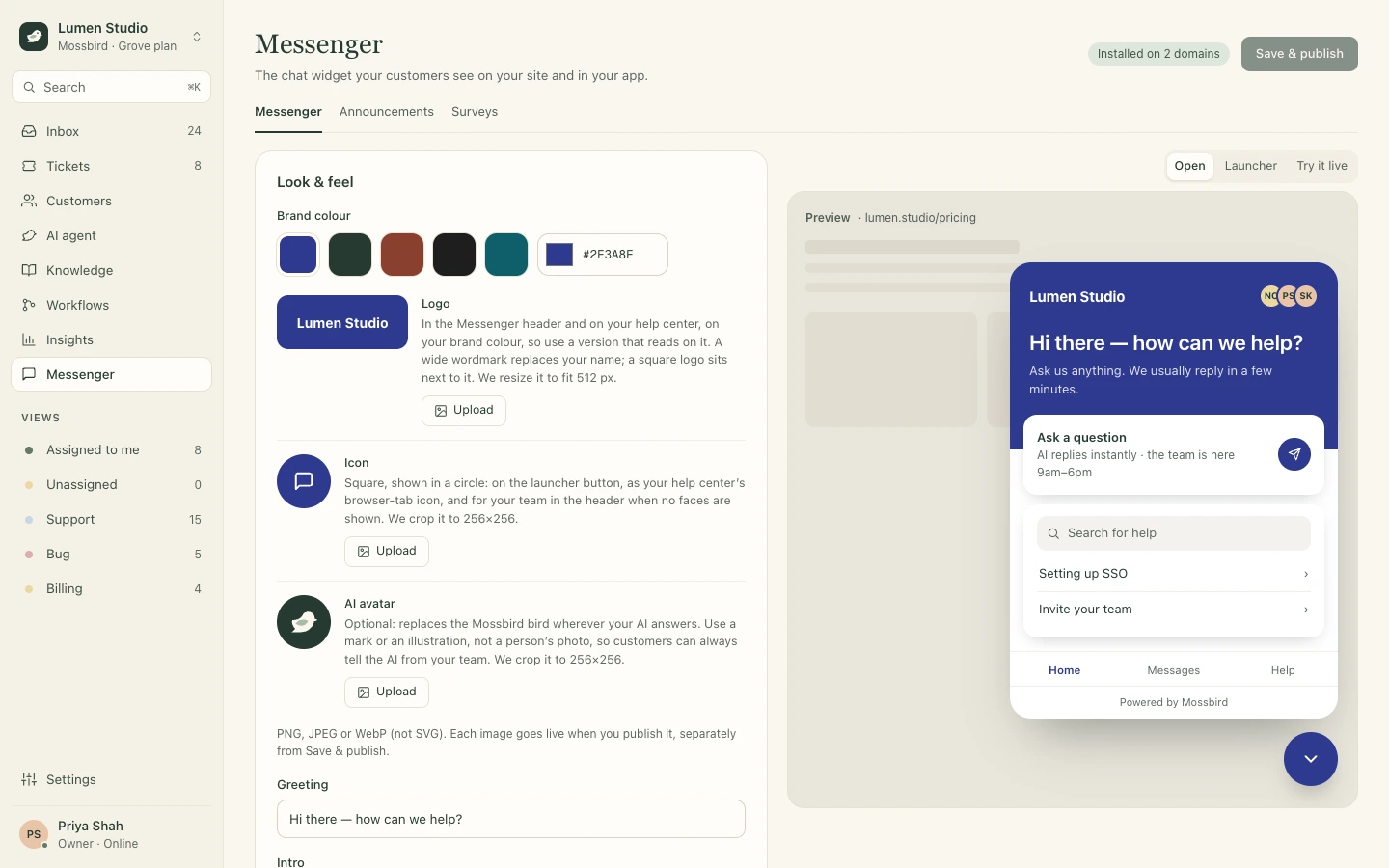
Step 14: On your site and in your app
One script tag adds the Messenger, in your colors, with your help articles and the AI built in.
Customer support, a little more human
Bring your team, your help center and an AI you can trust into one calm place. Free for 14 days.
- Start free trial https://app.mossbird.io/signup
- See pricing https://www.mossbird.io/pricing