Integrations send every new lead, and what known leads do next, to the tools your team already uses. You set each one up by pasting a URL or an ID from the tool’s own settings.
Integrations are on Pro and Team. Only workspace admins can connect, edit, test or delete them. Editors and viewers see the list and each destination’s status.
Open Integrations
Click your workspace name at the top of the sidebar and choose Integrations. You can also get there from Settings with Open integrations, or from the Leads page.
What each destination needs
| Destination | What you paste |
|---|---|
| Slack | An Incoming webhook URL (https://hooks.slack.com/services/…) |
| Microsoft Teams | A Workflow webhook URL from the channel’s “Send webhook alerts to a channel” workflow |
| Discord | A channel’s Webhook URL |
| Google Chat | A space’s Webhook URL (your Google Workspace admin must allow webhooks) |
| HubSpot | Your Account ID, a Form ID and the Data center (US or EU). The form needs every field you map, with CAPTCHA off. |
| Salesforce | Your Org ID and a Lead Source value. Web-to-Lead must have “Require reCAPTCHA Verification” unchecked. |
| Account Engagement (Pardot) | A Form handler URL, with Kiosk/Data Entry Mode on |
| Zapier | A Catch Hook URL (needs a paid Zapier plan) |
| Make | A Webhook address, plus an optional API key |
| n8n | A Production webhook URL, plus optional header auth |
| Pipedream | An Endpoint URL, plus an optional token |
| Clay | A table’s Webhook URL, plus an optional auth token |
| Custom webhook | Any https Endpoint URL, plus an optional auth header |
Connect a destination
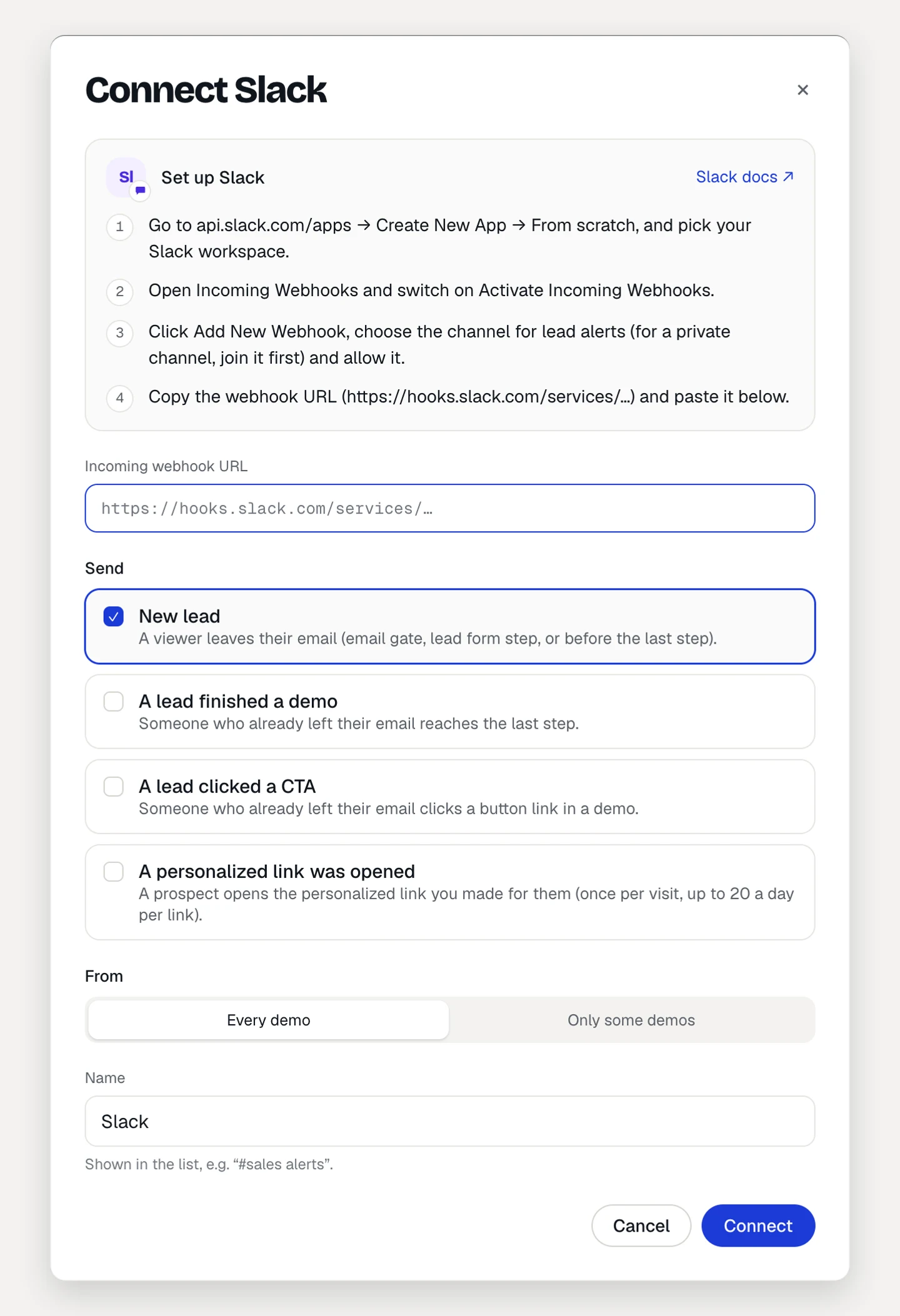
- Under Add a destination, click the tool. The dialog lists the setup steps for that tool, with a link to its docs.
- Follow the steps in the tool and paste what it gives you.
- For HubSpot, Salesforce and Account Engagement, check the Field mapping. Clear a field to skip it.
- Under Send, tick the events you want.
- Under From, keep Every demo or pick Only some demos.
- Give it a Name you’ll recognize in the list, like “#sales alerts”.
- Click Connect. For Zapier, Make, n8n, Pipedream, Clay and custom webhooks, copy the Signing secret now: it isn’t shown again.
- Click Send test event and check that it arrives.
Events you can send
- New lead: someone leaves their email at an email gate, in a lead form, before the last step, or on a collection page. Every destination can get it.
- A lead finished a demo: someone who already left their email reaches the last step of a guided demo.
- A lead clicked a CTA: someone who already left their email clicks a button link in a demo.
- A personalized link was opened: a prospect opens the personalized link you made for them, once per visit and at most 20 times a day per link.
Chat tools and webhooks can get all four. HubSpot, Salesforce and Account Engagement only receive new leads. A destination limited to some demos doesn’t receive leads from collection pages.
Test, pause and check deliveries
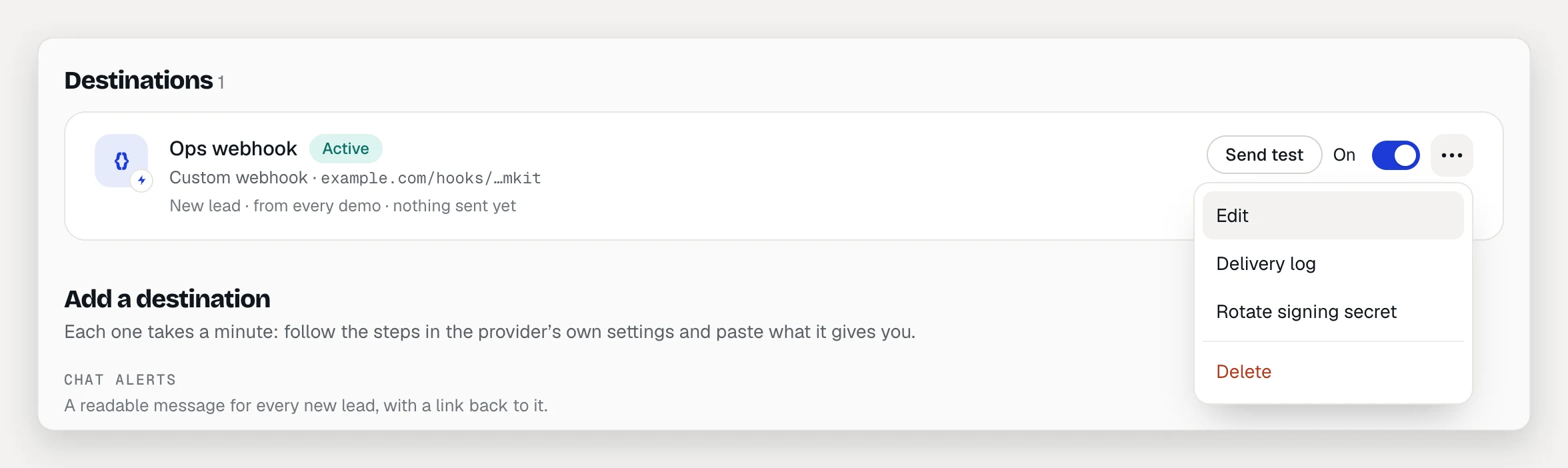
Each destination in the list shows its status (Active, Off or Paused) and its last delivery.
- Send test sends sample data right away and shows Test delivered or Test failed with the HTTP code. Tests are never retried.
- The On / Off switch stops and starts sending.
- The ⋯ menu has Edit, Delivery log, Rotate signing secret (webhook tools only) and Delete.
The Delivery log shows the last 50 deliveries with when, event, status, HTTP code, tries and the start of the response. Network errors, timeouts, rate limits and server errors are retried with backoff for about a day. Other errors fail right away.
After 3 deliveries in a row fail, the destination pauses and a banner says so on the Integrations page and on Leads. A chat webhook that was deleted on the other side pauses it at once. Fix the setup, send a test, then click Resume.
Limits
- Up to 20 destinations per workspace.
- CRM destinations create leads or contacts from new leads. They don’t sync demo activity.
- Salesforce never confirms a Web-to-Lead post, and Teams accepts a card before posting it. For both, Delivered means the request was accepted: check Salesforce or the workflow’s run history after a test.
- On Free, existing destinations show Not sending and nothing is sent until you upgrade.
Building your own endpoint? Open Payload & signature in the connect dialog for the fields, a sample payload, and Node.js and Python code that checks the
webhook-signatureheader.