Most first calls spend their first twenty minutes on a tour of the navigation. If the buyer has already clicked through the parts they care about, you can skip the tour and talk about their problem. This playbook sets up one demo you can personalize for every prospect in a couple of minutes, and shows you what to look at before you dial in.
1. Pick the flows buyers ask about
Don’t record the whole product. Record the two or three flows that come up on almost every discovery call. Your call notes, your CRM’s “next steps” field and the questions in your inbound demo requests will tell you which ones.
- One flow per demo keeps each demo short. A buyer is far more likely to finish a three-minute demo than a twenty-minute one.
- If different buyers care about different flows, use one demo with a Choice card at the start (“What do you want to see first?”) instead of three separate links. Each answer sends the viewer down its own steps.
- Use a guided demo for this. Tooltips tell the story in your words, which is what you want before a call. Save clickable demos for later in the deal, when a champion wants to explore on their own.
2. Record it with believable data
Use a demo account that looks like a real customer: real-looking names, realistic numbers, a few weeks of history. Empty states make a product look unfinished.
- Open the extension, choose Guided, and leave Auto-blur emails and names on.
- Leave Screenshots only off, so every page is also saved as editable HTML. You’ll need that in step 3.
- Click Start recording (or press Alt+Shift+R) and click through the flow the way you would on a call.
- Misclicked? Press Undo on the floating bar. Something on screen you don’t want shown? Use Blur area.
- Click Done, check the steps in the side panel, then Open in editor.
3. Write the story, then personalize it
Every guided demo starts with an intro card and ends with an outro card, and every click arrives as a tooltip step. Rewrite the tooltips so each one says why the step matters, not just what to click. Write with AI drafts them all at once: set the tone and tell it Who’s watching (“Heads of finance at mid-size companies”).
Then make it theirs. Open Personalize in the demo header (on narrower screens it’s Personalize… in the ⋯ menu) and give the built-in variables a default. Type {{ in any text field, or use the Variable button, to add one:
- The intro card: “A quick look at how {{company|your team}} would approve invoices.”
- Tooltips and buttons: “This is where {{company|your team}} sets its approval rules.”
- Inside the screens: on HTML screens, edit the page text and insert a variable, so the account name in the product itself reads the prospect’s company.
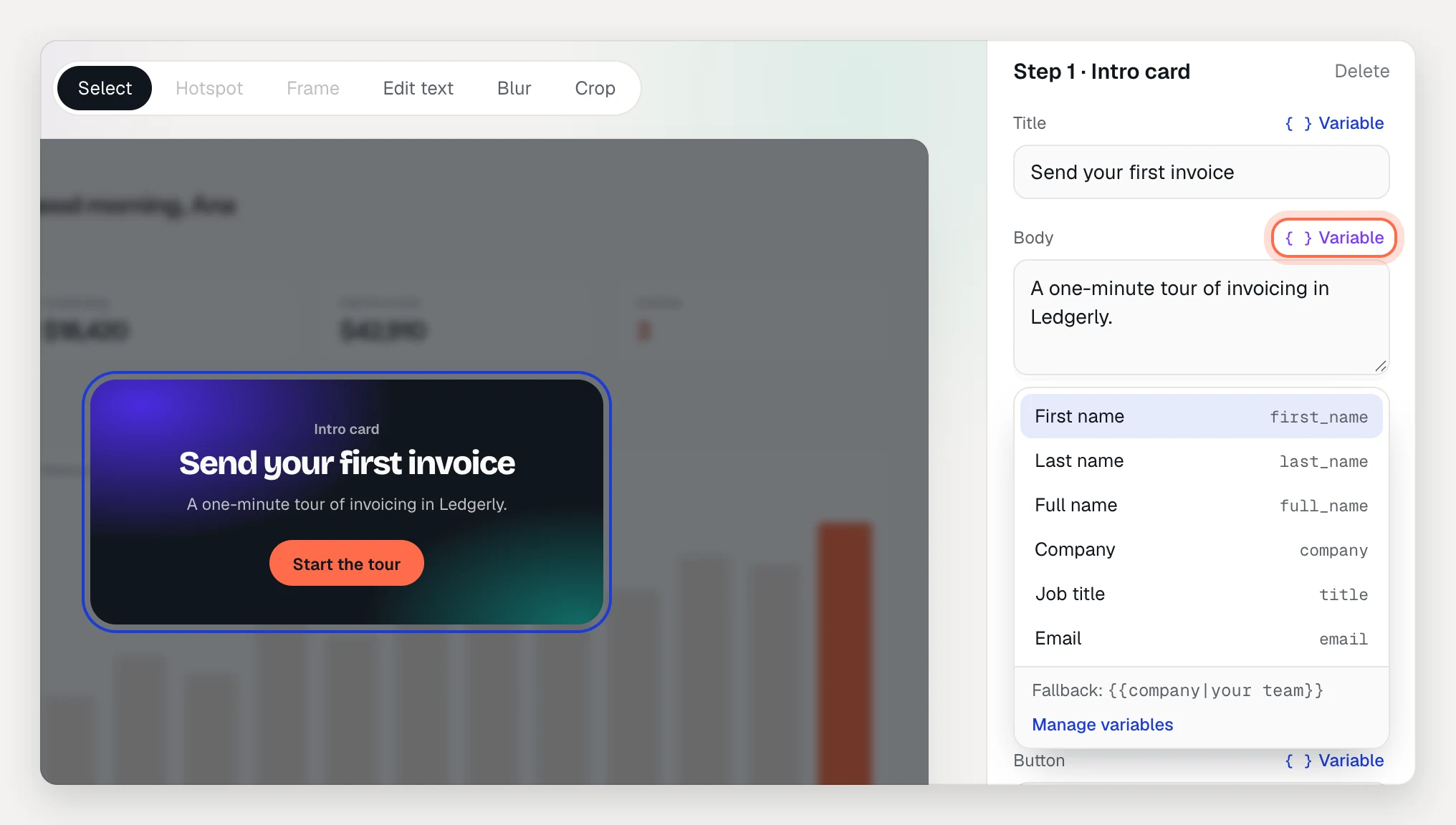
The part after the | is the fallback for anyone without a value. Check both versions: switch the canvas between Samples and No values, or open Preview and play it as a sample prospect.
End with a Call to action step that links to your calendar, so a buyer who’s ready can book the next meeting from the last step.
Keep variables to names and companies you’re sure of. A demo that says “Acme Corp” to someone at “Acme” reads worse than one that says “your team”.
4. Make one link per prospect
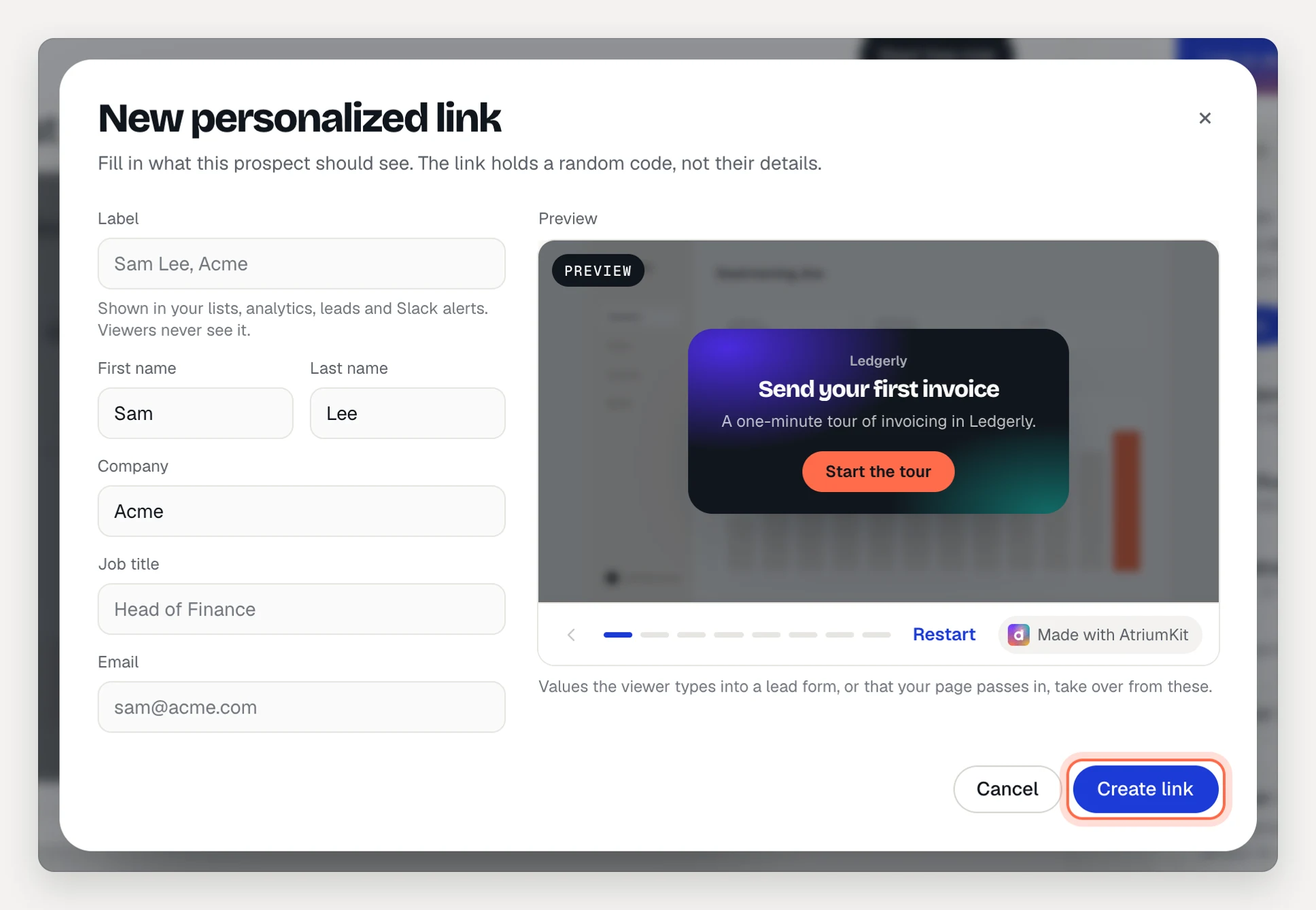
Publish the demo, then go to Share → Personalized. You have two ways to fill in each prospect’s details.
Personalized links are the better choice for named prospects. Click New link, fill in the values and copy it. For a week of calls, use From a list (CSV): up to 500 links at once, with the created links downloadable as a CSV for a mail merge. The link holds a random code, never the person’s details, and each one gets its own analytics.
Merge tags work if you send from an email tool. Open Use your email tool’s merge tags, pick HubSpot, Outreach, Apollo or Mailchimp, and copy the example link into your template. The values travel in the link itself, so they can end up in email-tool and server logs.
If you only use personalized links, turn off Values in the link and Values from embedding pages under Who can fill in variables. Then the demo only ever shows text you wrote or values you stored.
Personalized links, variables filled from links and open alerts are on Pro and Team. On Free, viewers see your defaults and fallbacks. A workspace can have 10,000 live personalized links.
5. Send it where they’ll open it
Put the link in the two places the buyer looks before a call: the calendar invite and the confirmation email. One sentence is enough: what it shows and how long it takes.
“Before Thursday, here’s a 3-minute look at how Acme would approve invoices. Click through it whenever suits you.”
Leave the demo Unlisted. Your prospect is already known, so an email gate adds a step and tells you nothing new. If you want a version the champion can forward to colleagues, Duplicate the demo in your library, turn on Ask for email before the last step in the copy and share the copy’s plain link. New viewers then land in Leads and your CRM. The setting covers every link to a demo, personalized ones included, so leave it off on the original.
6. Get an alert when they open it
An admin sets this up once. Open the workspace menu → Integrations, connect Slack, Microsoft Teams, Discord, Google Chat or a webhook, and tick the event A personalized link was opened. Choose Only some demos if the channel should only hear about sales demos, then Send test event.
The alert names the link (“Sam Lee, Acme opened their personalized link”), once per visit. If a prospect also leaves their email, you can add A lead finished a demo and A lead clicked a CTA for the same channel.
7. Look before you call
Ten minutes before the call, open the demo’s Analytics tab.
- Links shows every personalized link with its views, the share of sessions that finished, leads and when it was last opened.
- Overview → Recent viewers lists each session: the link’s label, when, how long, how many steps and whether they finished.
- Step funnel shows where viewers stopped. If the demo has choices, Choices shows which path they picked. That’s the closest thing to the buyer telling you what they care about.
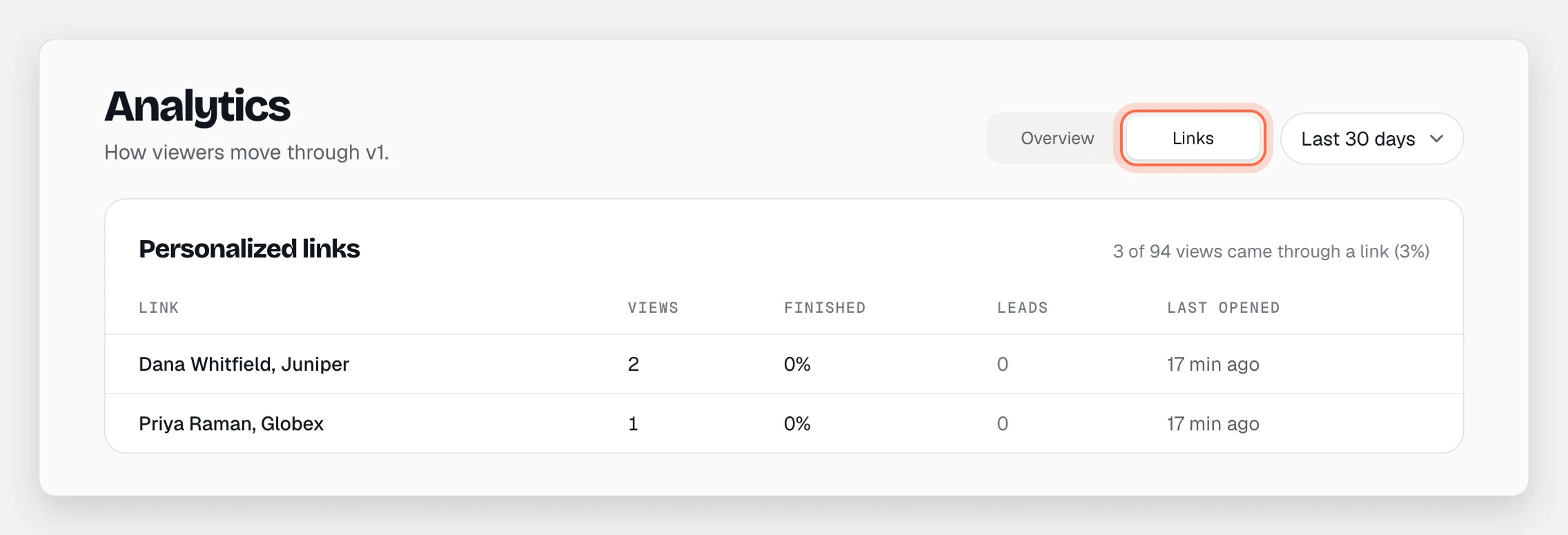
Use it to plan the opening, not to recite it back:
- Finished, picked a path: start the call on that path and go deeper.
- Opened, stopped partway: ask about that part. They may have had a question, or seen what they needed.
- Opened several times over a few days: it may have been shared internally. Ask who else is involved.
- Not opened: run the call as usual, and send the link again afterwards as a recap.
Don’t open with “I saw you watched step four.” Some buyers like it, many don’t. Let what you know shape your questions instead.
What to measure
Analytics cover 7, 14, 30 or 90 days. Track these per rep or per week:
- Links opened before the call: in Links, the personalized links with at least one view, out of the links you sent.
- Completion: the Finished rate per link, and the demo’s Completion rate.
- The step that loses people: the biggest drop in the Step funnel. If many buyers leave at the same step, shorten it or cut it.
- Paths picked: the Choices breakdown, which tells marketing which flows buyers care about most.
- Forwards: Leads from the forwardable copy, if you made one.
Previews and presenter mode never count as views, so your own clicks don’t skew the numbers.
Next
- Personalize a demo with variables
- Create personalized links
- Connect Slack, your CRM or a webhook
- Read your analytics
- Then run the call itself from the demo: Run a live demo from presenter mode
- Product pages: Personalization · Analytics · AtriumKit for sales