A personalized link opens your demo with one prospect’s values already filled in, and tells you when they open it. This article covers creating links one at a time or from a list, tracking them and deleting them.
Personalized links are on Pro and Team.
Before you start
- Add variables to the demo, like
{{first_name}}and{{company|your team}}. See Personalize a demo with variables. - Publish the demo. You can create links before that, but they open only once the demo is live.
Each link ends in a random code (?p=…). The code says nothing about the person: their details are stored in your workspace, not in the URL.
Create one link
- Open the demo and go to the Share tab.
- Choose Personalized, then click New link.
- Fill in what this prospect should see: first name, last name, company and any other variables the demo has. The preview updates as you type.
- Optionally change the Label. It defaults to their name and company, like “Sam Lee, Acme”. You see it in your lists, analytics, leads and chat alerts; viewers never see it.
- Click Create link, then Copy.
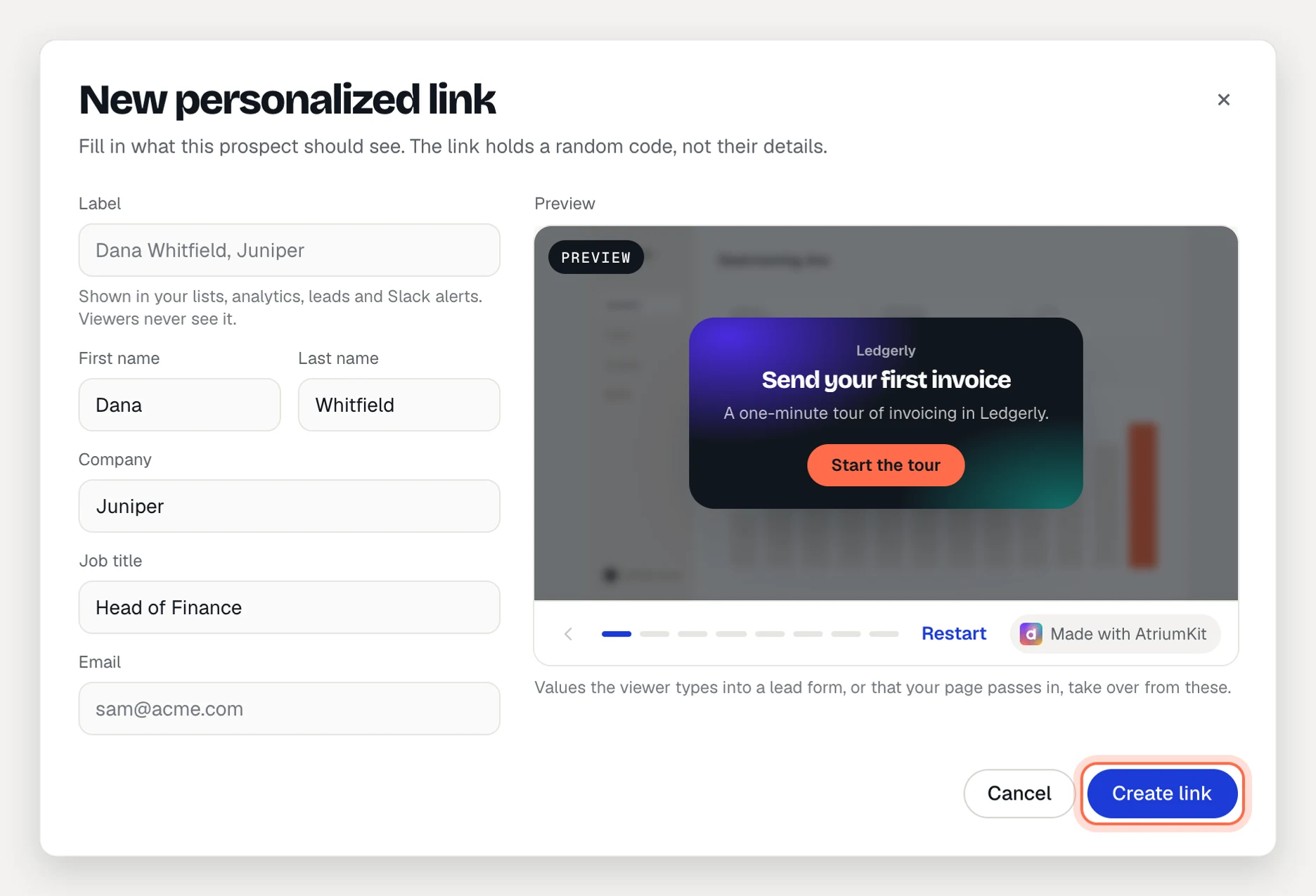
Values a viewer types into a lead form, or that your page passes in, take over from the link’s values.
Create links from a list
- In Share › Personalized, click From a list (CSV).
- Paste rows from a spreadsheet, or click Upload a CSV. The first row must be a header, like
first_name,last_name,company,email, with one prospect per row and up to 500 rows. Exports from HubSpot, Salesforce, Apollo, Outreach and Google Sheets work as they are. - Click Next. For each column, pick what to Use as: a variable, Link label or Skip. Columns you skip aren’t stored.
- Check the First links preview, then click Create 25 links (the number matches your list).
- Click Download CSV for your mail merge or sequence. It has one row per prospect, in the same order as your list, with the label, the link, the embed link and the values.
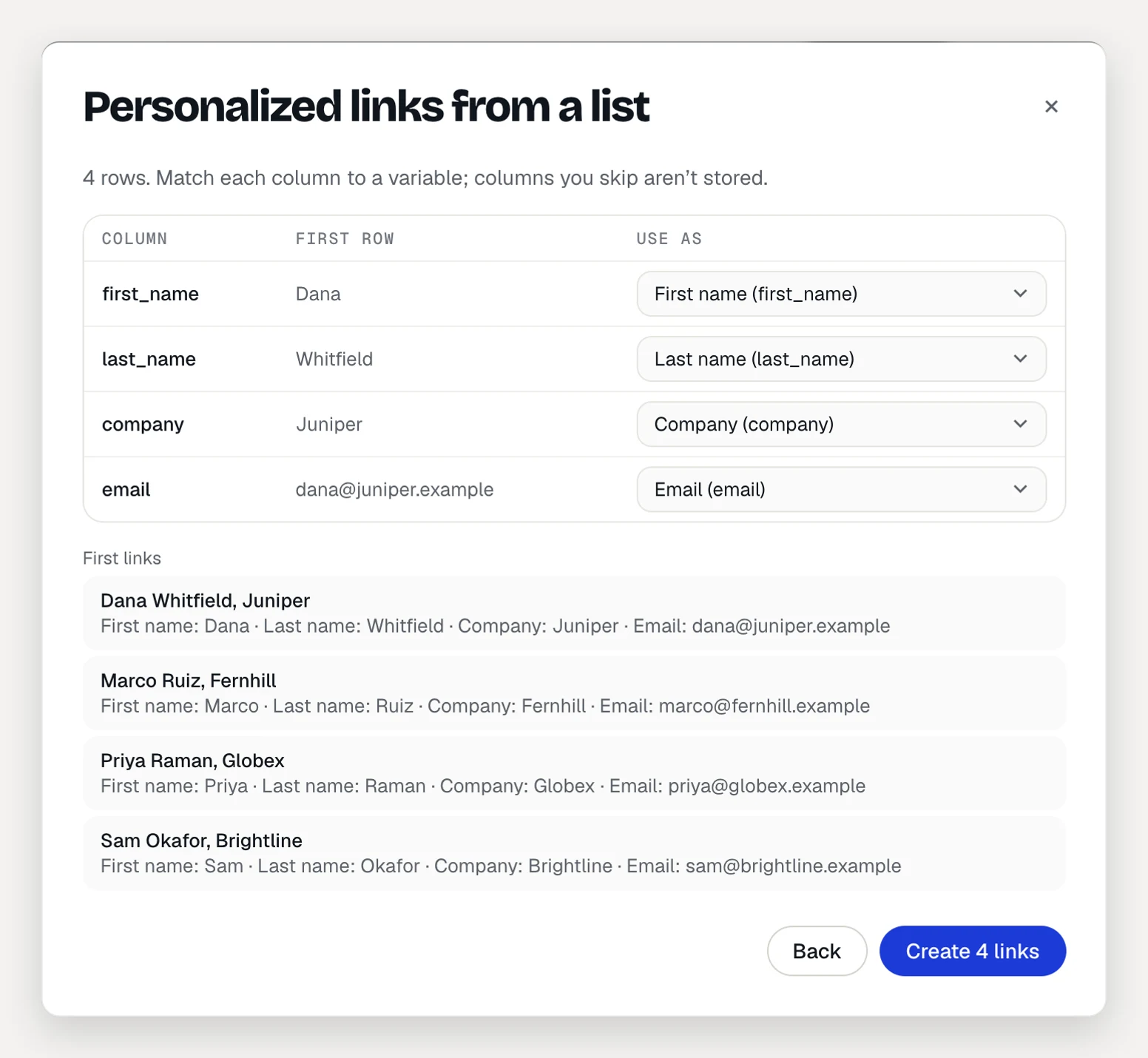
Download the CSV before you click Done. After that, copy links one at a time from the list.
Share, embed and edit a link
Each link in the list shows its label, its views and when it was last opened (or “Not opened yet”), and a Copy button. The ⋯ menu next to it has:
- Edit: change the label or values.
- Copy embed link: the embed URL with the link’s code, for an iframe’s
src. See Embed a demo. - Open: open the link in a new tab.
- Delete.
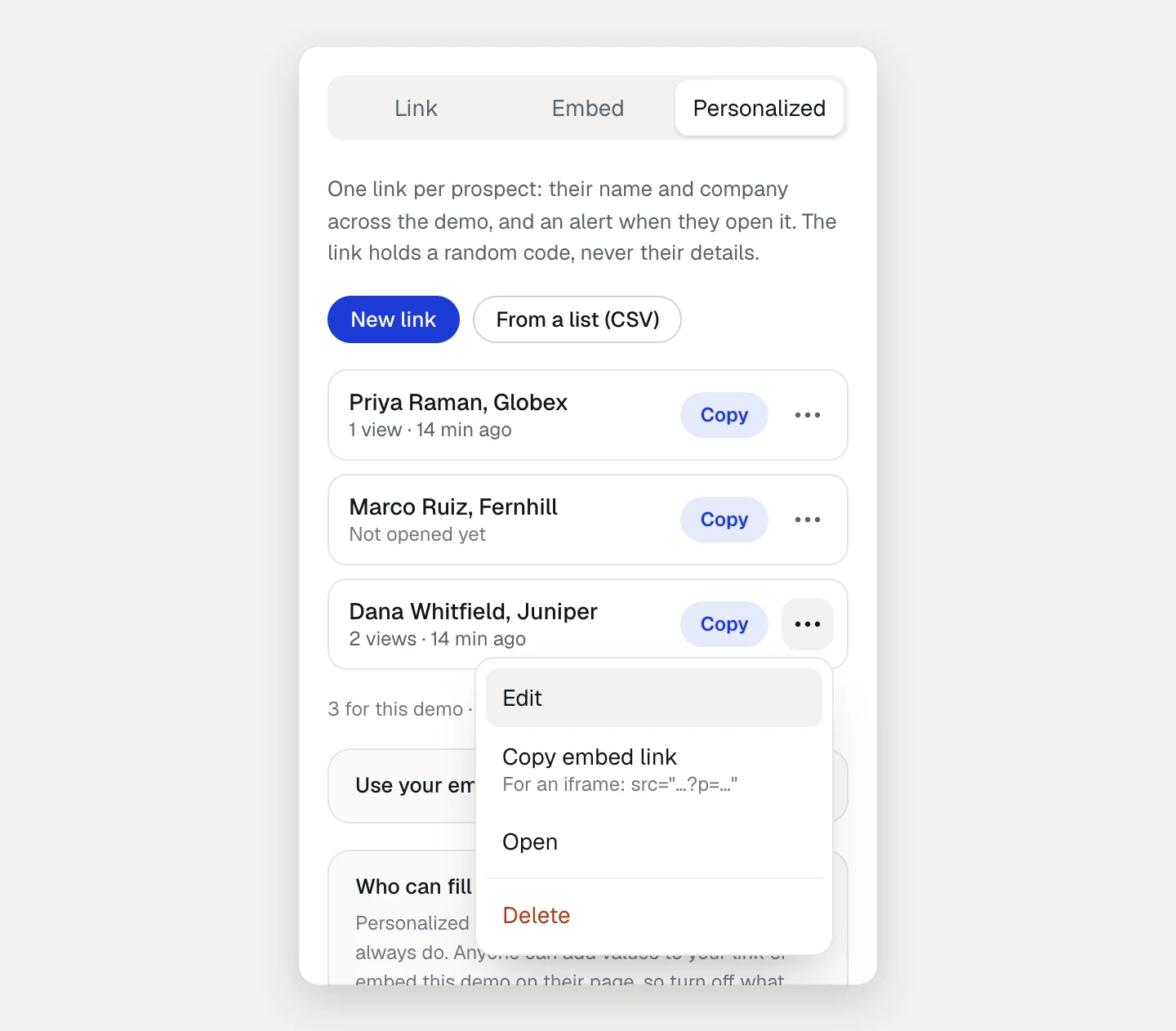
Once a demo has more than six links, a Search links field appears. Below the list you see how many links the demo has and how many your workspace uses.
If the demo has an email gate, a personalized link still asks for an email first. The link’s values apply after it.
See who opened their link
Open the demo’s Analytics tab and switch to Links. For each link you see Views, Finished (guided demos) or Sessions (clickable demos), Leads and Last opened, for the last 7, 14, 30 or 90 days.
Recent viewers and the Leads page show the link’s label, and the leads CSV export has a Personalized link column.
Get an alert when a prospect opens their link
A workspace admin can send an alert to Slack, Microsoft Teams, Discord, Google Chat, an automation tool or a webhook:
- Click your workspace name at the top of the sidebar and choose Integrations.
- Add or edit a destination and turn on A personalized link was opened.
It fires once per visit, up to 20 times a day per link. CRM destinations receive new leads only. See Connect integrations.
Delete a link
- In the list, open the link’s ⋯ menu and choose Delete.
- Confirm.
The link keeps working but opens the demo without personalization. The values stored with it are erased right away, including from your integrations’ delivery log. Its past views stay in analytics, listed as “Deleted link”.
Limits
- Up to 500 links per list, and 10,000 live links per workspace.
- Labels and values are up to 120 characters each.
- A workspace can create about 300 single links and 20 lists an hour. If you hit that, wait and try again.
- A link belongs to one demo. Collection pages ignore it: to personalize a collection, put the values in the collection link’s URL instead.
- Search engines don’t index personalized links.
- After a downgrade to Free, links open the demo without personalization. You can still see and delete them.