AtriumKit can ask for an email in four places: an email gate before the demo, a lead form step inside it, a short ask before the last step, and on a collection page. Every email you collect lands on the Leads page.
Lead capture is on Pro and Team. On Free these options show a Pro badge, and viewers skip any lead form step.
Put an email gate in front of a demo
- Open the demo and go to the Share tab.
- On the Link tab, under Who can view, choose Email gate.
Viewers now see “Enter your work email to view this demo” and a View demo button before the first step. The gate covers the hosted link and every embed, and search engines are asked not to index the page.
Add a lead form step
Lead form steps work in guided demos. Use one when you want viewers to see part of the demo before you ask.
- In the editor, select the step the form should follow.
- Click + Add step and choose Lead form.
- Edit the Title, Body and Button text. A new form starts as “Where should we send your trial?” with a Continue button.
- Under Fields, Work email is always asked. Tick Full name, Company or Phone to ask for more.
- Publish, so viewers get the new step.
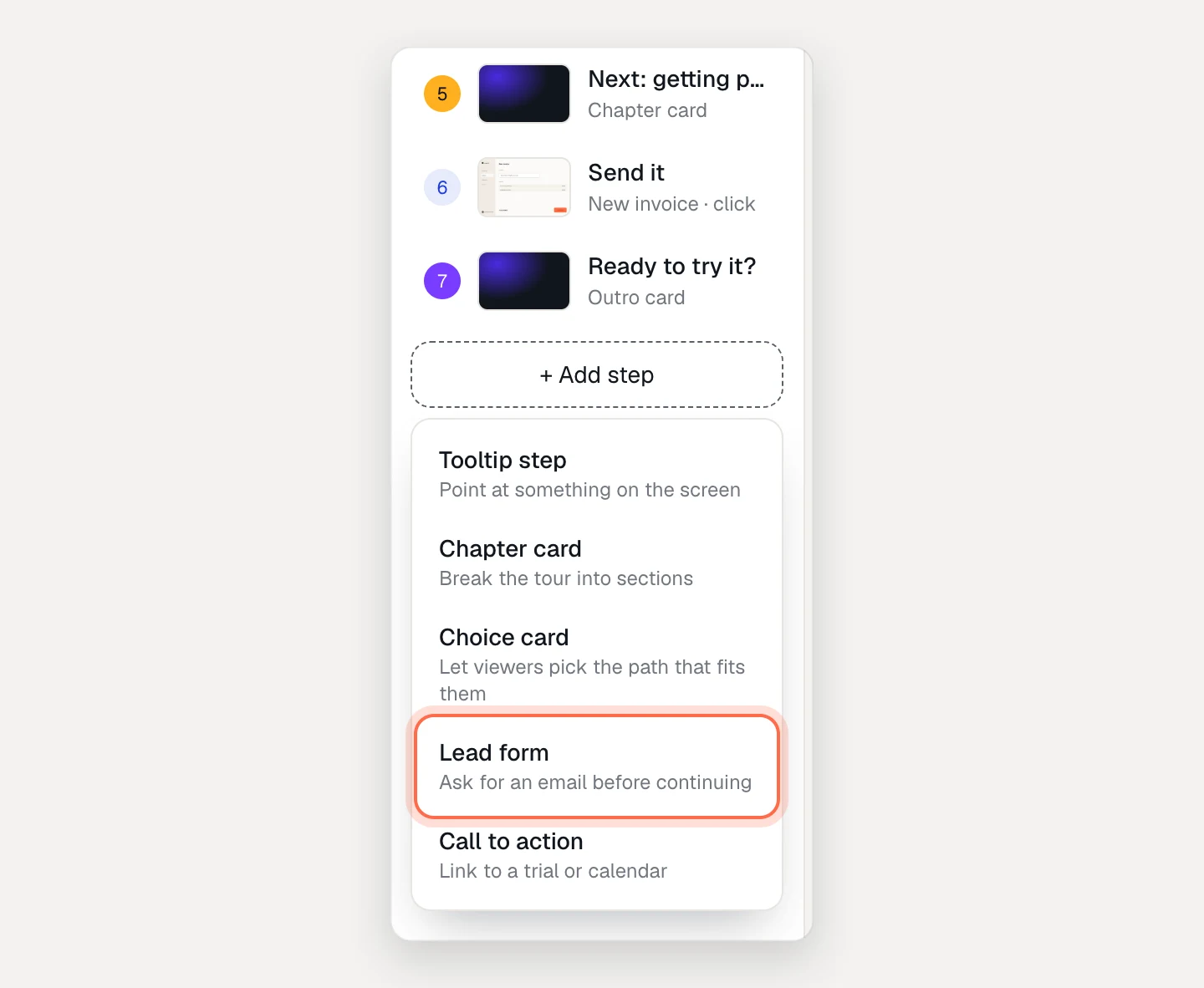
Viewers can’t move past the form until they send it.
Ask for an email before the last step
- On the Share tab, turn on Ask for email before the last step.
In a guided demo, viewers see “One last thing” just before the final step. In a clickable demo, the ask appears after a viewer has opened 3 screens.
A guided demo that already has a lead form step doesn’t get this extra ask. A viewer who already left an email during the visit, at the gate or in an earlier form, isn’t asked again.
Collect leads on a collection page
Collections have their own lead capture, set in the Lead capture section of the collection editor.
- Under Button, set When clicked to Open a form to show a form on the page. Work email is always asked; add Name, Company or Phone, and choose what happens After sending: Message, + Button or Go to a page.
- Under Ask for an email, choose Never, Email gate, Locked demos or After N demos. For locked demos, use the lock next to each demo in the list. For after N demos, set Ask after and decide whether Visitors can skip it.
- Use the buttons under Preview the page to check each state.
The rest of the collection settings are in Collections.
Find and export your leads
Open Leads in the sidebar. Each row shows the Email, Name, Company, Demo, Source and Date. The source says how the lead came in: Email gate, Lead form or Before last step for demos, and Button form, Email gate, Locked demo or After N demos for collections. A blue chip names the personalized link they used, if any.
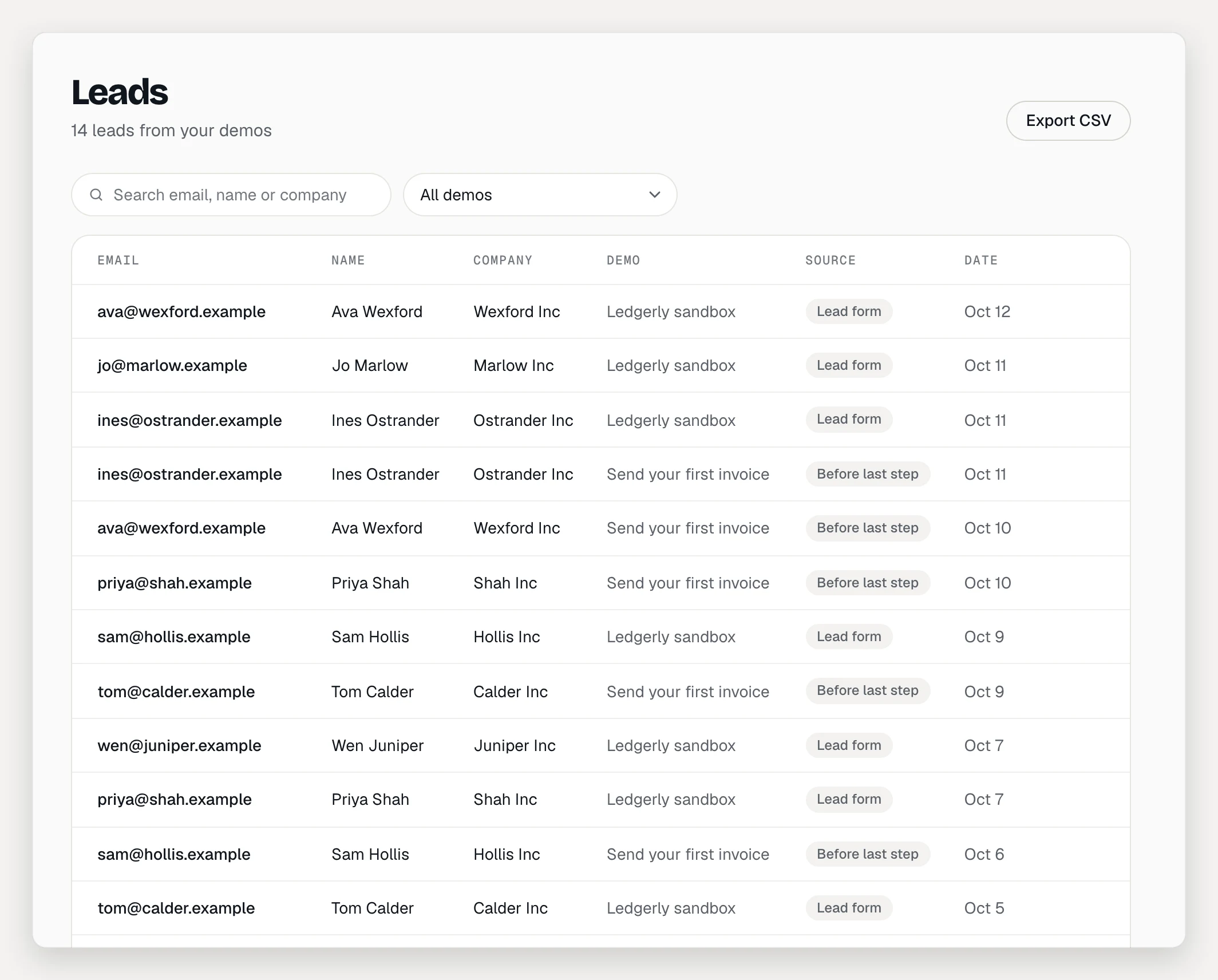
- Type in the search box to find an email, name or company, or pick one demo from the All demos menu.
- For a collection lead, click the “Watched …” line under the collection name to see which demos they watched, and how far, before converting.
- Click Export CSV to download every lead in the workspace, whatever the search or filter. The file has the email, name, company, phone, demo, source, country, referrer, date, personalized link, collection source and the demos watched first.
- To remove a lead, hover over the row and click Delete. Copies already sent to Slack, your CRM or a webhook aren’t affected. Admins and editors can delete leads; viewers can see them.
New leads aren’t emailed to you. To get an alert or a CRM record for each one, connect an integration.
Troubleshooting
- Previews don’t create leads. Forms in the editor’s preview say “Preview: nothing is sent.” Test on the published link instead.
- Gates and forms stopped asking. The workspace’s plan no longer includes lead capture, for example after a move to Free. The email gate lifts and lead form steps are skipped until you upgrade. Your existing leads stay on the Leads page.
- Personal email addresses get through. The form asks for a work email, but any valid address is accepted.
- Developers: an embedded demo posts a
leadmessage to your page when someone leaves their email. It doesn’t include the email. See Embed a demo.