Admins manage the plan from Billing: click the workspace name at the top of the sidebar and choose Billing. This article covers plan and seat changes, canceling, what a downgrade turns off and deleting a workspace.
Change your plan, period or seats
- On Billing, click Change plan.
- In Choose a plan, pick Monthly or Annual −16% and set Creator seats.
- Click the button on the plan you want. It reads Upgrade to Team, Switch to Pro, Switch to annual, Switch to monthly or Update seats, depending on what you changed.
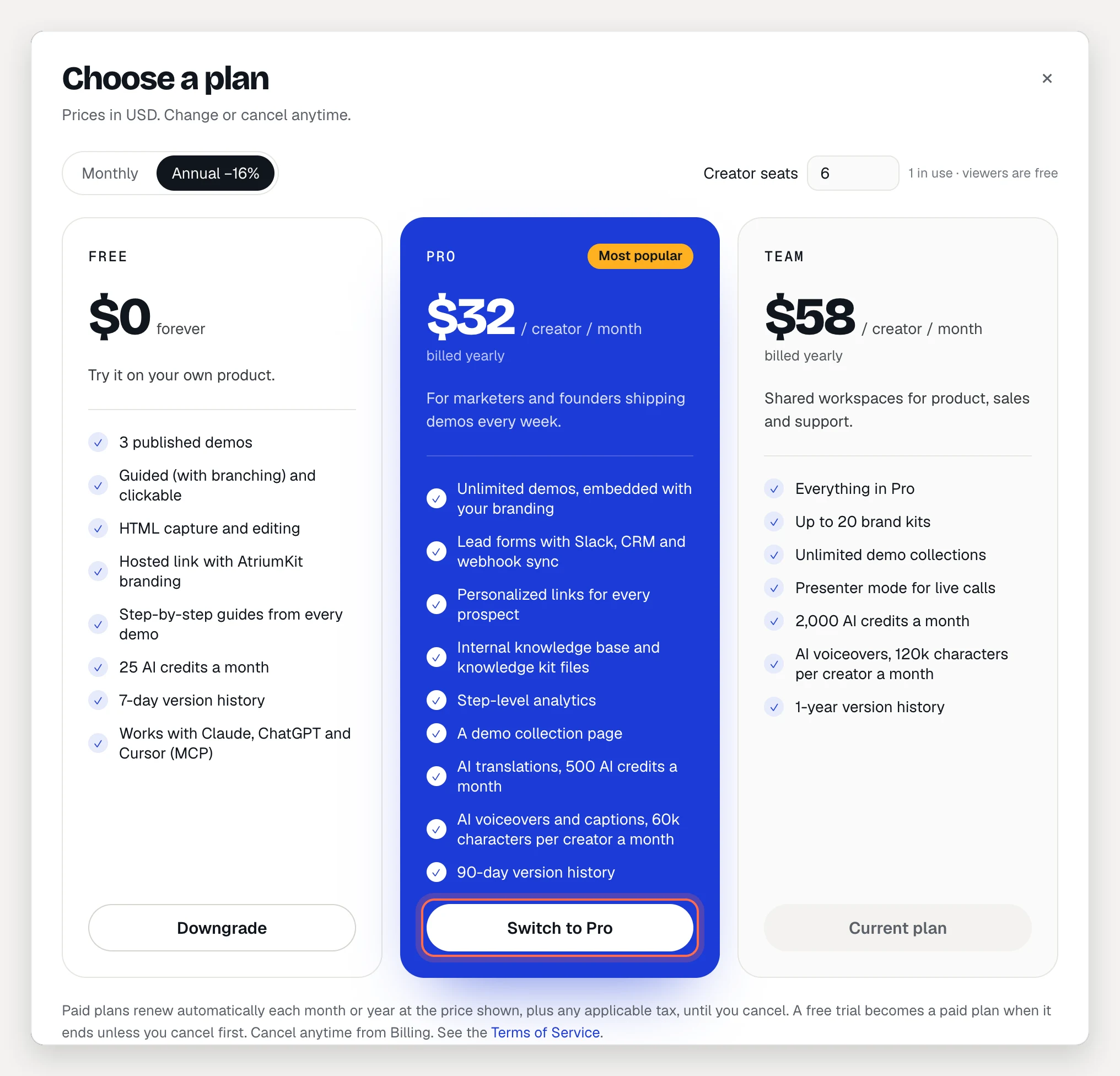
The change applies to your subscription right away and is prorated for the rest of the billing period. If you’re in a trial, the trial continues.
You can’t set fewer seats than the admins, editors and pending admin or editor invites in the workspace. To reduce seats, change people to Viewer or remove them in Team first, and revoke pending invites.
Cancel your subscription
- On Billing, click Change plan.
- On the Free card, click Downgrade. Stripe’s billing portal opens.
- Cancel your subscription there.
Cancellation takes effect at the end of the current billing period, and you keep your paid features until then. If you cancel during a free trial, you aren’t charged, and the workspace moves to Free when the trial ends.
You can also open the billing portal with Update next to your payment method. The portal is where you update your card and billing details too.
Fees are non-refundable. There are no refunds or credits for partial billing periods, unused seats or unused AI credits or AI voice characters. See the Terms of Service.
What changes when you move to Free
Nothing is deleted except older versions, but features Free doesn’t include stop working:
- Published demos stay live, and you can still publish changes to them. You can’t publish another demo while 3 or more are live.
- Email gates turn off. Gated demos open without an email address. If that matters, change the demo’s access before you downgrade.
- Lead forms and “Ask for email before the last step” stop. Integrations show Not sending. Leads you already collected stay on the Leads page, and Export CSV still works.
- Branding returns. “Made with AtriumKit” shows again, and demos use the built-in look instead of your brand kits. Your kits are kept.
- Collection pages stop opening for viewers.
- Translations stop showing. Viewers see each demo in its own language. Your translations stay in the editor.
- Narration stops playing for viewers.
- Personalized text shows its defaults and fallbacks. Personalized links open the demo without personalization. You can still list and delete them.
- Presenter mode stops.
- The internal knowledge base closes. Knowledge files you uploaded stay, but you can’t add more.
- Analytics shows views only.
- AI credits drop to 25 a month.
- Version history shrinks to 7 days, named versions included, within about an hour. The live version is always kept.
- One creator seat. Nobody is removed, but you can’t invite an admin or editor, or make a viewer one, until only one person holds a creator seat.
Team to Pro
Presenter mode stops. Brand kits, collections and knowledge files beyond Pro’s limits keep working, but you can’t add more. AI credits, AI voice characters and version history follow Pro’s limits.
Delete a workspace
Deleting a workspace removes every demo, collection, folder, brand kit, lead and analytics event in it, with version history. Hosted links and embeds stop working, everyone loses access, and a paid plan on it is canceled right away, with no refund for the rest of the period. It can’t be undone.
- Export your leads from Leads with Export CSV if you need them.
- Click the workspace name at the top of the sidebar and choose Settings.
- Under Leave or delete workspace, click Delete workspace.
- Type the workspace name to confirm, then click Delete workspace.
Only admins can delete a workspace. To keep it for everyone else and just leave, click Leave workspace instead.
Troubleshooting
- “Your Free plan includes 3 published demos.” Unpublish a demo or upgrade to publish another.
- I don’t see Billing. Only admins can see and change billing.
- My card was declined. Billing shows “Your last payment failed.” Click Update payment method and add a working card to keep your paid features.