A workspace holds your demos, collections, brand kits, leads and analytics, and everyone in it sees every demo. This article covers roles, creator seats, invites and working in more than one workspace.
Roles and seats
| Role | What they can do | Seat |
|---|---|---|
| Admin | Everything, plus team and billing | Uses a creator seat |
| Editor | Record, edit and publish demos | Uses a creator seat |
| Viewer | View demos, analytics and leads | Free |
Only admins invite people, change roles, open Billing and set up integrations. Viewers can’t record or edit, but they can open the internal knowledge base and, on Team, present demos on a call.
The Free plan includes one creator seat, so you can add viewers but not a second admin or editor. On Pro and Team you buy as many creator seats as you need. Viewers are free and unlimited on every plan. A pending invite to an admin or editor role holds a creator seat until it’s accepted or expires.
Verify your email first
Invites show your name and email address, so AtriumKit checks the address is yours before you can send one. After you sign up, a banner asks you to verify and says “Inviting teammates waits for it.” Click the link in that email. If it didn’t arrive, click Send again in the banner, or Send the link again on the Team page.
Invite someone
- Click the workspace name at the top of the sidebar and choose Team.
- Click Invite member.
- Enter their email and pick a role: Editor, Viewer or Admin. The dialog shows how many creator seats are left.
- Click Create invite.
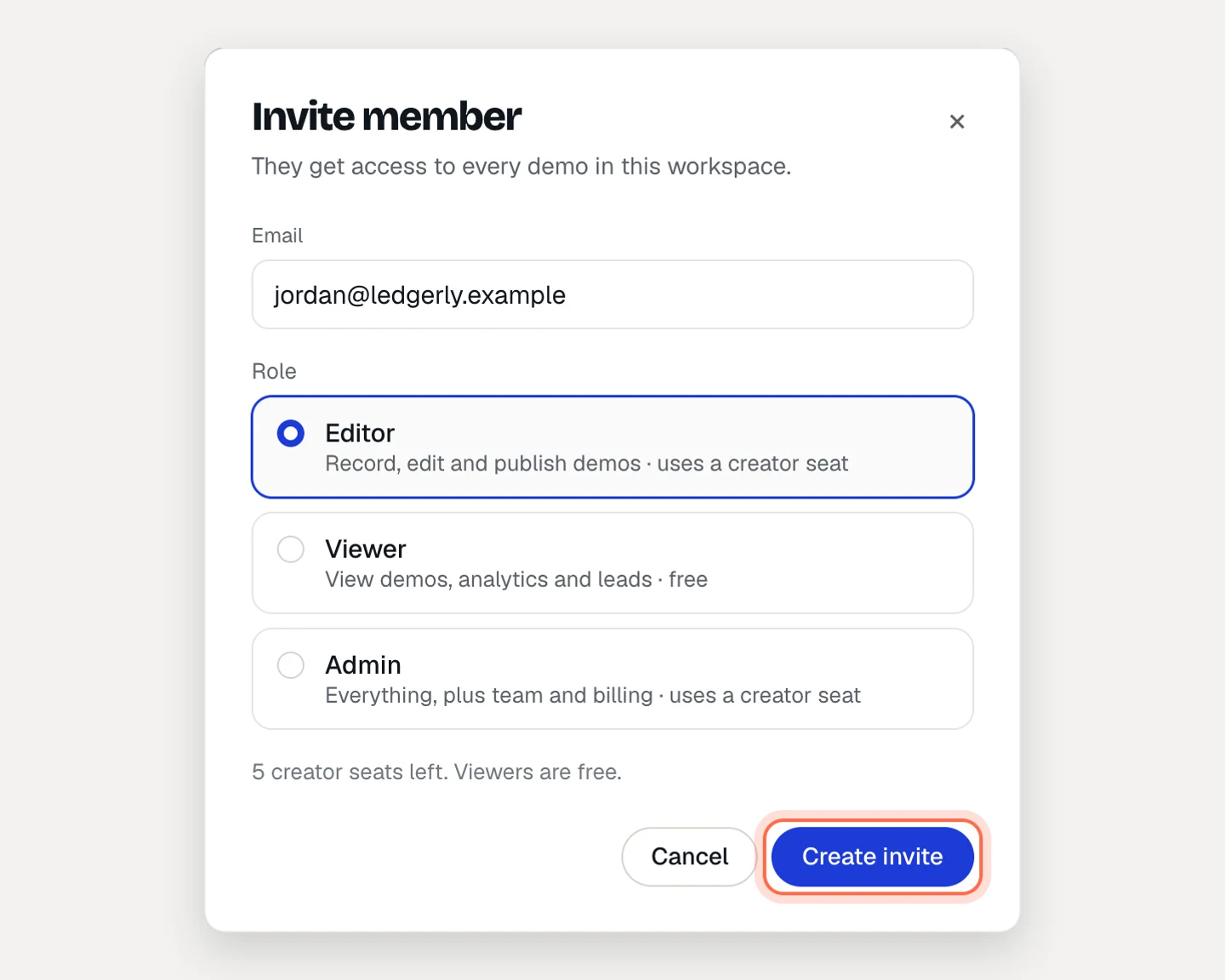
AtriumKit emails the invite. The dialog also shows the invite link with a Copy button, in case you’d rather send it yourself. The link is shown only once.
An invite works once, expires in 7 days and only works for the email address you entered. Someone signed in with another account is asked to sign out and switch account.
When they open the link, people already signed in with that email click the Join button with your workspace name on it. Everyone else chooses Create an account to join or I already have an account.
Pending invites
Invites that haven’t been accepted are listed under Pending invites with their expiry date. Click Resend to email a new link (the earlier link stops working), or Revoke to cancel the invite and free its seat. Expired invites stay listed for a while so you can resend them.
Change a role
As an admin, open Team and pick a new role from the dropdown in the member’s row. The change applies right away.
- Making a viewer an admin or editor needs a free creator seat. If none is left, you’ll see “Add seats in Billing to invite more editors.” See Plans and trials for seats.
- A workspace always needs at least one admin, so you can’t demote the last one.
Remove someone
- Open Team and click ⋯ in the member’s row.
- Choose Remove from workspace, then Remove.
They lose access right away. Demos they created stay in the workspace. Removing an admin or editor frees their creator seat.
Leave a workspace
Open Team, click ⋯ in your own row and choose Leave workspace. You can also leave from Settings under Leave or delete workspace. You can’t leave a workspace if you’re its only member (delete it instead) or its only admin (make someone else an admin first).
Work in more than one workspace
Use one workspace per company, client or team. Each has its own demos, members, plan and billing.
- Click the workspace name at the top of the sidebar. The menu lists your workspaces with your role and plan in each.
- Click a workspace to switch to it, or choose + Create workspace, enter a name and click Create workspace.
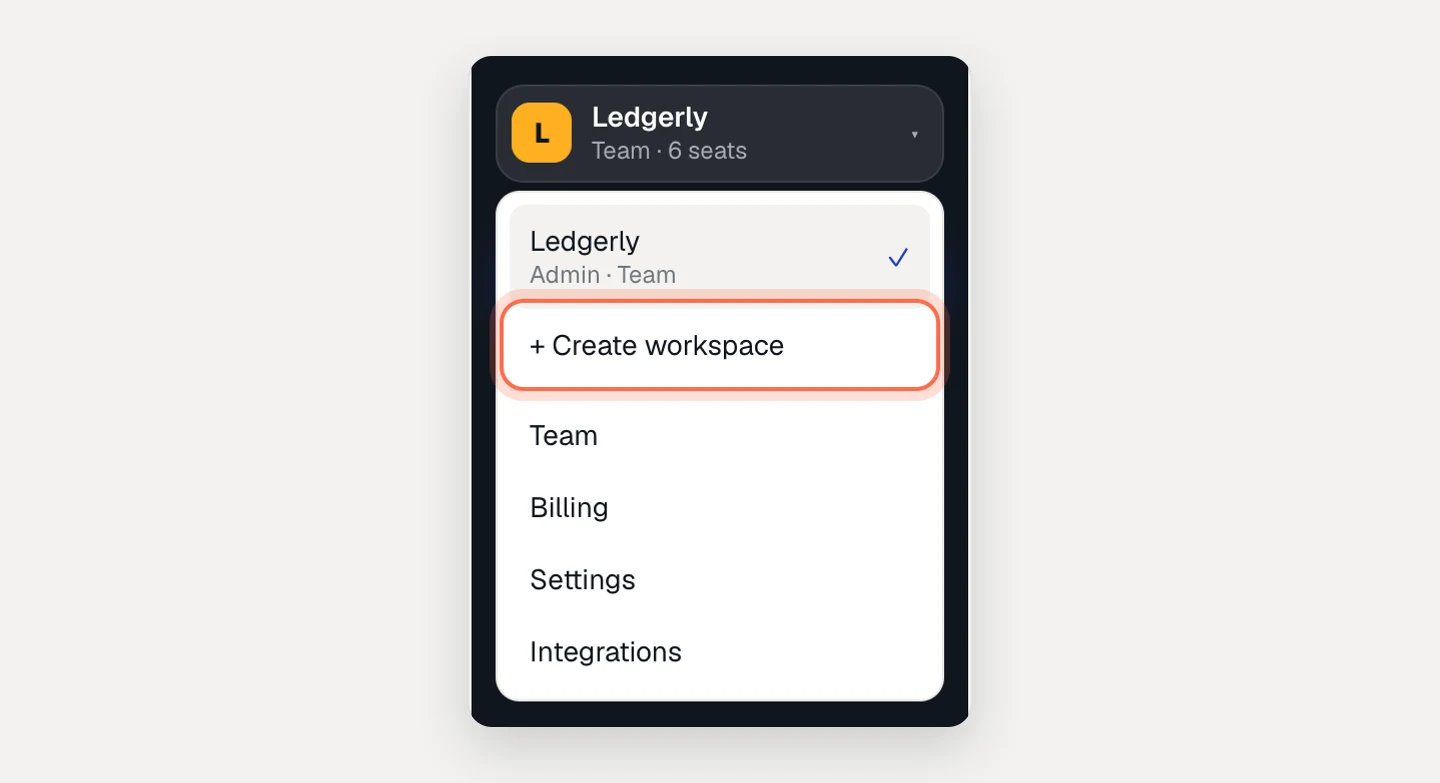
A new workspace starts on the Free plan with you as its admin. You can be the admin of up to 5 workspaces on the Free plan at once; upgrade or delete one to create another.
Troubleshooting
- “This invite has expired.” Invite links work once and expire after 7 days. Ask an admin to click Resend.
- “All creator seats are in use.” Invite the person as a viewer, free a seat by changing someone to Viewer or revoking a pending invite, or add seats in Billing.
- The Invite member button is greyed out. Verify your email address first.