Every demo keeps a history of its draft, so you can look at an older version and bring it back. Version history works on every plan; how long it’s kept depends on the plan.
What gets saved
History holds four kinds of versions:
- Published vN: the draft as you published it, every time you publish.
- Autosave: saved while you edit, at most once every 10 minutes, and before bigger changes such as deleting a screen.
- Before restore: your draft just before you restored another version.
- A named version: one you saved on purpose.
Each version holds the demo’s title, brand kit, settings, steps or hotspots, and its screens with their edits. Each row says what changed (“3 steps edited, 1 screen added”) and who made the changes, for example “Edits by Ana and Ben”. Edits an AI assistant made through AtriumKit’s MCP server say so: “Edits by Ana (via Claude)”. The version viewers see now has a Live tag.
Open history
- Open the demo.
- Click History in the demo header. On a narrow window it’s in the ⋯ menu.
Versions are grouped by day, newest first, under your Current draft. Click Show older versions at the bottom to load more.
Save a named version
Name a version before a big change so it’s easy to find later.
- Click Save version….
- Type a name, such as “Before the pricing change”.
- Click Save version.
To name a version that’s already in the list, open its ⋯ menu and choose Name this version. The same menu has Rename and Remove name. A demo can have up to 100 named versions.
Preview a version
Click a version in the list, or choose Preview in its ⋯ menu. It plays read-only in the player. Click Close to go back.
Restore a version
- Open the version’s ⋯ menu and choose Restore this version, or click Restore this version while previewing it.
- Click Restore version to confirm.
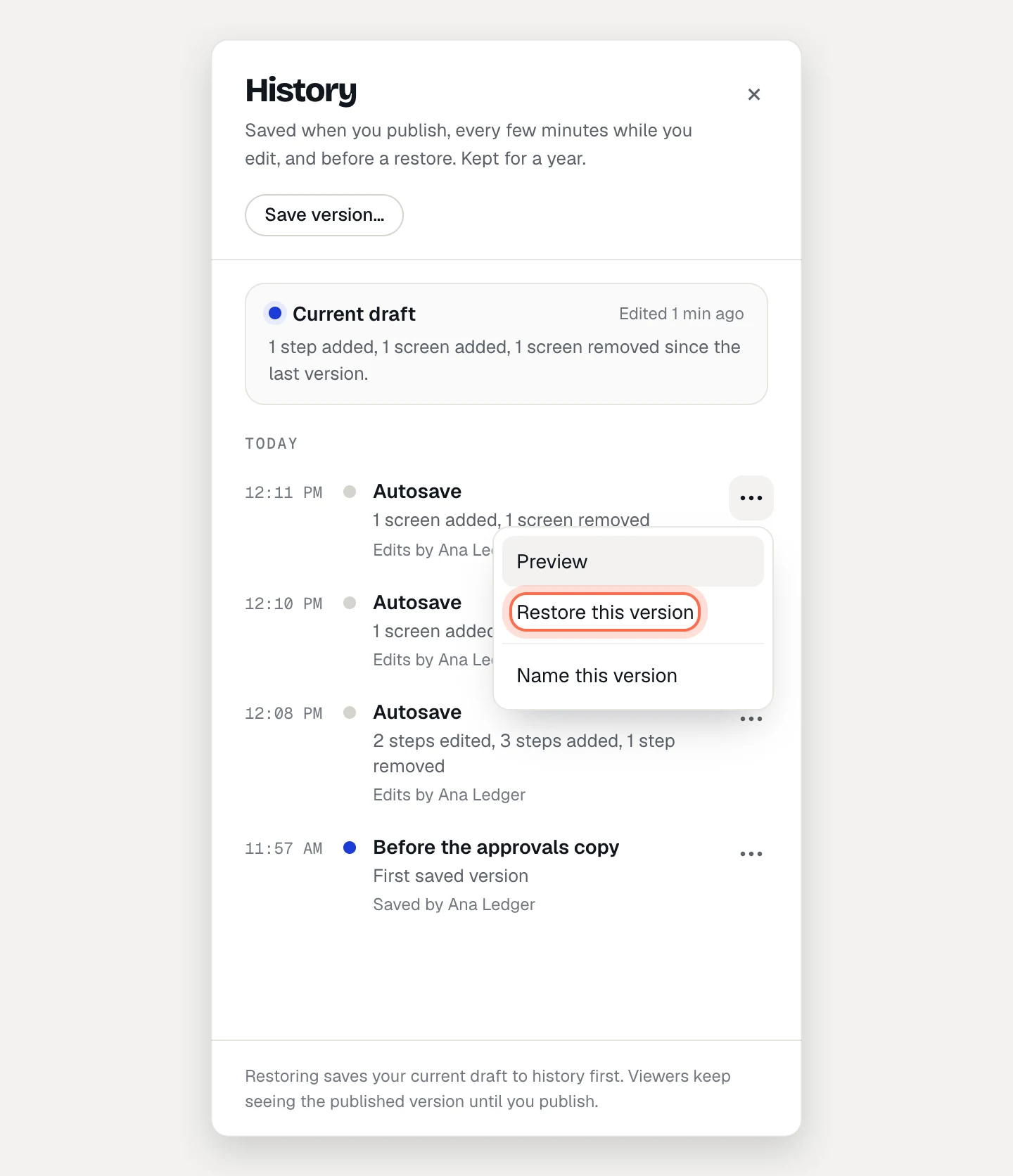
Your draft becomes that version, including screens: screens you deleted since come back, and screens added since are removed. Your current draft is saved to history first as Before restore, so you can undo a restore by restoring that.
Restoring changes the draft only. Viewers keep seeing the published version until you publish.
Go back to what’s published
If you’ve made changes since your last publish and want to drop them, click Restore published version at the top of the drawer, then Restore version. The link only shows when there are unpublished changes.
How long history is kept
| Plan | History | Named versions |
|---|---|---|
| Free | 7 days | Removed after 7 days, like the rest |
| Pro | 90 days | Kept until you remove the name |
| Team | 1 year | Kept until you remove the name |
On every plan, the version that’s live right now is kept until you publish a newer one or unpublish. A version close to its limit says “Removed in 2 days”.
If a workspace moves to a plan with shorter history, versions beyond the new limit are removed within the hour.
Who can do what
Everyone in the workspace can open history and preview versions. Admins and editors can save, name and restore. Viewers see “You can preview versions. Editors can restore them.”