AtriumKit records demos with a Chrome extension. You install it once, sign in, and then record from any tab.
Before you start
- Google Chrome 116 or later on Windows, macOS, Linux or ChromeOS. Other browsers aren’t supported yet.
- An AtriumKit account. If you don’t have one, the extension links to sign-up, or you can create an account first.
- An admin or editor role in your workspace. Viewers can watch demos and see analytics but can’t record.
Install it
- Open the AtriumKit page in the Chrome Web Store and click Add to Chrome.
- Confirm with Add extension.
- Click the puzzle-piece icon in Chrome’s toolbar and pin AtriumKit, so its button is always one click away.
Sign in
- Click the AtriumKit button in the toolbar.
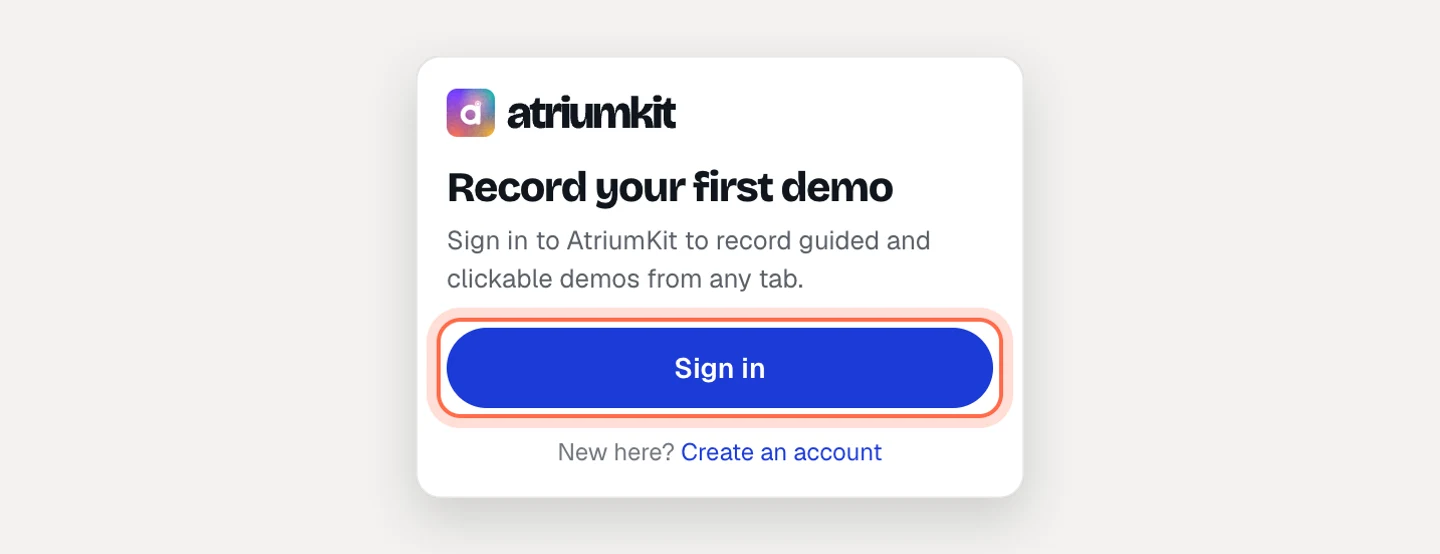
- Click Sign in. A tab opens on app.atriumkit.com.
- Sign in if you aren’t already. The tab connects the extension to your account and you can close it.
When you open the extension again it shows your workspace and a Start recording button. If you belong to more than one workspace, pick the one the demo should go to before you record.
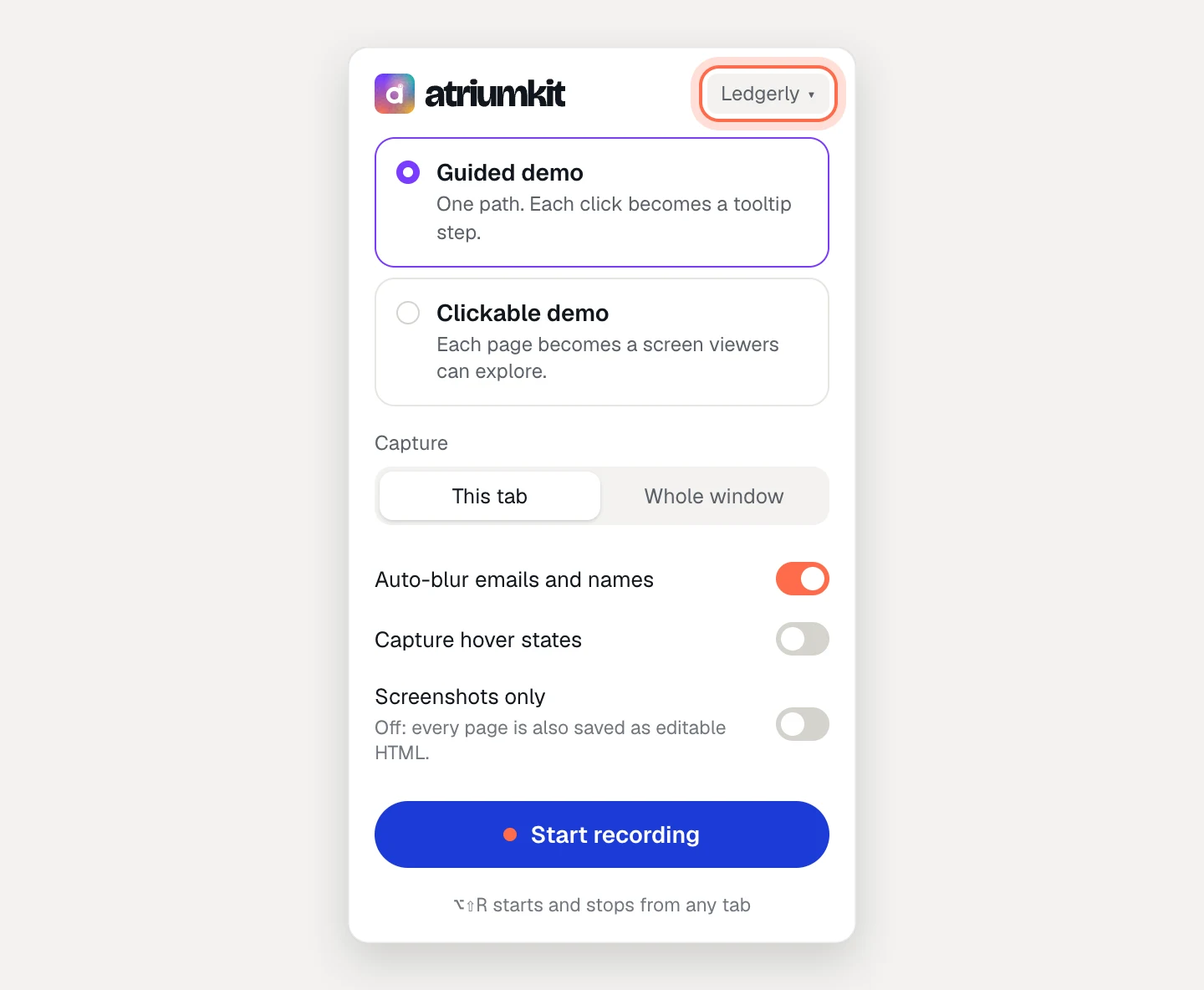
If the extension says you’re not a member of any workspace yet, ask a teammate for an invite, or open AtriumKit and create a workspace.
Start and stop with a shortcut
Press Alt+Shift+R (⌥⇧R on a Mac) to start or stop recording from any tab. To change it, open chrome://extensions/shortcuts.
Signing out
Open the extension, click the workspace name at the top to open its menu, and choose Sign out. You need to finish or discard a recording in progress first.