This article takes one recording from start to finish: capture a flow in Chrome, clean it up, and publish it from the editor.
Before you start
- Install the extension and sign in. See Install the Chrome extension and sign in.
- Open your product in a Chrome tab, signed in, showing the data you want viewers to see. A demo account with sample data works best.
- Size the window the way you want viewers to see it. AtriumKit captures the visible part of the page, not the full scroll height.
- Plan the clicks. A flow of 5 to 15 clicks is easier to follow than a long one.
Record the flow
- Click the AtriumKit button in Chrome’s toolbar.
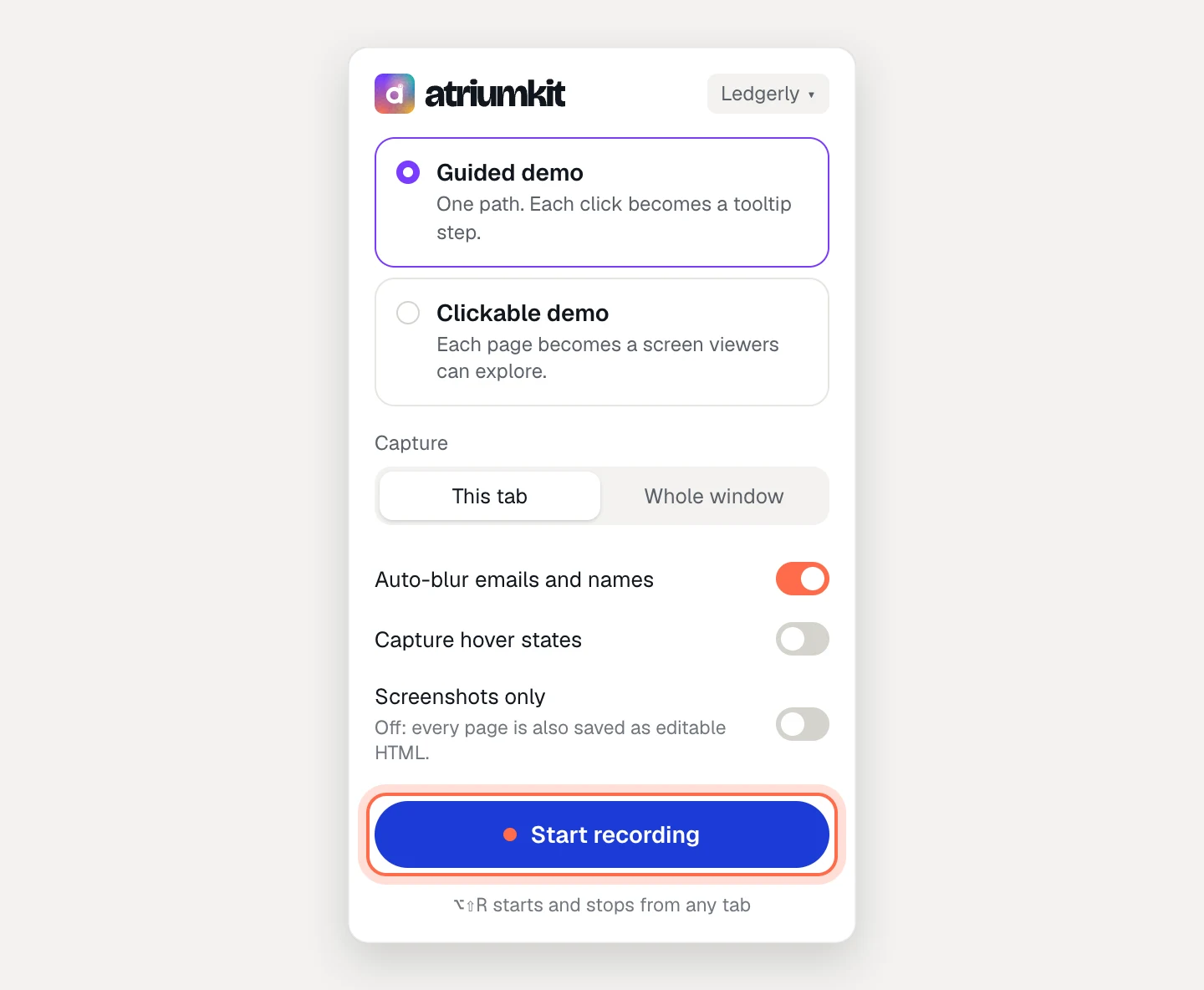
- Pick Guided demo or Clickable demo. Not sure? Start with guided. See Choose between a guided and a clickable demo.
- Leave the other options as they are for now. Auto-blur emails and names is on by default.
- Click Start recording, or press Alt+Shift+R (⌥⇧R on a Mac).
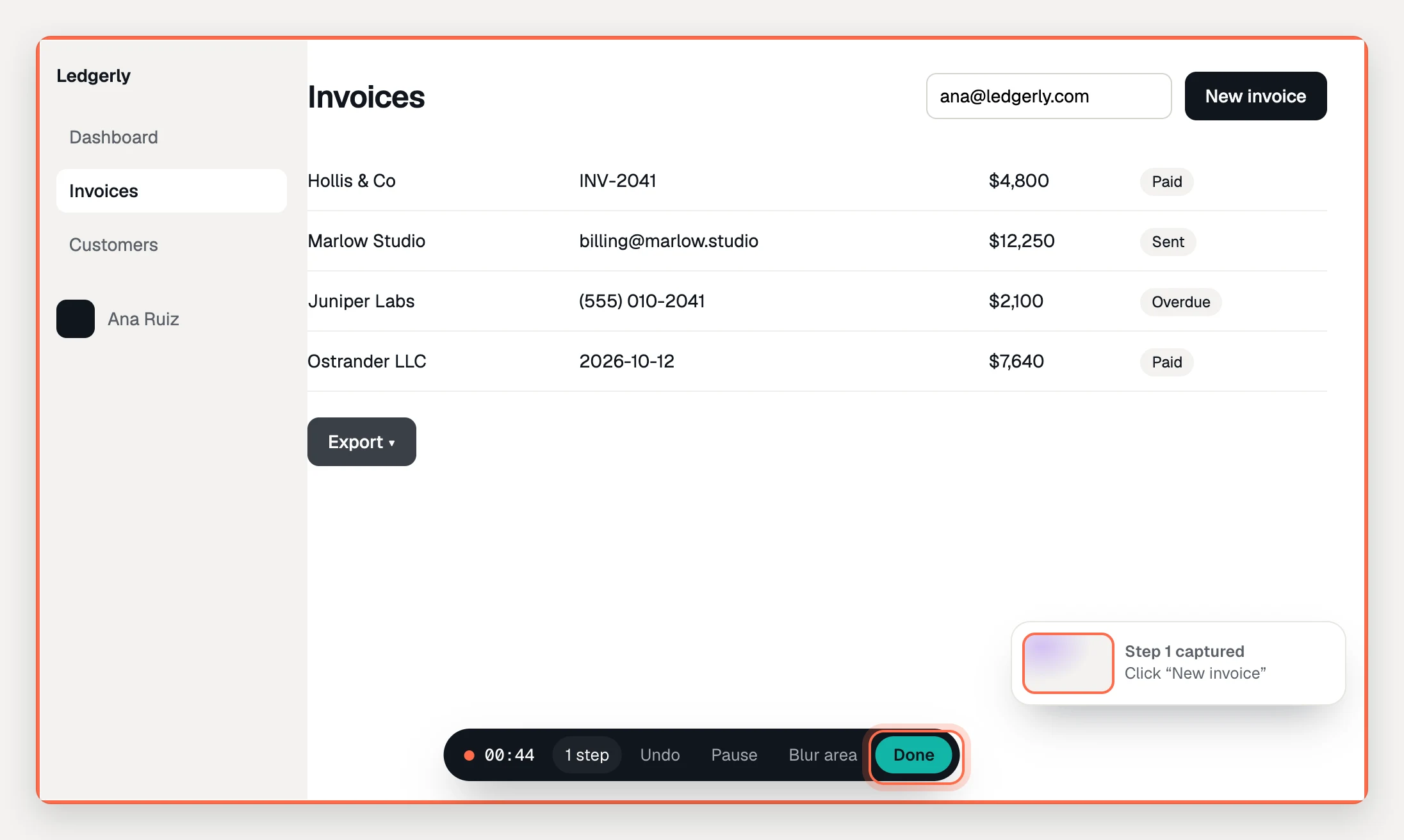
- An orange border appears around the page, with a bar at the bottom: a timer, the step count, Undo, Pause, Blur area and Done. The AtriumKit button shows REC.
- Click through the flow at a normal pace. After each click, a card in the corner says Step 1 captured, Step 2 captured and so on.
- Clicked the wrong thing? Click Undo on the bar to remove the last step, and carry on.
- At the end of the flow, click Done, or press the shortcut again.
Hold Alt (⌥ on a Mac) while you click to use the page without capturing that click, for example to close a pop-up you didn’t mean to record.
Review the steps
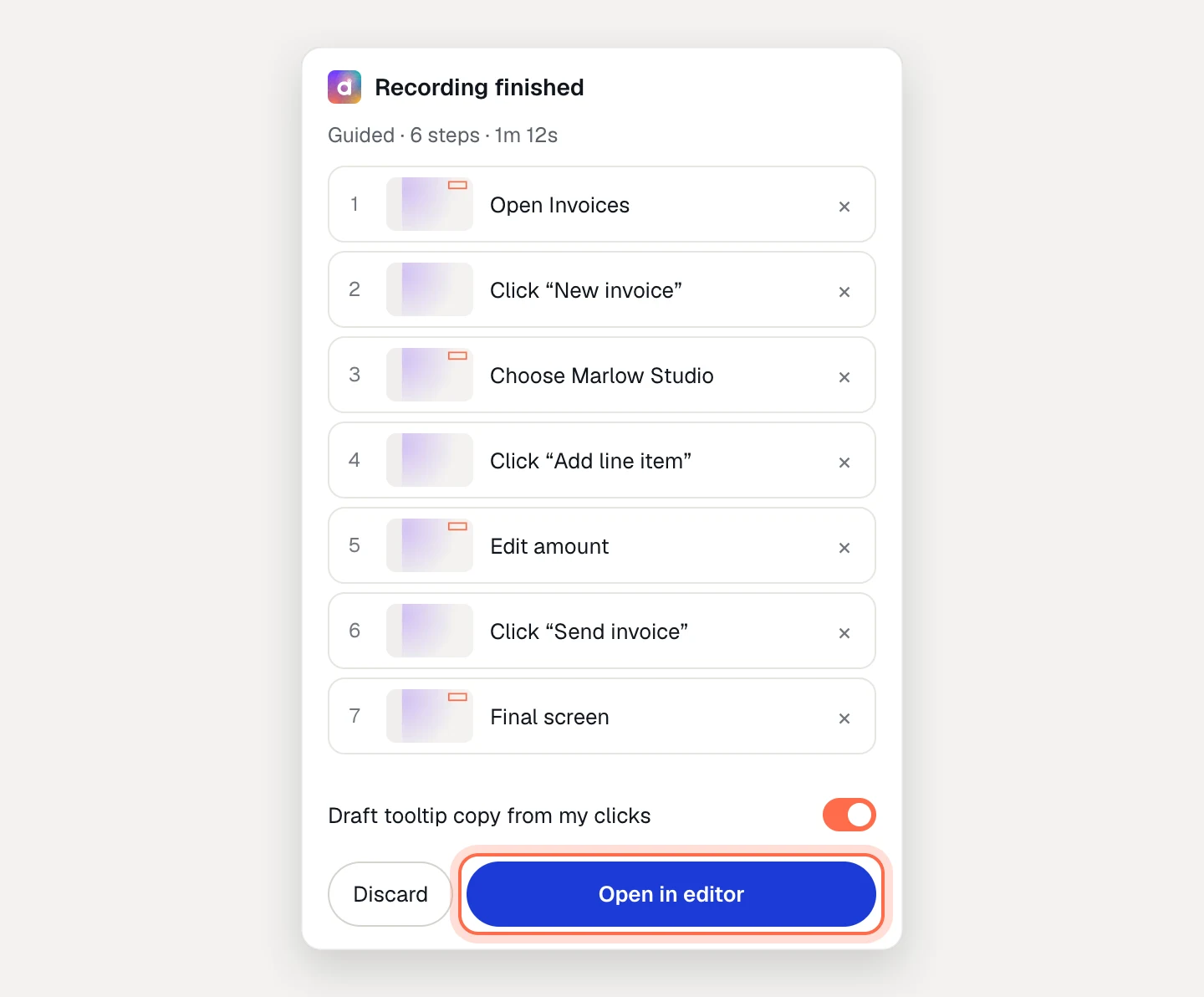
When you click Done, AtriumKit captures the final screen and opens a review panel at the side of the window.
- Look down the list. Each row is a step with a picture and a title written from what you clicked, such as Open Invoices or Click “New invoice”. The last row, Final screen, is where the demo ends.
- Remove misclicks with the × at the end of their row.
- In a guided demo, leave Draft tooltip copy from my clicks on to start every tooltip with a title and a line of text.
- Click Open in editor.
The panel shows the upload’s progress, then the demo opens in the editor in a new tab.
Edit in the editor
A guided demo opens with an intro card, one tooltip step per click and an outro card. A clickable demo opens with one screen per page and a hotspot on each click that led somewhere.
- Click the title at the top of the editor to rename the demo.
- Select a step in the list on the left and edit its Title and Body in the panel on the right.
- If a banner at the top offers to write the copy with AI, you can accept it (it uses AI credits) or click Not now.
- Click Preview in the header to play the demo the way viewers will.
Changes save on their own. The header says Saving… and then Saved.
Publish
- Click Publish in the top right.
- The Share tab opens with the hosted link and the embed code.
- Click Copy next to the link and send it, or paste it anywhere.
Every published demo is also a step-by-step guide. See Publish and share a demo.
On the Free plan you can have 3 published demos at a time. Drafts are unlimited on every plan.
Start from the dashboard instead
In AtriumKit, click New demo in the sidebar, pick a type and click Record in Chrome. This tells the extension which workspace to record into. Then open your product, click the AtriumKit button, check the demo type and click Start recording.
Troubleshooting
- Start recording is greyed out. If the extension says “Open your product in this tab to record”, the tab shows a page Chrome doesn’t let extensions capture, such as a new tab or a
chrome://page. If it says you’re a viewer, ask an admin for the editor role. - The review panel closed or didn’t open. Click the AtriumKit button (it shows a 1) and click Review and open in editor.
- The review panel asks you to sign in again. Sign in from the AtriumKit button, then click Retry in the panel. Your recording is kept.
- The editor says it needs a bigger screen. Editing works on a laptop or desktop. You can still share the demo and see its analytics on a phone.