A demo is a private draft until you publish it. Publishing takes a snapshot of the demo and puts it online. You can keep editing the draft: viewers see the published version until you publish again.
Only admins and editors can publish. On the Free plan you can have 3 published demos at a time; Pro and Team have no limit. Drafts are unlimited on every plan.
Publish
- Open the demo in the editor.
- Click Publish in the top right.
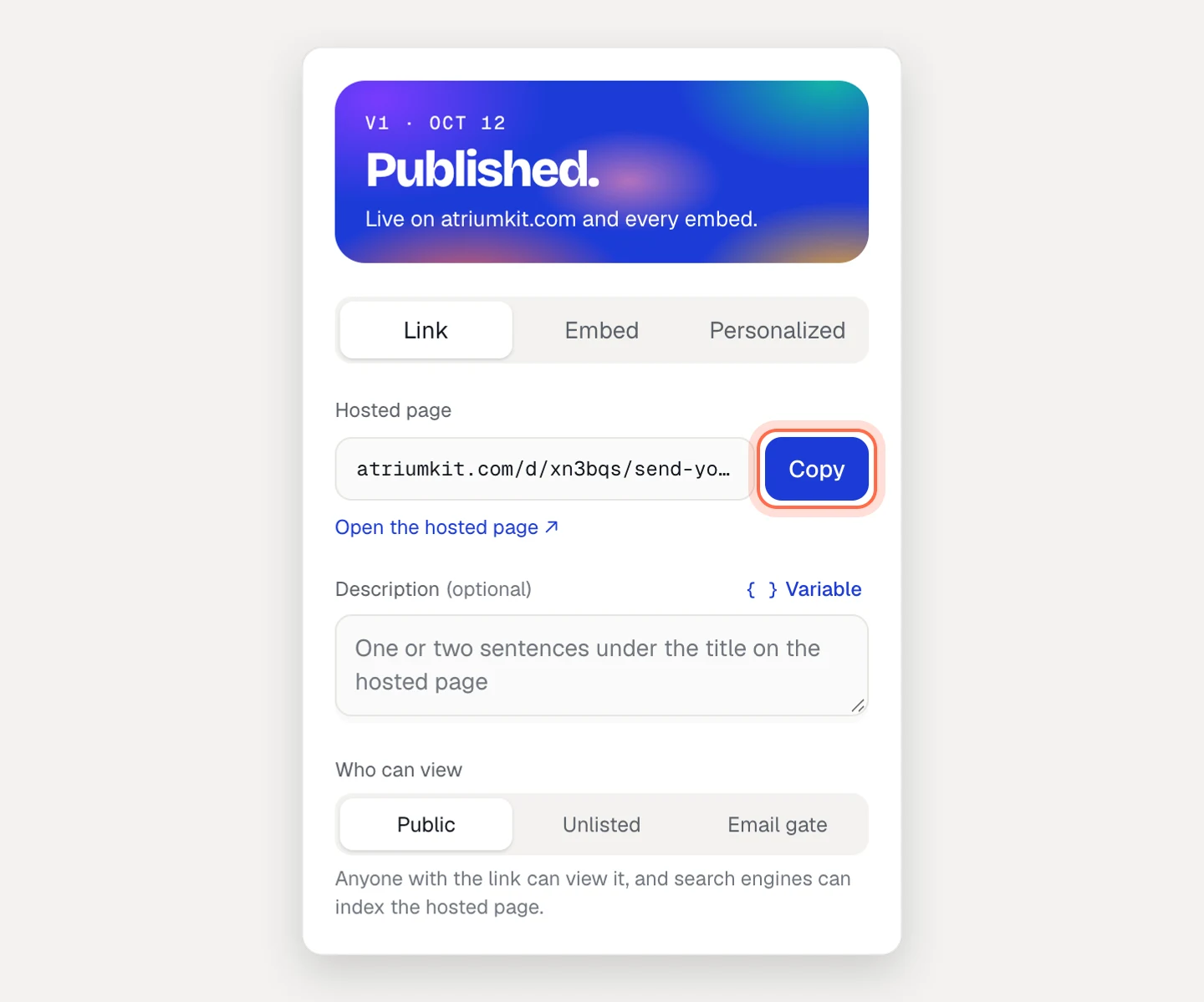
- A message says Published v1. and the Share tab opens. The panel on the right says Published. with the version and when you published it.
You can also publish from the Share tab: if the panel says Not published yet, click Publish there.
If publishing fails, the message says why, for example “Add at least one step before publishing”. On Free, a fourth demo is refused with a note that your plan includes 3 published demos: unpublish one, or click View plans.
Share the hosted link
Every published demo has its own page at an atriumkit.com/d/… address, with your brand kit’s header, the demo’s title and an optional description.
- On the Share tab, click Link.
- Click Copy next to Hosted page, or click Open the hosted page ↗ to see it.
- Optional: write a Description. It shows under the title on the page.
- Choose Who can view:
- Public: anyone with the link can view it, and search engines can list the page.
- Unlisted: anyone with the link can view it, and search engines are asked not to list it.
- Email gate: viewers enter their email before the demo starts. Pro and Team.
See Access settings for more.
Embed it
- On the Share tab, click Embed.
- Pick a Size: Responsive or Fixed 1280×720.
- Click Copy, then paste the code into your site, help center or any page that accepts an iframe.
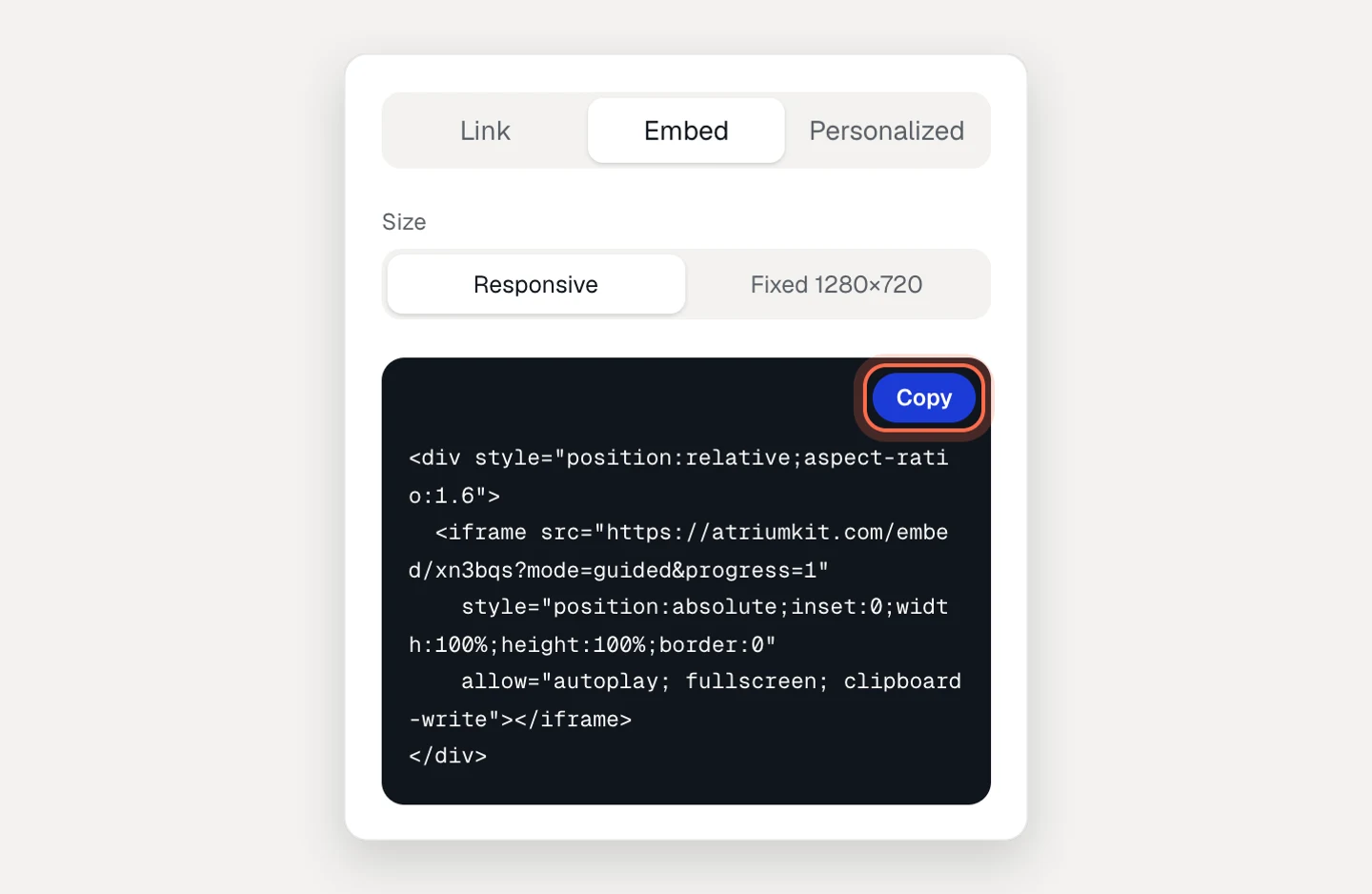
Embeds always show the published version. Options such as the start step and the language are in Embed a demo.
Share the step-by-step guide
Every published demo is also a written guide at an atriumkit.com/g/… address, with a picture and instructions for each step. The guide follows the demo’s Who can view setting.
- On the Share tab, find the Step-by-step guide card. It’s on by default.
- Click Copy for the guide’s link, or Open the guide ↗ or Markdown ↗.
- Click Edit guide copy to write instructions just for the guide.
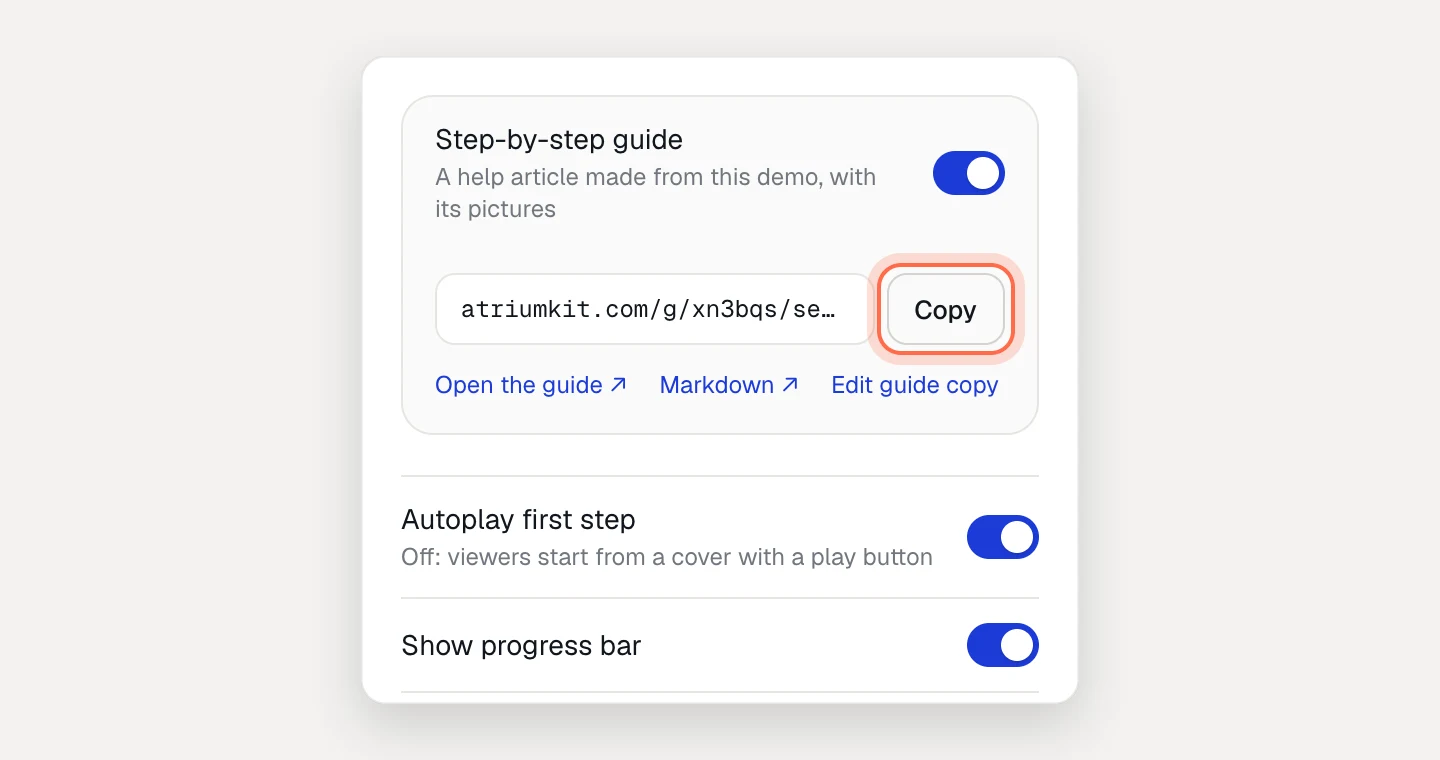
Turn the switch off and the guide’s link answers “not found”. See Step-by-step guides.
Choose how it plays
Below the guide card, switches control the published demo:
- Autoplay first step (guided) or Open in guided mode (clickable)
- Show progress bar
- Show “Made with AtriumKit”, always on for Free
- Ask for email before the last step, on Pro and Team. Clickable demos ask after 3 screens.
Brand kit picks the logo, colors and fonts for the hosted page and the player.
Publish your edits
Edits you make after publishing don’t reach viewers until you publish again. While they wait:
- the header button says Publish changes, and
- the Share tab says “Edits since v1 aren’t live yet.” with a Publish link.
Click either one. The link and embed code stay the same, so there’s nothing new to send. Each publish is saved as a version you can go back to from History in the header.
Unpublish
- On the Share tab, scroll to the bottom of the panel and click Unpublish.
- The link, every embed and the guide stop working right away. Visitors see “This demo isn’t available”.
The draft stays in your library with everything in it. When you publish again, the same link and embed code work again. On Free, unpublishing frees one of your 3 published demos.
Troubleshooting
- The Publish button is greyed out. The demo has no screens yet, or a publish is already running.
- There’s no Publish button. You’re a viewer in this workspace. Ask an admin for the editor role.
- Viewers still see the old version. Check that the header button says Published with a check mark, not Publish changes.