You pick the demo type when you start a recording, and a demo keeps its type for good. This article explains the difference so you can choose.
The short version
| Guided demo | Clickable demo | |
|---|---|---|
| What viewers get | One path, step by step, with a tooltip on each step | Screens they explore in any order by clicking hotspots |
| Each click you record becomes | A tooltip step | A hotspot that links one screen to the next |
| Viewers move on by | Clicking the highlighted spot, pressing Next, a timer or the end of the narration | Clicking any hotspot |
| Good for | Showing how to do one task, onboarding, feature launches, follow-ups after a call | Letting people try the product on their own, “look around” tours |
If you’re not sure, choose guided. It suits most first demos, and you can record the same flow as a clickable demo later.
Where you choose
- In the extension: click the AtriumKit button and pick Guided demo (“One path. Each click becomes a tooltip step.”) or Clickable demo (“Each page becomes a screen viewers can explore.”). Then click Start recording.
- In the dashboard: click New demo, pick a card, then Record in Chrome or Upload screenshots.
The extension remembers your last choice. There’s no way to turn a guided demo into a clickable one, or back. To have both, record the flow twice.
Guided demos
Each click becomes a step with a screenshot, a hotspot on what you clicked and a tooltip. AtriumKit adds an intro card at the start and an outro card on the final screen.
The guided editor has three parts:
- Step list (left). Every step with its number and picture. Drag steps to reorder them. + Add step adds a Tooltip step, Chapter card, Choice card, Lead form or Call to action.
- Canvas (middle). The selected step on its screen. The tools above it are Select, Hotspot, Frame, Edit text, Blur and Crop, plus Hide and Image on screens captured as HTML. Play step plays the step the way viewers see it.
- Inspector (right). The step’s Title and Body, Tooltip position, Advance when (Click, Next, Timer or Narration), the Hotspot style (Pulse, Outline or Hidden), camera zoom, branching choices and the step’s Screen.
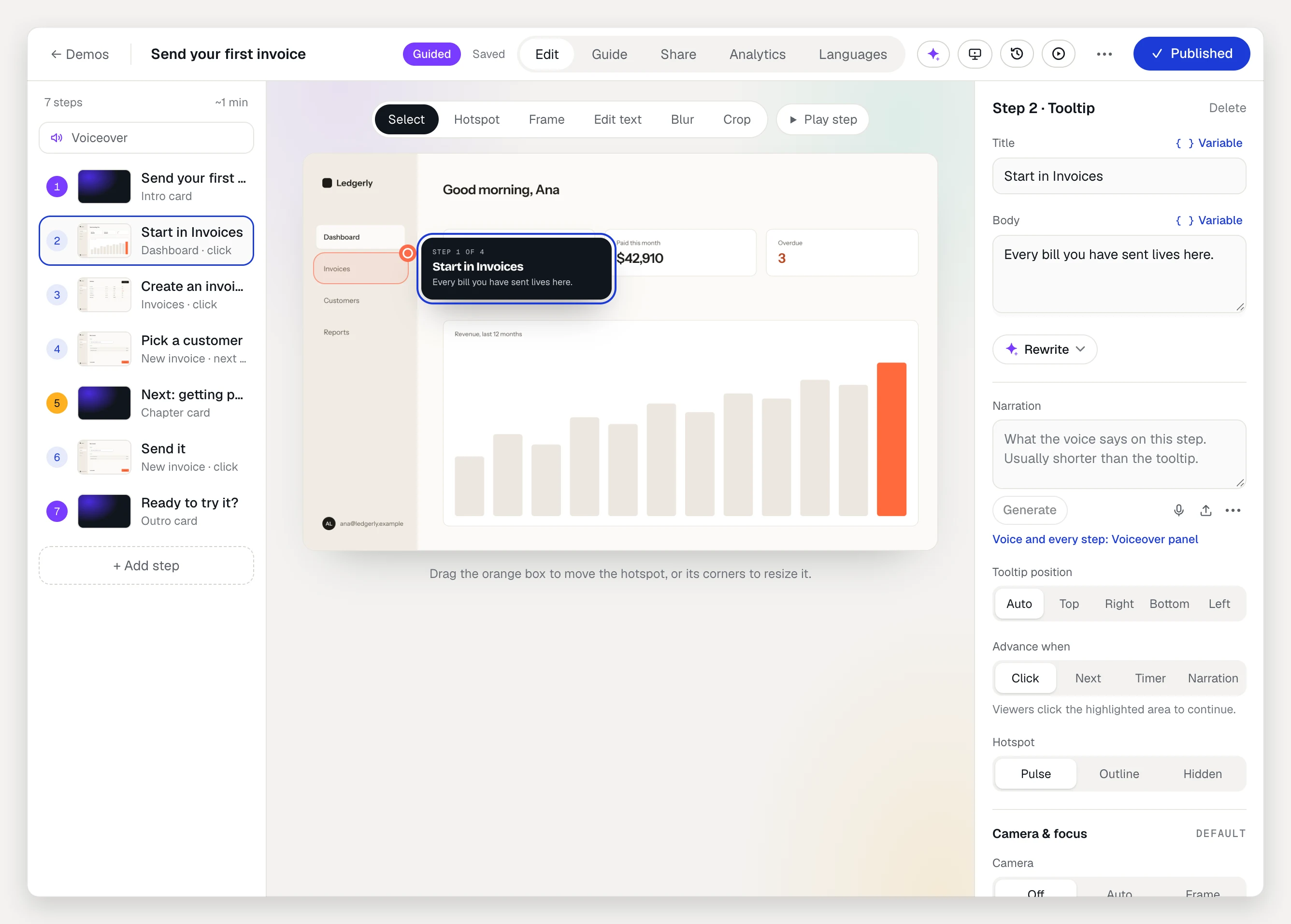
Guided demos can branch. A choice card or a tooltip with two to four choices sends each viewer down their own set of steps.
Clickable demos
Each page you visit becomes a screen. Each click that leads to another page becomes a hotspot on the screen where you clicked. Coming back to a page that looks the same gives you one screen, not two.
AtriumKit also links your app’s navigation for you. Click Invoices in your sidebar once while recording, and the Invoices item works from every recorded screen where that sidebar shows. This is called smart stitching.
The clickable editor has three parts:
- Screen list (left). Every screen, with a Start badge on the one viewers see first and a count of its hotspots and links. + Capture more screens records more pages into the same demo.
- Canvas (middle). Switch between Screen and Map. Map shows every screen and the hotspots between them. The tools are Hotspots, Edit text, Blur and Crop, plus Hide and Image on screens captured as HTML.
- Inspector (right). The selected hotspot’s Label, where it Goes to (a screen, an External link or Nothing yet) and an optional Hover hint. Below that, the screen’s settings: Start screen, Hint when stuck and Always show hotspots.
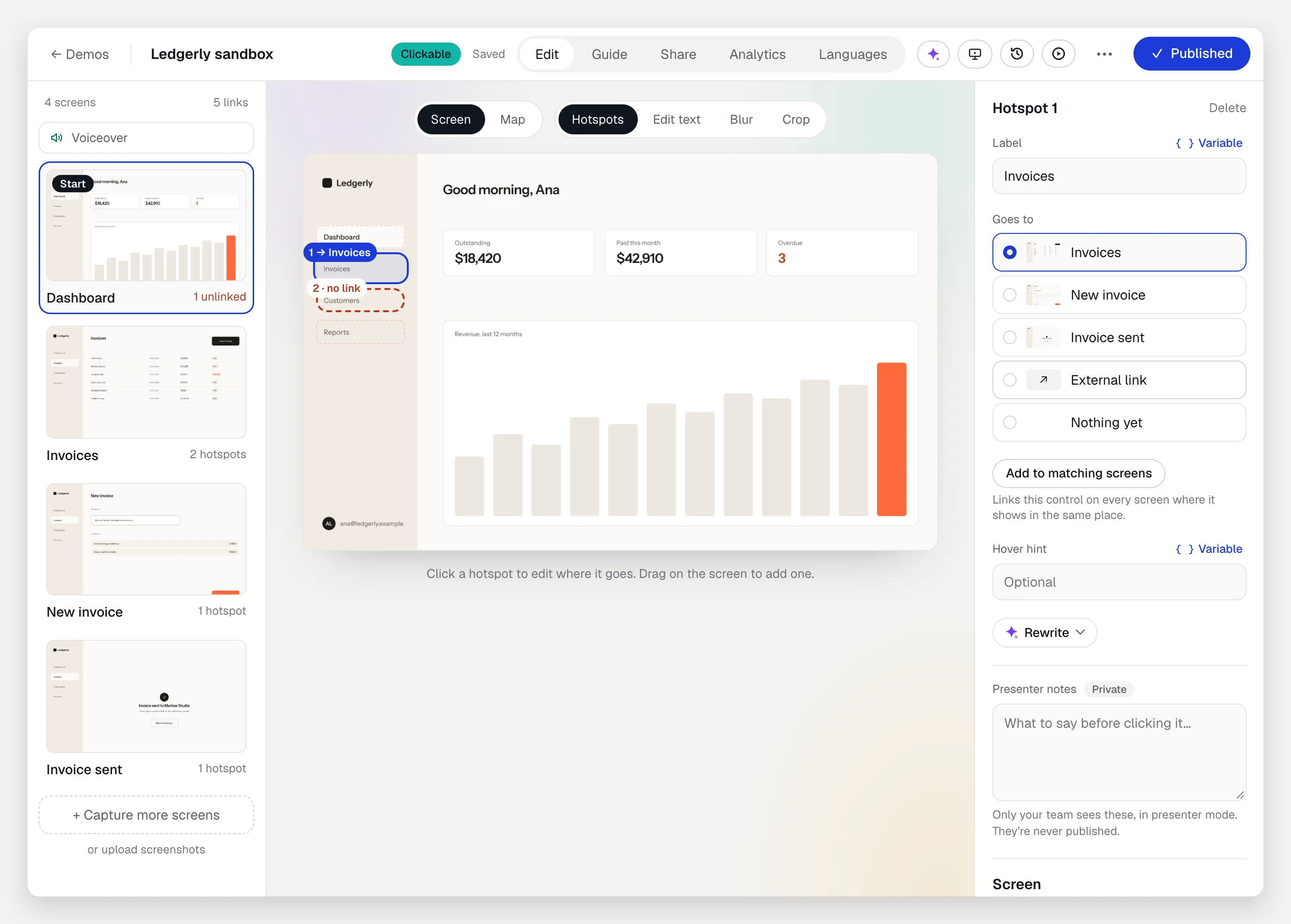
On the Share tab, Open in guided mode highlights the next hotspot on the path you recorded, for viewers who want a nudge.
What both types share
- The same recording options, blurring and HTML capture
- Write with AI for the copy, on every plan (it uses AI credits)
- A hosted link, an embed code and a step-by-step guide made from the demo
- Voiceovers and AI translations on Pro and Team
- Presenter mode on Team
Analytics differ a little. Guided demos show a step funnel with drop-off; clickable demos show screen visits and hotspot clicks. Both are part of detailed analytics on Pro and Team. Free shows views.