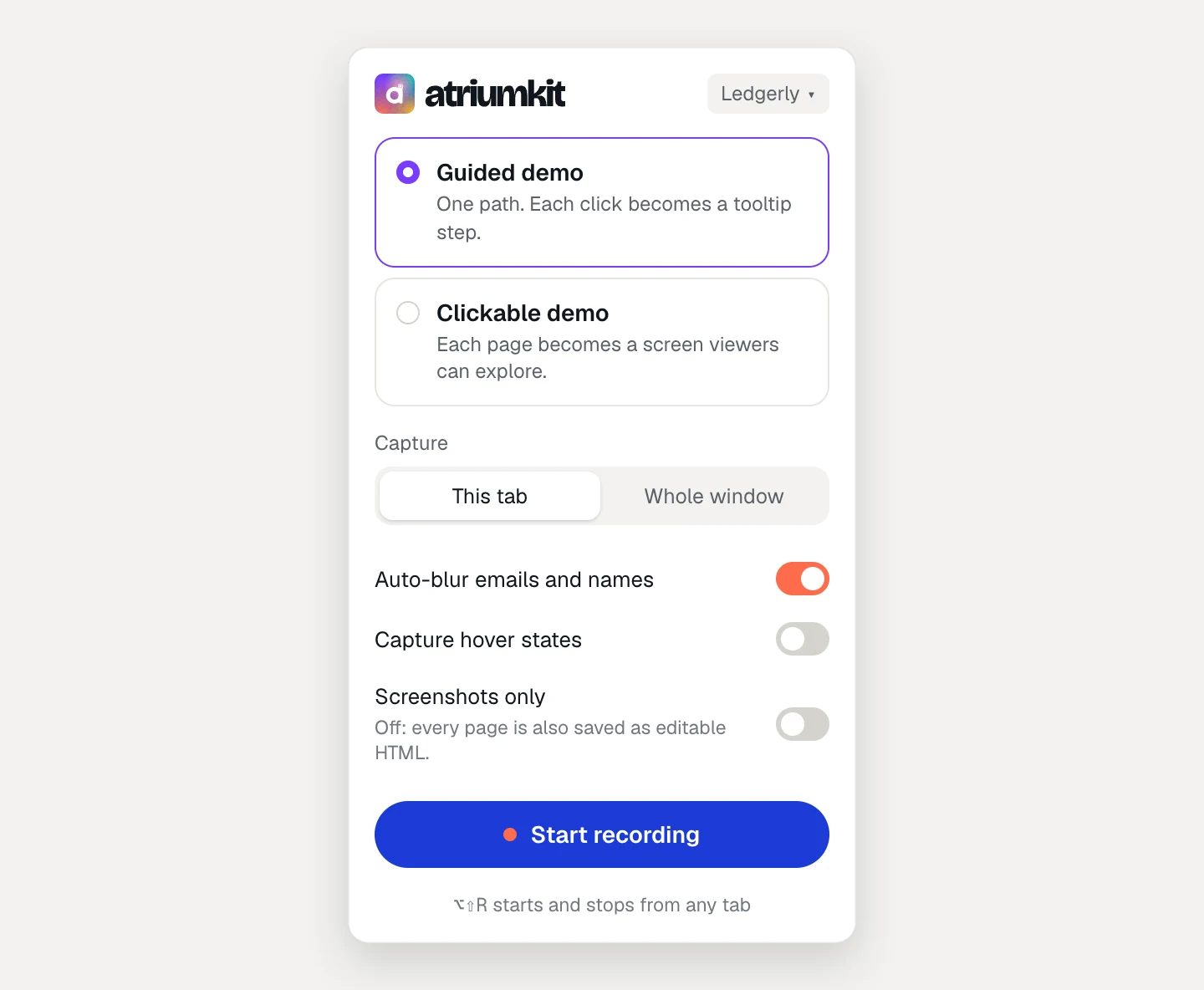
Everything you set before a recording is in the extension’s window. Click the AtriumKit button in Chrome’s toolbar to open it. Your choices are remembered for the next recording.
Workspace
The workspace name sits at the top right of the window. Click it to switch workspaces, see which account you’re signed in with, or Sign out.
The demo is created in the workspace shown there. Your role in it decides whether you can record: admins and editors can, viewers can’t.
Demo type
- Guided demo: one path. Each click becomes a tooltip step.
- Clickable demo: each page becomes a screen viewers can explore.
A demo can’t change type later. See Choose between a guided and a clickable demo.
Capture: This tab or Whole window
- This tab (the default) records the tab you start in. It follows links and page loads inside that tab. A link that opens a new tab isn’t followed, and closing the tab ends the recording.
- Whole window records whichever tab is active in that Chrome window, and follows you when you switch tabs. Use it when your flow opens a new tab, such as an admin console or a checkout page.
Auto-blur emails and names
On by default. Before each capture is stored, AtriumKit finds email addresses, phone numbers, names in user and customer areas, and personal form fields, and blurs them in the screenshot and in the page’s HTML copy.
Turn it off only on pages that show sample data you’re happy to share. See Blur sensitive data.
Capture hover states
Off by default. When it’s on, resting the pointer for a moment (about 0.7 seconds) on something that opens a menu, tooltip or preview turns that hover into a step of its own, titled “Hover over…”.
Turn it on for apps with hover menus. Leave it off if you tend to move the mouse around while you talk, or you’ll get extra steps.
Hover steps are detected when something on the page appears or changes as you hover. Menus that open with CSS alone don’t change the page, so they don’t become hover steps. Clicking inside one still captures it open, with or without this switch.
Screenshots only
Off by default. While it’s off, every page is captured twice: as a screenshot and as a copy of its HTML, so you can edit text, hide elements and swap images later. The window shows “Off: every page is also saved as editable HTML.”
Turn it on to capture images only (“Pages are captured as images.”). See How HTML capture works.
Start and stop
Click Start recording, or press Alt+Shift+R (⌥⇧R on a Mac) in any tab. The same shortcut stops the recording. To change it, open chrome://extensions/shortcuts.
If Start recording is greyed out, the window says why: you’re a viewer in this workspace, or the tab shows a page Chrome doesn’t let extensions capture.
The recording bar
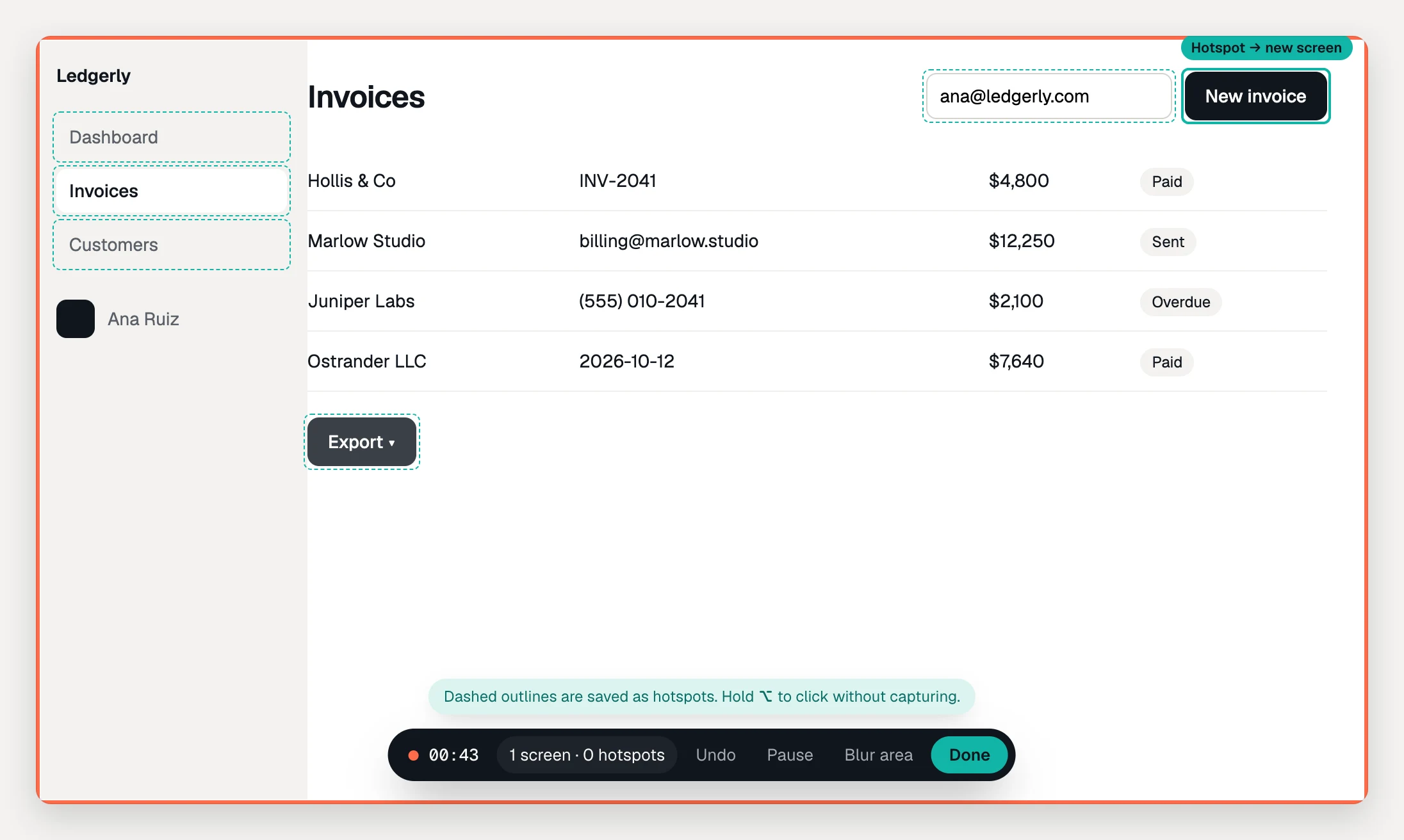
While you record, an orange border frames the page and a bar sits at the bottom. Neither appears in your captures.
- Timer and count: the time recorded, and the number of steps (guided) or screens and hotspots (clickable).
- Undo: removes the last step.
- Pause and Resume: stop and restart capturing, so you can move around freely. The border turns grey while paused.
- Blur area: drag over anything to blur it in every capture on this page.
- Done: captures the final screen and opens the review panel.
In a clickable demo, clickable elements get dashed outlines while you record, and the one under the pointer is labeled Hotspot → new screen.
The AtriumKit button shows REC while you record (grey while paused). Click it to see the timer, Discard the recording, or click Done. After you finish, the button shows 1 until you open the recording in the editor or discard it.
More on fixing mistakes in Undo, pause and remove steps.
Adding to an existing demo
After you click + Capture more screens in a clickable demo, the extension’s window says Adding to: with the demo’s name, and the demo type can’t be changed. Click × next to it to record a new demo instead. See Capture more screens after recording.