Every published demo has an embed code: an iframe you can paste into any page that accepts HTML. This article covers copying it, sizing it, the options you can add to it, and the messages a developer can exchange with it.
Embeds work on every plan. On Free, the demo always shows “Made with AtriumKit”.
Copy the embed code
- Open the demo and click the Share tab.
- If the panel says Not published yet, click Publish. Embeds always show the published version, so publish again whenever you want your edits to appear.
- Check the switches lower in the panel: Autoplay first step (or Open in guided mode for clickable demos), Show progress bar and Show “Made with AtriumKit”. The embed code includes them.
- Click Embed, next to Link and Personalized.
- Pick a Size: Responsive or Fixed 1280×720.
- Click Copy. You’ll see “Embed code copied”.
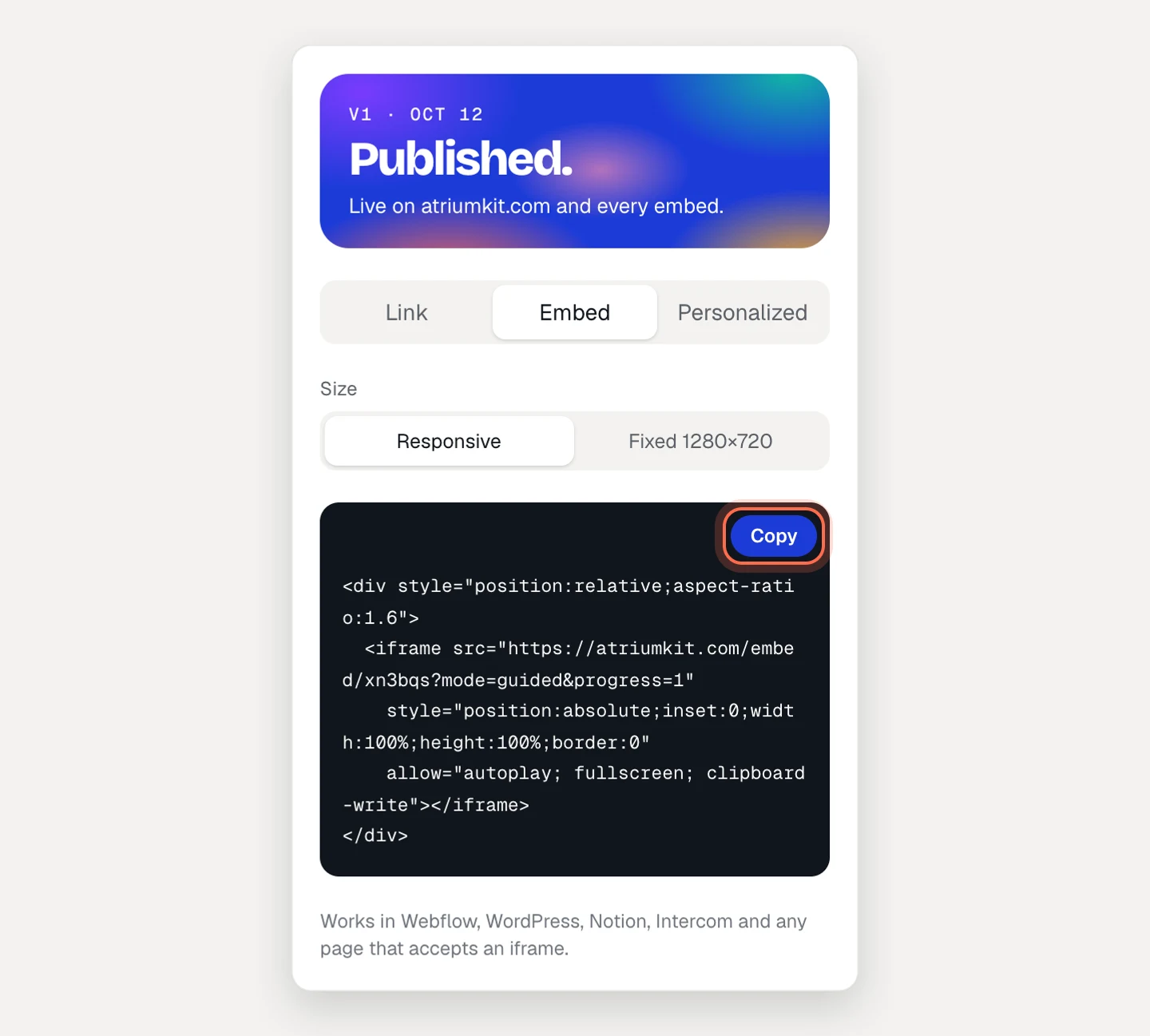
If the demo has narration, a Start with narration muted checkbox appears under the code. It adds sound=0 for you.
Responsive or fixed
- Responsive wraps the iframe in a
divthat keeps the demo’s shape (taken from its start screen) and fills the width of whatever column you put it in. Use it in most places. - Fixed 1280×720 is a plain iframe, 1280 pixels wide and 720 high. Use it when the tool you paste into sets the size of embeds itself or strips the wrapper
div.
Paste it into your site or help center
The embed works on any page that accepts an iframe, on any domain:
- Website builders and CMSs: add an HTML, code or custom embed block and paste the code.
- Help centers and docs tools: switch the article editor to its HTML or source view, or use its embed block, and paste the code.
- Tools that ask for a URL instead of code: paste only the address inside
src="…". It starts withhttps://atriumkit.com/embed/.
Search engines are asked not to index the embed itself, so it never competes with your own page.
Change what the embed does
Options go at the end of the src address, after a ?, joined with &. Anything you leave out follows the demo’s share settings.
| Option | What it does |
|---|---|
mode=guided or mode=free |
Guided demos: guided starts on the first step, free starts from a cover with a play button. Clickable demos: guided highlights the next hotspot on the recorded path, free lets viewers explore. |
progress=1 or progress=0 |
Shows or hides the progress bar. |
brand=0 |
Hides “Made with AtriumKit”. Ignored on the Free plan. |
start=3 |
Guided demos: opens at step 3, skipping the cover. |
lang=de |
Opens in that language, if the demo has it. Codes: en, es, fr, de, it, pt-BR, nl, pl, sv, tr, ja, ko, zh-CN, zh-TW, id. |
sound=0 |
Starts with narration muted. Viewers can still turn it on. |
captions=1 or captions=0 |
Turns narration captions on or off at the start. |
For example: https://atriumkit.com/embed/k3x9q2?mode=guided&lang=fr&sound=0.
Without lang, the player uses the language the viewer picked earlier, then their browser’s language, then the demo’s own.
Languages need AI translations, and
soundandcaptionsneed voiceovers. Both are on Pro and Team.
For developers: talk to the embed
The player and your page can exchange messages with window.postMessage. Commands you can send to the iframe:
{ source: 'atriumkit-host', type: 'restart' }goes back to the start.{ source: 'atriumkit-host', type: 'goTo', target: 2 }jumps to a step (counting from 0) in a guided demo, or a screen in a clickable one.{ source: 'atriumkit-host', type: 'mute' }andtype: 'unmute'control narration. Sound only starts after the viewer has clicked or pressed a key inside the demo.{ source: 'atriumkit-host', type: 'captions', on: true }turns captions on or off.{ source: 'atriumkit-host', type: 'setVariables', values: { company: 'Acme' } }fills in personalization variables. See Personalize a demo.
The iframe sends { source: 'atriumkit-player', type } messages back: ready (with demoType and total), change on every step or screen (with index, total and id), sound, complete when the viewer finishes, and lead when they submit a form. lead never includes the email address.
<iframe id="demo" src="https://atriumkit.com/embed/k3x9q2" width="1280" height="720"
  frameborder="0" allow="autoplay; fullscreen; clipboard-write"></iframe>
<button id="replay">Watch again</button>
<script>
  const frame = document.getElementById('demo');
  window.addEventListener('message', (e) => {
    if (e.source !== frame.contentWindow || e.data?.source !== 'atriumkit-player') return;
    if (e.data.type === 'complete') console.log('Demo finished');
  });
  document.getElementById('replay').onclick = () =>
    frame.contentWindow.postMessage({ source: 'atriumkit-host', type: 'restart' }, 'https://atriumkit.com');
</script>
Troubleshooting
- The embed says “This demo isn’t available”. The demo was unpublished, or the code was cut off. Publish the demo again and the same code works again.
- Your edits don’t show. Embeds show the published version. Click Publish changes in the demo.
- You changed a share switch but the embed didn’t follow. Options written into the code win over the saved settings. Copy the code again, or edit the option in the
srcaddress. - The embed asks for an email. The demo is set to Email gate. See Access settings.