A collection is one branded page for several demos: a list to pick from, with the selected demo playing next to it. Visitors see how many they’ve viewed and move on with Previous and Next.
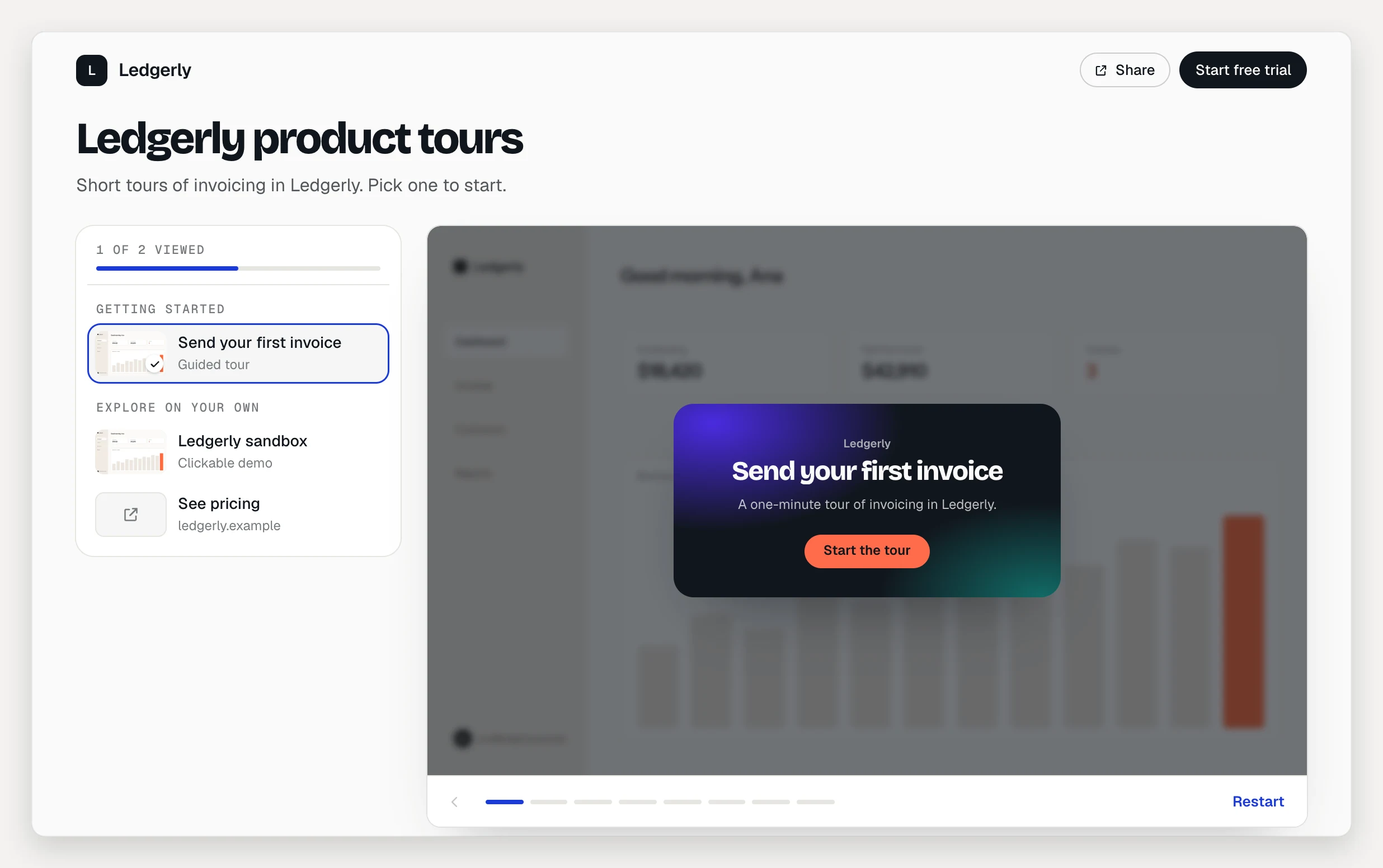
Collections are on Pro (1 collection) and Team (unlimited). The Free plan doesn’t include them.
Create a collection
- Click Collections in the sidebar.
- Click New collection.
- Enter a Title for the people who’ll see it, like “Product tours”, and click Create collection.
Or start from a demo: choose Add to collection… in its menu in the library, or in the ⋯ menu inside the demo.
Add demos, sections and links
- Click + Add demos, check the demos you want and click the Add button (it shows how many you picked). You can add drafts, but visitors only see live demos. Drafts join the page once you publish them.
- Click + Section to add a heading, then type its name. Demos below a heading are grouped under it.
- Click + Link to add a link to docs, pricing or a sign-up page. Give it a title and a URL that starts with
https://,mailto:ortel:. - Drag the handles to reorder, or use Alt + arrow keys.
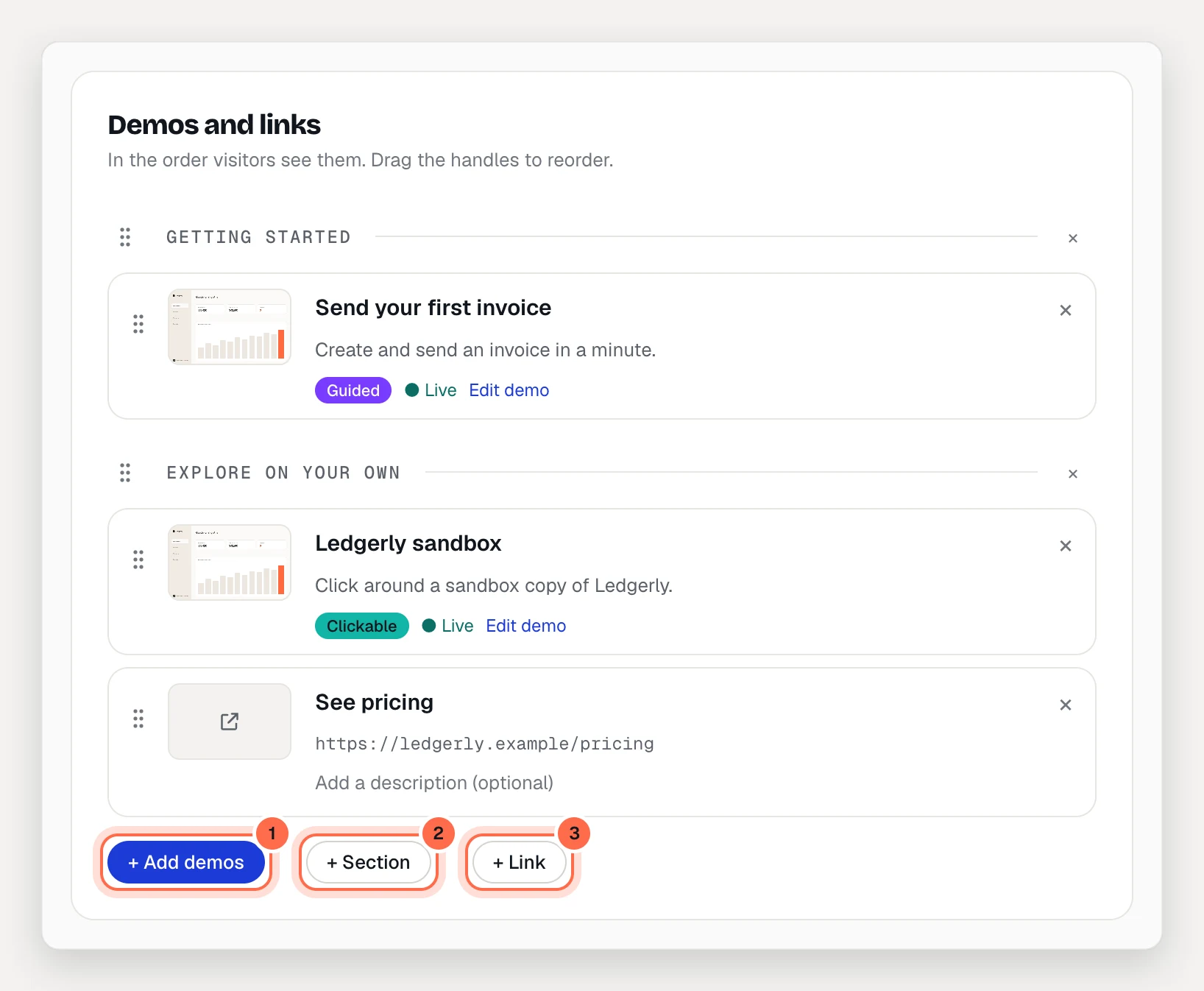
Click a demo’s title to rename it on this page only, and add a short description if you like. Each demo shows its status, such as Live or Draft · hidden until published. The list saves on its own.
Set up the page
In the Page card:
- Description: a line under the title.
- Brand kit: the logo, colors, fonts and header layout. Pick Workspace default or any kit, or click Edit brand kits.
- Show “Made with AtriumKit”: turn it off to hide the badge.
The header button is in the Lead capture card under Button: give it a Label, pick Open a link and paste the Link. Left empty, it uses your brand kit’s button.
Capture leads
Use the Lead capture card:
- Open a form makes the header button open a Button form. Set the Form title, Text and Fields (work email is always asked; add Name, Company or Phone) and the Send button label. Under After sending, show a Message, add a + Button (for example, your calendar, opened in a new tab), or Go to a page.
- Ask for an email decides when visitors give an email:
- Never: they browse freely and leads come from the button form.
- Email gate: one work email before the page opens every demo.
- Locked demos: click the lock next to each demo you want behind an email. One email unlocks all of them.
- After N demos: ask once a visitor has watched a set number (1 to 10). Turn on Visitors can skip it to let them say “Not now”.
- Moments: “Up next” when a demo ends suggests the next demo with your button. Completion card shows your button once every demo was seen.
- Preview the page shows each of these states without recording anything.
Leads appear in Leads with their source and the demos they watched, and go to your integrations.
The button form and every way of asking for an email are on Pro and Team.
A locked demo that is Public can still be opened at its own link. Set it to Unlisted on its Share tab to keep it behind the email.
Share or embed it
The page goes online once at least one demo in it is live.
- In the Access card, pick Who can view: Public, Unlisted or Email gate.
- Optional: change the Link (3–48 lowercase letters, digits or hyphens) and click Save. Changing it breaks links you already shared.
- Click Share. On Link, click Copy. On Embed, pick Responsive or Fixed 1280×720 and click Copy. The embed puts the demo list and player in one iframe.
Click View page ↗ to open it. Values in the collection link, like ?company=Acme, pass on to every demo on the page. See Personalize a demo.
See how it performs
The collection’s Analytics tab shows Page views, Unique visitors, Demo opens, Demos finished, Leads and opens per item. Its Lead capture section adds CTA clicks, Forms shown and Conversion rate, and which demo visitors were watching when they converted. Views inside a collection also count in each demo’s own analytics.
Limits
- Up to 200 items per collection.
- The collection’s own text (title, sections, button and form) isn’t translated. Its built-in words follow the visitor’s language, and each demo plays in its own languages.
- If a workspace moves to Free, its collection pages go offline until it upgrades.
- Delete collection (in the ⋯ menu) stops the page and embed. The demos stay in your library and the leads in Leads.