A clickable demo is a set of screens linked by hotspots, and viewers explore it in any order. This article covers the clickable editor. Everything here works on every plan.
Find your way around
- Screen list (left): every screen, with a Start badge on the first one and a count like “2 hotspots · 5 links”. Drag screens to reorder them. + Capture more screens records more with the extension, and or upload screenshots adds PNG, JPEG or WebP images up to 15 MB.
- Canvas (middle): Screen shows the selected screen. Map shows every screen with a line for each hotspot; click a screen to edit it.
- Inspector (right): the selected hotspot, or the screen’s links and settings.
Add and edit hotspots
- Select a screen and make sure Hotspots is picked above the canvas.
- Drag on the screen to draw a hotspot. On an HTML screen you can also click an element to put a hotspot on it. If the element is a link to another recorded screen, the hotspot is linked right away.
- In the inspector, set:
- Label: the hotspot’s name, read out by screen readers and shown in the editor’s lists.
- Goes to: another screen, External link (paste a link starting with
https://) or Nothing yet. - Hover hint (optional): a short note viewers see when they point at the hotspot.
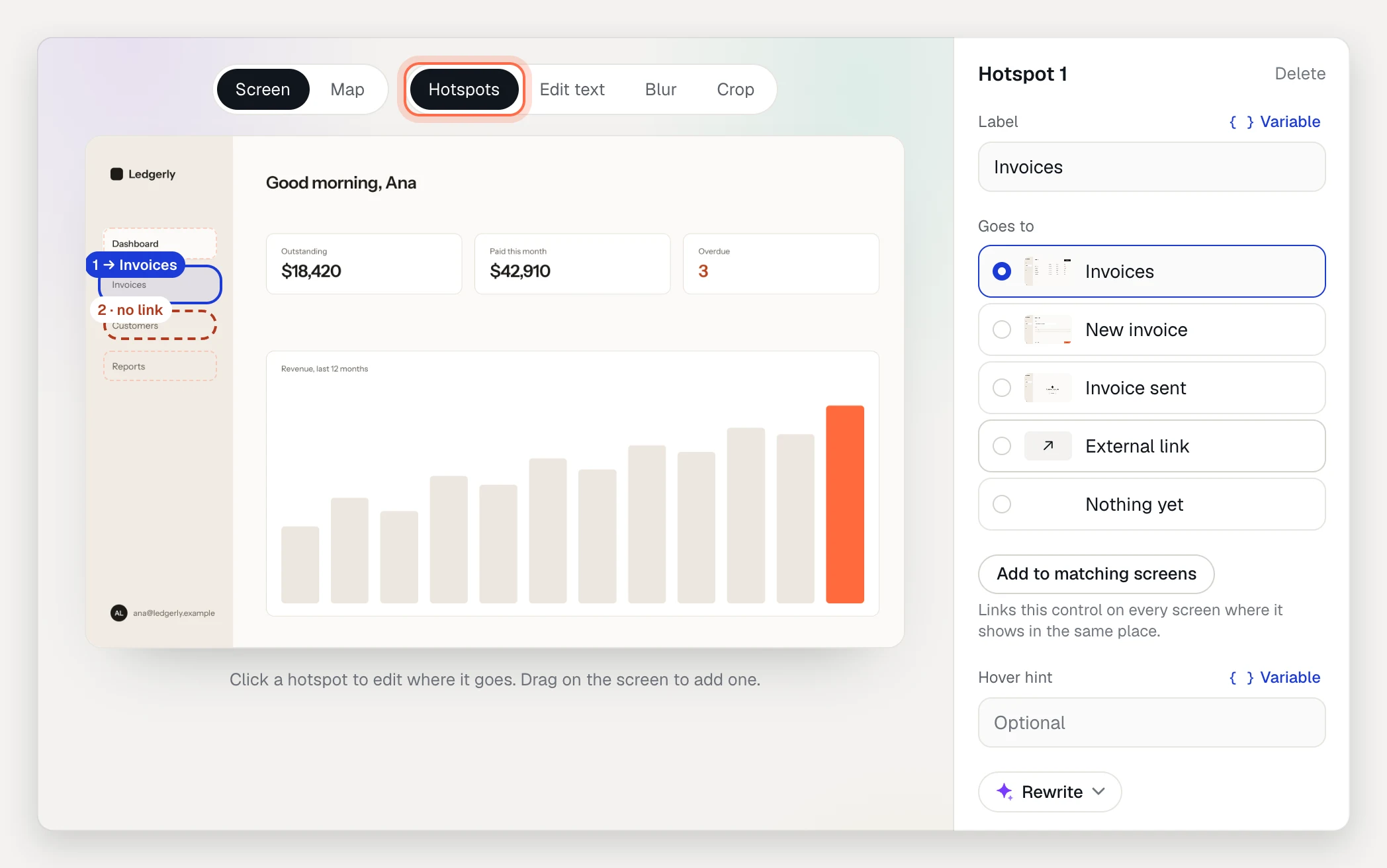
Drag a hotspot to move it. Click Delete in the inspector, or press Delete, to remove it, and ⌘Z to undo.
Hotspots set to Nothing yet aren’t shown to viewers. The screen list flags them as “1 unlinked”.
Help viewers find their way
The Screen section of the inspector has three switches:
- Start screen: where viewers land first.
- Hint when stuck: hotspots pulse after 4 seconds without a click.
- Always show hotspots: when off, hotspots show on hover or after a click that misses.
On the Share tab, Open in guided mode highlights the next hotspot on the path you recorded.
Let smart stitching link your navigation
When you record, you click a sidebar item once, on one screen. Smart stitching makes that same sidebar item, tab or menu link work from every screen it appears on. Links it’s confident about are added when your recording is processed, and the rest come back as suggestions. Viewers see these auto links quietly: no pulse, just an outline on hover.
To run it yourself:
- Press Esc so no hotspot is selected. The inspector shows the screen’s links.
- Under Navigation links, click Link navigation across screens.
- The dialog shows what it adds, for example “Adds 24 links across 9 screens”, grouped By control. Tick any extra links it isn’t sure about, or Tick all.
- Click Add N links. It’s one undo step.
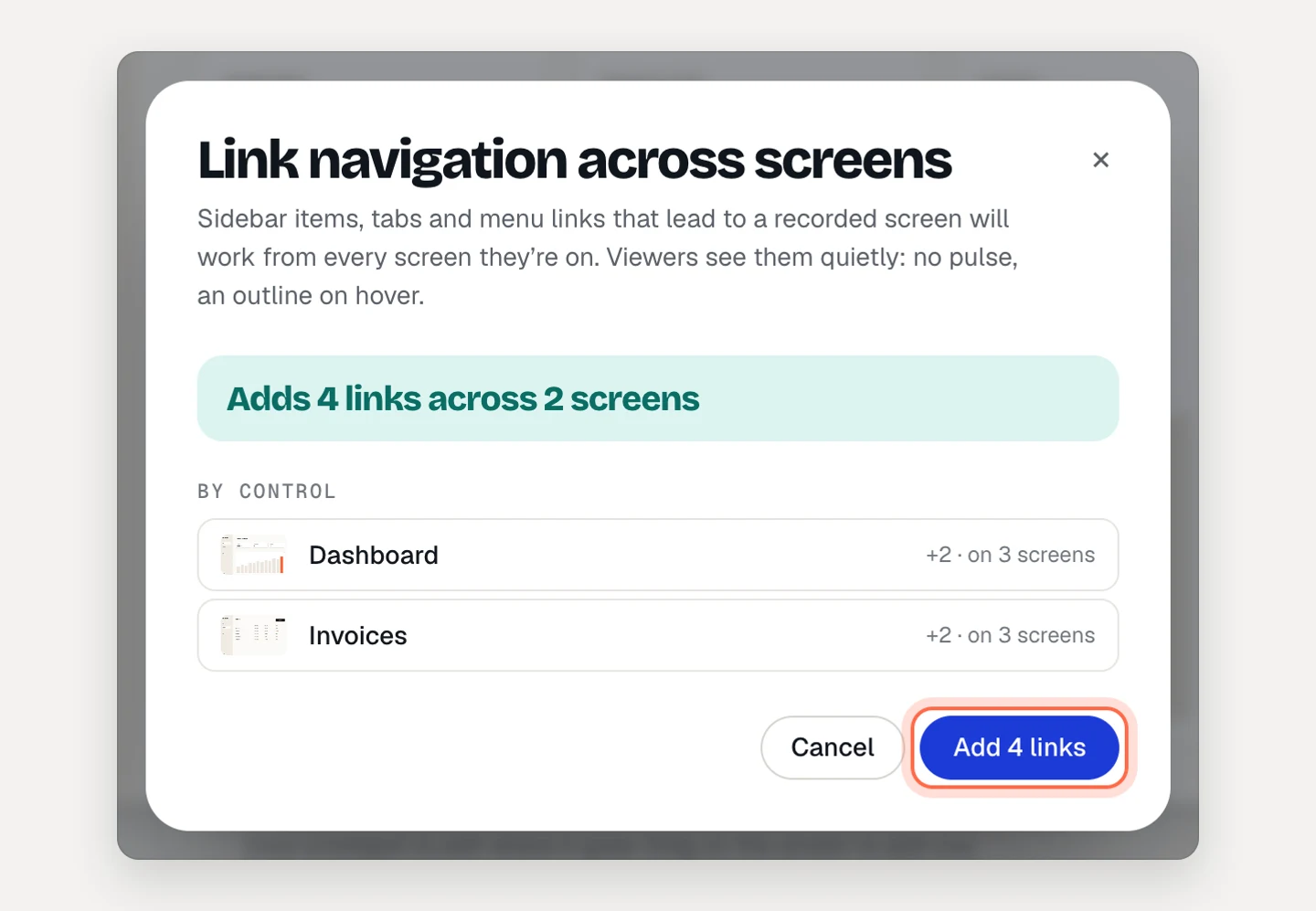
Suggestions you didn’t take wait under To review on each screen, with the reason, such as “Same label, but in a different place”. Click Add link or Dismiss. Links to review at the top of the screen list shows only the screens that have some.
The Auto links button above the canvas hides or shows auto links, so you can see your own hotspots.
Smart stitching never links destructive-looking buttons (like Delete or Sign out), form fields, external links, pages you didn’t record, the control for the page you’re already on, or anything your own hotspots cover.
Link one control everywhere
Select a hotspot that goes to a screen and click Add to matching screens. AtriumKit links the same control on every screen where it shows in the same place.
A hotspot that’s part of a group says “on 9 screens”. Under Changes apply to, choose All 9 screens or Just this one. Ungroup splits the group. When you delete a grouped hotspot, you choose Just this one or Delete from all 9.
Troubleshooting
- A sidebar link doesn’t go anywhere. Links only reach screens you recorded. Click + Capture more screens, record the missing pages, then run Link navigation across screens again.
- “Nothing new to link”. Every navigation control AtriumKit recognized already goes somewhere.
- A hotspot doesn’t show in the published demo. Check that Goes to isn’t Nothing yet, then publish your changes.
- You want to start over. In the Link navigation across screens dialog, click Remove all N auto links. Your own hotspots stay.