The guided editor has three columns: the step list on the left, the canvas in the middle and the inspector on the right. Select a step in the list to edit it in the inspector.
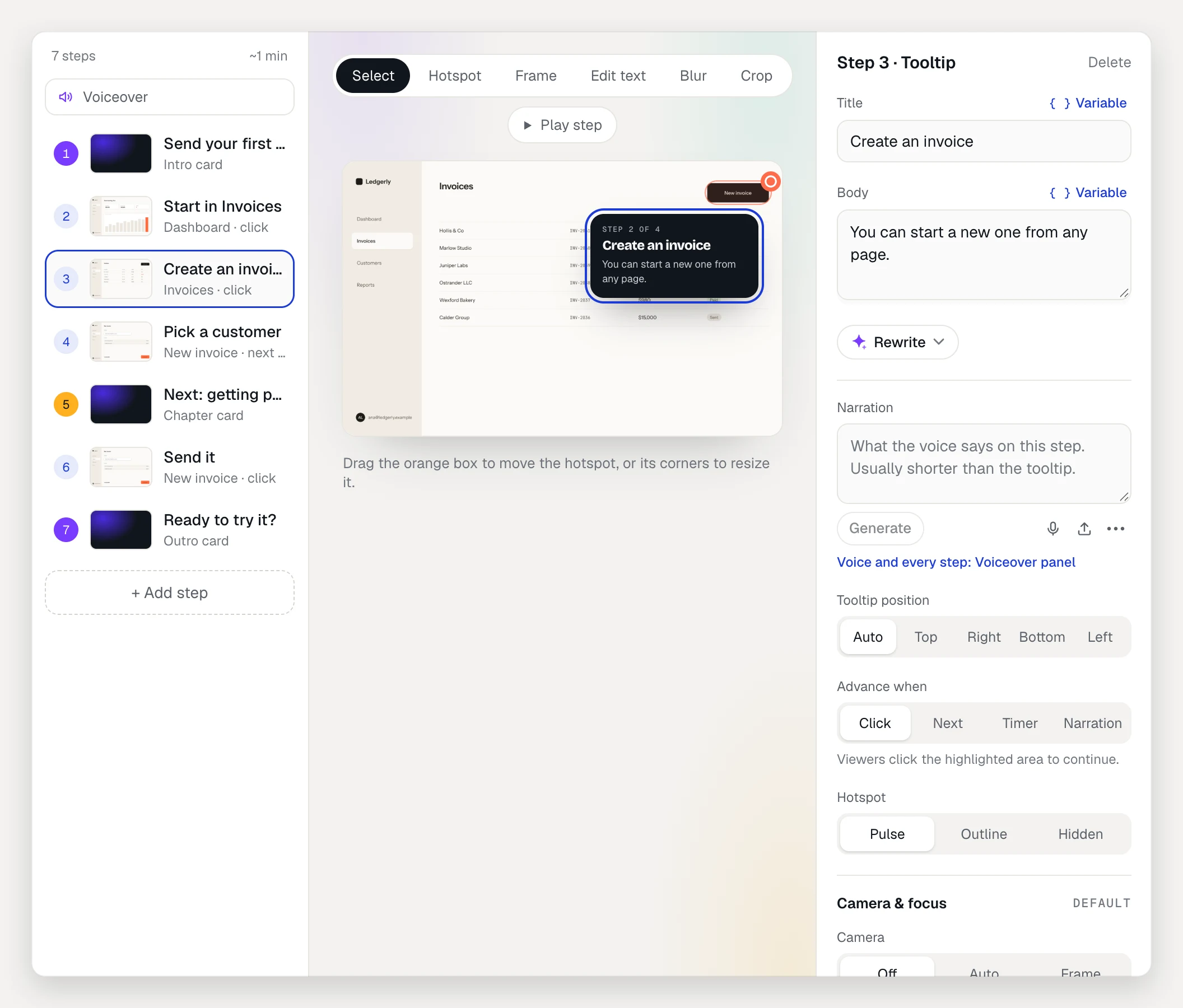
Step kinds
A new recording starts with an intro card, one tooltip for each click and an outro card. You can add the others.
- Tooltip: points at a spot on a captured screen.
- Intro card: the opening card, with the demo title and a Start the tour button.
- Chapter card: breaks the tour into sections.
- Choice card: asks viewers which path to take and shows them the part that fits. It’s a chapter card with choices, so the inspector calls it a Chapter card. See Branch a guided demo with choices.
- Lead form: asks for an email before viewers continue.
- Call to action: links to a trial, a calendar or any page.
- Outro card: the closing card. Its button replays the demo unless you give it a link.
Add, reorder and delete steps
- Select the step the new one should follow.
- Click + Add step at the bottom of the step list.
- Choose Tooltip step, Chapter card, Choice card, Lead form or Call to action.
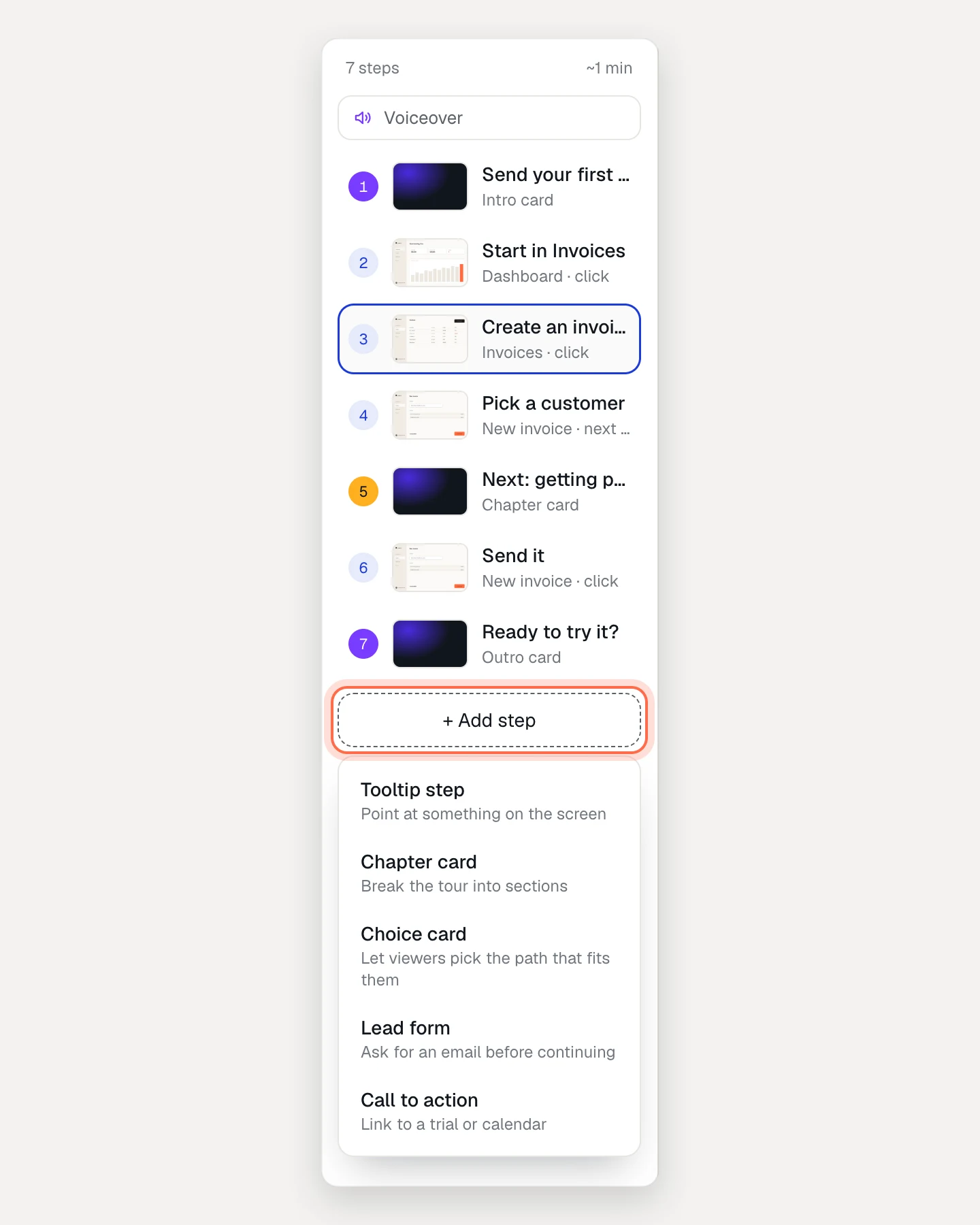
To reorder, drag a step up or down the list, or select it and press Alt+↑ or Alt+↓.
To delete the selected step, click Delete at the top of the inspector, or press Delete while the step is focused in the list. Choices and jumps that led to it now go where it led. Press ⌘Z (Ctrl+Z on Windows) to undo.
A demo can have up to 500 steps.
Edit a tooltip
- Write the Title and Body. Rewrite under them asks AI for another version.
- Set Tooltip position: Auto, Top, Right, Bottom or Left.
- Set Advance when:
- Click: viewers click the highlighted area to continue.
- Next: viewers press Next in the tooltip.
- Timer: the step moves on after 1 to 60 seconds.
- Narration: the step moves on when its voiceover ends.
- Set the Hotspot style: Pulse, Outline or Hidden.
To move the hotspot, choose Select above the canvas and drag the orange box. Drag a corner to resize it. To draw a new one, choose Hotspot and drag on the screen.
The Camera & focus section sets the zoom, the animated cursor and Dim the rest of the page. See Camera, cursor and spotlight.
To show the step on another screen of the demo, click Change next to Screen.
Voiceovers, and with them Narration, are on Pro and Team.
Edit a card
- Write the Title, Body and Button label.
- Add a Button link if the button should open a page. Use a full link starting with
https://,mailto:ortel:. Left empty, the button continues to the next step (on the outro card, it replays the demo). - Pick the card Theme: Dark or Light.
- Under Background screen, click Change to put the card over another screen, or pick No screen for a plain background.
For a lead form, choose the Fields. Work email is always asked. Tick Full name, Company or Phone to ask for more.
Lead forms collect emails on Pro and Team. On Free, viewers skip lead form steps.
Check your work
- Play step sits above the canvas when a tooltip is selected. It plays the camera, cursor and tooltip as viewers see them, arriving from the step before. It stops by itself, or on a click or Esc.
- Preview in the demo header plays the whole draft in the real player, with sound on. Nothing is recorded in your analytics. Click Close to go back.
Every change saves as you go: the header says Saved. Viewers keep seeing the published version until you click Publish changes.
Troubleshooting
- The Hotspot or Frame tool is greyed out. They only work on tooltip steps. Cards have no hotspot.
- A Narration step waits for Next. Until the step has voiceover audio, viewers press Next to continue.
- You deleted a step by mistake. Press ⌘Z, or open History and restore an earlier version. Deleting only changes the draft until you publish.