Presenter mode plays a demo full-window so you can share your screen and click through it as if it were the live product.
Presenter mode is on the Team plan, for everyone in the workspace. Viewers can present too; admins and editors write the notes.
Add presenter notes
Notes are private talking points: questions to ask, numbers to mention, what to click next.
- Open the demo in the editor.
- In a guided demo, select a step and type in Presenter notes in the step panel. In a clickable demo, add notes to a screen (“What to say on this screen…”) or to a hotspot (“What to say before clicking it…”).
Only your team sees notes, and only in presenter mode. They’re never published, and you don’t need to publish after editing them. Each note can be up to 4,000 characters.
Start presenting
- Open the demo and click Present in the header. In your demo library, Present is also in each demo’s menu.
- Under Version, pick the published version (like Published v3: what viewers see) or Draft (the latest edits, including anything not published yet). A demo that isn’t published yet always presents the draft.
- Leave Hidden guides and Full screen on, or turn them off.
- If the demo uses variables, fill in Personalize for this call.
- Optionally click Open speaker view and drag that window to your other display.
- Click Start presenting, then share this window on your call.
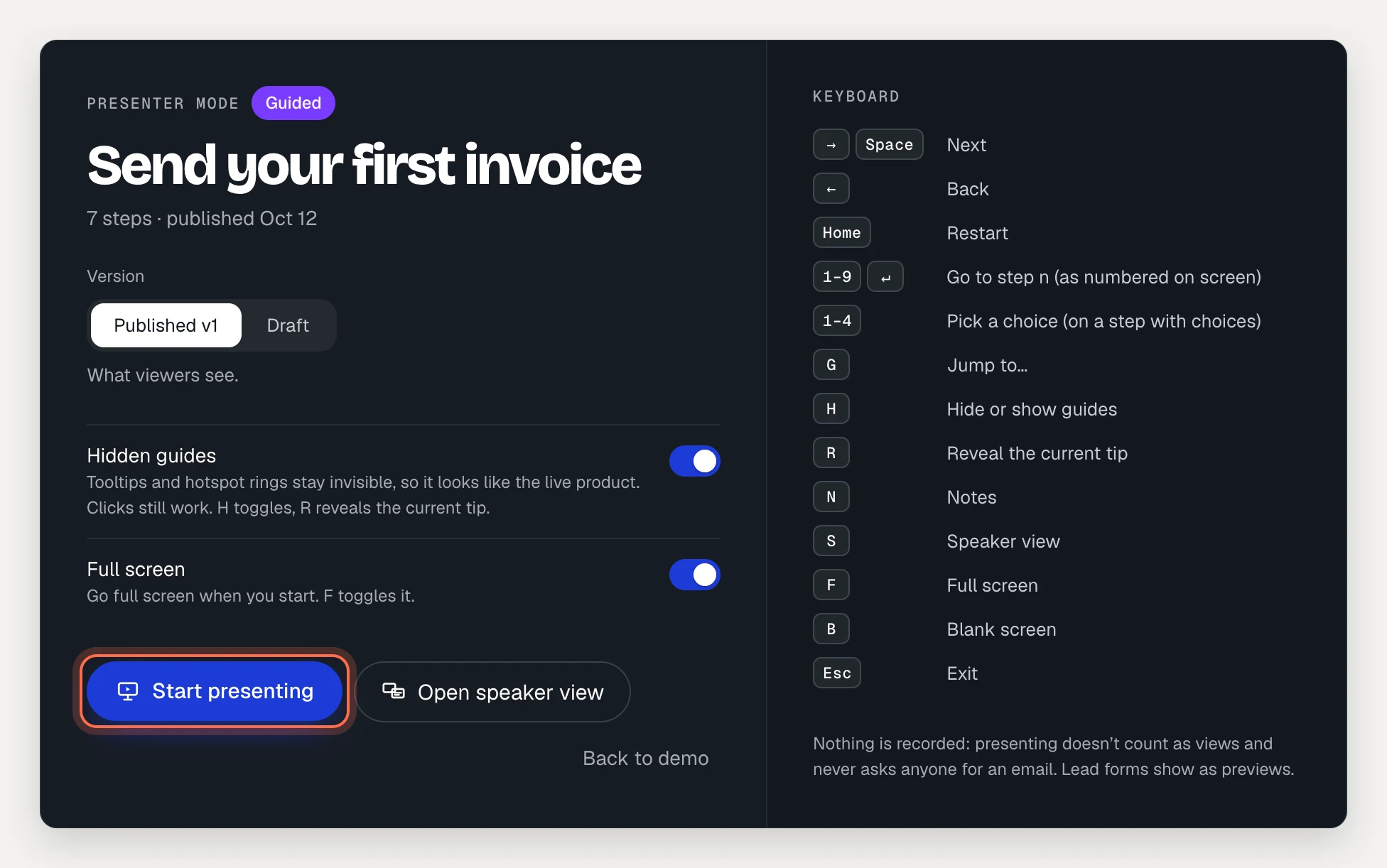
To leave, click Exit in the control bar or press Esc.
Use hidden guides
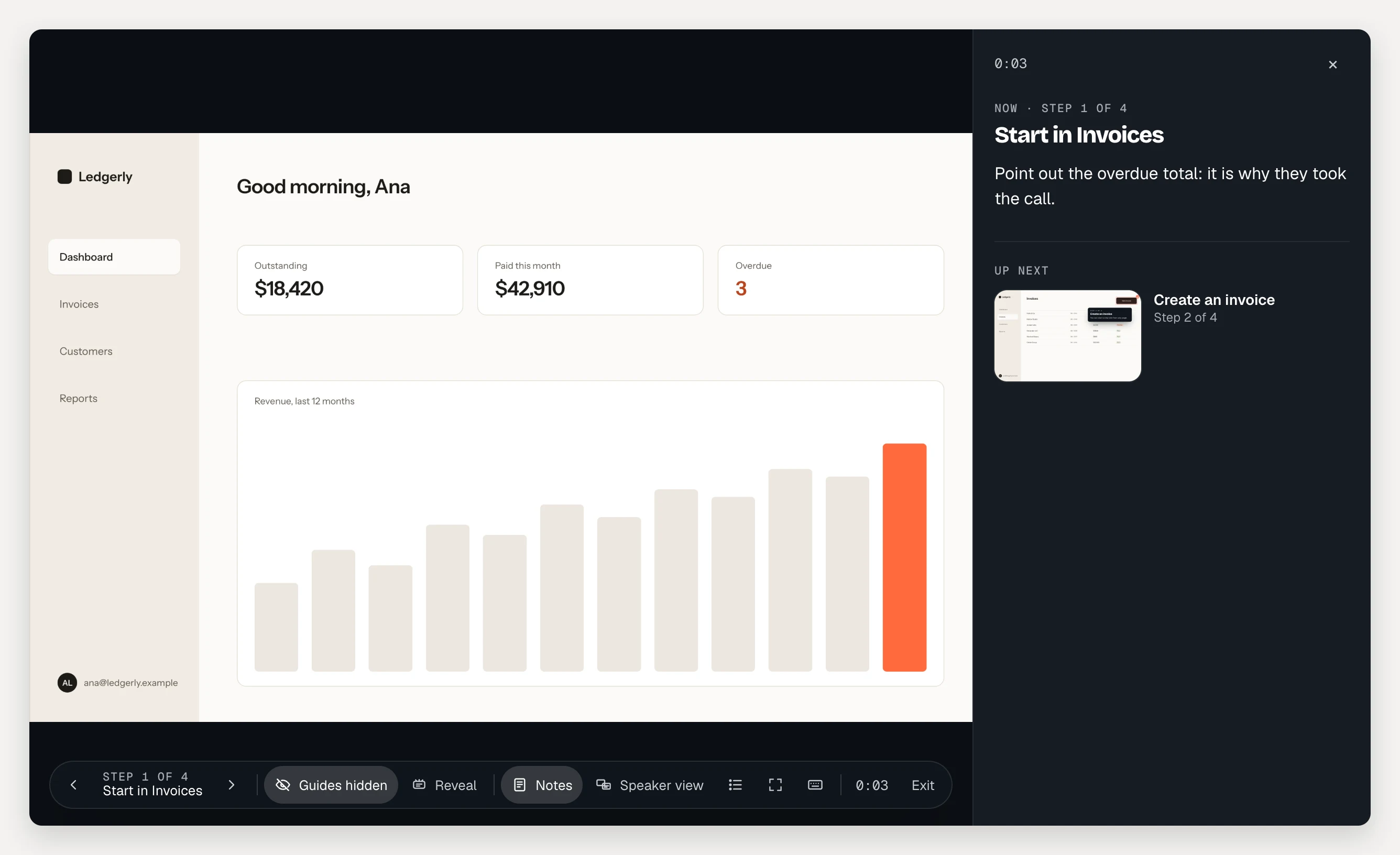
With Hidden guides on, tooltips and hotspot rings stay invisible, so the demo looks like your product. Clicks still work. Lost your place? Click Reveal or press R to show the current tip. Press H to switch between Guides hidden and Guides shown.
Read your notes and use the speaker view
Press N or click Notes to open the notes drawer. It shows the current step and its notes, the hotspots or choices on it, and what’s up next. The drawer is part of the presenter window, so people on the call see it if you share that window.
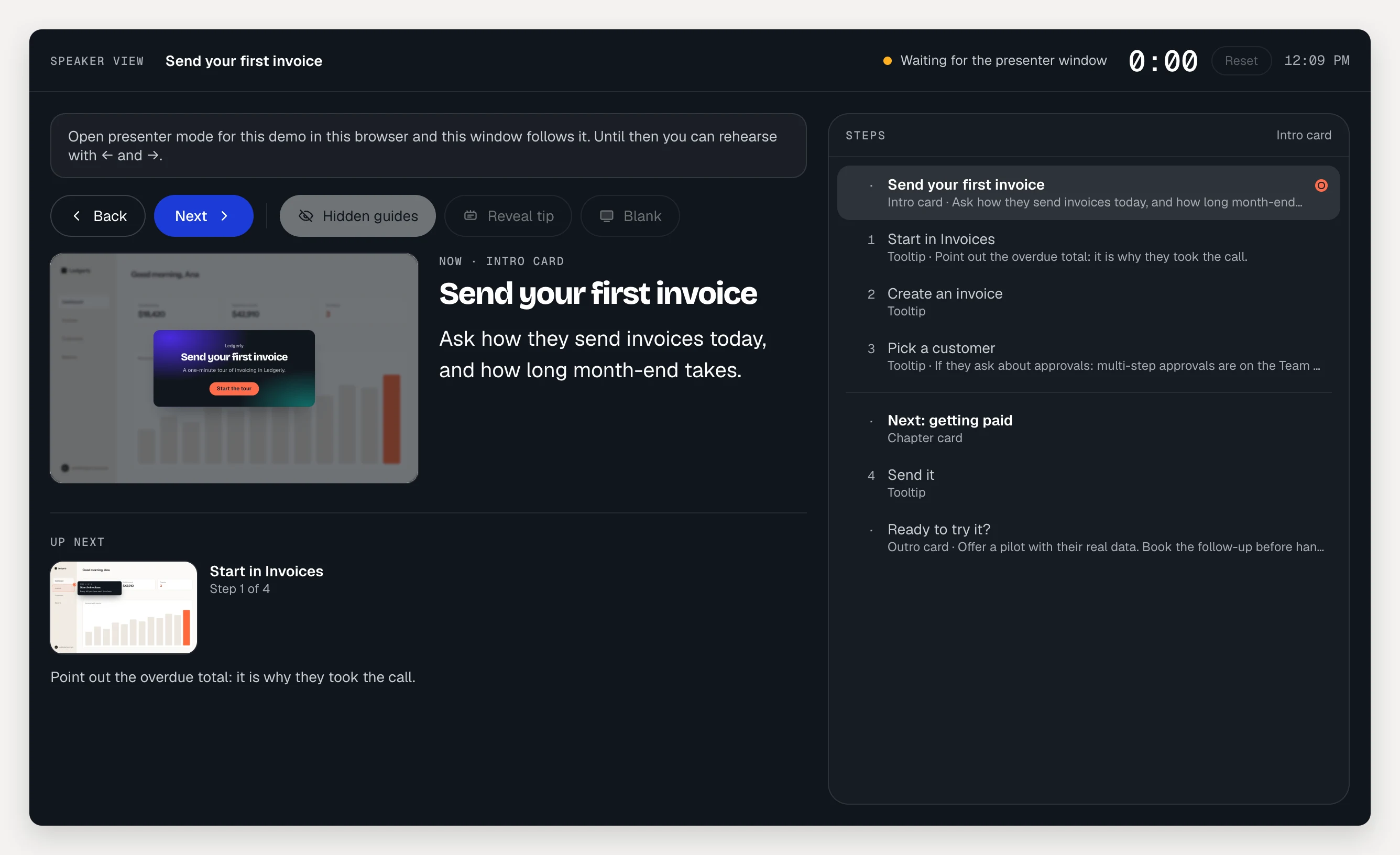
The speaker view keeps your notes off the shared screen:
- Press S or click Speaker view. It opens in a new window.
- Move it to the screen you aren’t sharing.
It shows your notes, what’s next and every step (click one to jump there), an elapsed timer with Reset, and Back, Next, Hidden guides and Reveal tip (Reveal hotspots in clickable demos). It stays in sync with the presenter window in the same browser. Open it on its own to rehearse with ← and →.
Keyboard shortcuts
Press ? during a presentation to see this list.
| Key | Does |
|---|---|
| → or Space | Next |
| ← | Back |
| Home | Restart |
| 1–9, then ↵ | Go to step n (as numbered on screen) |
| 1–4 | Pick a choice (on a step with choices) |
| G | Jump to… |
| H | Hide or show guides |
| R | Reveal the current tip |
| N | Notes |
| S | Speaker view |
| F | Full screen |
| B | Blank screen |
| Esc | Exit |
Presentation clickers work too: Page Down and Page Up move, and B or “.” blanks the screen. Press any key to bring the demo back.
Personalize for this call
If the demo’s copy uses variables like {{company}}, the setup screen shows Personalize for this call. Type the prospect’s name, company or other values, and the shared screen, your notes and the speaker view all show them. These values are for this presentation only: nothing is saved. See Personalize a demo with variables.
Good to know
- Nothing is recorded. Presenting doesn’t count as views and never asks anyone for an email. Lead forms show as previews.
- Narration is off while you present, since you’re the one talking. If the demo has voiceovers, click Narration in the control bar to play them on the call.
- On other plans, Present shows what presenter mode includes. Notes written on Team are kept after a downgrade and come back when you upgrade.
Troubleshooting
- The speaker view doesn’t open. Your browser blocked the pop-up. Allow pop-ups for AtriumKit and press S again.
- The speaker view says it’s waiting for the presenter window. Open presenter mode for the same demo in the same browser.
- Present is greyed out. The demo has no screens yet, or AtriumKit took it down.