The knowledge base collects your published demos as step-by-step guides, plus what your team wrote about the product, in one searchable place for your workspace. This article covers what’s in it, searching it, hiding a guide and adding files.
The knowledge base is on Pro and Team. Every member of the workspace can use it, viewers included. Nobody outside the workspace can open it.
Open it
Click Knowledge base in the sidebar. It fills itself: there is nothing to set up.
- Products lists each brand kit that has a knowledge kit or files. Open one to see its summary, who it’s for, the glossary, notes, its guides, files and links.
- Guides are grouped by the folders in your demo library. Demos outside a folder are under Unfiled.
A demo appears here shortly after you publish it, built from the published version, the same way as its hosted guide page. Drafts and presenter notes never show. The demo’s access setting doesn’t matter: members can read every guide here, even for demos behind an email gate or with the guide page turned off.
Search
- Click the field at the top (“Search guides, terms and files”), or press / anywhere on the page.
- Type a few words, like “export invoices”. Results appear as you type, grouped into Guides, Steps, Products, Glossary and Files, with your words marked.
- Use ↑ and ↓ to move through results and Enter to open one. Esc clears the search.
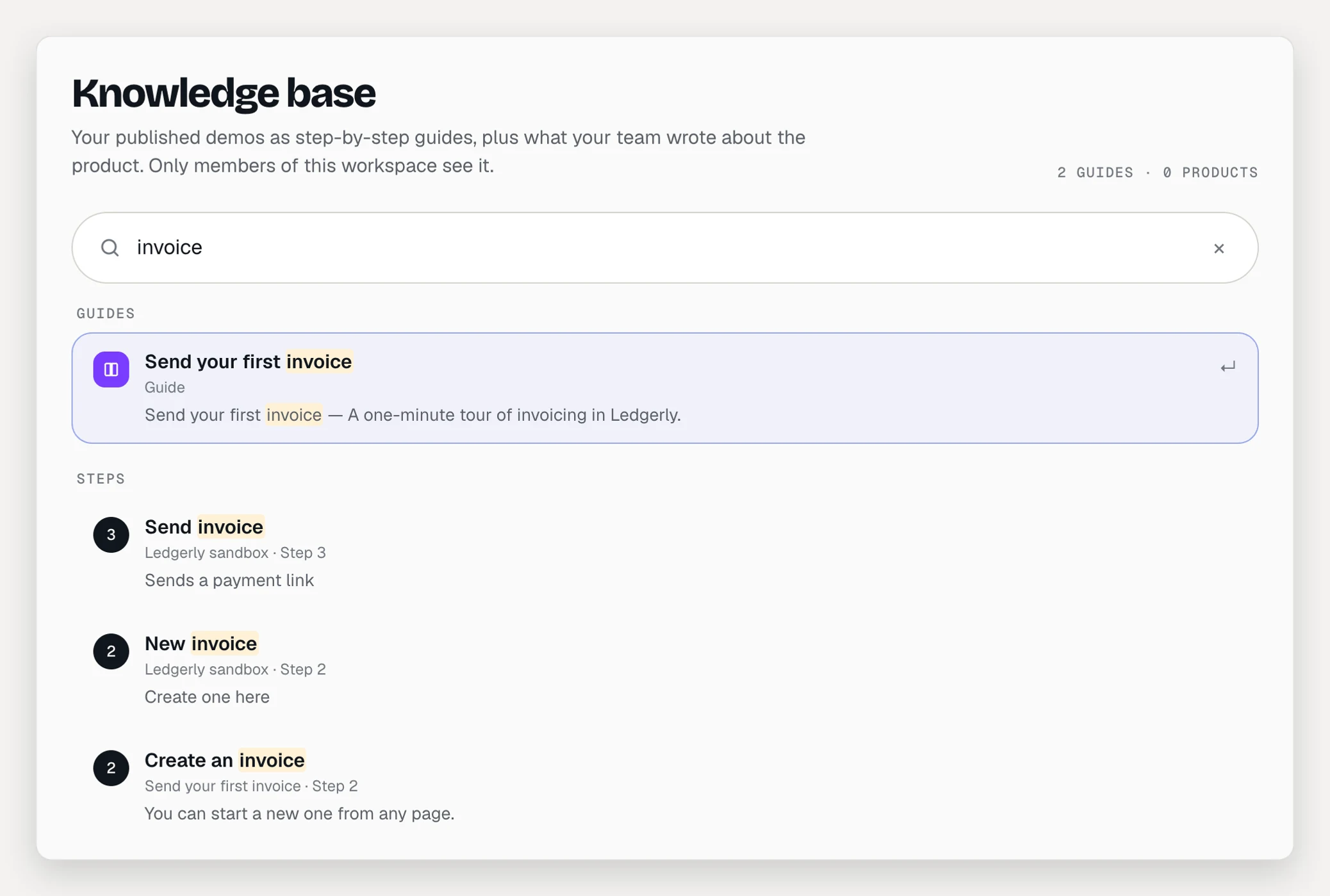
A step result opens its guide at that step, in the language that matched. Search covers every language you translated a demo into.
Search runs inside AtriumKit. Your query and your content aren’t sent to an AI provider.
Read and play a guide
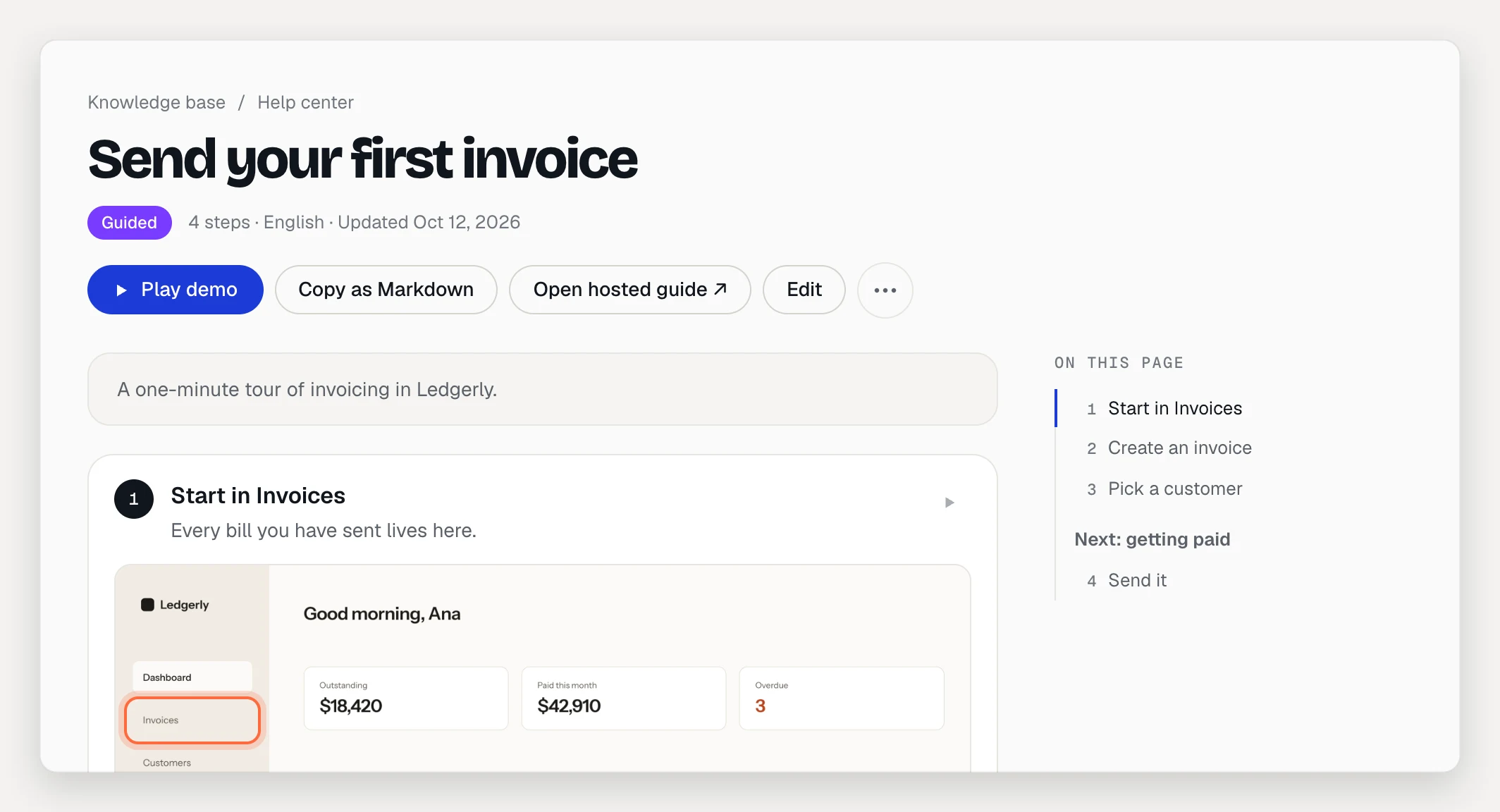
A guide page shows every step with its picture, a contents list and the product it belongs to. From the top of the page you can:
- Click Play demo to run the published demo right there. Nothing is recorded, so it doesn’t count as a view. The play button next to a step starts the demo from that step.
- Click Copy as Markdown to paste the guide into a doc or a ticket.
- Pick another language, if the demo has translations.
- Click Open hosted guide ↗, when the demo’s guide page is on, or choose Open hosted demo from the ⋯ menu.
- Click Edit (admins and editors) to open the demo’s Guide tab.
Hide a guide
Admins and editors can keep a published demo out of the knowledge base, for example an outdated version or a demo made for one prospect.
- Open the guide.
- In the ⋯ menu, choose Hide from knowledge base.
Hiding only affects the knowledge base: the demo and its links keep working. To bring a guide back, open Hidden from the knowledge base at the bottom of the main page and click Show again.
Add files
Files such as sales decks, price sheets and docs live in a brand kit’s knowledge kit and show on the product’s page and in search.
- Go to Brand kits in the sidebar, open a kit and choose the Knowledge tab.
- Under Files, drop files or click choose files. PDF, Word, PowerPoint, Excel, CSV, Markdown or text, up to 20 MB each.
- Leave In knowledge base checked to list the file here. Uncheck it to keep a file for AI writing only.
Files are private to your workspace. Members can download them from the knowledge base. To fill in the product summary, glossary and links, see Knowledge kits.
Pro holds 25 files (100 MB in total) per workspace, Team 200 files (1 GB). Free doesn’t include files.
Search from your AI assistant
Claude, ChatGPT, Cursor and other MCP clients can search the knowledge base for you, with the same members-only access. See Connect AI assistants.
Troubleshooting
- A demo isn’t listed. It isn’t published, an editor hid it, AtriumKit took it down, or it’s in another workspace. Check the Hidden from the knowledge base list, or publish the demo.
- A guide shows old steps. The knowledge base shows the published version. Publish your changes.
- A file says “Not readable”. AtriumKit couldn’t read its text. The reason shows under the file: click Try again, or check that the file opens on your computer and upload it again.
- The knowledge base shows an upgrade card. Your workspace is on Free. After a downgrade, the knowledge base closes and your files and kits are kept.