Each step of a guided demo, or each screen of a clickable demo, can have a short script, an audio clip and captions.
Voiceovers are on Pro and Team, trials included. AI voices use a monthly allowance of characters: 60,000 per creator on Pro (about an hour of speech) and 120,000 on Team. A trial gets 10,000. Recording and uploading your own audio don’t count. A 10-step demo is about 1,200 characters.
Open the Voiceover panel
Click Voiceover at the top of the step list (the screen list in clickable demos). The panel takes the list’s place and lists every step in play order; click × to close it. The Narration section of the inspector does the same for the selected step.
Write the scripts
- Type in the Narration box. Keep it shorter than the tooltip and conversational. Up to 1,000 characters.
- Click Copy from tooltips (Copy hotspot hints in clickable demos) to fill empty scripts with the existing text.
- Click Write with AI to draft short spoken scripts for Steps without a script or Every step. It uses AI credits: 1 per 20 scripts.
Variables like {{company|your team}} are spoken with their default value, so one clip works for every viewer.
Generate an AI voice
- Under Voice, pick a voice. Search, filter by Female or Male and by accent, and play a sample.
- Open Voice settings and set Speed (0.70× to 1.20×) and Stability (from Variable to Stable).
- Click Generate (N). It says how many characters it may use and how many are left this month. Unchanged clips are free.
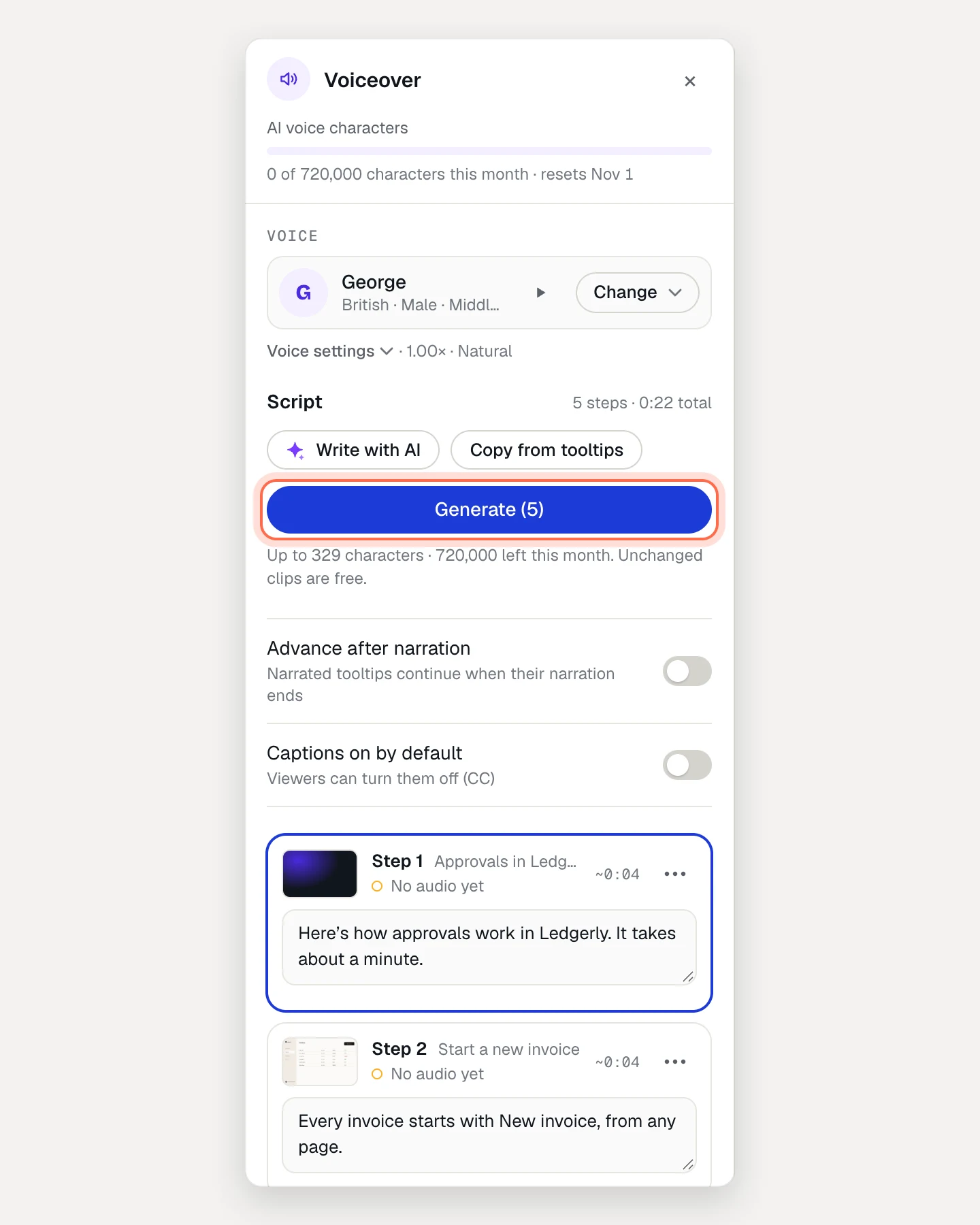
To make one step’s clip, click Generate in its Narration section; Regenerate gives you a new take.
Each clip shows its status: No audio yet, Out of date, Ready, Recorded, Uploaded or Failed. Editing a script makes only that step’s clip out of date. Changing the voice or its settings makes every AI clip out of date.
Record your own voice
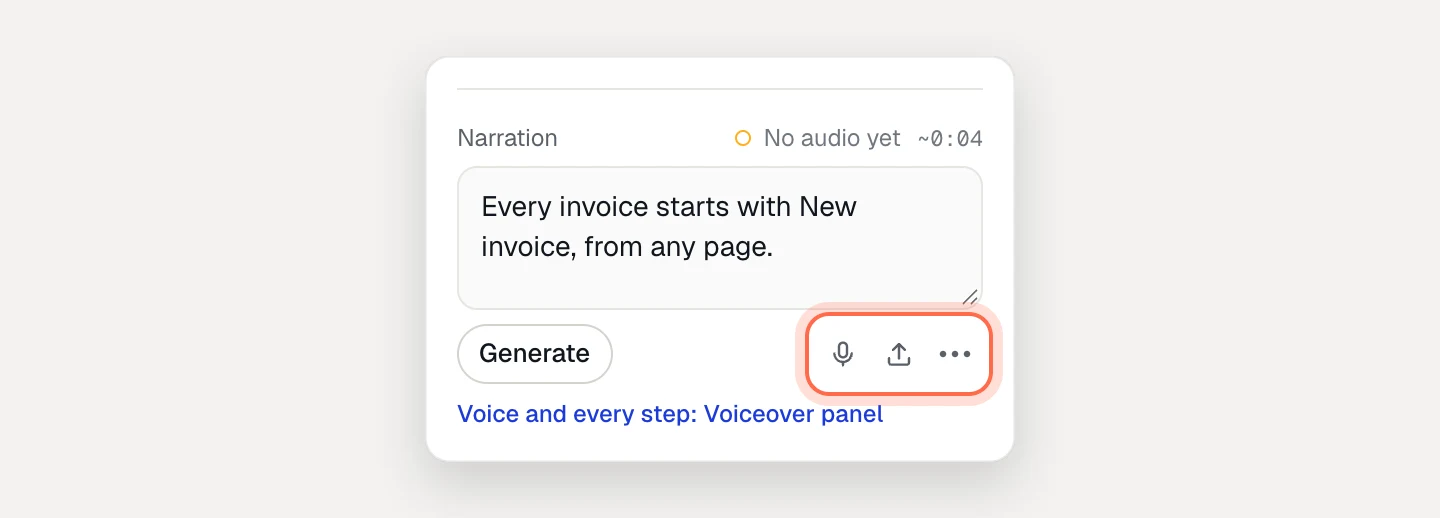
- In the step’s Narration section, click the microphone (Record).
- Allow microphone access, press record and read the script. Up to 3 minutes.
- Listen back, then click Save narration, or Record again.
AtriumKit trims silence at the start and end, evens out the level and transcribes the recording for captions.
Upload audio
Click the upload button (Upload audio), choose an MP3, M4A, WAV, WebM or Ogg file up to 3 minutes long, and click Save narration. It’s converted to MP3 in your browser and transcribed for captions.
Edit captions
Under the script, the Captions preview shows the first lines. Click Edit (or Edit captions in the ⋯ menu) to change the text or start time of each line, remove lines or use Re-time from text. Click Save captions.
Choose how narration plays
In the Voiceover panel:
- Advance after narration (guided demos): narrated tooltips continue when their narration ends. You can also set this per step with Advance when → Narration.
- Captions on by default: viewers can still turn captions off.
Narration starts muted. It plays once the viewer interacts with the player, or clicks Sound on. In an embed, add sound=0 to the address to start muted, or captions=1 to turn captions on.
Say product names right
In the brand kit’s Knowledge tab, add the term to the Glossary and fill in Say it as, for example “Ledger-lee”. AI clips say it that way and captions keep the written word. The editor notes it under scripts that use the term. Recorded and uploaded clips aren’t affected.
Narration in other languages
With translations (Pro and Team), scripts are translated like the rest of your copy. On the Languages tab, open a language and click Generate narration (N) to voice it in the same voice. Steps whose script isn’t translated yet play without narration.
See how it performs
The demo’s Analytics tab has a Narration section: how many sessions played narration, how many listened with sound and with captions on, and how much of each step’s narration was heard.
Troubleshooting
- “This month’s AI voice characters are used up.” They reset at the start of next month. Recording and uploading still work. Admins see the allowance on the Billing page.
- “The trial’s AI voice characters are used up.” The plan’s full allowance starts with your subscription.
- “AI voices are off: the last payment failed or the subscription ended.” An admin can fix it on the Billing page.
- Generate is greyed out on a step. Write a script first.