Write with AI drafts your demo’s copy from what each screen shows. Nothing changes until you pick the suggestions to keep. It works on every plan and uses AI credits.
What it writes
- Guided demos: tooltips, cards, buttons, choice labels and lead form copy.
- Clickable demos: hotspot labels and hover hints.
- Optionally, the demo’s title and description.
Narration scripts have their own Write with AI in the Voiceover panel, and guides have Write guide copy (below).
Write the whole demo
- Open the demo in the editor and click Write with AI in the header. Right after a recording, a banner may offer the same thing as Write the copy… or Rewrite the tooltips….
- Set up the run:
- Tone: Friendly, Professional, Playful or Direct.
- Who’s watching: for example “Finance teams trying Ledgerly”.
- Product name: leave it empty to take the name from your screens.
- Write in: the language to write in. If you apply copy in a language other than the demo’s, it becomes the demo’s language, and the dialog warns you first.
- What to write: Every step (Every hotspot in clickable demos) or Only empty fields. Tick Demo title and description to include those.
- Anything to emphasize? (optional): for example “Mention the 14-day free trial on the last card”.
- Check the cost at the bottom (“Uses 2 credits”) and click Write N strings.
- Review the suggestions. Each one sits under your current text. Untick the ones you don’t want, or edit a suggestion in its box. Select all and Select none help on long demos.
- Click Apply N changes, or Discard to leave everything as it was.
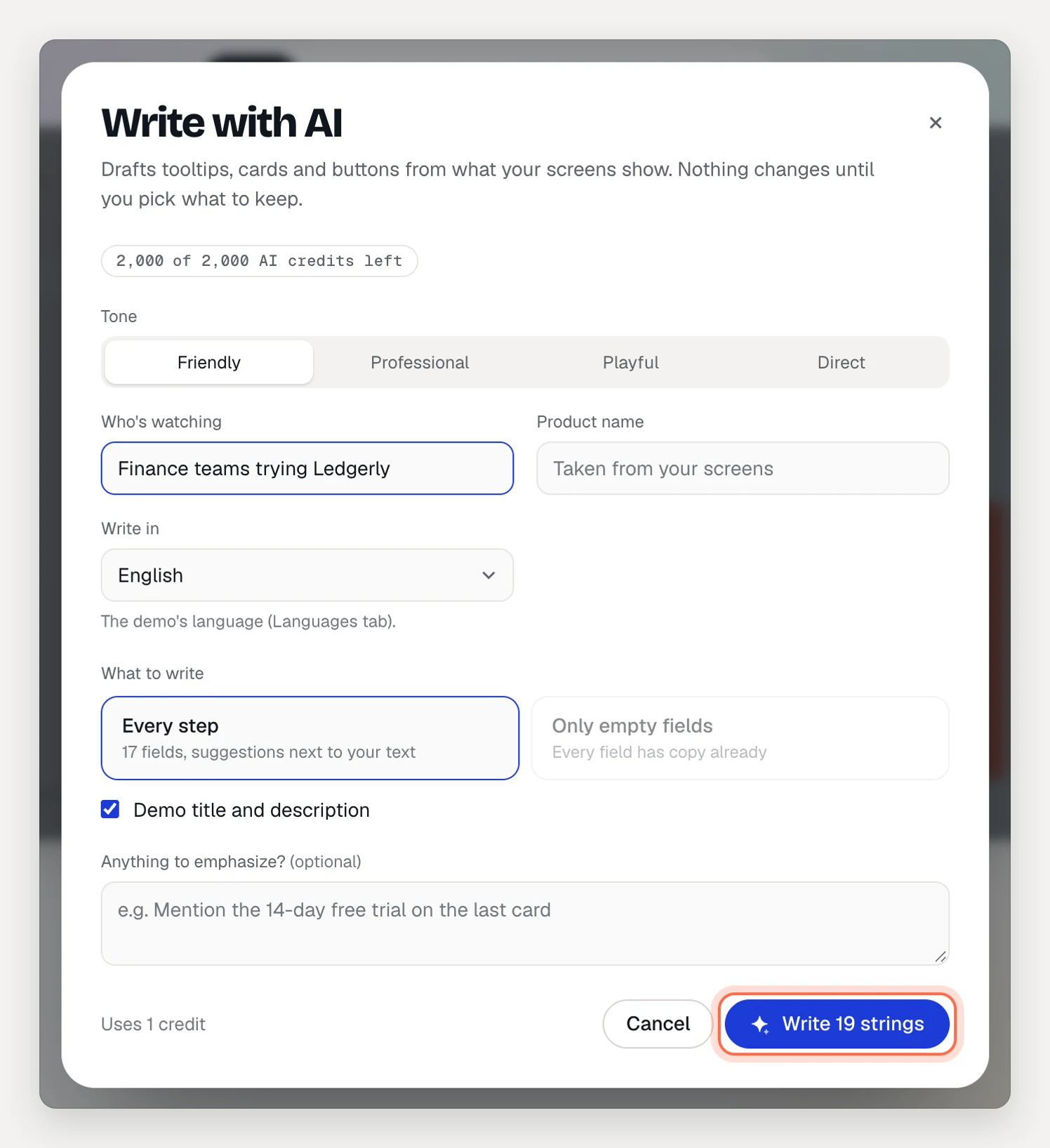
Tone, audience and product name are saved for the next run. Viewers never see them.
If you edit a field while the AI is writing, its suggestion is marked “You edited this while AI was writing” and isn’t ticked, so your edit is safe.
Undo AI changes
Applied changes are one undo step. Press ⌘Z in the editor, or click Undo in the dialog to undo everything, title and language included. Click Done to close.
Rewrite one step or hotspot
- Select a step or hotspot.
- Click Rewrite under its text.
- Choose Shorter, Friendlier, More formal or Benefit-led. Or choose Your own instruction…, type something like “Mention it takes 30 seconds” and click Go.
- The suggestion appears below. Click Apply, Try again or Discard.
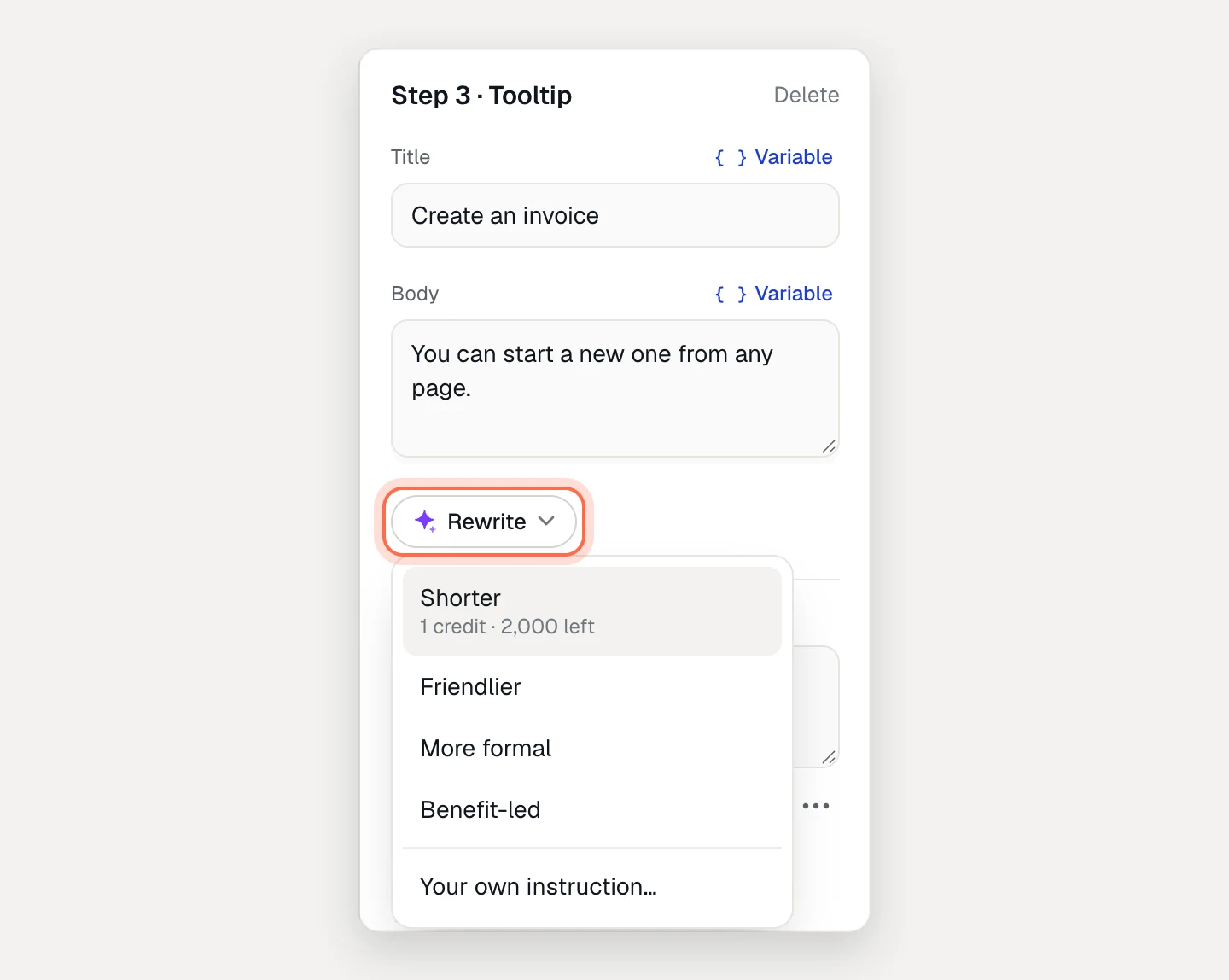
A rewrite costs 1 credit. The menu shows how many you have left. Press ⌘Z to undo an applied rewrite.
Variables stay as written
If your copy uses personalization variables like {{company|your team}}, the AI keeps every one exactly as written. Suggestions that drop, add or rename a variable are thrown away. Sample values and viewers’ values are never sent to the AI.
Write guide copy
Every published demo is also a written guide. On the demo’s Guide tab, click Write guide copy to turn each step into a clear instruction (“Click New invoice”) with a line on what happens. It writes guide text only; your demo’s copy stays as it is. Publish to update the hosted guide.
What the AI reads
- Your screens, as viewers see them. Blurred and redacted text is never sent. Emails, phone numbers and long numbers are masked.
- Your knowledge kit. If the demo’s brand kit has one, the dialog says “Also uses the knowledge kit of …” and the AI follows its voice, glossary and notes. See Give AI your product knowledge.
Your content isn’t used to train AI models.
Troubleshooting
- “You’re out of AI credits this month.” Credits reset on the 1st. See How AI credits work.
- Write with AI is greyed out or missing. The demo needs at least one screen, and the button only shows on the Edit tab for admins and editors.
- “The AI didn’t suggest any changes.” Your copy already matches what the AI would write. Try an instruction under Anything to emphasize?.