AtriumKit runs an MCP server, so an AI assistant can work on your demos for you: “rewrite the tooltips for a CFO”, “translate it into German and publish”, “which step loses the most viewers?”. The assistant acts as you, in one workspace, with the permissions you give it. It works on every plan.
The server URL is the same for every client:
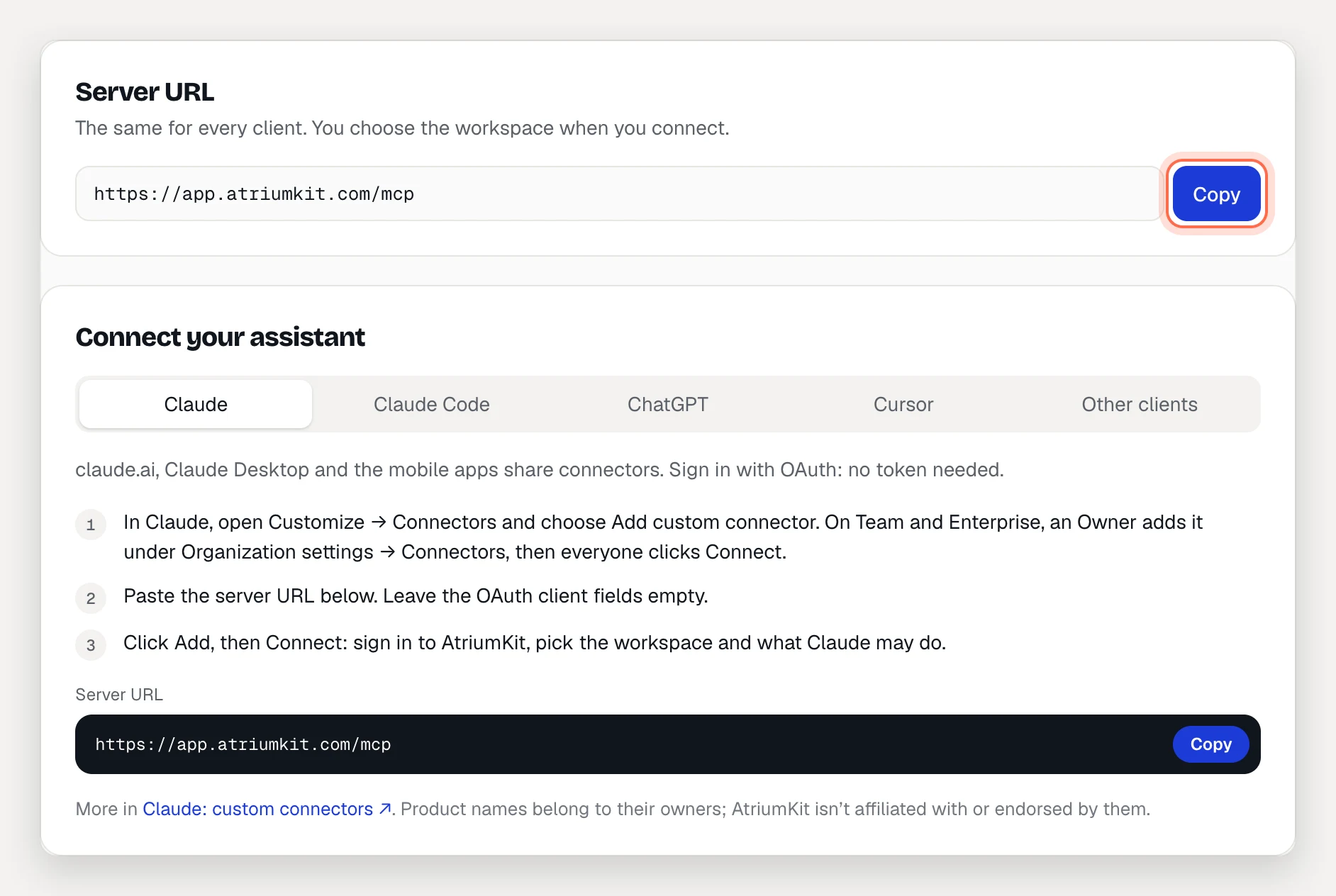
https://app.atriumkit.com/mcpFind the setup page
- Click the workspace name at the top of the sidebar and choose Settings.
- Under AI assistants & MCP, click Connect an assistant.
The page shows the Server URL with a Copy button, and steps for Claude, Claude Code, ChatGPT, Cursor and Other clients.
Connect Claude
This works for claude.ai, Claude Desktop and the Claude mobile apps.
- In Claude, open Customize → Connectors and choose Add custom connector. On Claude Team and Enterprise, an Owner adds it under Organization settings → Connectors, then each member clicks Connect.
- Paste the server URL. Leave the OAuth client fields empty.
- Click Add, then Connect.
- On the AtriumKit page that opens, sign in, pick the workspace and what Claude may do, then click Allow access.
For Claude Code, run this in a terminal, then run /mcp in Claude Code, pick atriumkit and choose Authenticate:
claude mcp add --transport http atriumkit https://app.atriumkit.com/mcpConnect ChatGPT
ChatGPT needs developer mode for custom MCP servers, which is available on some ChatGPT plans.
- In ChatGPT settings, open Apps → Advanced settings and turn on Developer mode.
- Add a custom MCP server named AtriumKit, paste the server URL and choose OAuth. Leave the client ID and secret empty.
- Sign in to AtriumKit, pick the workspace and what ChatGPT may do, then click Allow access.
Connect Cursor
Add this to ~/.cursor/mcp.json (every project) or .cursor/mcp.json (one project). Cursor asks you to sign in the first time it connects.
{ "mcpServers": { "atriumkit": { "url": "https://app.atriumkit.com/mcp" } } }OAuth or an access token
Most assistants sign in with OAuth: you approve them on AtriumKit’s page and they show under Connected apps. For a client or script that can only send a fixed token:
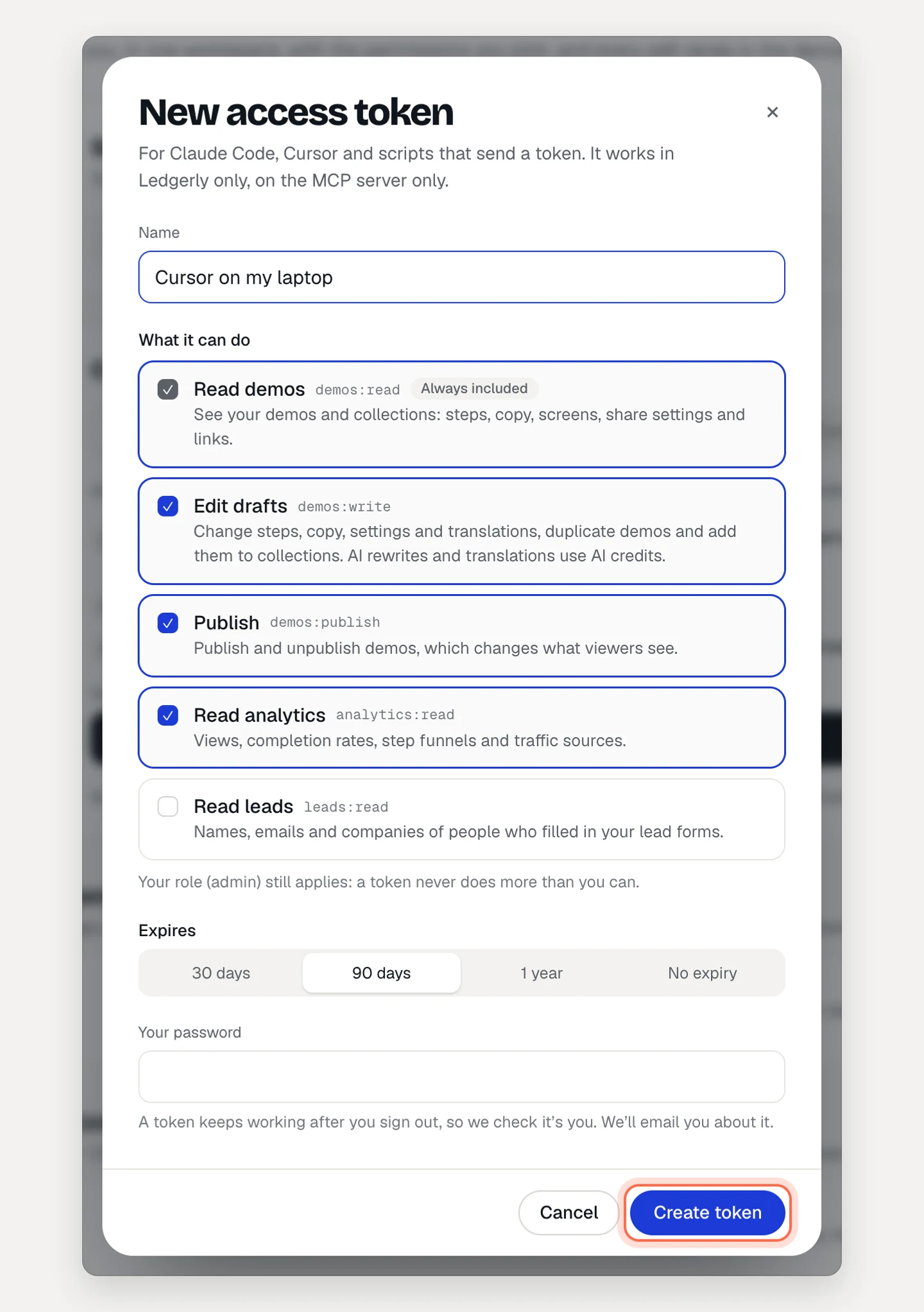
- Under Access tokens, click New token.
- Give it a Name, choose What it can do, pick when it Expires (30 days, 90 days, 1 year or No expiry) and enter Your password.
- Click Create token and copy it. It won’t be shown again.
The client sends it as Authorization: Bearer <token>. Tokens only work on the MCP server, never to sign in, and AtriumKit emails you when one is created.
Permissions
You choose these when you connect an app or create a token:
- Read demos: always included.
- Edit drafts: steps, copy, settings and translations. Needs the editor or admin role.
- Publish: publish and unpublish demos. Needs the editor or admin role.
- Read analytics
- Read leads: names, emails and companies. Only when you tick it.
Your role still applies: a viewer’s assistant can’t edit, whatever was ticked.
What assistants can do
List and read demos and screens; edit copy and steps; add choices; link navigation in clickable demos; rewrite copy with AI; translate; generate voiceovers; publish and unpublish; read analytics and leads; create personalized links; add demos to collections; read published guides; and search the knowledge base. Plan limits apply as in the app: translations, voiceovers, personalized links and the knowledge base need Pro or Team, and AI rewrites and translations use your workspace’s AI credits.
Assistants can’t delete demos, record, edit screenshots or captured pages, or manage members, billing, integrations or brand kits.
They see your screens the way viewers do: blurred areas, redacted text and personal data on screenshots never go out.
Edits show in version history
Every change an assistant makes lands in the demo’s history, marked like “Edits by Ana (via Claude)”. Restore an earlier version as usual. See Restore an earlier version of a demo.
Disconnect an app or revoke a token
On the same settings page, click Disconnect next to an app or Revoke next to a token. It stops working right away. Admins see and can revoke every member’s apps and tokens in the workspace. Leaving the workspace or changing your password disconnects everything.
Limits
- Each connection or token works in one workspace. Connect again to use another.
- Up to 120 requests a minute per connection or token.
- You can have up to 25 active tokens per workspace.