A knowledge kit is what AtriumKit’s AI should know about the product a brand kit presents. Every brand kit has one, on its Knowledge tab. It’s private to your workspace: viewers never see it.
The text fields work on every plan. Files are on Pro (25 files, 100 MB per workspace) and Team (200 files, 1 GB).
Open a knowledge kit
- Click Brand kits in the sidebar and open a kit.
- Click the Knowledge tab.
- Fill in what you know, then click Save kit.
Text saves with Save kit, like the rest of the brand kit. Files upload as soon as you add them.
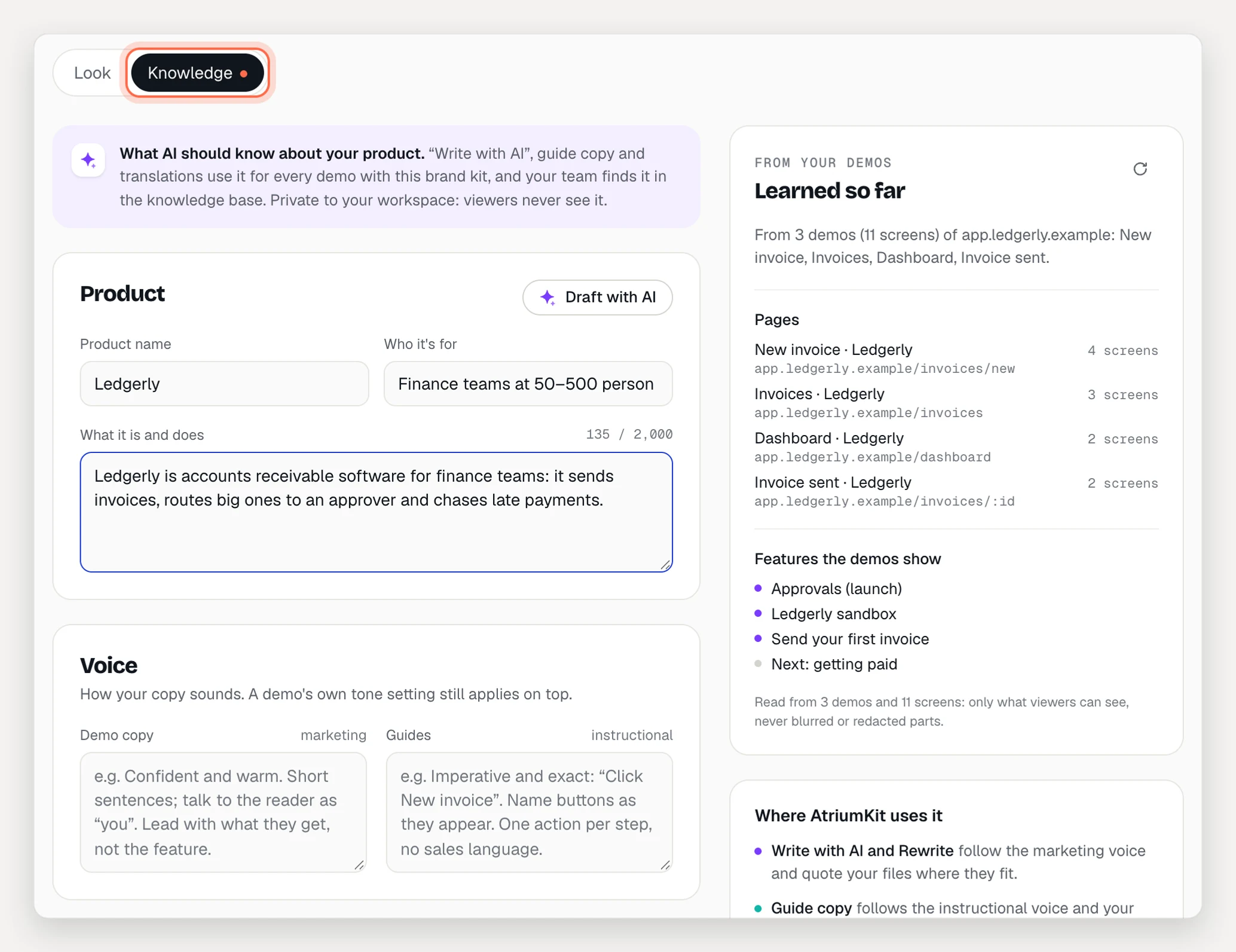
Product
- Product name
- Who it’s for: for example “Finance teams at 50–500 person companies”.
- What it is and does: a short description, up to 2,000 characters.
Draft with AI fills these in for you (see below).
Voice
- Demo copy: how your marketing copy sounds, for Write with AI and Rewrite.
- Guides: how instructions sound, for guide copy. For example: “Imperative and exact: Click New invoice.”
A demo’s own tone setting still applies on top.
Glossary
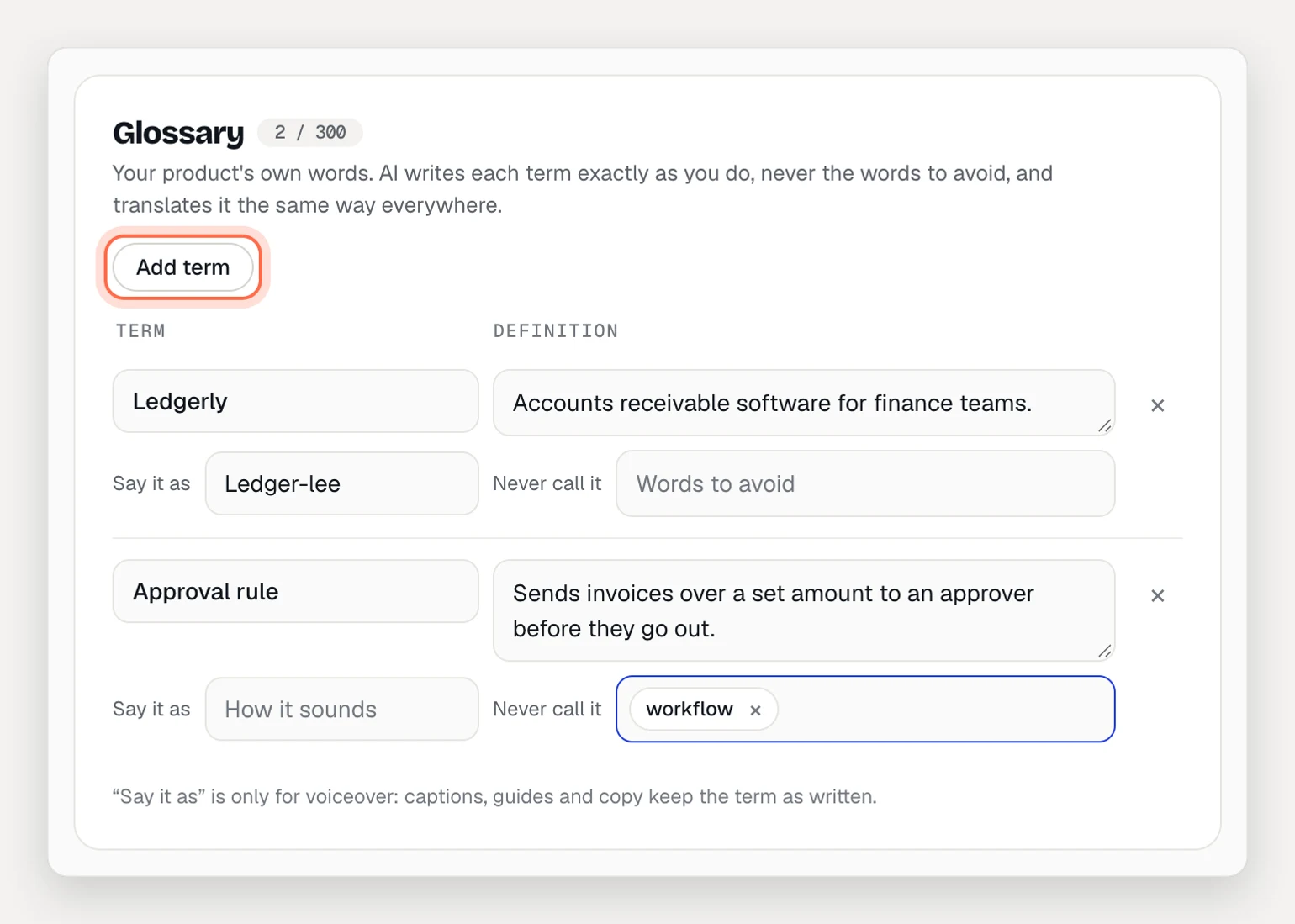
Your product’s own words, up to 300 terms. For each one:
- Term and Definition.
- Say it as: how a voiceover pronounces it. Captions and copy keep the term as written.
- Never call it: words the AI must not use for it.
Click Add term to add one, or Define N with AI to draft the missing definitions. The AI writes each term exactly as you do and translates it the same way everywhere.
Links and notes
- Links: your docs, pricing page and so on. They show in the knowledge base; AtriumKit never fetches them.
- Notes for AI: facts the AI may state, and what it must never claim. Up to 4,000 characters.
Learned from your demos
The Learned so far panel reads the recent demos that use this kit and shows Suggested terms, Pages, Words in the UI and Features the demos show. Click a suggested term to add it to the glossary, or Add all, then save the kit. Nothing here is sent to an AI model.
Files
Add sales decks, price sheets and docs: PDF, Word, PowerPoint, Excel, CSV, Markdown or text, up to 20 MB each.
- Save the brand kit if it’s new.
- Drop files on the Files section, or click choose files.
- Wait while it says Reading text…. AtriumKit reads each file’s text once.
The AI then quotes the parts of your files that fit each demo. In knowledge base controls whether a file is listed in your team’s knowledge base. If a file shows Not readable, click Try again. Older .doc, .ppt and .xls files aren’t accepted; save them in the newer format first.
If a workspace has more files than its plan includes, they all keep working, but you can’t add more until you delete some or upgrade.
Draft with AI
- Click Draft with AI in the Product section.
- Choose what to draft: Product summary, Audience or Glossary definitions.
- Click Draft. Suggestions come from what your demos show, what you’ve written and your files.
- Tick the ones to keep and click Apply N suggestions, then click Save kit.
It costs 2 AI credits.
How AtriumKit uses it
A demo uses the knowledge kit of its brand kit, or of the workspace’s default brand kit.
- Write with AI and Rewrite follow the marketing voice, glossary and notes, and quote your files where they fit.
- Guide copy follows the instructional voice and your terms.
- Translations keep glossary terms consistent and your product name as it is.
- Voiceovers use the Say it as pronunciations.
- The knowledge base (Pro and Team) shows it to your team.
Each AI request gets only what fits it, about 12,000 characters at most, with emails, phone numbers and long numbers masked. Your content isn’t used to train AI models.