AtriumKit gives you three ways to hide private data: auto-blur while you record, Blur area for anything else on screen, and the Blur tool in the editor. The first two happen in your browser, before anything is uploaded.
What auto-blur catches
Auto-blur emails and names is on by default in the extension. On every capture it looks for:
- email addresses and phone numbers anywhere in the visible text,
- people’s names inside parts of the page that look like users, profiles, avatars, customers, contacts, owners, members, authors, accounts or assignees (a capitalized pair of words elsewhere is too common to blur),
- email and phone fields, and fields your app marks as names, emails, phone numbers or addresses,
- text fields whose value is an email, a phone number or a name,
- anything your developers marked with
data-atriumkit-blur(see below).
It also looks inside open shadow DOM and inside frames from your own site. Matches are pixelated in the screenshot and replaced with same-shaped placeholder text in the page’s HTML copy, before the capture is saved.
Auto-blur can miss things, such as a company name or a name in a plain table column. Check your screens, and use Blur area or the editor for the rest.
For developers: mark elements to blur
Add the data-atriumkit-blur attribute to any element in your app that should always be blurred in AtriumKit recordings:
<section class="billing-details" data-atriumkit-blur>
  …
</section>
The element and everything inside it is pixelated in screenshots, its text becomes placeholder text in the HTML copy, its images are left out, and anything typed into it stays out of drafted copy. The attribute needs no value and changes nothing else in your app.
The attribute works through auto-blur. If Auto-blur emails and names is turned off for a recording, marked elements aren’t blurred.
Blur an area while recording
For anything auto-blur doesn’t catch:
- Click Blur area on the recording bar.
- Drag a box over what you want hidden. Press Esc to cancel.
- The box stays on the page and scrolls with it. Everything under it is blurred in every capture until you leave the page. Click × on the box to remove it.
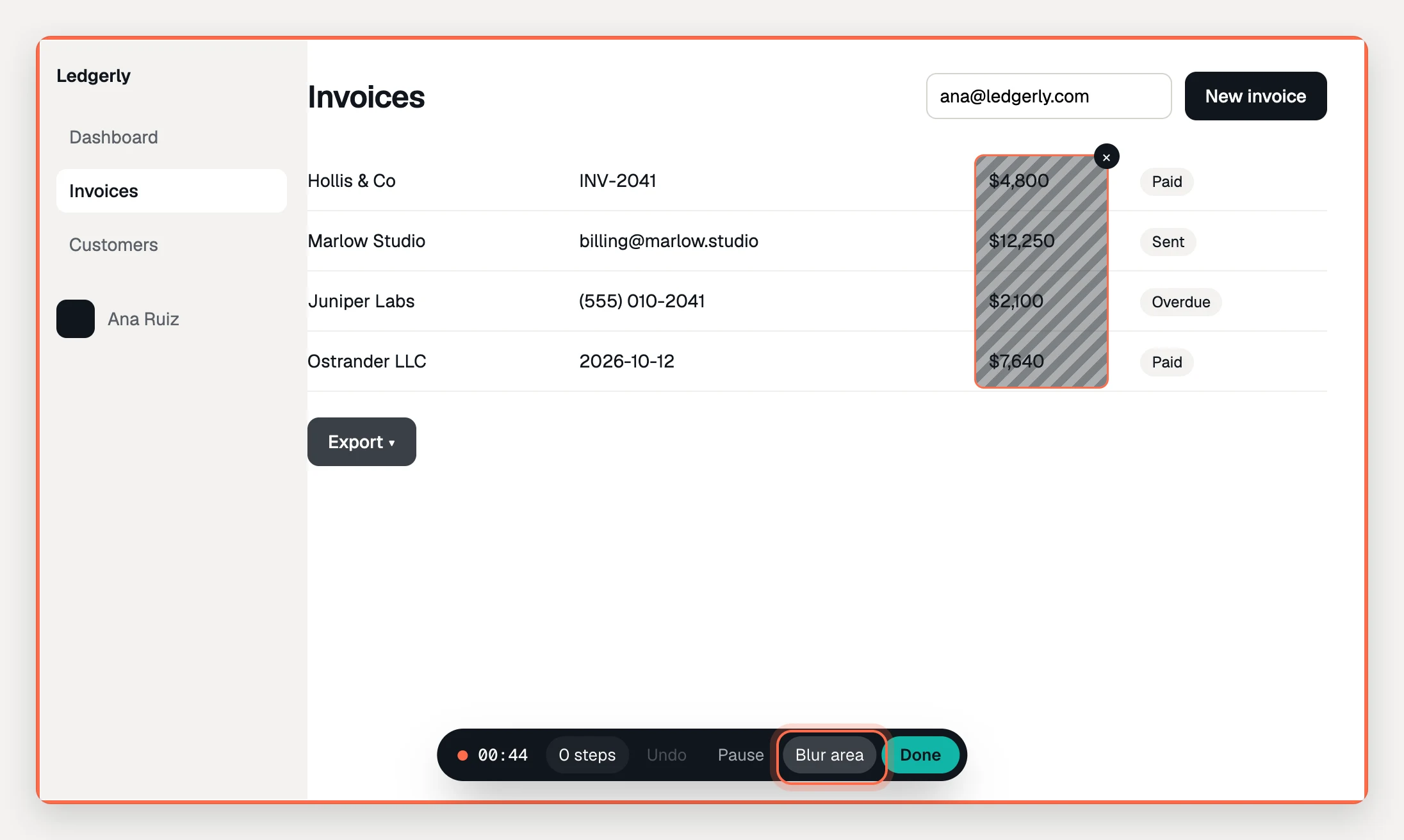
Draw blur areas before you click on the page: a step’s screenshot is taken just before the click. In single-page apps, where views change without the page reloading, a box stays where you drew it, so remove it when it no longer covers the right thing.
In the HTML copy, text under a blur area becomes placeholder text and the images of every element it touches are left out. Values typed into a field under a blur area stay out of drafted copy.
Blur in the editor
You can blur any screen after recording too.
- Open the demo and select a step (guided) or a screen (clickable).
- Choose Blur in the tools above the canvas.
- On a screenshot, drag over the area. On a screen captured as HTML, click an element and then Blur (or double-click it), or drag over an area.
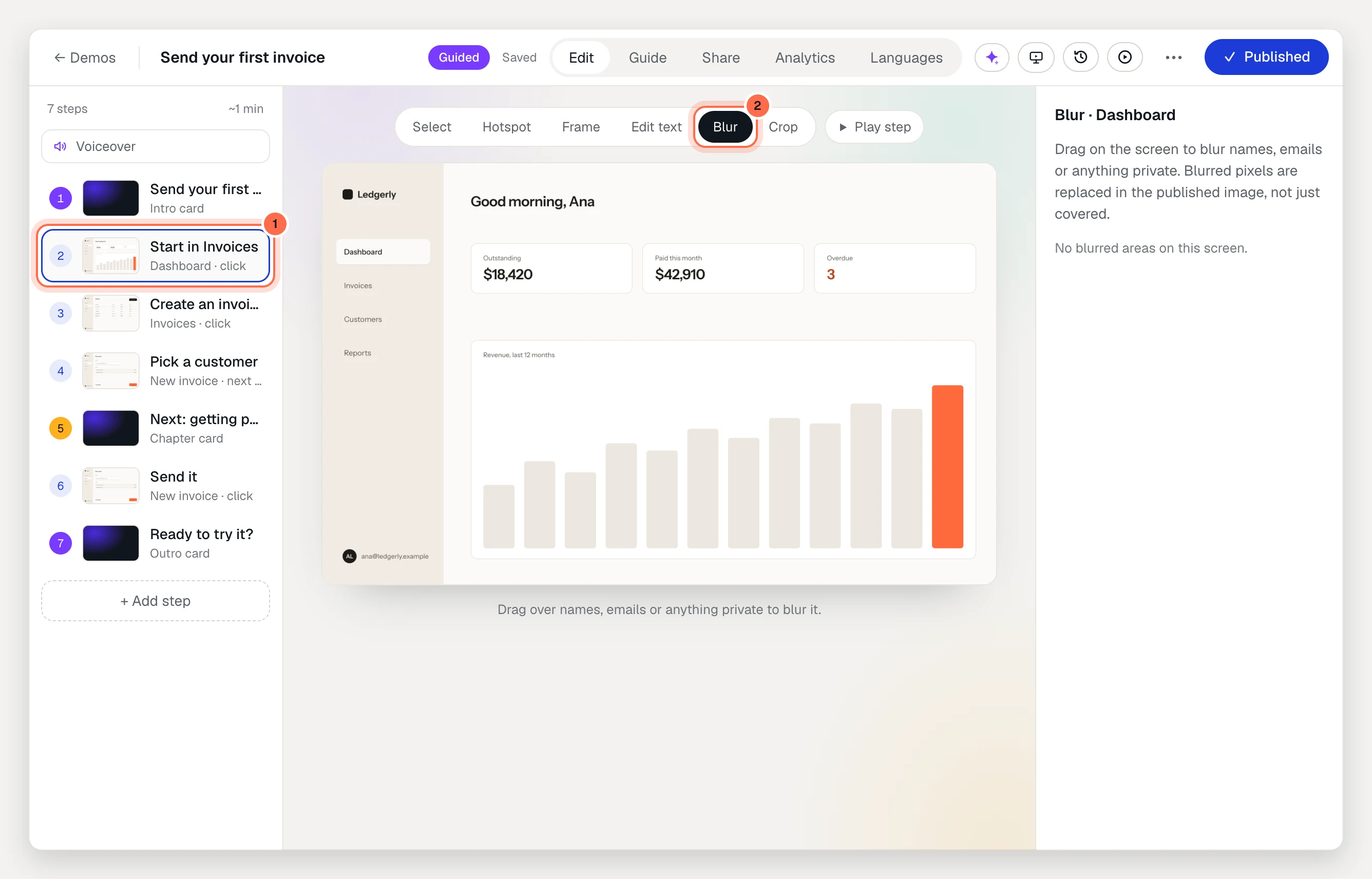
The inspector lists the blurs on the screen. Remove one with Remove on a screenshot, or Revert under Changes on this page on an HTML screen. A blur belongs to the screen, so every step that shows that screen gets it.
On an HTML screen, blurred text becomes placeholder text in the published page, and the same area is blurred on its screenshot. To swap a real name for a sample one instead, use Edit text, or Find & replace… to change it on every HTML screen. See Edit page text.
What never leaves your browser
- The original pixels and text under auto-blur and Blur area. The blurred versions are made on your computer, and only those are uploaded.
- Passwords, hidden fields, and card-number and one-time-code fields. Their values are never read into the HTML copy or the drafted copy. Password fields appear masked.
- Values typed into personal fields. Drafted copy says what to type (“Type the customer’s name here.”), never the value.
The screenshot shows the screen as it looks. If a card number or another secret is visible on the page, cover it with Blur area.
Blurs added in the editor work differently, because the screen was already uploaded. Viewers only ever get the blurred version, and the unedited original stays private to your workspace’s members in the editor, so you can remove the blur later. If something must never be uploaded, blur it while recording.
Write with AI never sees blurred text, whether you blurred it while recording or in the editor. Emails and phone numbers left in the visible text are masked before anything is sent to AI.