You missed a page, or your product grew. Clickable demos can take more recorded screens at any time. Guided demos work differently: you can point a step at another screen in the demo, but you can’t re-record a single step.
Clickable demos: + Capture more screens
- Open the clickable demo in the editor.
- At the bottom of the screen list, click + Capture more screens. A message says the extension is ready and that new screens will be added to this demo.
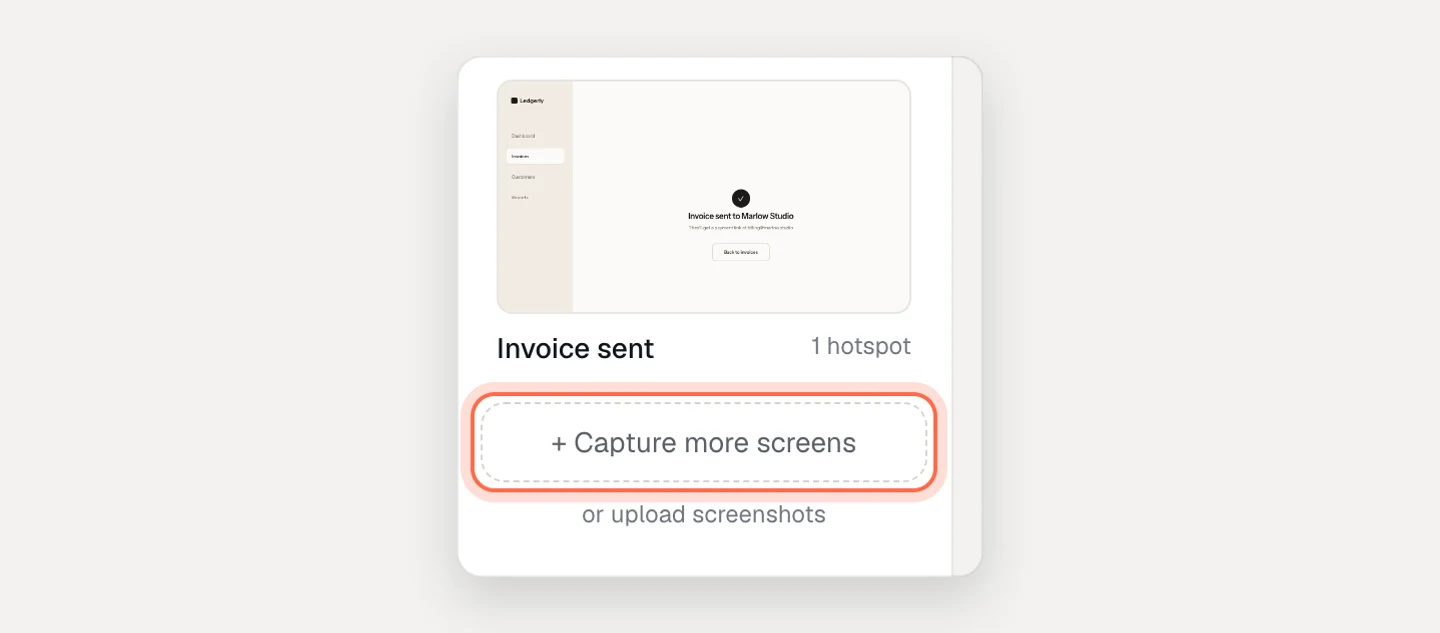
- In a Chrome tab, go to the page where the new part starts. Starting on a page that’s already in the demo is best (see below).
- Click the AtriumKit button. It says Adding to: with your demo’s name, and Clickable demo is already selected.
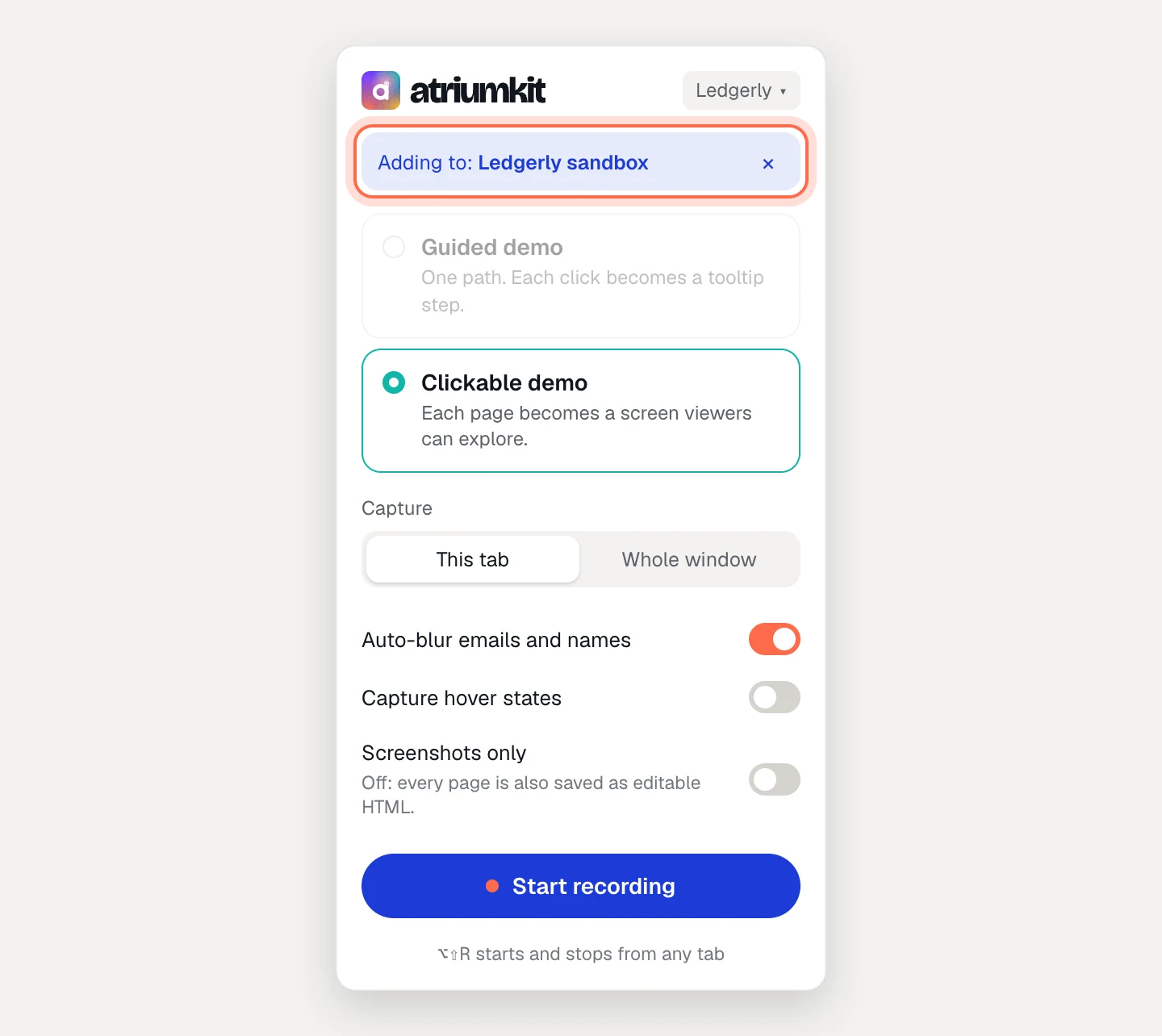
- Click Start recording and click through the new pages.
- Click Done, check the list in the review panel, and click Open in editor. The panel says Adding to your demo… while it works.
The new screens appear in the same demo’s screen list.
Changed your mind before recording? Click × next to Adding to: in the extension to record a new demo instead.
If the editor shows Add the AtriumKit extension, install it and sign in, then click + Capture more screens again. Already installed? Reload the editor page so it can connect.
How new screens are linked
- No duplicates. A page with the same address that looks the same as a screen already in the demo is matched to that screen instead of being added again.
- Your clicks become hotspots. A click on an existing screen that leads to a new page adds a hotspot on the existing screen. If you click where an unlinked hotspot already sits, that hotspot is linked.
- Navigation is stitched again. Smart stitching runs over the old and new screens together, so sidebar items, tabs and menu links that lead to a new screen work from every screen they show on. Links it’s sure about are added; the rest wait under Links to review.
If you removed every auto link from this demo with Remove all auto links, new recordings aren’t stitched until you click Link navigation across screens again.
Check the result
- Give the new screens clear names in the Name field under Screen.
- Switch the canvas to Map to see how the screens connect.
- Click Link navigation across screens in the inspector to see what stitching would add, or open Links to review at the top of the screen list.
- Publish again. Viewers only get the new screens after you click Publish changes.
To add images instead of a recording, click or upload screenshots under + Capture more screens.
Guided demos: change a step’s screen
Guided demos have no + Capture more screens, and there’s no way to re-capture one step. What you can do is show a different screen from the same demo on a step:
- Select the step in the step list.
- In the inspector, find Screen (on cards, Background screen) and click it. It says Change on the right.
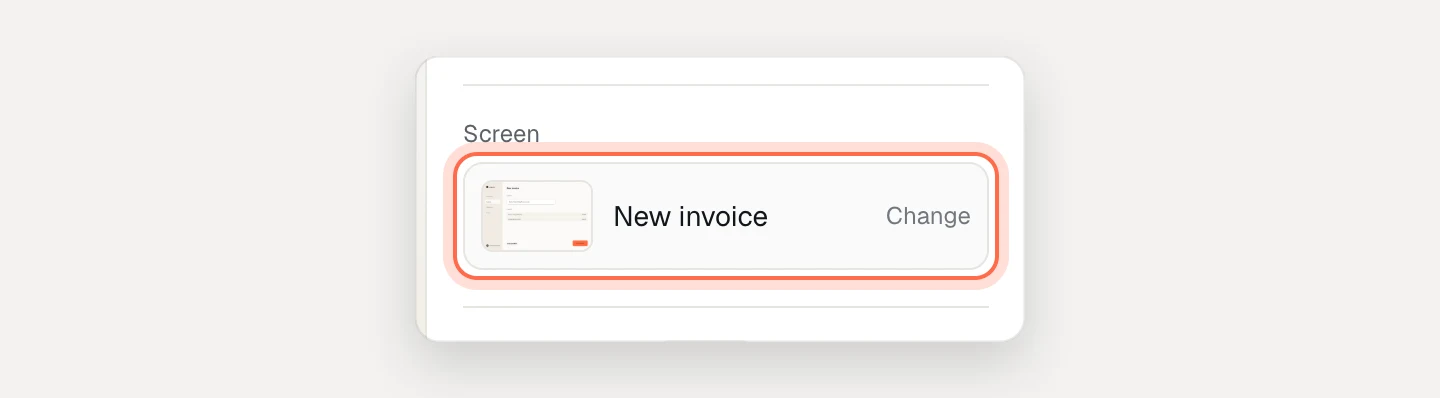
- Pick a screen in Choose a screen. Cards can also use No screen.
The hotspot keeps its position on the new screen. Check that it still sits on the right spot, and drag it with the Select tool if not.
This only helps when the screen you need is already in the demo, for example to reuse one screen for two steps.
When your product changes
- Changed words or numbers. On HTML screens, use Edit text, or Find & replace… to change a word on every HTML screen at once. On screenshots, Edit text paints the new text over the old.
- A button or panel that moved or went away. On HTML screens, Hide removes an element and keeps its space. On screenshots, Crop or Blur can help.
- A flow that works differently now. Record it again: with + Capture more screens in a clickable demo, or as a new guided demo.