AtriumKit records web apps in Google Chrome. This article lists what works, what doesn’t, and the limits worth knowing before a long recording.
Browser and apps
- Google Chrome 116 or later on Windows, macOS, Linux or ChromeOS. Other browsers aren’t supported for recording.
- Web pages only. Desktop and mobile apps can’t be recorded. If you have screenshots of them, see Create a demo from screenshots.
- Viewers don’t need Chrome or the extension. Published demos play on a web page.
Pages you can’t record
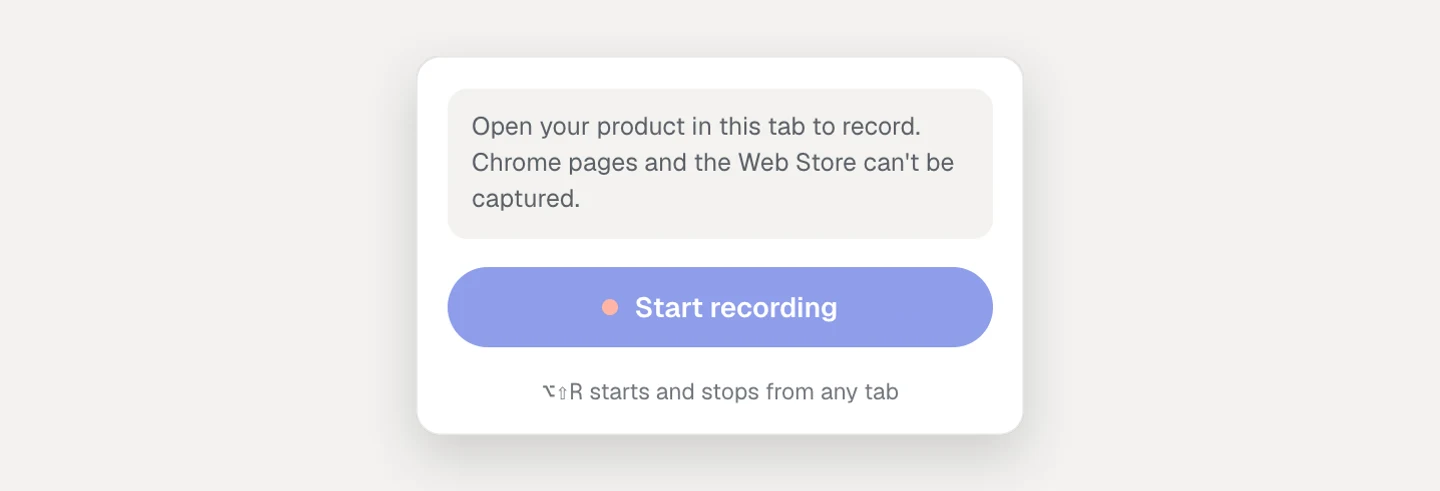
Chrome doesn’t let extensions capture some pages. On these, Start recording is greyed out and the extension says “Open your product in this tab to record. Chrome pages and the Web Store can’t be captured.”
- Chrome’s own pages: the new tab page, settings and other
chrome://addresses - The Chrome Web Store
- Pages of other extensions
- Local files (
file://), andview-source:,about:,data:andblob:addresses
If a recording moves onto one of these pages, nothing is captured there. Go back to your product and carry on.
What a capture shows
- The visible part of the page. Each capture is what fits in the browser window, not the full scroll height. Scroll to what viewers should see before you click. The HTML copy keeps the scroll position.
- The page just before your click. A step’s screenshot shows the page as it was before the click took effect, with the clicked spot marked.
- Your window size. Size the window the way viewers should see the product. A very large window means the demo is scaled down more to fit an embed.
Iframes and embedded content
- Clicks inside frames from other sites aren’t captured. Payment forms, embedded videos, chat widgets and some editors live in their own frames. They show in the screenshot, but a click inside them doesn’t become a step. Add a hotspot there by hand in the editor if you need one.
- In the HTML copy, frames from other sites become pictures cropped from the screenshot. Frames from your own site are copied as HTML.
Hover menus
Hovering isn’t captured unless Capture hover states is on. With it on, resting the pointer on something that opens a menu or tooltip becomes a step.
Menus that open with CSS alone, with nothing on the page changing as you hover, don’t become hover steps. Clicking an item inside one still captures the menu open, so hover to open it and click what you want.
Tabs, windows and restarts
- New tabs. In This tab mode, a link that opens a new tab isn’t followed. Choose Whole window to follow the tabs you switch to in that window. Separate pop-up windows aren’t recorded.
- Closing the tab ends a This tab recording. Click the AtriumKit button and Review and open in editor to continue.
- Quitting Chrome loses a recording that hasn’t been opened in the editor yet. Captures stay on your computer until you upload them, so finish and click Open in editor first.
Limits
| What | Limit |
|---|---|
| Captures in one recording | 300 |
| Steps in a guided demo | 500 |
| One screenshot | 15 MB |
| HTML copy of one page | 12 MB, plus 40 MB of images and fonts. Larger pages are saved as screenshots only. |
| One image or font in an HTML copy | 8 MB. Larger ones are left out. |
| Uploaded screenshots | PNG, JPEG or WebP, 15 MB each |
A recording with more than 300 captures can’t be opened in the editor. Remove some in the review panel, or record the flow as two demos.