You can build a demo from images instead of a recording: screenshots a designer exported, mockups of a feature that isn’t live yet, or an app you can’t open in Chrome.
Upload your screenshots
- In AtriumKit, click New demo in the sidebar, or press Alt+N (⌥N on a Mac).
- Pick Guided demo or Clickable demo.
- Click Upload screenshots.
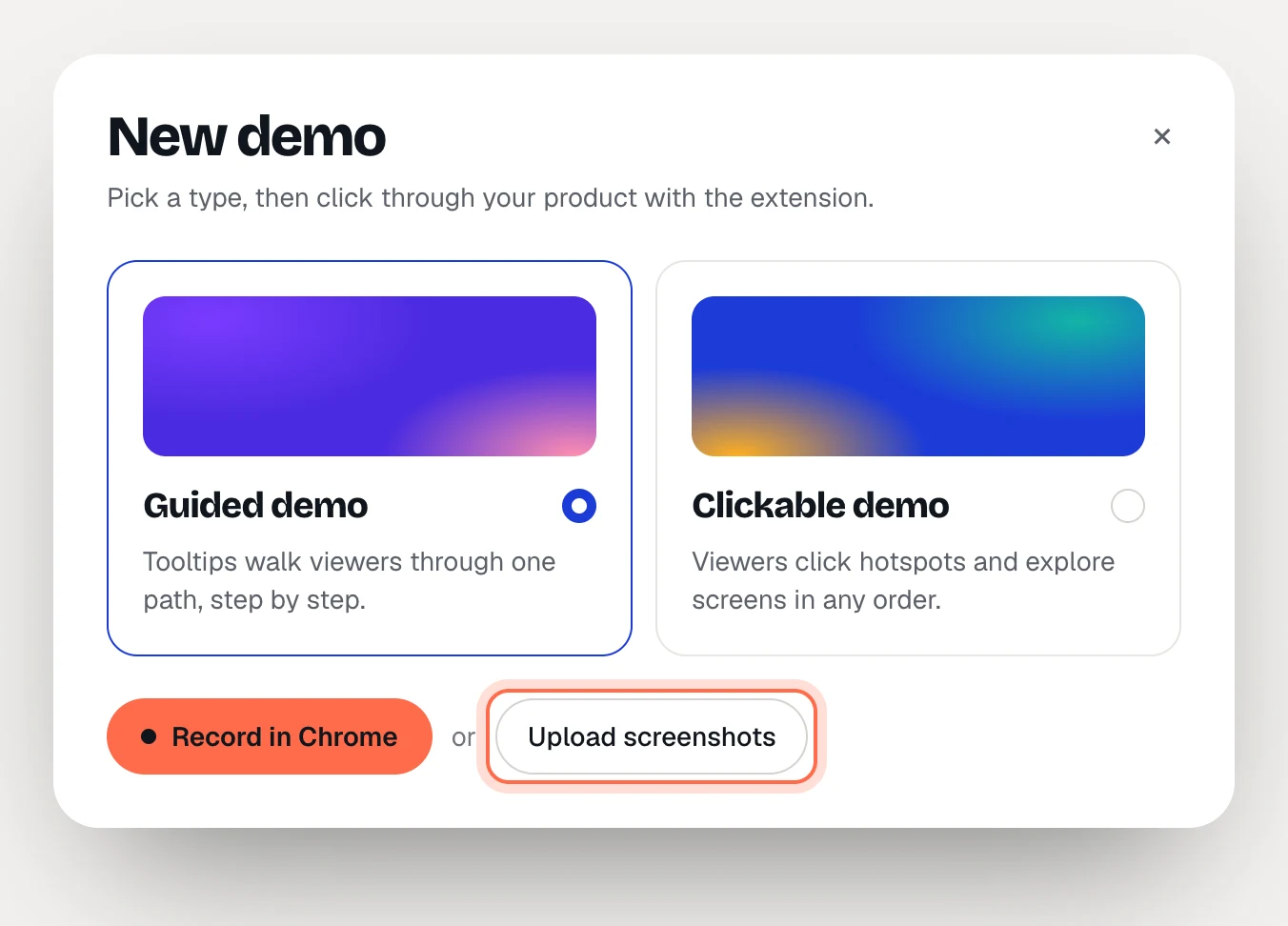
- Select all the images in the file dialog at once.
- AtriumKit shows “Uploading 3 of 8 screenshots…”, then opens the new demo in the editor.
If you clicked Record in Chrome and the extension isn’t installed, the dialog also offers Upload screenshots instead.
Prepare the files
- Formats. PNG, JPEG or WebP, up to 15 MB each. Other files are skipped with a message.
- Order. Files are sorted by name, with numbers in natural order (2 comes before 10). Number them in the order of the flow.
- Names become screen names.
02 - Invoices.pngbecomes a screen called “Invoices”: the leading number is dropped and dashes and underscores turn into spaces. - The demo title comes from the first file’s name, unless that name starts with “Screenshot”, “Image”, “IMG” or a number. Then the demo is called “Untitled demo”. Rename it in the editor.
- One size. Screenshots taken at the same window size keep the demo from changing shape between steps.
- Blur first. Uploaded images aren’t scanned for personal data. Remove names and emails before you upload, or cover them with the Blur tool in the editor.
What you get
Guided demos start with an intro card (your demo title and a Start the tour button), one tooltip step per image, titled with the screen name and set to advance with Next, and an outro card titled “Ready to try it?” with a Replay button. For each step:
- Select it and drag the orange box on the canvas onto what viewers should look at. Drag its corners to resize it.
- Write the Title and Body.
- Set Advance when to Click if viewers should click the highlighted spot to continue.
Clickable demos get one screen per image, in order, with the first as the Start screen and no hotspots yet. For each screen:
- Drag on the screen to draw a hotspot.
- Under Goes to, pick the screen it opens, choose External link, or leave Nothing yet.
- Give it a Label and, if you like, a Hover hint.
To add more images to a clickable demo later, click or upload screenshots under + Capture more screens in the screen list.
What’s different from a recording
A recording captures details of each page that an image doesn’t have:
- No HTML copy. Screens are images, so Hide, Image and Find & replace… aren’t available. Edit text still works: drag a box over the text you want to replace.
- No smart stitching. AtriumKit can’t see the navigation inside an image, so add every hotspot yourself.
- Less for AI to work from. Write with AI reads the text captured with each page. An image carries no captured text, so AI has little more than the screen names to go on. Give your files clear names and expect to edit the drafts.
- No auto-blur, as above.
- No new screens in guided demos. Pick every image you need when you create a guided demo. The guided editor can’t add screens later: a step’s Change button only switches between screens already in the demo.
When to record instead
If you can open the app in Chrome, recording is usually quicker. Every click arrives as a step with its hotspot placed and its copy drafted, auto-blur runs before anything is uploaded, and pages keep their HTML for editing. See Record your first demo.