You can change what a captured screen shows without recording it again. The tools sit above the canvas in both editors and work on every plan.
Two kinds of screens
- HTML screens keep a copy of the page itself next to the screenshot. They get the page tools: Edit text, Blur, Hide and Image.
- Screenshots are images. They get Edit text, Blur and Crop, which paint on the image.
Recorded screens are HTML screens unless you turned on Screenshots only, or a page was too large to capture as HTML. Screenshots you upload are image screens. Hide and Image only appear on HTML screens; Crop works on both.
Edit text on an HTML screen
- Choose Edit text above the canvas.
- Click any text on the page and type. It keeps the page’s own fonts.
- Press Enter (or click Save) to keep it, Esc (or Cancel) to drop it.
Blurred text can’t be edited. Remove the blur first.
Blur, hide or replace an image on an HTML screen
- Choose Blur, Hide or Image.
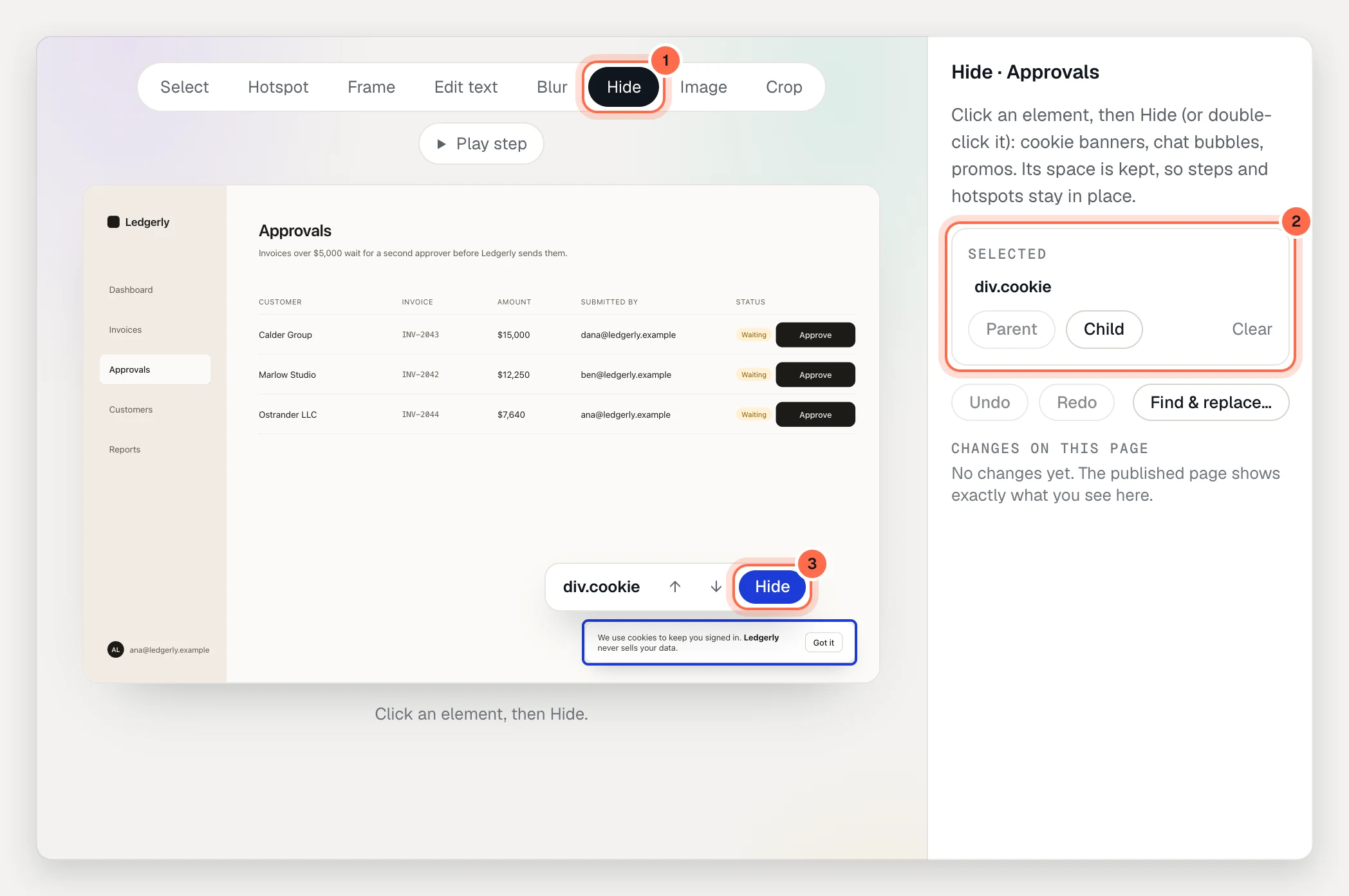
- Click an element on the page. The inspector shows it under Selected. Use Parent and Child (or ⌥↑ and ⌥↓) to pick a bigger or smaller part.
- Click Blur, Hide or Replace image… next to the selection. For Blur and Hide, double-clicking the element works too.
- Blur: you can also drag over an area. Blurred text becomes placeholder text in the published page, and the same area is blurred on the screenshot.
- Hide: good for cookie banners, chat bubbles and promos. The element’s space is kept, so steps and hotspots stay in place.
- Replace image: works on images, logos, avatars, background images and inline icons. Use PNG, JPEG, GIF, WebP, AVIF or SVG, up to 8 MB.
Find and replace across the demo
- On an HTML screen, choose a page tool and click Find & replace… in the inspector.
- Type the text in Find and the new text in Replace with. Turn on Match case if capitals matter.
- Check the matches listed for each screen, then click Replace N.
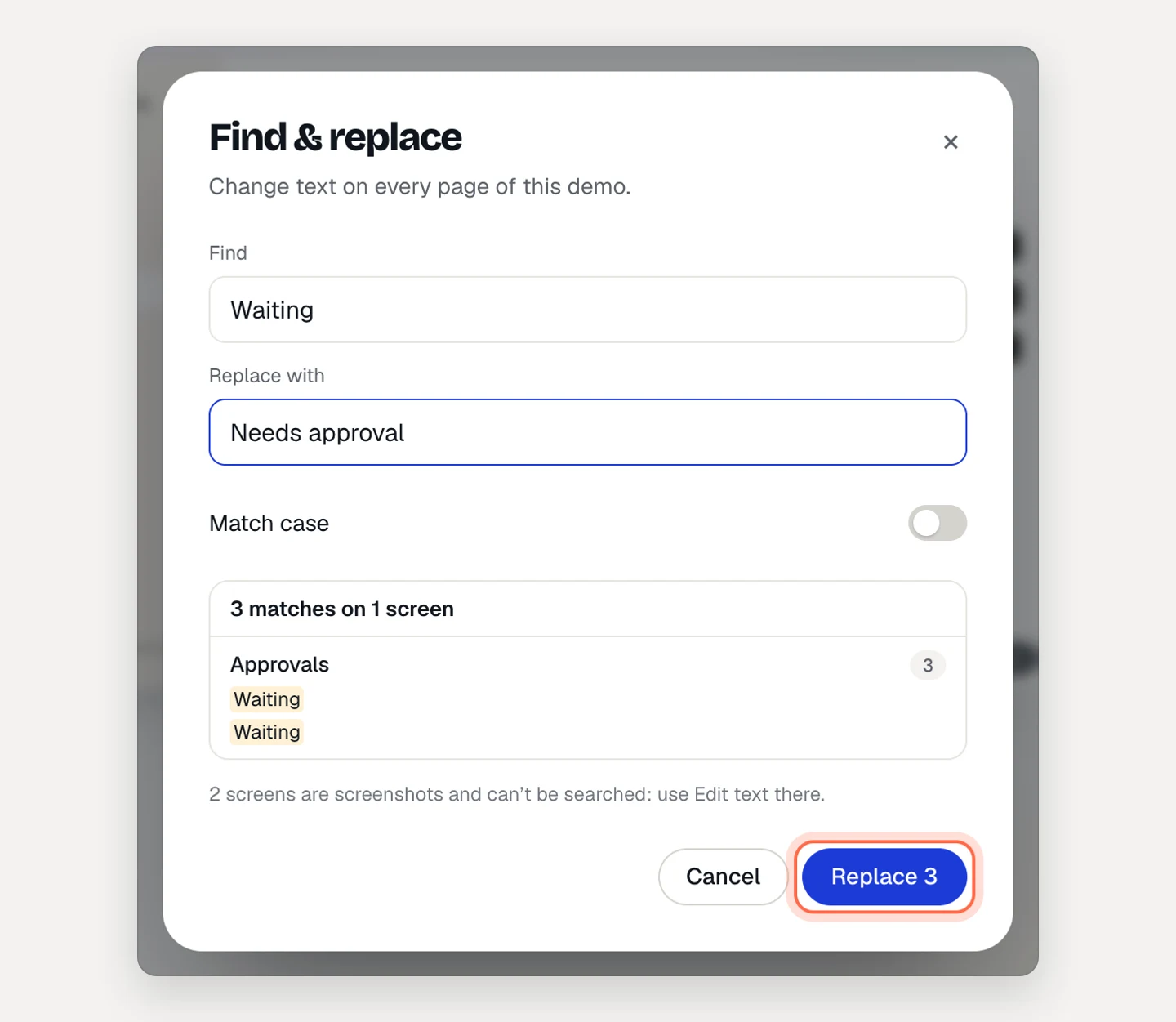
Find & replace searches every HTML screen of the demo and skips blurred text. Screenshots can’t be searched; use Edit text on them.
Undo, redo and revert page edits
- Undo and Redo in the inspector (or ⌘Z and ⇧⌘Z while a page tool is picked) step through one screen’s edits.
- Changes on this page lists every edit on the screen, tagged Text, Blur, Hidden or Image. Click one to find it on the page, or click Revert to remove it.
Edit a screenshot
- Edit text: click a piece of captured text, or drag a box over any area, and type the Replacement text. AtriumKit paints the new words over the old ones in the captured font. Restore original puts the old text back.
- Blur: drag over names, emails or anything private. Blurred pixels are replaced in the published image, not just covered. The inspector lists each blur with Remove.
- Crop: drag to choose what viewers see, then click Apply crop. Show full screen removes the crop. Steps and hotspots keep their positions.
In guided demos, the Frame tool looks similar but doesn’t change the screen: it sets what one tooltip’s camera shows. See Camera, cursor and spotlight.
When viewers see your edits
Screen edits are part of your draft. Viewers see them after you publish, and every version in History keeps the screen as it was.
Limits
- Text inside captured screens isn’t translated when you translate a demo. Only your own copy is.
- Some elements can’t be edited as a whole. AtriumKit says so; edit a smaller part instead.
- Find & replace only changes HTML screens. Fix screenshots one by one with Edit text.