Nobody records a perfect run. This article covers the tools for fixing mistakes while you record and right after.
Undo the last step
Click Undo on the recording bar. It removes the most recent capture, and the count on the bar updates. Click it again to remove the one before. Undo is greyed out until something has been captured.
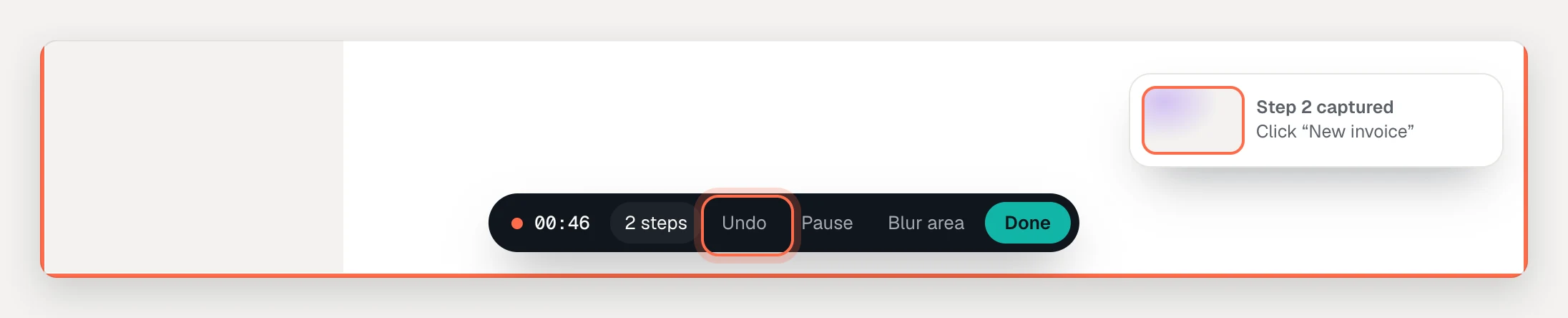
Undo removes the capture, not what happened in your app. If the click opened a dialog, close it with an Alt-click (below) so closing it isn’t captured either.
Click without capturing
Hold Alt (⌥ on a Mac) while you click. The click works in your app as usual but doesn’t become a step. Use it to:
- close a dialog, banner or tour you don’t want in the demo,
- get back to where the flow continues after an Undo,
- set something up, such as picking a filter, before the next real step.
In a clickable demo, a reminder about this shows above the bar when you start.
Chrome downloads a link you Alt-click instead of opening it. To follow a link without capturing the click, use Pause.
Pause
Click Pause to stop capturing completely. The border turns grey and the button changes to Resume. Navigate, type, prepare data or take a break. Nothing is captured and the timer stops.
Click Resume to carry on. AtriumKit captures the page as it is when you resume.
Discard a recording
- While recording: click the AtriumKit button, then Discard.
- After you click Done: click Discard in the review panel.
Nothing is uploaded until you click Open in editor.
Starting a new recording while another one waits for review discards the waiting one. Open it in the editor first if you want to keep it.
Remove steps in the review panel
When you click Done, the review panel opens at the side of the window with every capture in order.
- Check each row: a number, a picture and a title written from what you clicked.
- Click × on a row to remove that step. You can remove any step as long as one is left.
- The last row, Final screen, is the page after your last click. In a guided demo it’s the background of the outro card.
- When the list looks right, click Open in editor.
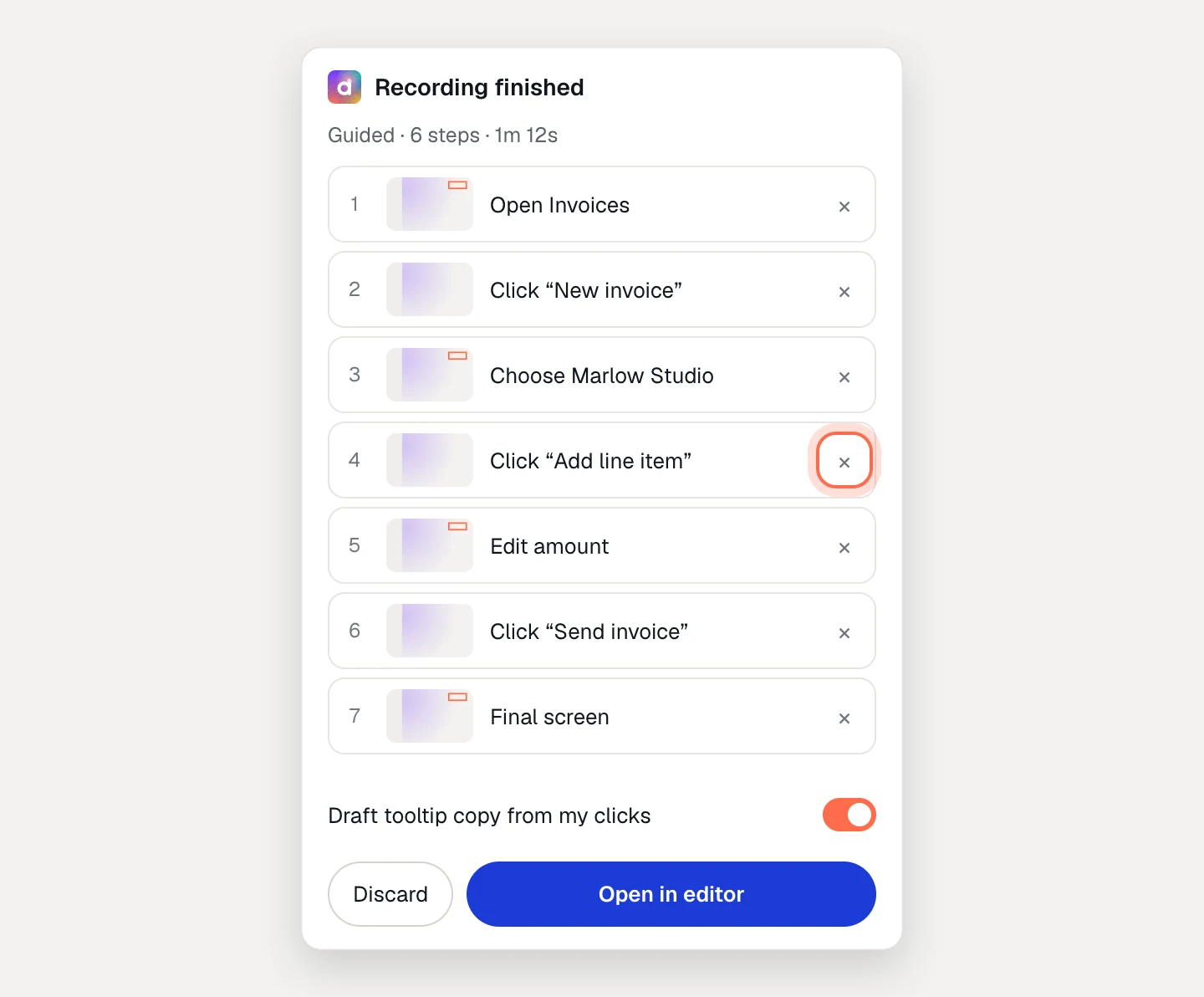
If the panel is closed, click the AtriumKit button and then Review and open in editor.
Drafted tooltip copy
Guided recordings have a Draft tooltip copy from my clicks switch in the review panel. It’s on by default, and your choice is remembered.
With it on, each tooltip starts with a title and a line of text built from what you clicked. For example:
- A link to Invoices gets the title Open Invoices and the line “This takes you to Invoices.”
- A button gets a title like Click “New invoice” and a line telling viewers to click it.
- A Description field you typed “Q3 retainer” into gets Enter description and a line telling viewers to type it.
The intro card gets a line such as “A 6-step walkthrough. Click the highlights to follow along.” and the outro card is titled “Ready to try it?”.
This copy follows fixed rules. It isn’t written by AI and uses no AI credits. Personal values never go into it: for an email, name or phone field it says what to type (“Type the customer’s name here.”), and passwords, card numbers and one-time codes are never read.
With the switch off, tooltips start empty.
After the editor opens
- A banner may offer to write or rewrite the copy with AI from what each screen shows. It uses AI credits. Click Not now to keep the drafted copy.
- To delete a step in a guided demo, select it and click Delete in the inspector. Press ⌘Z (Ctrl+Z on Windows) to bring it back.
- In a clickable demo, select a hotspot and click Delete, or remove a whole screen with Delete screen.