Variables let one demo speak to each viewer: See how {{company|your team}} closes the books reads “See how Acme closes the books” for someone from Acme.
Personalization is on Pro and Team. On Free you can still write variables, and viewers see your defaults and fallbacks.
Write a variable
- In the editor, click into a text field: a step title or body, a button, a choice, a hotspot label or hint, or a link.
- Type
{{and pick a variable from the list, or click Variable next to the field. - Add a fallback for viewers without a value, after a bar:
{{company|your team}}.
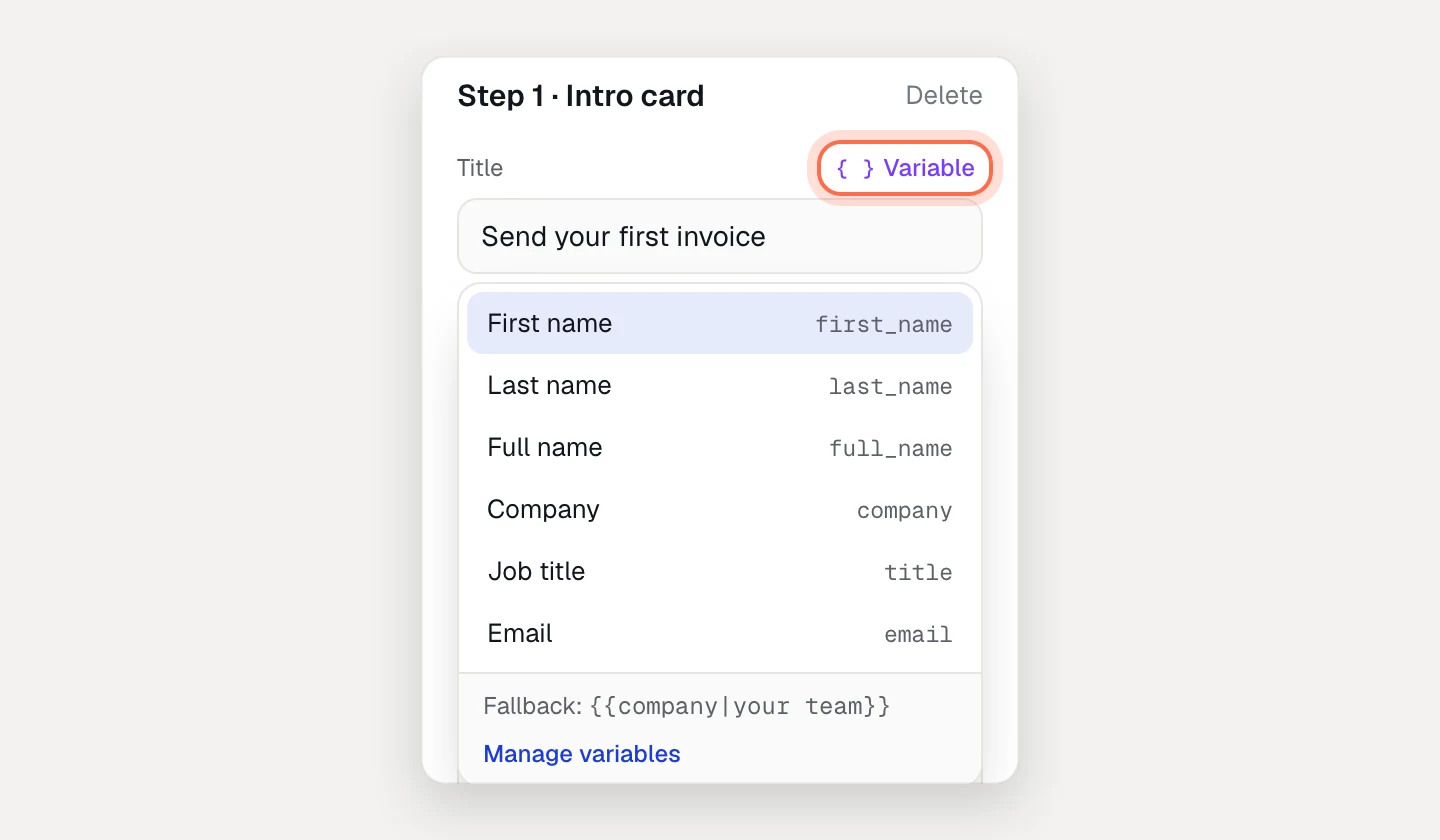
A variable shows the viewer’s value, else the demo’s default, else the fallback, else nothing. When a variable has neither a fallback nor a default, the field says so (“Viewers without a company see nothing here.”) and offers Add a fallback and Set a default.
Variables also work in CTA links (never in the domain), the hosted page’s title and header button, and text you edit on a screen.
Built-in and custom variables
Every demo has six built-ins: first_name, last_name, full_name, company, title (job title) and email. A full name fills in first and last names, and the other way round.
To set defaults or add your own variables, click Personalize in the demo header. On narrower screens it’s Personalize… in the ⋯ menu.
- Under Built in, give any variable a Default (used everywhere it has no value) and a Sample (used only for previews in the editor).
- Under Your variables, click + Add variable.
- Enter a Label, like “Industry”. Name in copy and links fills itself in (
industry). - Click Add variable, then set its default and sample. Click Done.
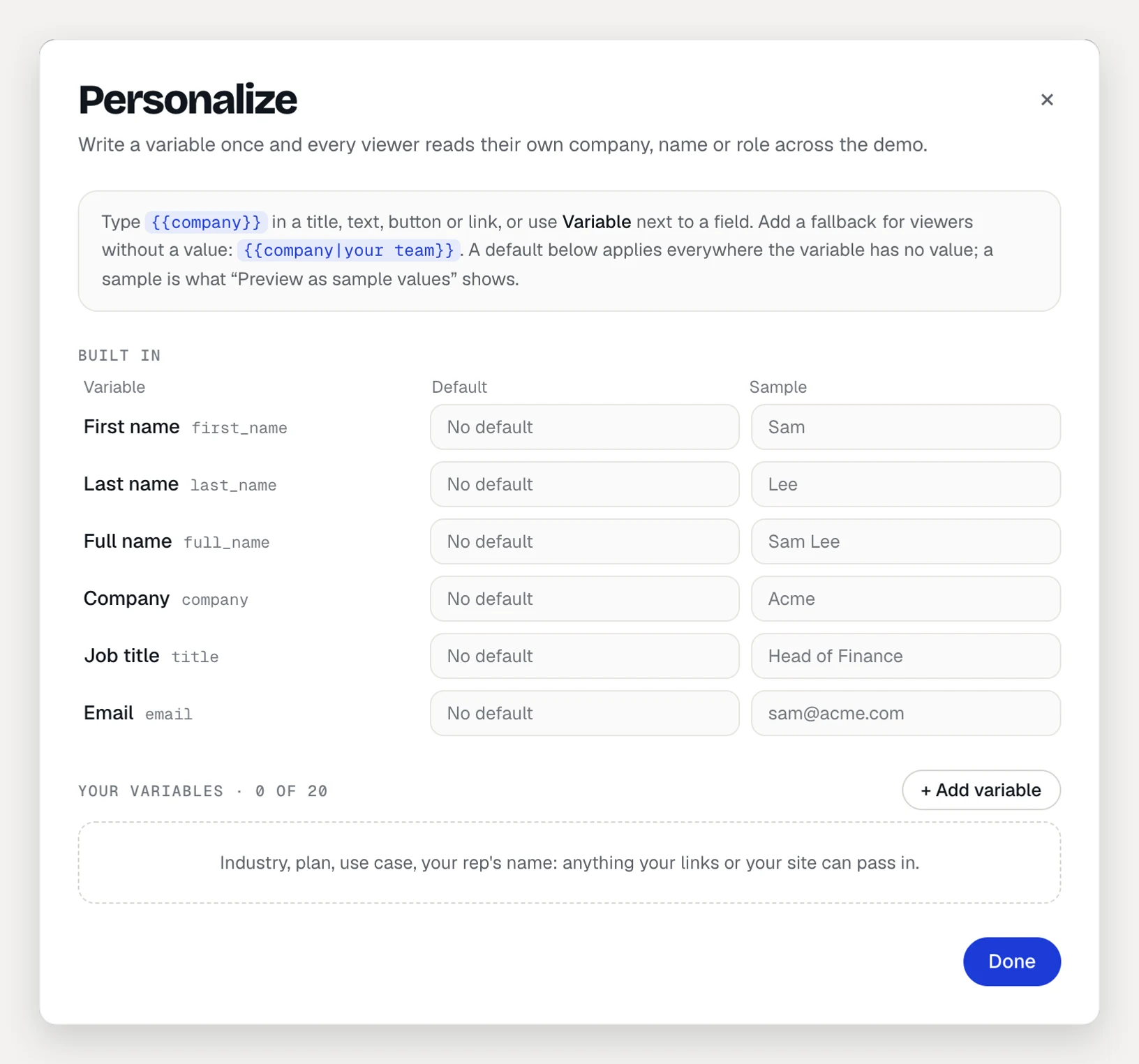
A demo can have up to 20 custom variables. Names use lowercase letters, digits and _, start with a letter and are up to 32 characters. Names that links already use, like utm_…, p and lang, are refused.
Where values come from
When more than one source has a value, the first one in this list wins:
- Lead form answers the viewer gave in this visit (name, company, email).
- The page that embeds the demo, with a
setVariablesmessage. See Embed a demo. - A personalized link made for one prospect. See Personalized links.
- URL parameters on the hosted link or the embed:
?company=Acme&first_name=Sam. Common spellings work too, likefirstname,fname,company_name,organizationandjob_title. - Collection pages, which pass the values in their own URL to every demo they play.
In presenter mode, Personalize for this call fills in values for that presentation only.
For email merge tags, open the Share tab, choose Personalized and expand Use your email tool’s merge tags. Pick HubSpot, Outreach, Apollo or Mailchimp and click Copy.
Preview and test
- On the editor canvas, switch between Variables (chips), Samples and No values (what a viewer without values reads).
- Click Preview and use Preview as to play the draft with Sample values, No values (fallbacks) or one of your personalized links.
- After you publish, open the hosted link with values added, like
?company=Acme. The page fills them in and removes them from the address bar. A reload in the same tab keeps them; open the link again with new parameters to try other values.
Choose who can fill in variables
Anyone can add ?company=… to your link, or embed your demo and send values. You decide which sources count: in the Share tab, choose Personalized and find Who can fill in variables.
- Values in the link: turn off to ignore URL parameters on the hosted link, the embed and collection pages.
- Values from embedding pages: turn off to ignore
setVariables. To accept them only from your own sites, list them under Only these sites, one per line (likehttps://www.example.com), up to 20.
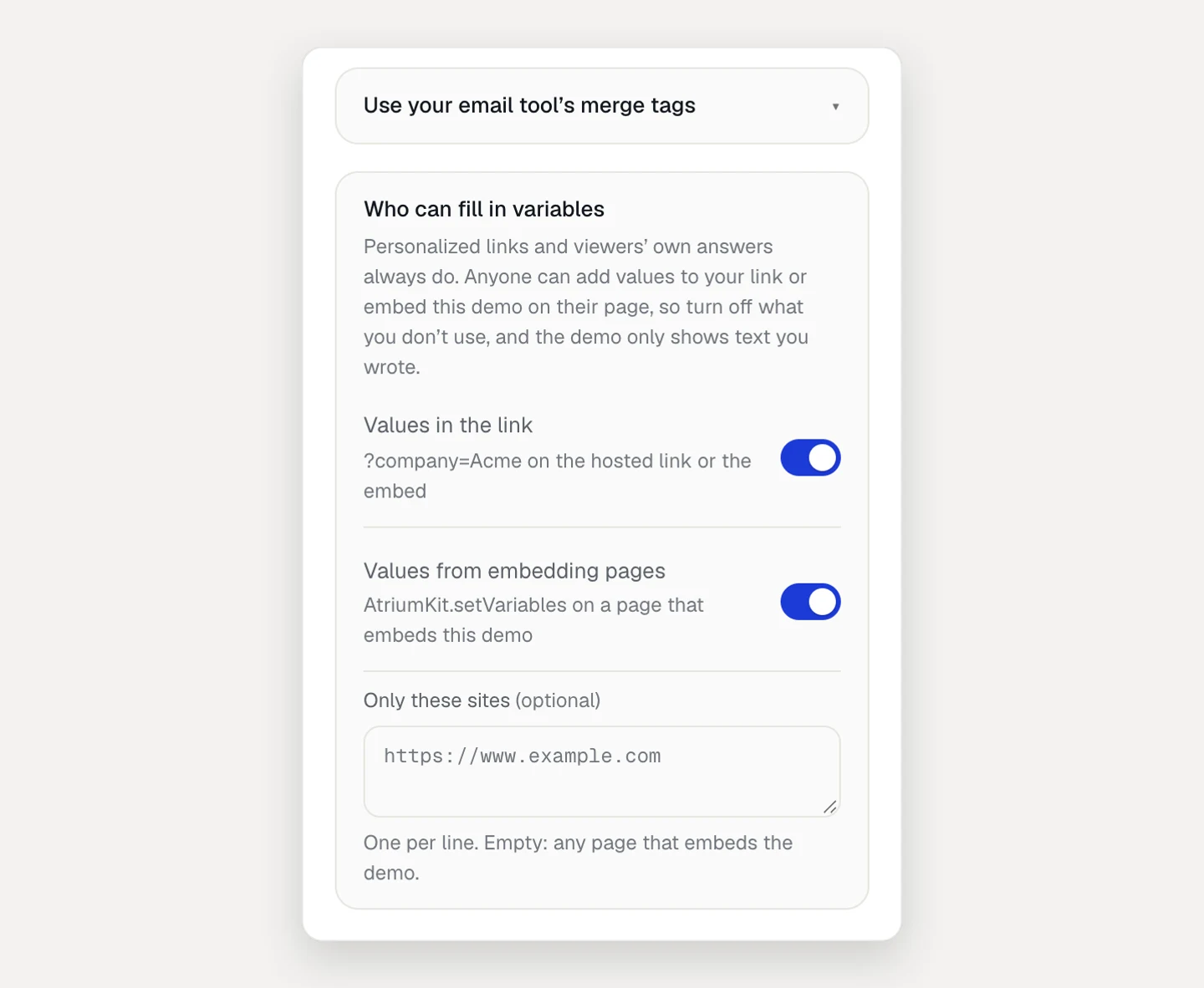
Personalized links and the viewer’s own answers always apply. For a demo that should only ever show text you wrote, turn both switches off and use personalized links.
Privacy
- Values from the URL, the embedding page, lead forms and presenter mode stay in the viewer’s browser. They aren’t stored in analytics and never go to AI.
- Link previews in chat apps and search results use your defaults and fallbacks, never a viewer’s values.
- Values in an email link can end up in email-tool and server logs. For named prospects, prefer personalized links: their code says nothing about the person.
Limits
- Each value is text only, up to 120 characters.
- Text in a captured screen is personalized only where you edited it and inserted a variable.
- After a downgrade to Free, published demos keep working and show defaults and fallbacks.