Live demos fail in boring ways. The demo environment was reset overnight, a feature flag flipped, the VPN dropped, or a real customer’s name showed up in a list. Presenter mode plays a recorded demo on your screen share so it looks and clicks like the product, with nothing live behind it. This playbook covers preparing the demo, the call itself and what to do when the conversation goes somewhere you didn’t record.
1. Decide what to present and what to keep live
Presenter mode is best for the core story you tell on most calls: the same five or six minutes, every time. It isn’t a replacement for the product when a buyer asks something you didn’t plan for.
- Guided demos suit a scripted story. With guides hidden, you click through it like the real app and nobody sees a tooltip.
- Clickable demos suit “Can you show me where…?” questions. Sidebars, tabs and menus work from every screen, so you can wander a little without leaving the recording.
- Keep the product open in another tab for anything else. Switching to it when a question needs it is fine. Most buyers will appreciate the honesty.
2. Build the demo for a call, not a website
A demo you present has a different job from one you embed on your homepage. You’re the narrator, so the copy matters less and the structure matters more.
- Record realistic data, with Auto-blur emails and names on. Keep HTML capture on (leave Screenshots only off) so you can fix page text later without recording again.
- Use chapter cards as pause points. Add a Chapter card before each section (“Approvals”, “Reporting”). On a call it’s a natural place to stop and ask a question.
- Fork where buyers differ. A Choice card with two to four answers lets you take the path that fits this buyer. In presenter mode you pick an answer with the keys 1 to 4.
- Add variables like
{{company|your team}}to the copy and the captured screens. On the call you fill them in once and the whole demo uses them.
3. Write presenter notes
Select a step in a guided demo, or a screen or hotspot in a clickable one, and find Presenter notes in the inspector. Notes are private: they’re never published and viewers never see them.
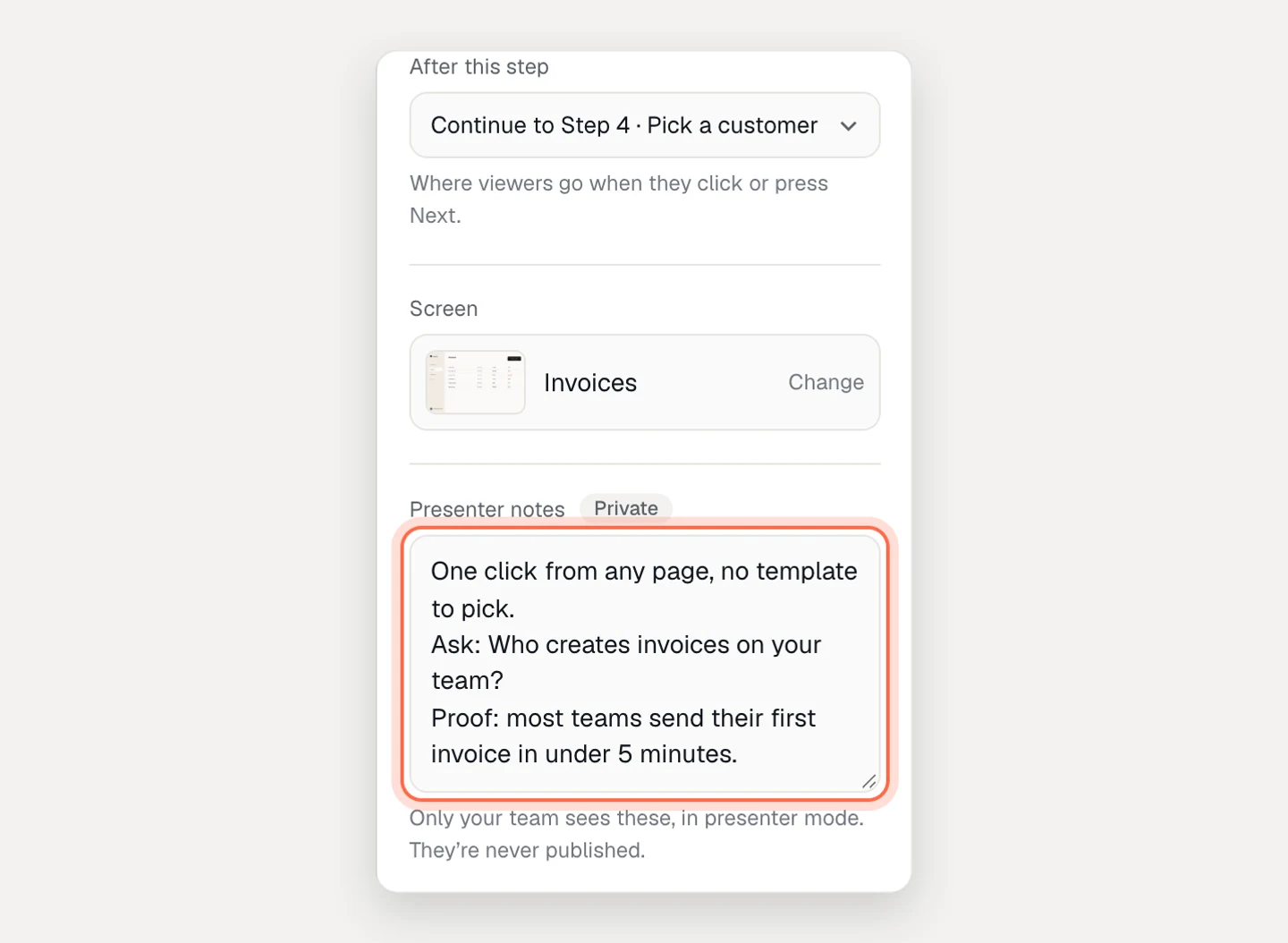
Write what you’d otherwise try to remember:
- The one point this step should land
- A discovery question to ask here (“How do you handle this today?”)
- A number or proof point to mention
- The objection that usually comes up, and your answer
Keep each note short enough to read at a glance while you talk. Three lines beats a paragraph.
4. Set up five minutes before the call
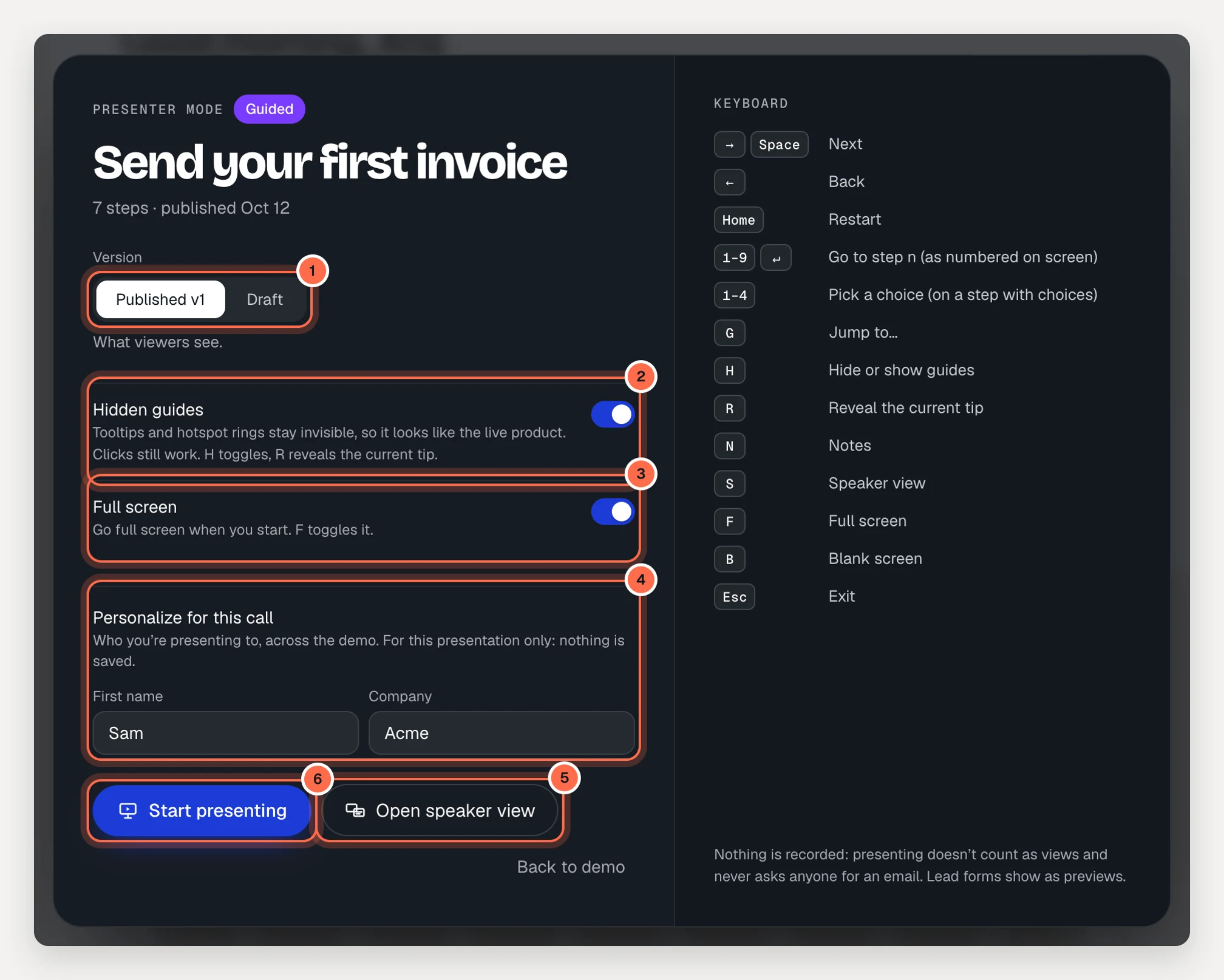
Open the demo and click Present in the header (or Present in the demo’s menu in your library). The setup screen has everything you need:
- Version. Choose Published to show what viewers see, or Draft for your latest edits, including anything you haven’t published.
- Hidden guides. On: tooltips and hotspot rings stay invisible, so it looks like the live product. Clicks still work.
- Full screen. Go full screen when you start.
- Personalize for this call. When the demo uses variables, type the prospect’s name and company. It’s for this presentation only and nothing is saved.
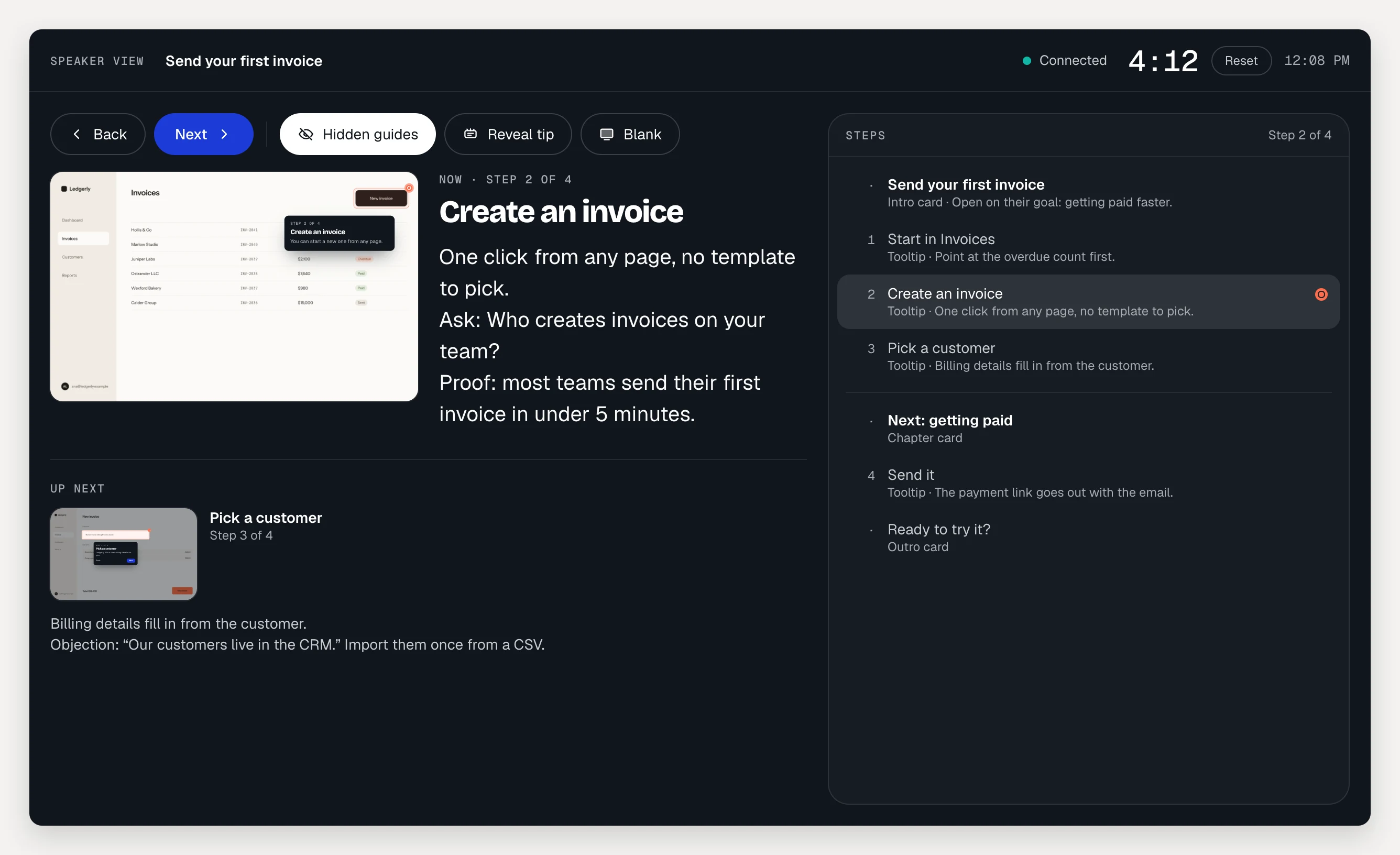
- Open speaker view. A second window with your notes, what’s next and a timer, in sync with the presenter window. Move it to your other screen.
- Start presenting.
Share the presenter window or tab, not your whole screen. Then the speaker view stays yours.
The speaker view follows a presenter window open in the same browser. Open it before the call and rehearse with ← and →.
5. Drive it during the call
You can click where the real button would be, or use the keyboard:
| Key | What it does |
|---|---|
| → or Space | Next |
| ← | Back |
| G | Jump to a step or screen |
| 1–4 | Pick a choice on a step with choices |
| H | Hide or show guides |
| R | Reveal the current tip |
| N | Notes |
| S | Speaker view |
| B | Blank screen |
| Esc | Exit |
Presentation clickers work too: Page Down and Page Up move, and B or “.” blanks the screen. The speaker view has its own Back and Next buttons, so you can drive from the second screen.
Two habits help:
- Reveal, don’t show. Keep guides hidden and press R only when you want the room to see where to look.
- Narration stays off unless you turn it on. If the demo has a voiceover, the narration button in the presenter controls plays it, and everyone on the call hears it. Live, your own voice is usually better.
Presenting never counts as a view and never asks anyone for an email. Lead form steps show as previews.
6. Have a plan B
Presenter mode removes the most common failures, but calls still go sideways. Decide in advance what you’ll do.
- They jump ahead. Press G and jump straight to the part they asked about. Chapter cards make the jump list easy to scan.
- A notification pops up, or you need a moment. Press B to blank the screen. Any key brings it back.
- They ask about something you didn’t record. Say so, and switch to the live product in another tab. Or offer to send a short demo of it after the call.
- Your connection is unstable. Paste the hosted link into the call chat. The prospect can click through the same demo on their side while you talk.
- You edited the demo this morning. Present the Draft if the edits are finished, or Published if you’re mid-change. You choose on the setup screen.
7. Follow up with the same demo
After the call, send the demo they just saw so they can replay it and show colleagues. Send a personalized link to see when they open it. Point the champion to the demo’s step-by-step guide too: it pastes into Notion, Google Docs or Confluence, pictures included.
What to measure
Presentations aren’t tracked, so measure the follow-up and your own prep:
- Replays after the call: views, completion and last open for each personalized link, in the demo’s Analytics → Links view.
- Where they went back to: the Step funnel and Recent viewers for the days after the call.
- Your exits: how often you had to leave presenter mode for the live product, and why. Each repeat question is a flow to record next.
- Notes that never get read: if you keep skipping a note, cut the step or the note.