A help article with ten numbered steps and three screenshots asks the customer to hold the whole procedure in their head while switching tabs. An embedded walkthrough shows each click in place. A written guide underneath serves the people who want to skim, search or paste the steps somewhere. In AtriumKit both come from one recording. This playbook covers which articles to start with, how to build them and how to keep them from going stale.
1. Start with the articles that create tickets
Don’t convert the whole help center. Start with five articles, chosen by evidence:
- The most-viewed articles in your help center’s reporting
- The ticket tags that come up most often (“How do I export…”, “Where do I change…”)
- The tasks your support team explains on calls most often
Keep the ones that are tasks with clicks in them. Conceptual articles (“How billing works”) and troubleshooting trees stay as text.
2. Record each task once, as a guided demo
One task per demo. A customer looking for “Add a user” shouldn’t sit through “Set up roles” first.
- In the extension, choose Guided. Leave Auto-blur emails and names on and Screenshots only off.
- If your product opens menus on hover, turn on Capture hover states so those menus become steps.
- Start where the customer starts, usually the dashboard home, not halfway through the flow.
- Click through at a normal pace. Undo on the floating bar removes a misclick.
Use a test account. Captured pages are redacted in your browser before upload, but a clean account means there’s nothing to redact.
3. Write it as instructions, not marketing
Help content needs a different voice from your homepage tour. Set that up once in the knowledge kit, then let AI write in it.
- Set the voice. Open Brand kits, pick your kit and go to the Knowledge tab. Fill in the product name and summary, and under Voice → Guides describe how instructions should read (“Imperative and exact. Name buttons as they appear. One action per step.”). Add product terms to the glossary, with a Never call it list for the words your docs avoid.
- Write the walkthrough. In the editor, Write with AI with a Direct or Professional tone drafts every tooltip. Edit the ones that need judgment.
- Write the guide. In the demo’s Guide tab, Write guide copy turns each step into an instruction (“Click New invoice”) with a line on what happens. The demo keeps its own copy, so tooltips and the written guide can say different things.
- Tidy the guide. Each step has its own Title in the guide and Text in the guide, and Hide from guide for steps that only make sense in the walkthrough.
If the task differs by role or plan, add a Choice card (“Are you an admin?”). The walkthrough branches, and the written guide shows each path as “If you chose…”.
4. Put both in the article
Put the walkthrough at the top of the article and the written steps underneath it.
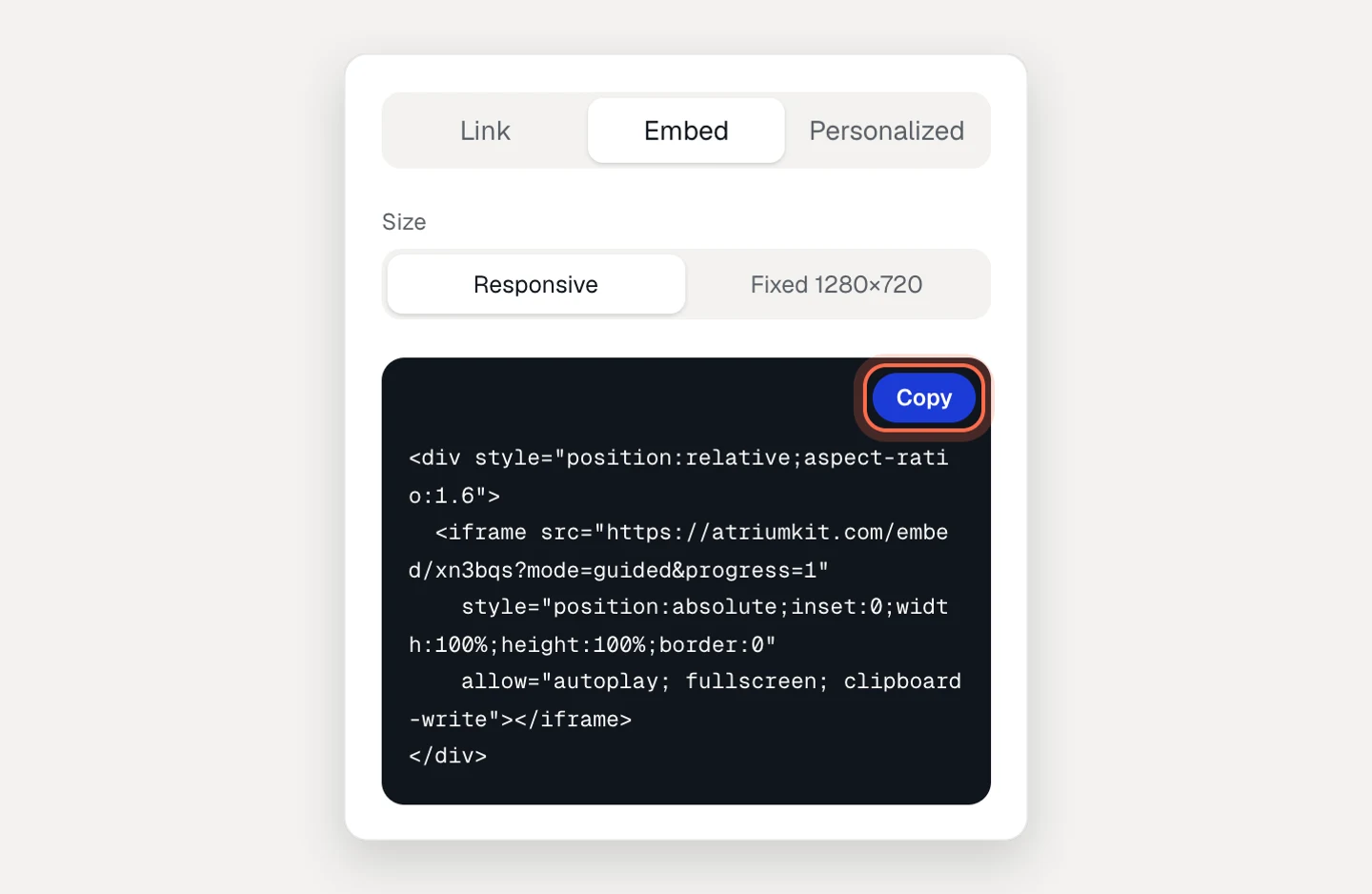
The walkthrough. Publish, then open Share → Embed, choose Responsive and Copy. Paste it into your help center’s HTML or embed block. Embeds work in Intercom, Notion, WordPress and any page that accepts an iframe.
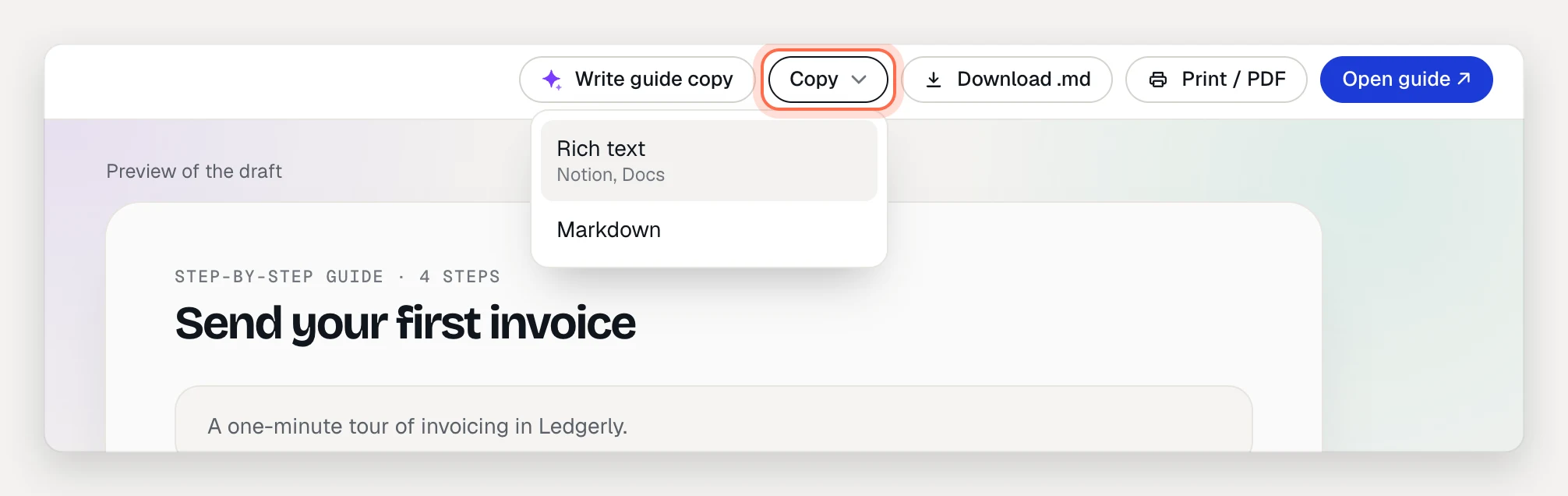
The written guide. In the Guide tab, Copy gives you two formats: rich text with the pictures, which pastes into Notion, Google Docs or Confluence, and Markdown. Download .md saves a file, and Print / PDF prints the published guide. Or link to the hosted guide page, which has its own Open the interactive demo button.
If you paste the guide into your own help center, keep the demo Unlisted or turn its Guide page off. Then search engines index your article, not a second copy on atriumkit.com. Unlisted guides are marked noindex.
Leave Who can view on Public or Unlisted. A help article is the wrong place for an email gate.
5. Translate for the languages your customers read
If you support customers in several languages, the Languages tab translates the demo with AI: every tooltip, card, button and form, into any of 15 languages.
- Under Add a language, pick one and click Add, then click Translate. It costs 1 AI credit per 50 strings.
- Review the strings side by side. Edit any of them by hand. Glossary terms stay consistent.
- Watch the badges: Out of date after you change the source copy, Missing for new strings. Translate again to catch up.
The player picks each viewer’s language from the browser, with a language switcher. In a localized help center, add lang= to the embed address (lang=de) so the German article opens in German. The written guide is available in every language you publish.
Text inside the captured screens stays as recorded. Only the copy you write is translated. AI translations are on Pro and Team.
6. Keep them current when the product changes
This is where most help content fails. Make it someone’s job, and make it small.
- Renamed buttons and labels. On HTML screens, edit the page text directly. Find & replace… in the screen’s edits panel changes text on every HTML screen of the demo at once. On image screens, the Edit text tool repaints text in the captured font.
- Moved or removed controls. The captured screen still shows the old layout. If a control went away, Hide it on HTML screens, or Crop or Blur a screenshot. If it moved somewhere viewers have to click, record that task again.
- Changed flows. When the steps themselves change, record the task again and swap the embed code in the article. For clickable demos, + Capture more screens adds new screens to the existing demo.
- Publish when ready. Customers see the last published version while you edit. The embed and the written guide both update when you publish.
- History. Every publish is a version you can preview and restore.
A simple rule works: whoever ships a change to a documented flow updates its demo in the same release.
What to measure
Open each demo’s Analytics tab every month:
- Views and Completion rate for the walkthrough. Low completion on a short task usually means a confusing step, not a bored customer.
- The Step funnel. A step where many sessions dropped here is the step to rewrite or re-record.
- Step-by-step guide analytics: Guide readers and Unique readers on every plan. Exports and Step reach are on Pro and Team.
- Outside AtriumKit: ticket volume for each converted topic, before and after. That’s the number your support lead cares about.