A screenshot on your homepage says “trust us”. A tour lets visitors try the product before they sign up. A good one is short, sits next to the claim it proves, and asks for an email only after the visitor has seen something worth trading it for. This playbook walks through building one, placing it and improving it from what your analytics show.
1. Give the tour one job
Decide what a visitor should believe when the tour ends. Usually it’s one sentence: “I could set this up myself in ten minutes,” or “This gets my invoices paid faster.” Then record the shortest path that proves it.
- Show the result, not the settings. Start where a new user starts and end on the moment the product pays off.
- Leave out everything else: admin screens, integrations, edge cases. They belong on feature pages or in your help center.
- If you serve two very different audiences, open with a Choice card (“What brings you here?”) with two to four answers, each with its own short path. That’s better than one long tour that tries to cover both.
2. Keep it short
A homepage visitor gives you a minute or two. Aim for a path you can finish in that time, which usually means fewer than a dozen tooltip steps plus the intro and outro cards.
- Write tooltips as benefits, one sentence each. Write with AI drafts every step from your screens; on a single step, Rewrite with Shorter or Benefit-led.
- Let the camera do the pointing. Set the Camera to Auto and it zooms in on each step’s target, so small buttons stay readable inside a narrow embed. The animated cursor shows where the click happens.
- If you need more than about fifteen steps, it’s two tours. Put the second one on a feature page.
Record in a demo account with realistic data. Leave Auto-blur emails and names on in the extension, and use Blur area for anything else that shouldn’t be public.
3. Make it look like your site
Open Brand kits, edit your kit and set your logo, colors and fonts. Under Calls to action, set the Primary CTA (“Start free trial” and your signup link). It shows as the hosted page’s header button and at the end of every demo.
Then, in the demo’s Share tab, turn off Show “Made with AtriumKit”.
Editing a brand kit and removing the AtriumKit badge are on Pro and Team. Free demos use the built-in look and always show the badge.
4. Place it where visitors decide
Where the tour sits matters as much as what’s in it. Good spots, in rough order:
- The homepage hero, in place of the static screenshot most hero sections have.
- Feature pages, right under the section the tour proves. A visitor reading about approvals should be able to try approvals there.
- The pricing page, for visitors who want to see the product before they compare plans.
- A “Take the tour” page that lists several tours. Use a collection for this: a branded page with your demos, sections and progress for each visitor, which you can link to or embed.
To embed a demo, publish it, open Share → Embed, choose Responsive and Copy the code. Paste it into your site builder’s embed or HTML block. It works in Webflow, WordPress, Notion and any page that accepts an iframe.
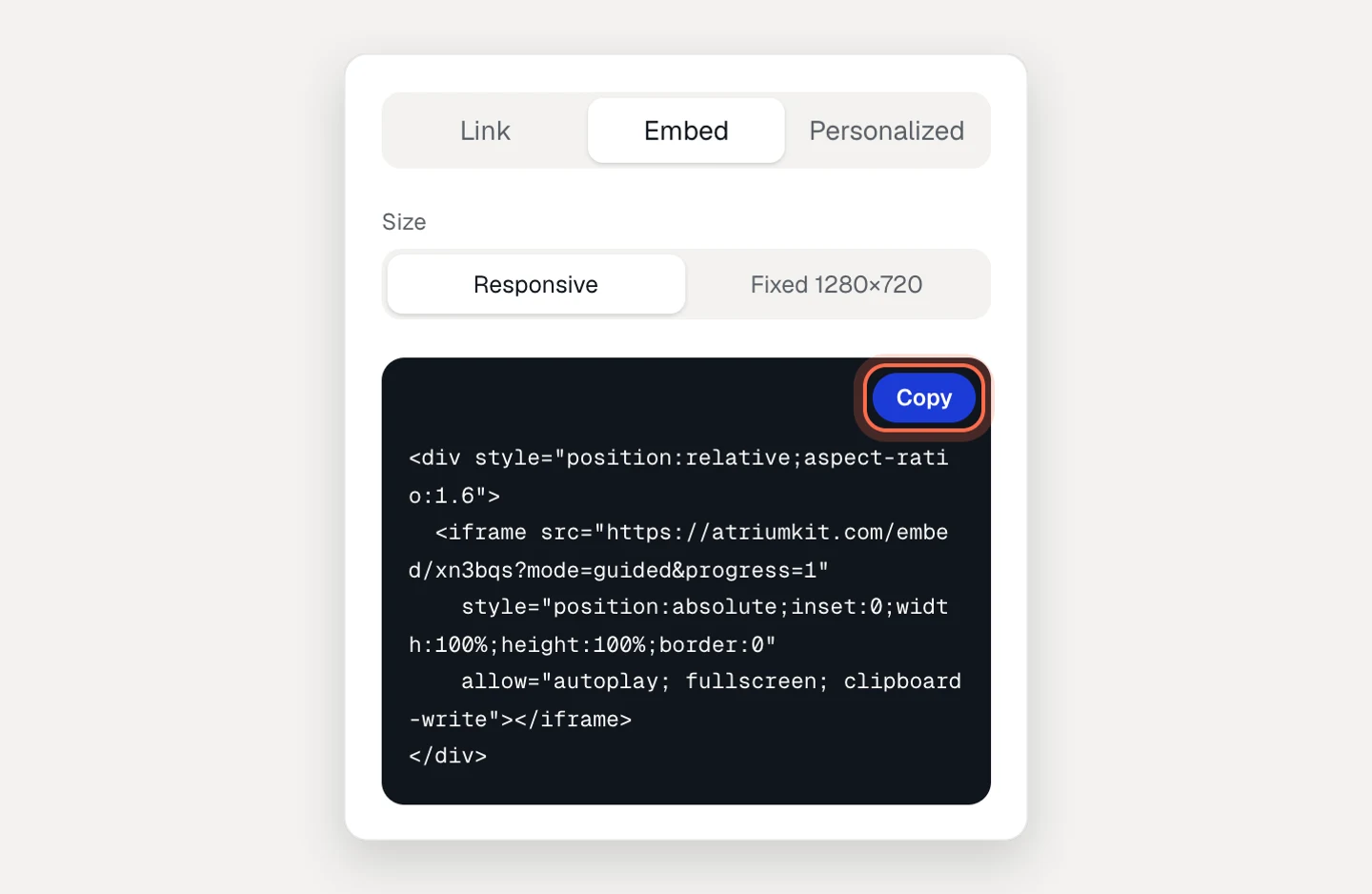
A few settings on the Share tab change how it feels on a page:
- Autoplay first step. Off shows a cover with a play button, which is calmer in a hero. On starts the tour right away, which suits a dedicated tour page.
- Show progress bar. Leave it on, so visitors can see how much is left.
- Who can view. Use Public if you want the hosted page indexed, Unlisted if the embed is the only place it should appear.
5. Ask for the email at the right moment
There are four places to ask, from most to least friction:
- Email gate (under Who can view): before the tour starts. Too early for a homepage. Visitors haven’t seen anything yet.
- A Lead form step in the middle of the tour. Use it only when the rest of the tour depends on it.
- Ask for email before the last step (a Share toggle): the visitor sees the whole flow, then leaves an email to see the payoff. This is the one to start with. Clickable demos ask after three screens instead.
- A Call to action step or the outro button, linking to signup or your calendar. No form at all.
Ask for the email and nothing else. A lead form always asks for an email; full name, company and phone are optional fields you can leave off.
Every email lands in Leads, and can go to HubSpot, Salesforce, Salesforce Account Engagement, Zapier, Make, Slack or a webhook through Integrations. On a collection page, Lead capture sets the same moments for the whole page: a gate up front, locked demos, or an ask after a number of demos watched, which visitors can skip if you allow it.
Email gates, lead forms, “ask before the last step” and integrations are on Pro and Team.
6. Send them somewhere after the tour
The last step is the most valuable spot in the tour. Don’t end on “That’s it!”. End on the next action: start a trial, book a call, or see a second tour. Set the outro card’s button link, or add a Call to action step. The hosted page’s header button stays visible the whole time.
7. Fix one step at a time
Give the tour a couple of weeks of traffic, then open its Analytics tab.
- The top row shows Views, Unique viewers, Completion rate, Avg. time in demo and Leads.
- The Step funnel marks how many sessions dropped here at each step. With choices, it splits by path and shows how many Left here, and Choices shows which answers visitors picked.
- Recent viewers shows each session’s source: Embeds, Direct link, Email or Social.
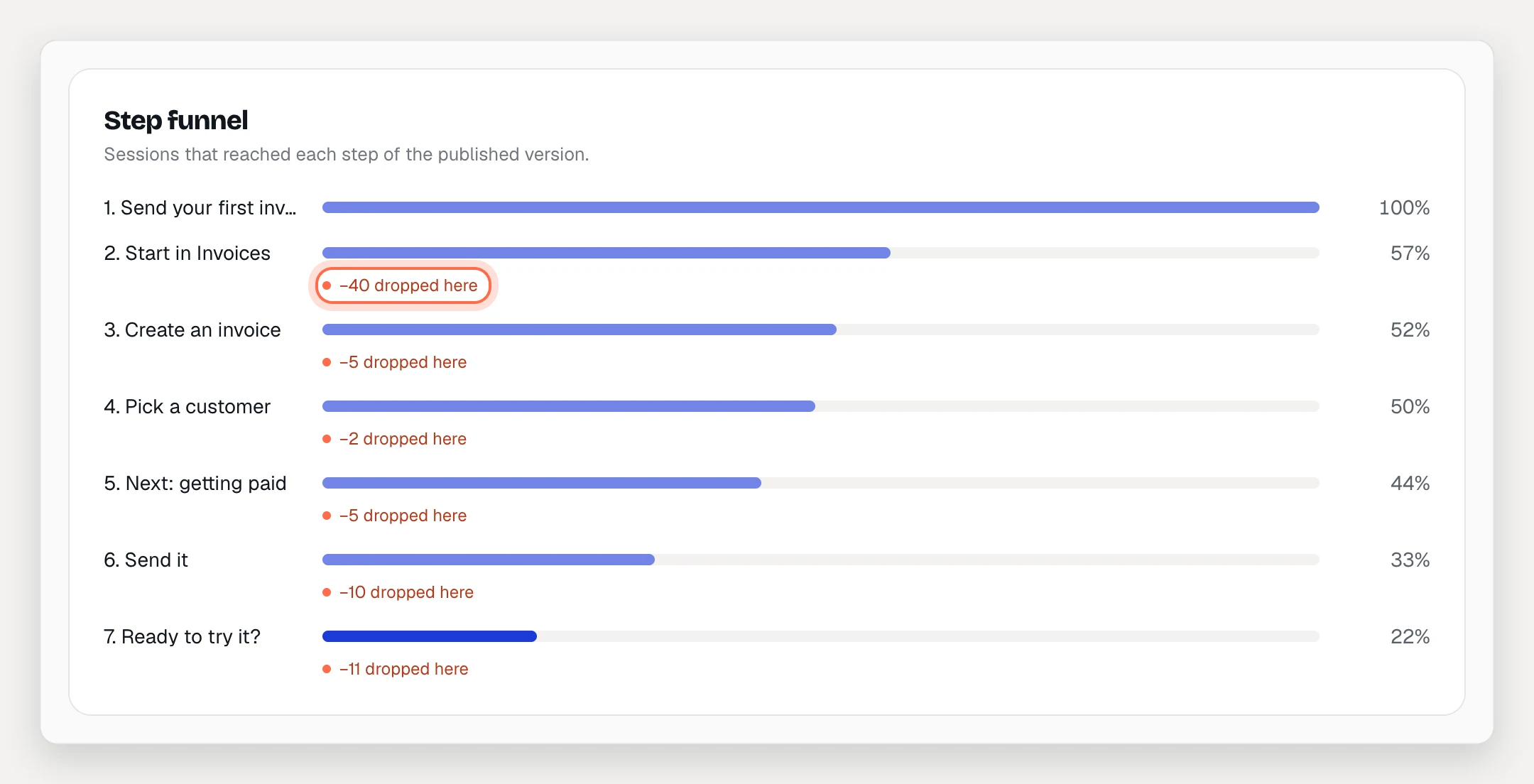
Look for the single biggest drop. Read that step as a stranger would. Too much text? A click that isn’t obvious? A screen that doesn’t look like progress? Fix that one step, publish, and compare the next period with the last. Every publish is saved in History, so you can roll back a change that made things worse.
What to measure
- Completion rate, week over week. This is the number that tells you the tour works.
- The biggest drop-off step in the Step funnel, and whether it moves after you change it.
- Leads, and leads as a share of Unique viewers.
- Where views come from, on the workspace Analytics page, to compare embeds with links you share.
- For a collection: opens, visitors and finished sessions for each demo, plus CTA clicks, Forms shown, Leads and Converted under Lead capture.
Free shows views, unique viewers, leads and views per day. The funnel, completion, sources and sessions are on Pro and Team.