A brand kit styles every tooltip, card, form and hosted page that uses it. Each brand kit also holds a knowledge kit for AI, covered in Give AI your product knowledge.
Free uses AtriumKit’s built-in look. Pro includes one brand kit you can edit, and Team up to 20. Import from website is on Pro and Team.
Edit your brand kit
- Click Brand kits in the sidebar. Every workspace starts with a default kit.
- Click Edit on a kit.
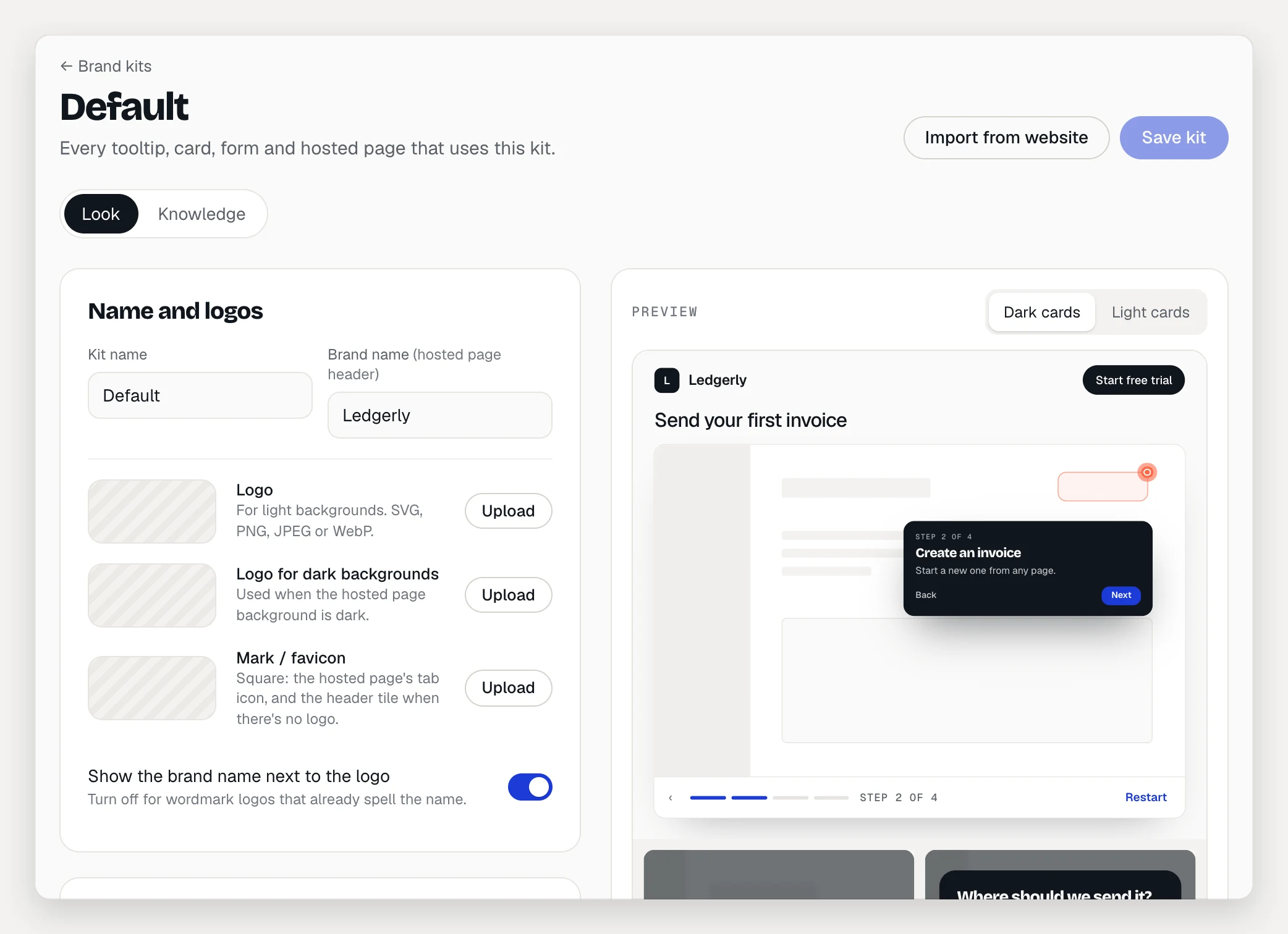
- Make your changes on the Look tab. The Preview shows tooltips, cards and the hosted page as you go; switch between Dark cards and Light cards to check both.
- Click Save kit.
Every demo and collection that uses the kit picks up the change. You don’t need to publish them again.
Name and logos
- Kit name: what your team sees.
- Brand name: shown in the hosted page header.
- Logo: for light backgrounds. Logo for dark backgrounds: used when the hosted page is dark. SVG, PNG, JPEG or WebP, up to 2 MB.
- Mark / favicon: a square image for the browser tab, and the header tile when there’s no logo. ICO works too, up to 1 MB.
- Show the brand name next to the logo: turn it off when your logo already spells the name.
Colors
Set the Accent (hotspot rings and dots), Primary (buttons, progress and focus rings), Text on primary, Page background, Surface, Text, Muted text and Border. Under Tooltips and cards, choose Dark tooltips or Light tooltips and set the Tooltip, Dark cards and Light cards colors.
Colors you don’t set stay on Auto and follow your accent and surfaces. Reset to auto undoes a color you set.
AtriumKit keeps text readable. If a text color is below the WCAG AA contrast level on its background, the field says so and names the color viewers get instead. Click Use it to switch to that color.
Fonts
For Headings and Body, pick a source:
- Built-in: AtriumKit’s own fonts.
- Google: type any family from fonts.google.com. AtriumKit downloads it when you save and serves it itself, so viewers never contact Google.
- Upload: name the family and click Add woff2 for each weight and style. Files are woff2, up to 1.5 MB each.
Headings can also be Same as body.
Buttons, forms and calls to action
- Buttons and shape: the Corner radius (0 to 24 px) and the Buttons style: Original, Filled, Outline or Pill.
- Forms: styles for lead forms and email gates. Fields (Outline, Filled, Line), Labels (Above, Inside, Caps) and the Submit button color.
- Calls to action: a Default label and Default link for the hosted page’s header button and the end of every demo, plus the Primary CTA and Secondary buttons styles.
Hosted page
Choose a Background: Color, Gradient (set Gradient to and the angle) or Image (PNG, JPEG or WebP, up to 5 MB). Choose a Header: Logo + button, Centered or Hidden.
Import from your website
- Click Import from website at the top of the kit.
- Type your website’s address and click Read website. AtriumKit reads your homepage and its stylesheets; it takes a few seconds.
- Pick what to use: brand name, logo, mark, colors for Buttons and hotspots, Hosted page background and Text, and fonts. For each one you can also keep what the kit has now.
- Click Apply to kit, check the preview, then click Save kit.
Use more than one kit (Team)
On Team, click New brand kit on the Brand kits page, up to 20 kits: one per product, region or customer. Each kit’s ⋯ menu has:
- Duplicate: copies the kit. Knowledge files stay with the original.
- Make default: the kit demos use when you haven’t picked one.
- Delete: demos and collections that use it switch to the default kit, and its logos, fonts and knowledge files are deleted.
Apply a kit to a demo
- Open the demo and go to the Share tab.
- Under Brand kit, pick a kit, or Workspace default.
Collections have the same Brand kit choice in the collection editor.
If a Team workspace moves to Pro, every kit keeps working and stays editable, but you can’t add or duplicate kits until you’re within the plan’s limit. On Free, demos show the built-in look again; your kits are kept for when you upgrade.