Branching lets each viewer pick the part of a guided demo that fits them, like “I run finance” or “I run operations”. It works on every plan.
How choices work
- Any step except a lead form can have 2 to 4 choices.
- On a tooltip, choices are buttons in the tooltip. Clicking the highlighted spot still continues as usual.
- On a card, choices replace the card’s button.
- Each choice goes to a step, ends the demo or opens a link.
Add a choice card
- Select the step the question should follow.
- Click + Add step and choose Choice card. It starts as “What brings you here?” with two choices. The first one already goes to the step after the card.
- Type a label for each choice in Choice 1 and Choice 2 (up to 60 characters).
- Under Goes to, pick where each choice leads: a step, End the demo or Open a link….
- Click + Add choice for a third or fourth. Click × next to a choice to remove it. Remove choices takes them all off.
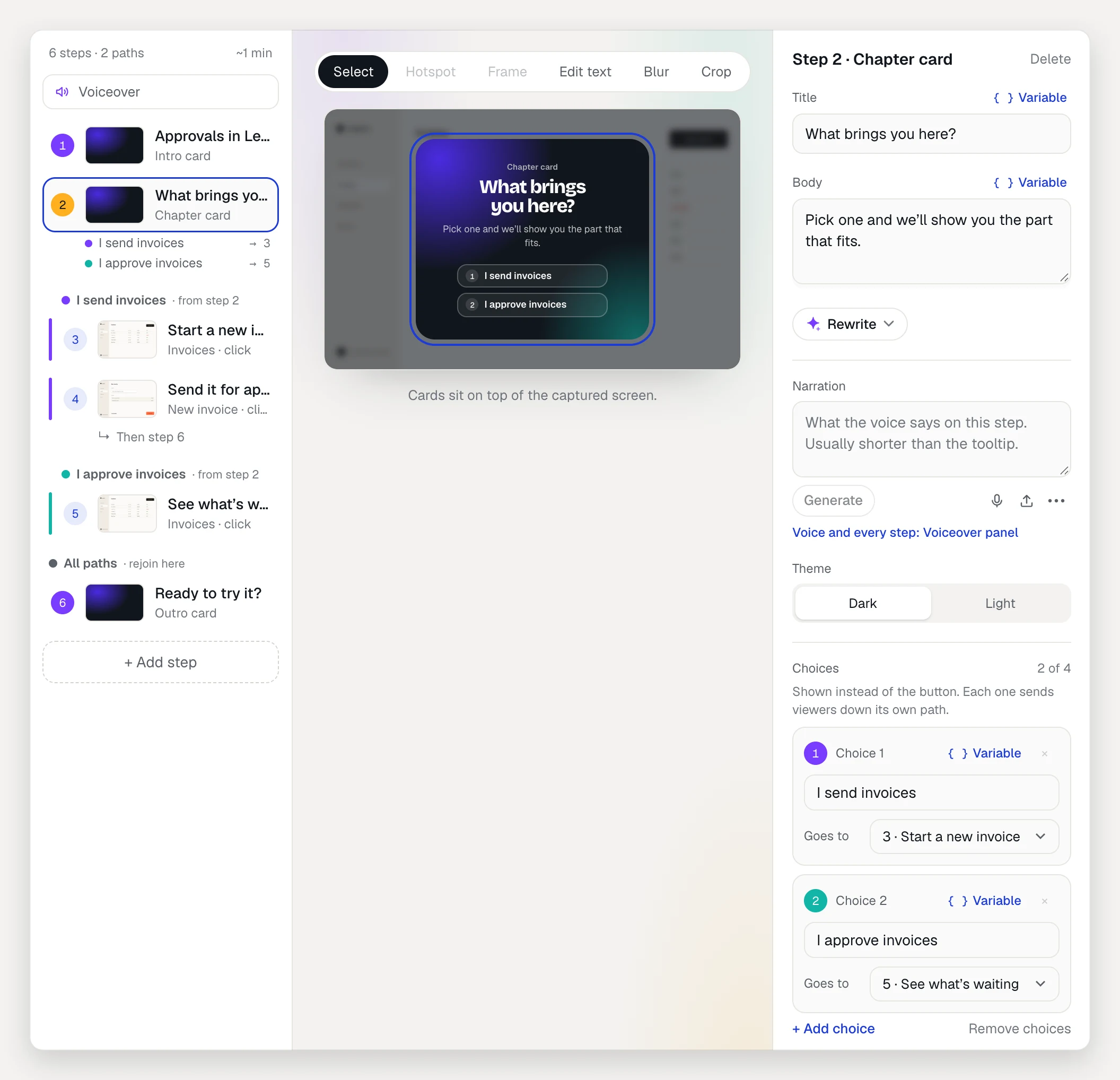
To add choices to a step you already have, select it and click + Add choices under Choices in the inspector.
A choice set to Open a link… needs a full link starting with https://, mailto: or tel:. It opens in a new tab and the viewer stays on the same step.
Build each path
Put each path’s steps in the list in the order viewers should see them. Then, on the last step of a path, use After this step to send viewers on:
- Continue to Step N (the default): the next step in the list.
- A step under Go to: jumps there, for example back to the steps every path shares.
- End the demo.
On a tooltip, After this step is where clicking the spot or Next goes. On a lead form, it’s where viewers go once they leave their details. On a card, it’s where the card’s button goes. Cards with choices don’t have it.
The step list shows the structure as you build it. Steps on a path sit indented under a colored path label. Each choice shows where it leads (“→ end”), and a jump shows “Then step 9” or “Then the demo ends”.
Fix flow problems
When something in the flow doesn’t add up, the top of the step list shows N flow issues, the step gets a ! marker, and the inspector explains it:
- “…can’t be reached: no step or choice leads to it.” Point a choice or an After this step at it, or delete it.
- “…never reaches an end: every way on from here loops back.” Give the loop a way out, such as End the demo on the last step of a path.
- “Choice N has no label.” Type one.
- “Choice N doesn’t go anywhere yet: viewers who pick it continue to the next step.” Pick a destination under Goes to.
If you delete a step, choices and jumps that led to it now go where it led. Press ⌘Z to undo.
Check every path
Click Preview in the demo header and take each path. Nothing you do in the preview is recorded. When it works, click Publish changes.
See which paths viewers pick
On the demo’s Analytics tab, the Step funnel groups steps by path, and Choices shows which path viewers picked out of those who reached each step with choices. Viewers who left, went back or took the default path are counted separately.
Step funnels and the Choices breakdown are on Pro and Team. Branching itself works on every plan.
Branches in the written guide
The step-by-step guide made from your demo shows each path under “If you chose …”, with “go to step N” where a path jumps. See Step-by-step guides.