Guided demos have a virtual camera. It moves over the captured screen so viewers see what each tooltip is about, the way a screen recording zooms in. It’s not a webcam, and nothing is filmed. Camera and motion work on every plan.
Find the settings
- Open a guided demo and select a tooltip step.
- Scroll the inspector to Camera & focus.
The label next to the heading says Default when the step follows the demo’s defaults and Custom when it sets its own. Cards sit on top of the screen and have no camera settings.
Choose what the camera shows
Under Camera, pick one:
- Off shows the whole screen.
- Auto zooms to the hotspot. The zoom depends on the hotspot’s size, from 1.25× to 2.2×, and the note under the setting shows it.
- Frame shows an area you draw.
Choosing Frame opens the Frame tool on the canvas:
- Drag inside the frame to move it, drag a corner to resize it, or drag outside it to draw a new one. The frame keeps the player’s shape and can zoom up to 4×.
- Use the arrow keys to move it (hold Shift for bigger steps), or Alt with the arrow keys to resize it.
- Double-click the frame to go back to Auto.
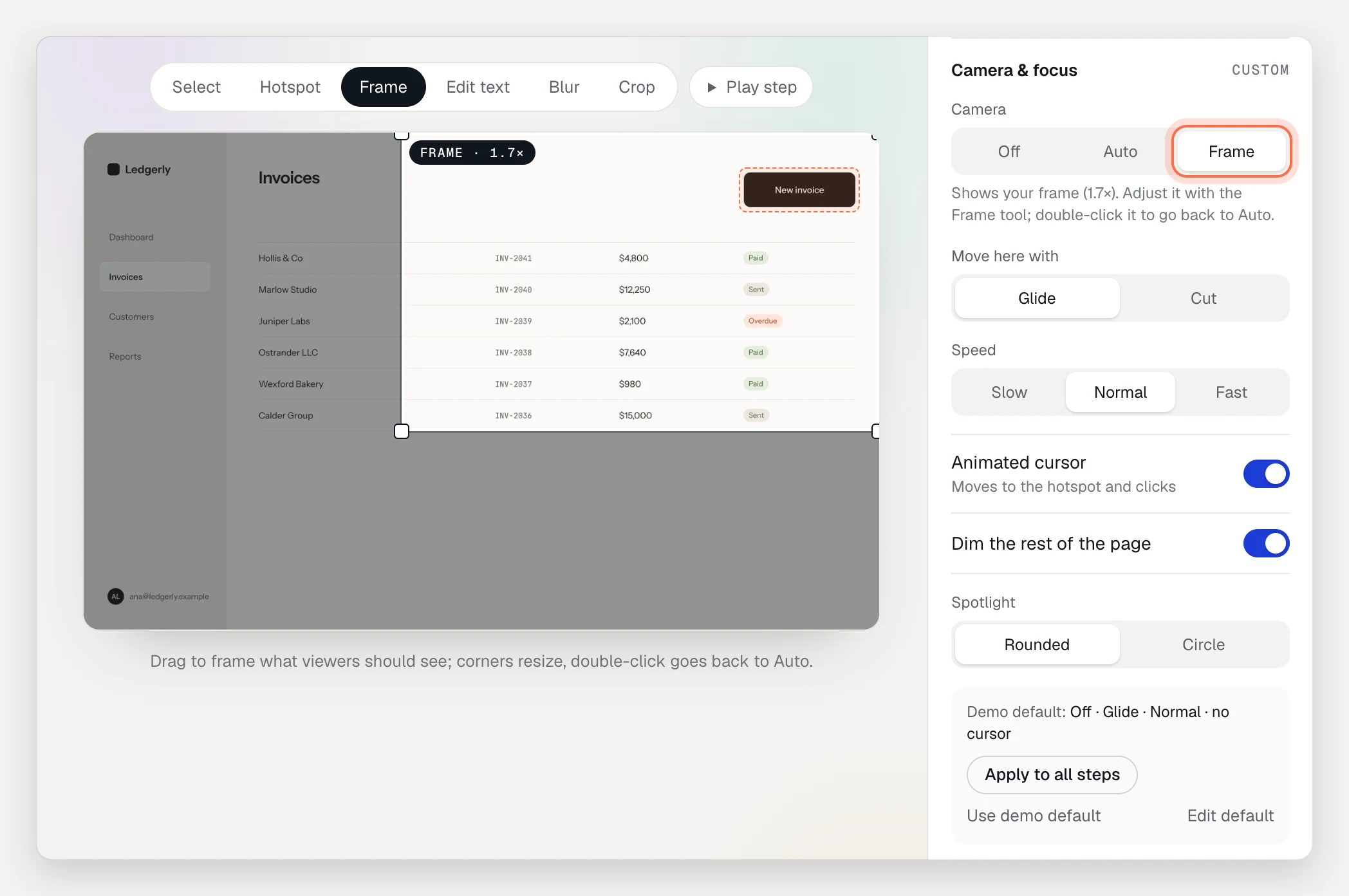
Choose how it moves
- Move here with: Glide moves smoothly from the previous view. Cut jumps straight there.
- Speed: Slow, Normal or Fast.
- Animated cursor: a cursor moves to the hotspot and clicks it.
Dim the page and add a spotlight
- Turn on Dim the rest of the page.
- Under Spotlight, pick Rounded or Circle for the shape of the lit area.
Set it once for the whole demo
The box at the bottom of Camera & focus shows the demo default, for example “Auto · Glide · Normal · cursor on”.
- Apply to all steps makes this step’s camera and focus the default for every tooltip. Steps with a frame you drew keep their frame.
- Use demo default appears on a Custom step and clears its own settings.
- Edit default sets the default Camera (Off or Auto), Move here with, Speed and Animated cursor for steps that use the default and for new steps.
The demo default is a share setting, so it applies to the live demo right away. Changes to individual steps reach viewers when you publish.
Check the result
- Play step, above the canvas, plays the selected tooltip’s camera, cursor and tooltip as viewers see them, arriving from the step before.
- Preview in the demo header plays the whole demo.
Viewers who prefer reduced motion
If a viewer’s device asks for reduced motion, the player doesn’t animate: each step appears already framed, without gliding or zooming in, and a pulsing hotspot shows a still ring instead. You don’t need to set anything.
Troubleshooting
- The zoom cuts off the tooltip’s target. Make the hotspot fit the element, or switch to Frame and draw a wider area.
- You want to trim the screen for every step, not just one. Use the Crop tool instead. Frame only changes what one step’s camera shows.
- Camera & focus is missing. It only appears for tooltip steps.