When a demo covers several things, like sending an invoice, reading reports and getting paid, a checklist lets viewers see all of them at once and take them in any order. It lists each flow with its number of steps and about how long it takes, marks the ones a viewer finished, and shows how far along they are overall.
Every plan has the checklist. It works in guided and clickable demos, on the hosted page, in embeds, in collections and on phones.
Set up flows
- Open the demo and click the Checklist tab at the top of the left pane, next to Steps (Screens in a clickable demo).
- Pick a starting point:
- Use the chapters: each chapter card starts a flow that runs to the next chapter card. Tooltips before the first chapter card become a first flow. An outro or call to action at the end stays out of every flow.
- Use the paths: each path a choice opens becomes a flow, named after the choice (see Branch a guided demo with choices).
- + Add a flow to build one yourself.
- Turn on Show the checklist to viewers. If the demo has no flows yet, turning it on sets them up from its chapters, or else its paths.
- Click Publish to put the checklist live.
Edit flows
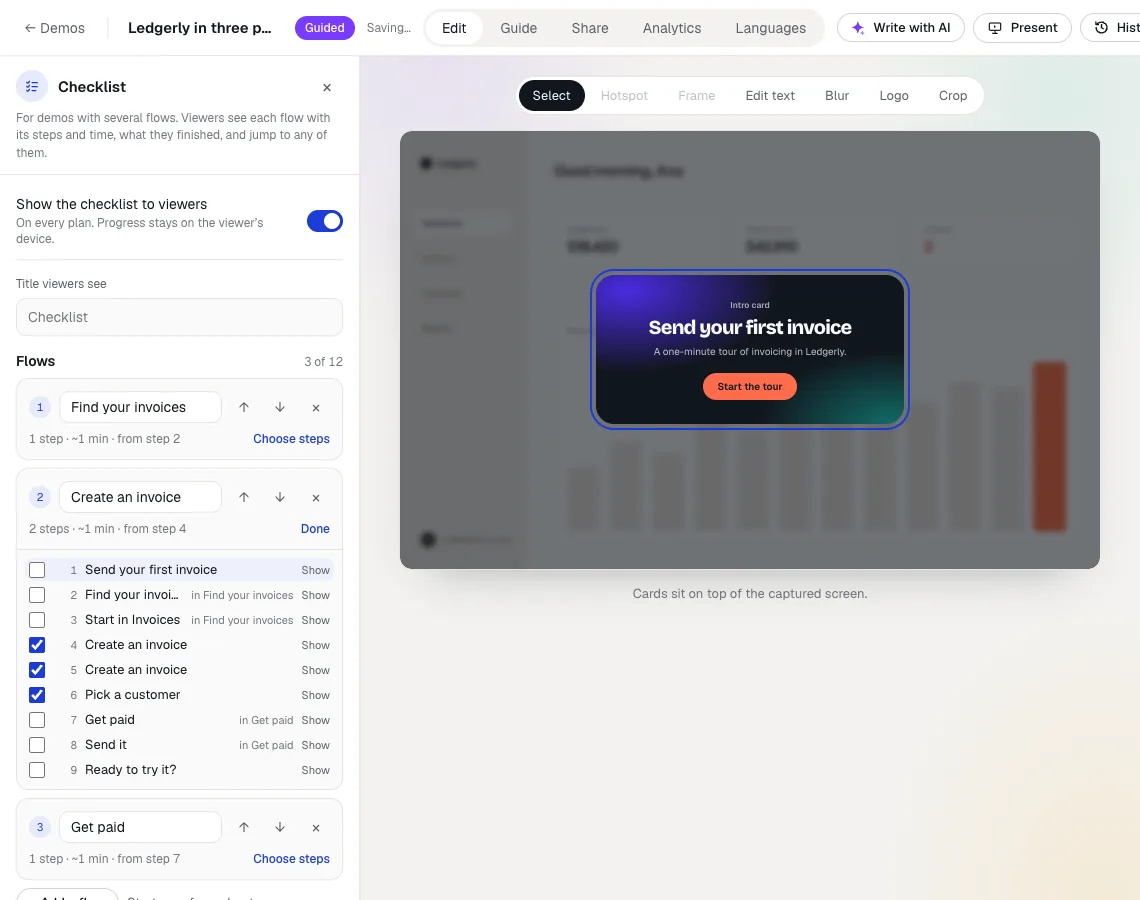
- Name a flow in its title field (up to 60 characters). A flow without a name shows as “Flow 1”, “Flow 2” and so on.
- Choose its steps: click Choose steps under a flow and tick the steps that belong to it. Hold Shift and tick another step to add every step in between. A step can be in one flow only: ticking a step that’s in another flow moves it.
- Reorder flows with the arrows, and remove one with ×. A demo can have up to 12 flows.
- Title viewers see: the heading of the checklist. Leave it empty for “Checklist”.
- In a clickable demo, a flow is a group of screens. Tick the screens viewers should explore for it.
Each change saves like any other edit, and ⌘Z undoes it. Deleting a step or a screen takes it out of its flow.
What viewers see
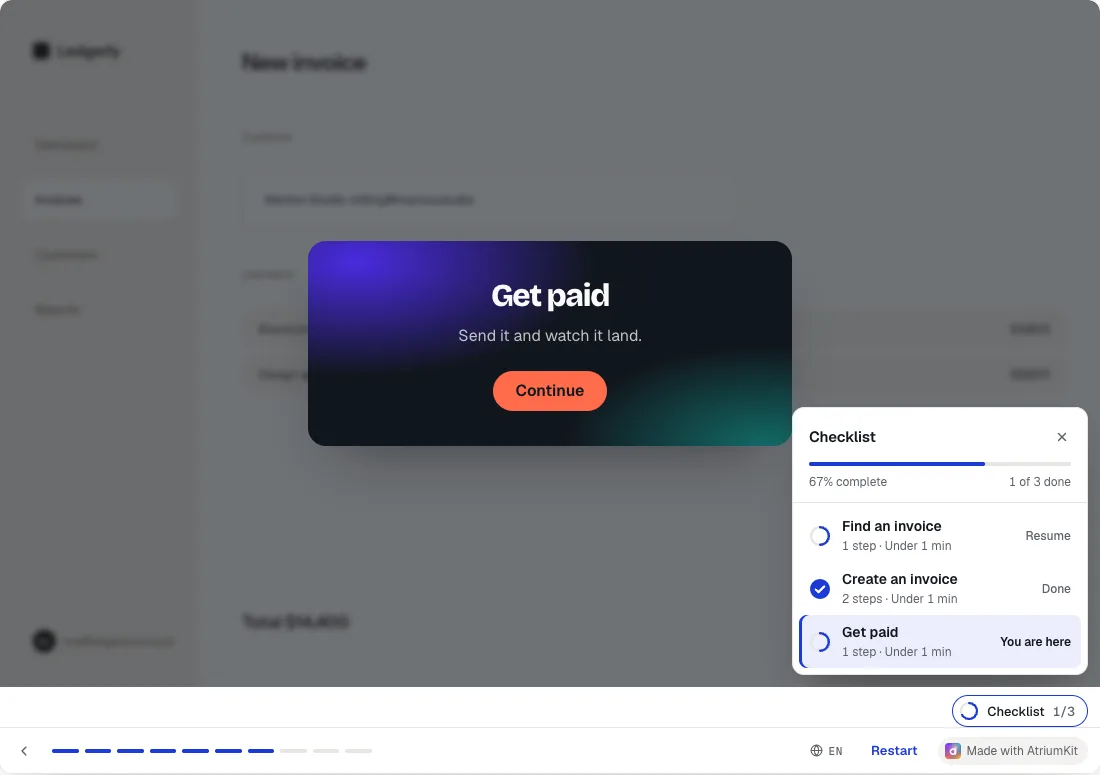
- A Checklist button under the screen shows how many flows they finished. It opens the list of flows.
- Each flow shows its steps and time, and a mark that fills as they go through it. The flow they’re in says You are here. One they started says Resume, and one they finished says Done.
- Clicking a flow takes them to its first step, or back to where they left it. If the demo asks for details in a lead form before that flow, the form shows first and then the flow starts.
- A guided flow is done once a viewer reaches its last step. A clickable flow is done once they have seen every screen in it.
- When every flow is done, the checklist shows your call to action: the demo’s persistent call-to-action button when it has one, else the button in your brand kit’s header.
- On a computer, the list opens by itself at the start of the demo when it opens on a card, and again when a viewer finishes a flow and moves on, unless it would cover what they click next. A click anywhere on the screen outside the list closes it. On phones it opens as a sheet when viewers tap the button. In stories the flows are called Chapters.
- The checklist is in the viewer’s language, and its titles are translated with the rest of the demo on the Languages tab.
What a viewer finished is kept on their device for 30 days, so a return visit shows their progress. Nothing is kept when their browser sends Do Not Track or Global Privacy Control, and nothing is kept in previews or presenter mode. Presenter mode doesn’t show the checklist.
See how each flow does
Sites that embed the demo with the event stream also get atriumkit_flow_started and atriumkit_flow_completed (see Send demo events to your analytics).
On the demo’s Analytics tab (Pro and Team), Checklist shows each flow with the share of sessions that reached it, how many of those finished it, and the median time they spent on it.
Demos imported from Storylane with a chapter menu get a checklist made from it, with a flow per chapter.