You can build a demo from public web pages without recording: your marketing site, pricing page, docs or a public sandbox. AtriumKit opens each page in its own browser and captures it the way the extension does, as a screenshot and as an HTML page you can edit.
Capture your pages
- In AtriumKit, click New demo in the sidebar, or press Alt+N (⌥N on a Mac).
- Pick Guided demo or Clickable demo.
- Click From web pages.
- Paste up to 20 addresses, one per line.
acme.com/pricingworks too: AtriumKit addshttps://. - Choose Desktop (1440 px wide) or Phone (390 px wide, the page’s mobile layout).
- Click Capture pages. Each page fills in as it’s captured, usually within 10 seconds.
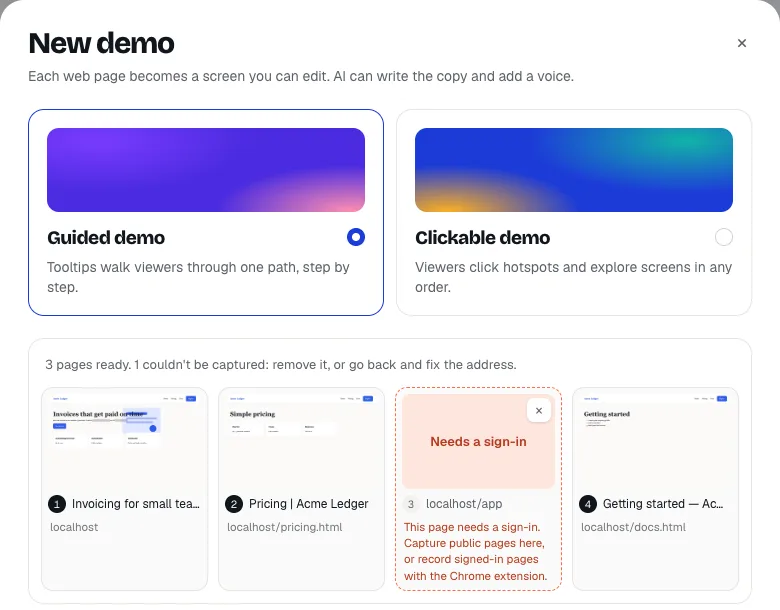
- A page that couldn’t be captured says why. Remove it with its ×, or click Change pages to fix the address.
- Put the pages in order with their arrows. Each one becomes a screen, in this order.
- Choose the AI copy and voice settings, then click Create and write with AI, or Create demo with AI off.
Closing the dialog before you create the demo deletes what was captured.
What gets captured
- The page as a visitor sees it when it loads, at the top: no scrolling, no clicks. Animations are finished first, as for a visitor who turned motion off, so text that fades in on scroll is there when viewers scroll down.
- Cookie banners are closed when there’s an obvious button, and hidden otherwise.
- Emails, phone numbers and names in profile areas are blurred in the screenshot and replaced in the HTML, like the extension’s auto-blur.
- An HTML page next to the screenshot, so you can edit text, hide or blur parts and replace images in the editor. See HTML capture.
What you get
Guided demos start with an intro card, then one tooltip per page pointing at its main heading, then an outro card. Screens are named after the page titles, and the demo after the site. When a heading sits in a part of the page that stays in place as you scroll, like a sticky hero, its highlight stays on it while viewers scroll.
Clickable demos link the pages through their own navigation: a Pricing link on one page opens the pricing screen. A page none of the others links to gets a hotspot on the page before it.
With Write the copy with AI on, AI writes the tooltips, cards, title and description from the text on each page, in your tone and language, toward your goal. See Let AI write a new demo, copy and voice.
What can’t be captured
- Pages behind a sign-in. If a page sends the browser to a sign-in page, it shows Needs a sign-in. Record those with the Chrome extension.
- Private addresses. Only public
http://andhttps://pages on the usual ports: no IP addresses,localhost, intranet names or AtriumKit’s own pages. - Files. A link to a PDF or an image isn’t a web page. Upload images with Create a demo from screenshots.
- Error pages. A page that answers “not found” or another error is left out.
- Parts drawn by background scripts. The browser doesn’t open new windows or live connections, and doesn’t run web workers, so a part of a page that only a worker draws (some maps, for example) shows as the page has it without one.
Free workspaces capture up to 20 pages a day, Pro 300 and Team 1,000.
From an AI assistant or a script
AI assistants connected to AtriumKit can do the same with the create_demo tool: give it the addresses (or screenshot URLs) and a goal, and it answers with the new demo’s link. See Connect AI assistants. There’s no public API for this yet: scripts and tools go through an AI assistant connection.
About AtriumKit’s browser
The browser that opens your pages identifies itself as AtriumKitBot/1.0 in its user agent, with a link to this page. It opens only the addresses someone in an AtriumKit workspace asked for, keeps no cookies between pages, doesn’t follow links or open new windows, and doesn’t run web workers or live connections. If you run a site and want it to stop, block that user agent.