New customers don’t read the welcome email’s seven links. They read the first one, get stuck on step three, and book a call to ask. An onboarding hub puts every setup task on one page, in order, with a walkthrough for each that follows the customer’s role and uses their company’s name. You get a page you can send in the welcome email, embed in your product and open on the kickoff call, plus a view of who finished what.
1. Map the first weeks
Write down what a new customer has to do before they get value. Not everything they could do, just what they must do. For most products it’s three to six tasks:
- Connect or import their data
- Invite the team and set roles
- Configure the one setting that changes everything (approval rules, a pipeline, a schedule)
- Do the core job once, end to end
Then mark who does each task. Admins set things up; everyone else does the daily work. That split decides where you need branching.
2. Record one demo per task
Keep each demo to one task. A customer who only needs to invite their team shouldn’t sit through data import.
- Record in Guided mode, in a test account that looks like a new customer’s: a little data, no years of history.
- Start each demo where the customer will be when they need it, usually the dashboard home.
- Keep HTML capture on (leave Screenshots only off) so you can put variables inside the captured screens later.
Where admins and members do the same task differently, use one demo with a fork rather than two demos. Add a Choice card (“What’s your role?”) with two to four answers. Each answer goes to its own steps, ends the demo or opens a link, and After this step brings the paths back together. The editor flags steps nobody can reach and paths that never end.
3. Personalize it for the account
Personalized onboarding reads like it was made for them, because it was.
Open Personalize in the demo header (on narrower screens it’s Personalize… in the ⋯ menu). The built-in variables are first_name, last_name, full_name, company, title and email; add your own (up to 20 per demo) for things like a customer success manager’s name or the plan they bought. Give each a default, then use them:
- In cards and tooltips: “Welcome, {{first_name|there}}. Let’s get {{company|your team}} set up.”
- Inside the screens: edit the text on an HTML screen and insert a variable, so the workspace name in the product reads their company.
- In links: a Call to action to book a call can carry
{{company}}in the link’s query.
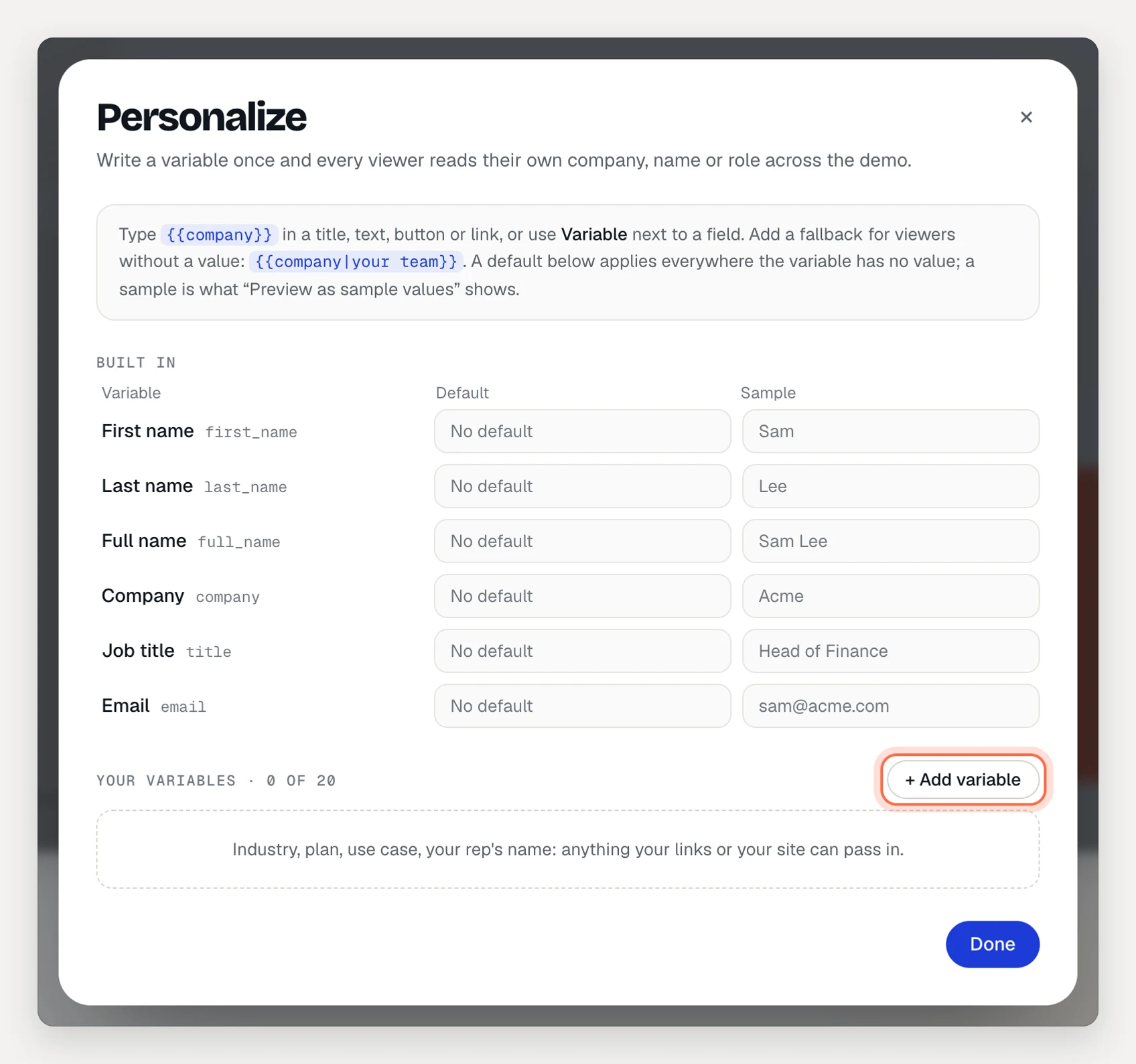
There are three ways to fill in the values. Pick the one that fits how you reach customers:
- In the collection link. Add values to the link you send:
?company=Acme&first_name=Sam. A collection page passes them to every demo it plays. - A personalized link per contact, for one demo. Create them in Share → Personalized, one at a time or up to 500 from a CSV. Each has its own analytics. Collection pages ignore these links, so use them when you send a single demo.
- From your product. If you embed the demos in your app, the page can send the signed-in user’s values with
setVariables. Under Who can fill in variables, list your app under Only these sites.
Viewers’ values (personalization from links, your site or their answers) are on Pro and Team. On Free, everyone sees the defaults.
4. Put it on one page with a collection
Open Collections → New collection and name it for the customer (“Acme onboarding”) or the segment (“Onboarding for finance teams”).
- Click + Section for each stage (“Set up”, “Invite your team”, “Your first week”) and add the demos in the order customers should do them.
- Add links between them: your docs, a template, a link to book office hours.
- Pick a brand kit, so the page carries your logo and colors.
- Under Who can view, choose Unlisted for a page anyone with the link can open, or Email gate to ask for an email first, so you know who’s watching.
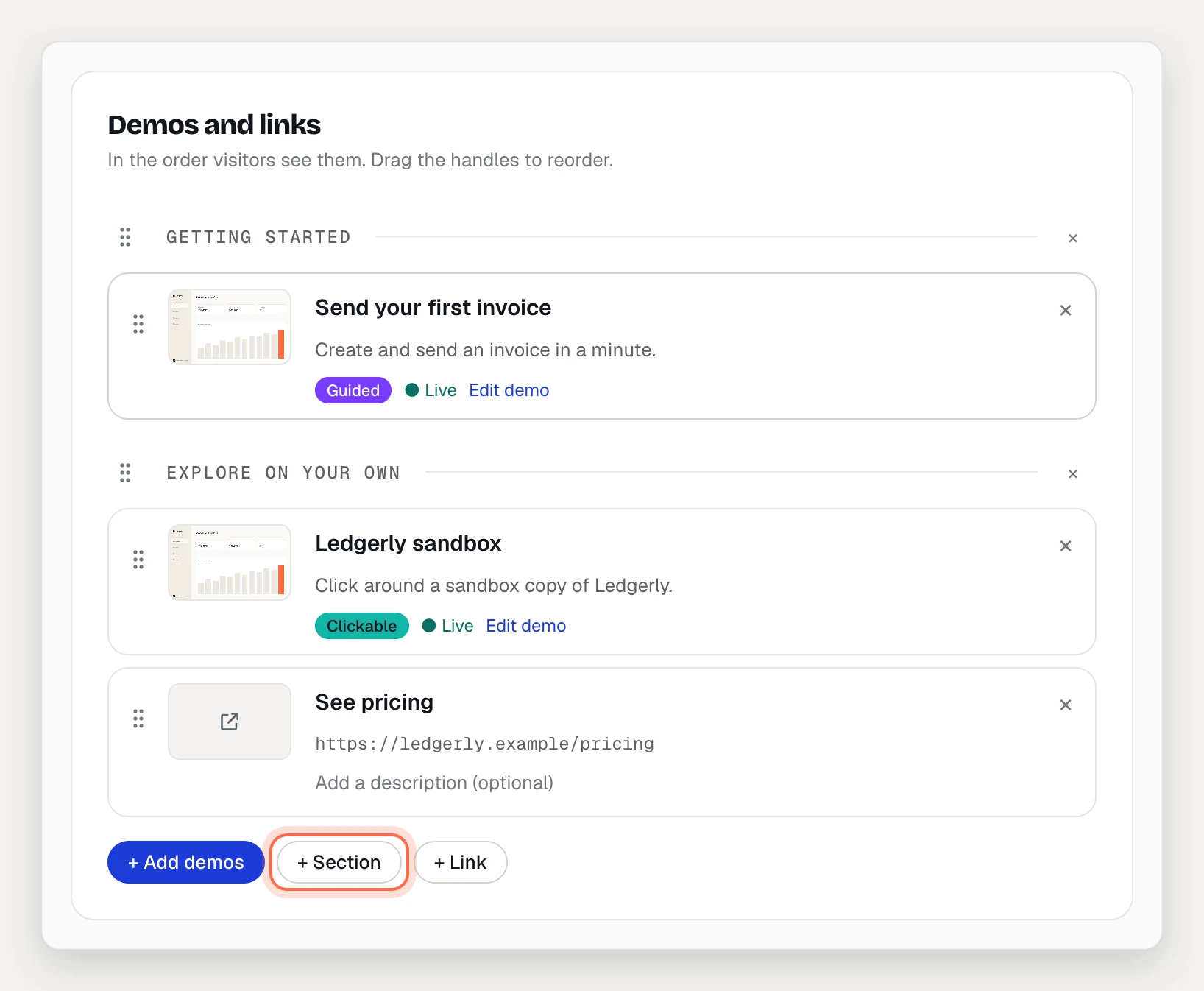
Visitors see their progress (“2 of 5 viewed”) and move with Previous and Next. Under Lead capture, turn on “Up next” when a demo ends and a Completion card with a button for what comes after onboarding, such as booking a check-in.
Collections are on Pro (one) and Team (unlimited). On Team you can make one per segment or one per key account.
5. Send it where customers already are
- The welcome email. One link, one sentence: “Everything you need to set up Acme, in order.” Put your email tool’s merge tags in the link (
?company=…) to fill in each customer’s details. - Your product. Embed the collection page in a “Get started” screen. Collection pages have an embed code like demos do.
- The kickoff call. Open the hub on the call and walk the admin through the first task together. On Team, you can present the demos with your notes.
- Your help center. Link the hub from the top of your getting-started articles.
6. Track who finished
Three places tell you how onboarding is going:
- The collection’s analytics. Page views per day, and for each demo its opens, the visitors who opened it and the sessions that finished it there.
- Each demo’s analytics. Completion rate, the Step funnel (where people stop), Choices (which role path they picked) and Recent viewers, with the viewer’s email if they left one.
- Alerts. If the hub has an email gate, an admin can send the event A lead finished a demo to your customer success channel in Slack or Teams, or to a webhook that updates your own tools. Then you hear when an account finishes setup without checking.
If you embed demos in your product, the player also tells your page when a demo is finished (a complete message), so you can tick off the task in your own checklist.
What to measure
- Tasks finished per account. From the collection page and the demos’ Recent viewers, or from completion alerts. Accounts that stall on the same task need a call.
- Completion rate per task. A task with low completion is often hard in the product, not just in the demo. Share the Step funnel with your product team.
- Role split. Choices shows how many admins and members came through. If admins never show up, the welcome email is going to the wrong person.
- Time to finish. The days between your welcome email and the completion alert for an account’s last task.