A feature launch usually means five assets made by four people: a video for social, screenshots for the blog post, a docs page, an email and a slide for sales. They go out of date at different speeds. This playbook makes most of them from one recording, so a label change the week after launch is one edit instead of five.
1. Record before launch, in staging
Record the feature the week before it ships, in a staging or demo account where it’s already switched on.
- Record the payoff, not the settings. Start where a user would discover the feature and end on the result it gives them.
- Choose Guided in the extension. A launch is a story with one path.
- Keep HTML capture on (leave Screenshots only off). If a label changes between now and launch, you edit it on the captured page instead of recording again. Find & replace… changes it on every screen at once.
- Leave Auto-blur emails and names on, and use Blur area for anything internal that’s on screen.
Work in the draft until launch day. Nothing is public until you publish: the hosted link, embeds and guide only show the version you publish.
2. Shape the launch demo
Every guided demo starts with an intro card and ends with an outro card. Use them:
- Intro card: the problem the feature solves, in one line.
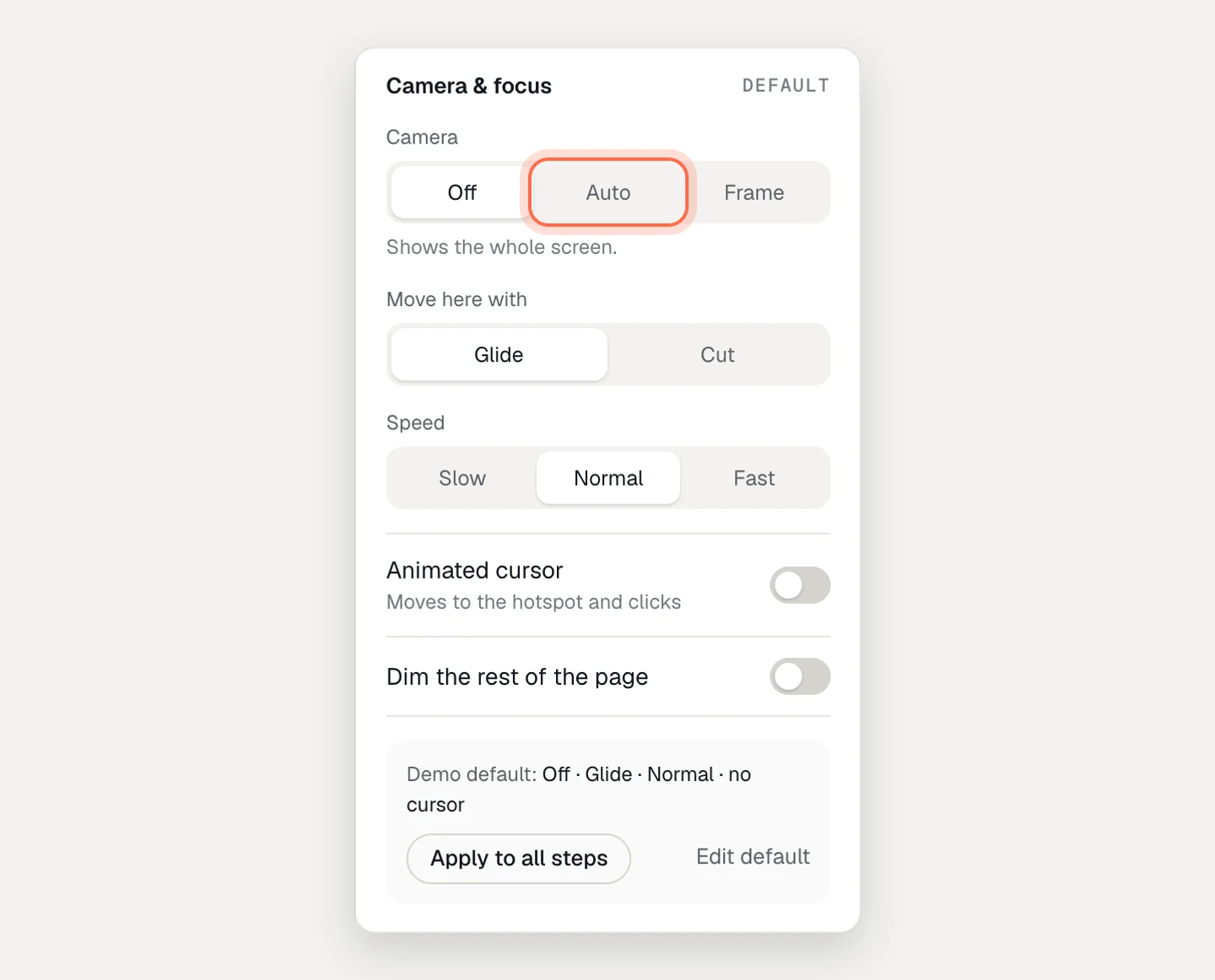
- Steps: one point per tooltip. Set the Camera to Auto so it zooms in on each click, then Apply to all steps.
- Outro card: where to try it. Point its button at the feature in your app, or at signup.
Before you write any copy, open Brand kits → your kit → Knowledge and check the product name, the glossary and Notes for AI. Notes are where you put the facts AI may state (“Available on all plans from today”) and what it must never claim (“Don’t mention the mobile app; it ships next quarter”).
Then Write with AI. Pick a tone and add what to emphasize. Rewrite single steps with Benefit-led or Shorter.
3. Add a voiceover
A narrated demo works on a launch page that people watch rather than read. Click Voiceover at the top of the step list.
- Write the script. Write with AI drafts short, spoken scripts that go with each tooltip instead of repeating it. Or click Copy from tooltips and edit.
- Pick a voice. Filter by gender and accent, play samples, and set the speed and stability.
- Click Generate. Each step gets an audio clip with captions.
- Or use your own voice. For a launch, the voice of the person who built the feature works well. Record each step with your microphone in the editor, or upload audio. Captions come from a transcript.
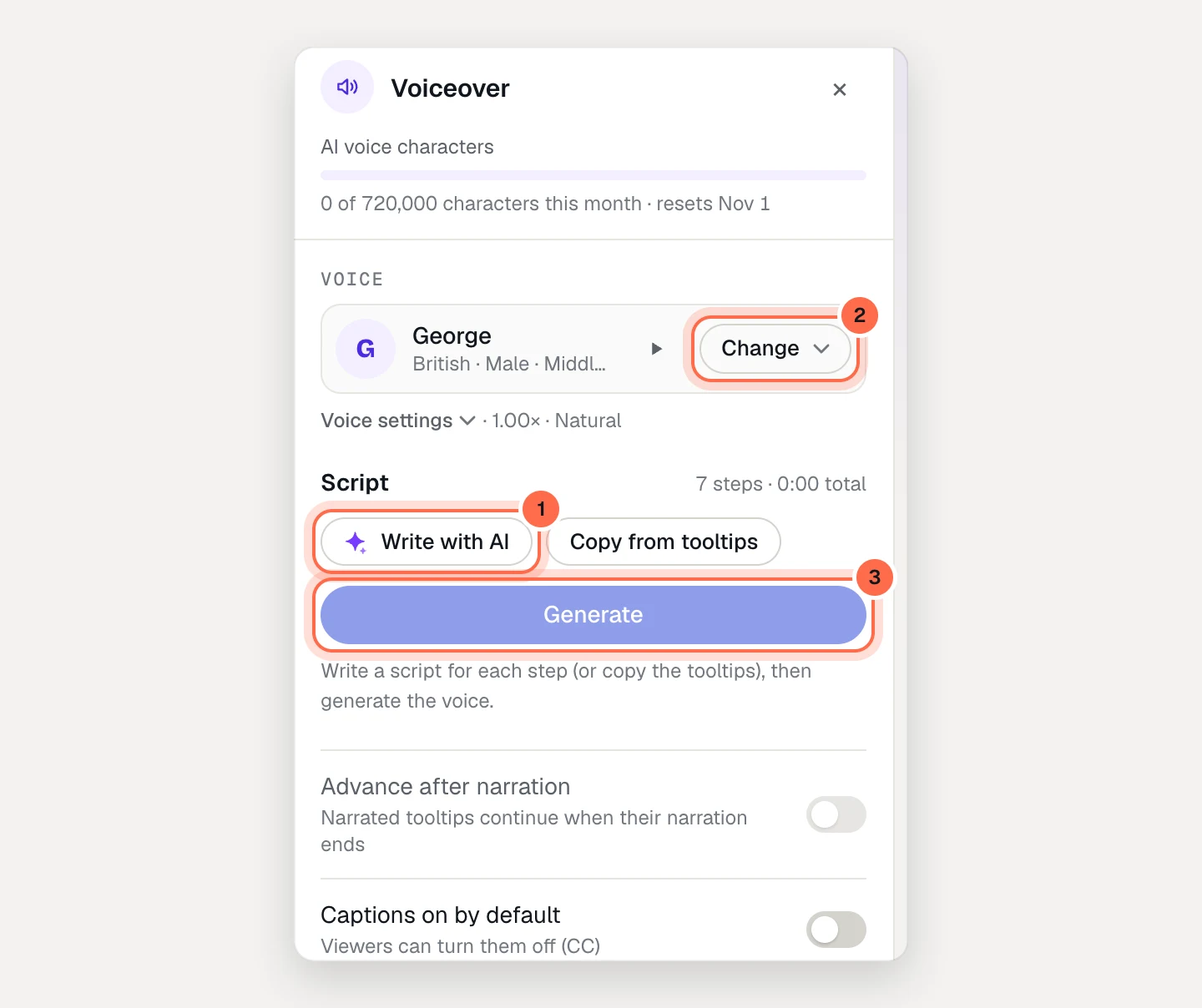
Turn on Advance after narration so tooltips move on when the voice finishes, and Captions on by default for viewers watching on mute. If the voice mispronounces your product name, add a Say it as spelling to the term in your glossary. Captions keep the written word.
Voiceovers are on Pro and Team. AI voices use characters: 60,000 per creator a month on Pro, 120,000 on Team, 10,000 during a trial. A 10-step demo is about 1,200. Recording and uploading your own audio don’t count.
4. Make the docs page from the same demo
Every published demo is also a step-by-step guide. Open the Guide tab:
- Write guide copy turns each step into an instruction (“Click New report”) in your instructional voice. The demo’s launch copy stays as it is.
- Use Hide from guide on steps that only make sense in the launch demo, like the intro pitch.
- Copy the guide into your docs (rich text with pictures, or Markdown), Download .md, or link the hosted guide page.
5. Translate it, if you launch in more than one language
In the Languages tab, pick a language under Add a language, click Add, then Translate. The tooltips, cards and buttons are translated, and so are the narration scripts. Generate the voiceover for each language from the Voiceover panel, and every language gets its own clips and captions. The guide follows in every language you publish.
Viewers get their browser’s language, with a switcher. To force one, add lang= to a link or embed.
AI translations are on Pro and Team, in 15 languages. Text inside the captured screens stays as recorded.
6. Put it everywhere on launch day
Publish, then:
- Changelog and blog post. Embed it: Share → Embed → Responsive → Copy. To have readers turn the voice on themselves, tick Start with narration muted. To open the demo at a specific step from a section of the post, add
start=with the step number. - Docs. The guide with the embed above it.
- Launch email. Email clients don’t run embeds, so link to the hosted page with a screenshot from the demo as the image.
- Social posts. Share the hosted link. Its preview shows the demo’s title and description, so write both for that.
- Sales and support. Send the link and the guide to your team before the announcement, so they’re not hearing about it from customers.
- Your demo center. If you have a collection, add the demo to it.
7. After launch, update in one place
When the feature changes, edit the demo and publish. Every embed, the hosted page and the guide update together. Everything you published is in History, if you need to go back.
What to measure
Open the demo’s Analytics tab at the end of launch week:
- Views per day, to see which announcement moved traffic.
- Source for each session in Recent viewers (Embeds, Direct link, Email, Social), and Where views come from on the workspace Analytics page.
- Completion rate and the Step funnel. If many viewers leave before the payoff, move the payoff earlier.
- Narration: sessions that played narration, how many turned the sound on, how many turned captions on, and how much of each step’s narration was heard. If few turn the sound on, make sure the tooltips tell the story without it.
- Guide readers and Exports for the docs page.